Easy Tech Tuts
How to Start and Join a Zoom Call From Slack Easily 2026
By Impran M NLast checked against official docs
Copying a Zoom link into a channel, waiting for everyone to notice it, and then losing the thread once the call starts is the exact friction the Zoom app for Slack removes. Once it's installed, starting a meeting is a single slash command typed into the channel you're already in, and joining is a click on the card it generates.
No separate app switch, no hunting for the right link. This guide covers finding the Zoom app in Slack, what authorizing it involves, the Zoom plan the integration needs, and how the day-to-day slash command works once it's connected.
Before you start
- A Zoom account on a Pro, Business, or Enterprise plan. Zoom's own support documentation excludes free Basic accounts from the Slack integration.
- Permission to install apps in your Slack workspace, or a workspace admin willing to approve the install
01Find the Zoom app in Slack
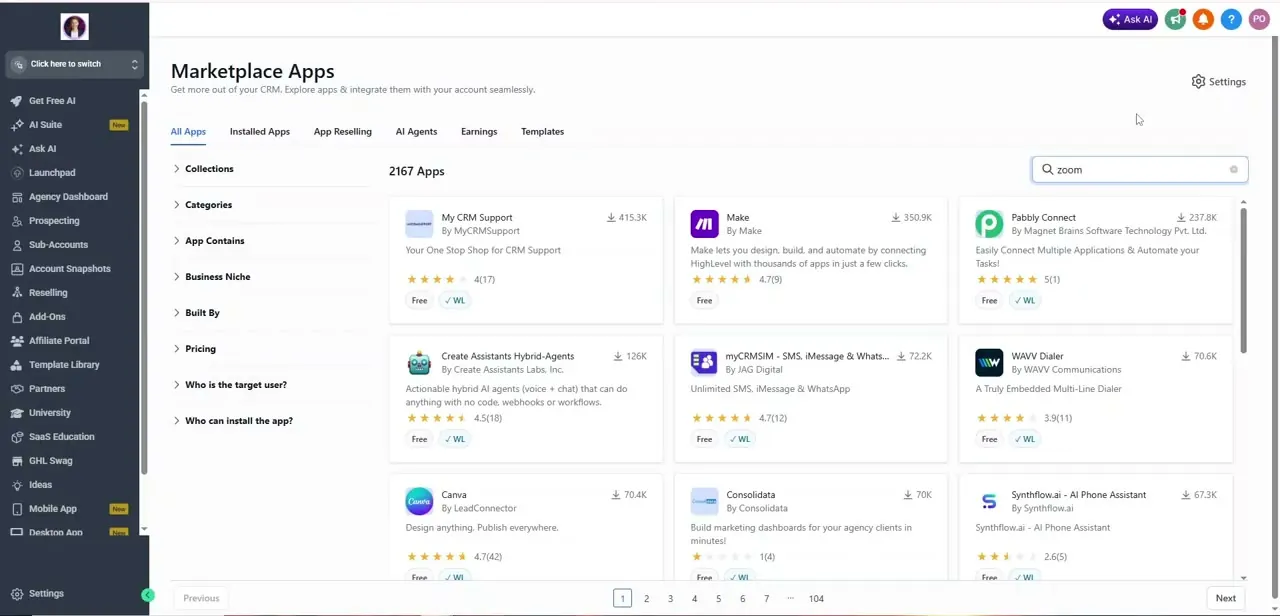
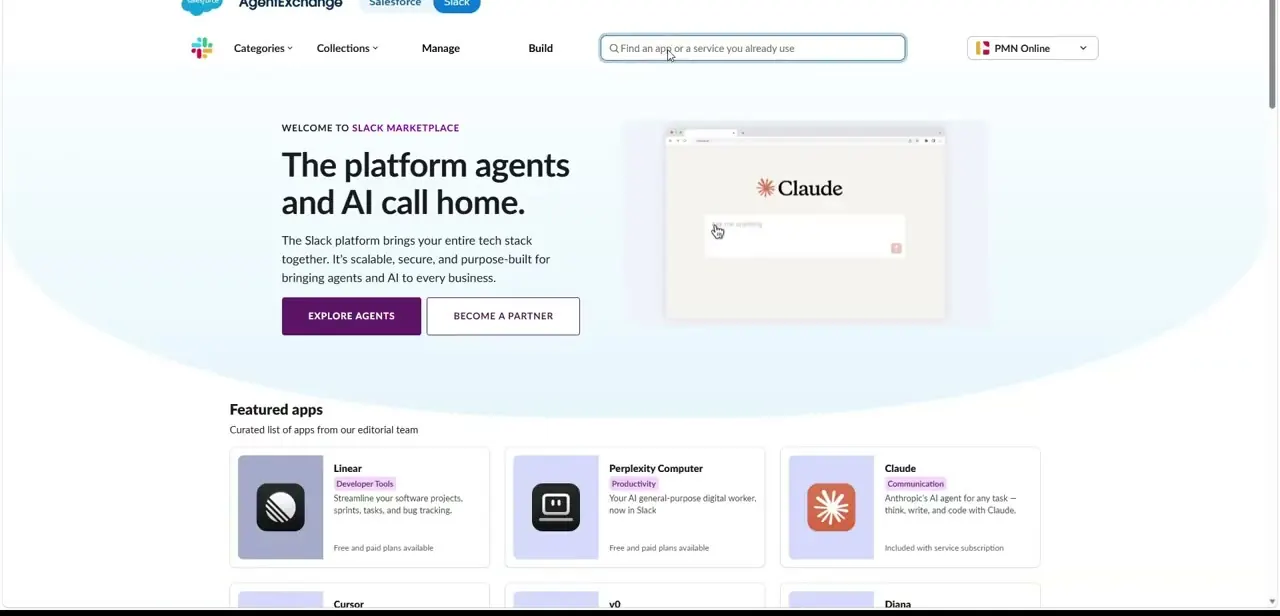
Slack app installs go through Apps in the left sidebar, or the fuller Marketplace site under the Tools menu if a teammate shares a listing link instead. Either route, a plain search for "Zoom" surfaces the official listing directly, the same way you'd search for any other integration.
02Install the official Zoom app
Open the verified listing and click Add to Slack. If you're a workspace admin, Slack asks whether to install for the whole organization or just for you; either way, review the permissions screen that follows before clicking Allow.
It typically lists the ability to post messages, create meeting links, and read basic channel information, and it's the only place you'll see exactly what access you're granting before the integration goes live. Some workspaces also require a Zoom account admin to pre-approve the app in the Zoom Marketplace first. If the install stalls partway through, that's usually why.
03Sign in to your Zoom account
After approving the permissions, Slack redirects you to Zoom's own sign-in page to connect your account. Use your organization's Zoom credentials, then accept the consent screen that follows.
This is the step that ties your Zoom license to your Slack workspace, so meetings you generate later carry your account's settings and plan limits. That connected account needs to be on a Zoom Pro, Business, or Enterprise plan. It will connect on a free Basic account, but Zoom's own support documentation excludes Basic accounts from the Slack integration, and hosting through /zoom typically won't work from one.
04Launch a call with the /zoom slash command
Back in Slack, go to any channel or direct message, type /zoom, and press Enter. This posts a meeting card with a Join button, generated fresh for that moment instead of reusing a static personal link, which keeps unrelated calls from colliding. Anyone in the channel can click Join straight from the card without opening Zoom separately first.
05Set Zoom as your default call trigger
If your team leans on Zoom more than Slack's built-in Huddles, a workspace admin can set it as the default: Administration > Workspace Settings > Settings tab > Calls, then choose Zoom for video calls and, if your plan includes Zoom Phone, for phone calls too. After that, the call icon at the top of any channel starts a Zoom meeting immediately instead of asking which tool to use. It's a small setting, but it removes a click from the most common action in a fast-moving channel.
Frequently asked questions
Does the Zoom Slack integration work with a free Zoom account?
No. Zoom's own support documentation for the Slack app lists a Pro, Business, or Enterprise account as a requirement. A free Basic Zoom account can connect to Slack but isn't supported for hosting meetings through /zoom.
Do all participants need a Zoom account to join?
No. Anyone in the channel can join through the generated link without a Zoom account of their own. Only the host's connected account needs the Pro-or-higher plan.
Can I set Zoom as my default call option in Slack?
Yes. A workspace admin can do this under Administration > Workspace Settings > Calls, mapping the channel's call button to start a Zoom meeting instead of Slack's own Huddles.
Does the integration work in direct messages too?
Yes, /zoom works the same way in both public channels and direct messages.
Where do I find the Zoom app if it isn't in my sidebar shortcuts?
Search for it directly in Slack's Apps panel or Marketplace site; it doesn't need to be pinned to a shortcut to be installed or used.
Sources and last check
Click path, screenshots, and the day-to-day slash-command behaviour come from a recording made in 2026. Account and plan requirements, and the Administration > Workspace Settings > Calls path for setting a default, were checked in September 2026 against Zoom's own support article for the Slack app. That check caught that a free Basic Zoom account isn't supported for hosting through /zoom, a constraint the article previously didn't mention.
About the author

Impran M N
I've been hooked on technology for as long as I can remember — especially the new tools and AI apps that seem to land every other week. Easy Tech Tuts is where I write up whatever I've just worked out: I do the task in the real product, record the screen, and turn it into the guide I wish I'd found first.