Easy Tech Tuts
How to Pan and Zoom Images in Canva Videos Easily 2026
By Impran M NLast checked against official docs
A still photo dropped into a video timeline reads as flat next to clips that actually move, and that gap is usually what makes a slideshow-style video feel amateur. Canva's answer isn't a manual keyframe editor; it's a set of one-click page animations you apply to an image, and the pan-style option is what turns a static photo into something that drifts across the frame instead of sitting frozen. This guide covers picking the right source image, applying that movement through Canva's Animate panel, and the speed control sitting inside that panel that's easy to miss.
01Add a background image to animate
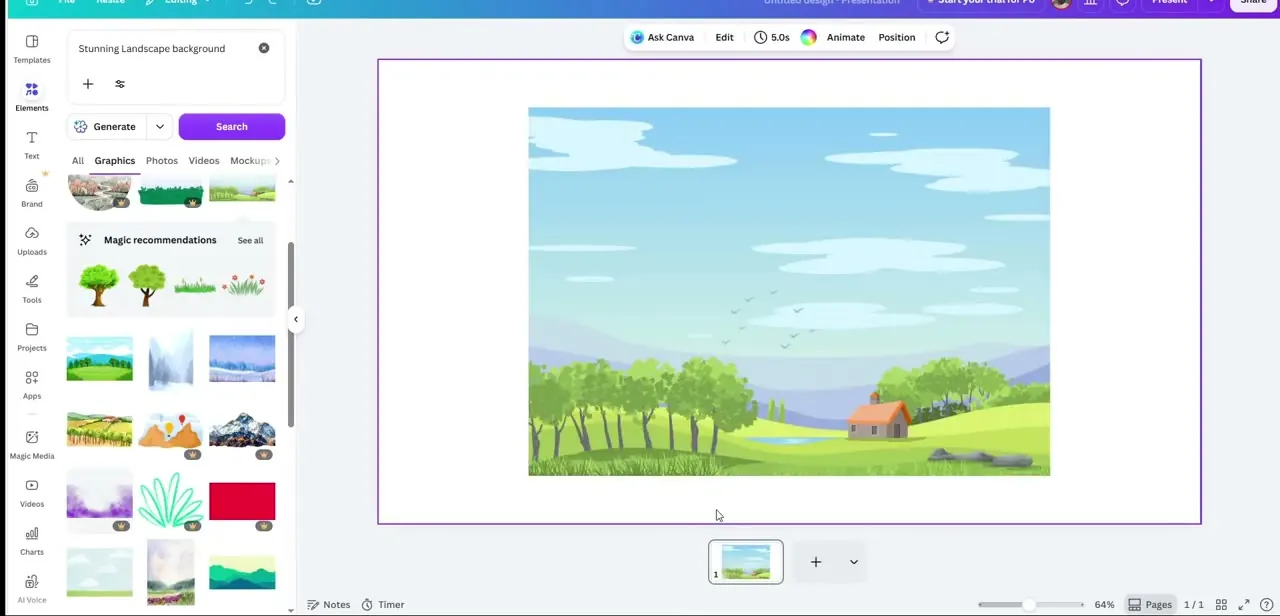
Open the Elements panel and either search stock photography or use a generated background; the panel shows curated suggestions like "Magic recommendations" alongside search results the moment you start typing. Wide landscape-style images give the pan effect more room to move than a tightly cropped photo, since a cropped image runs out of frame to travel across almost immediately.
02Select the image on the canvas
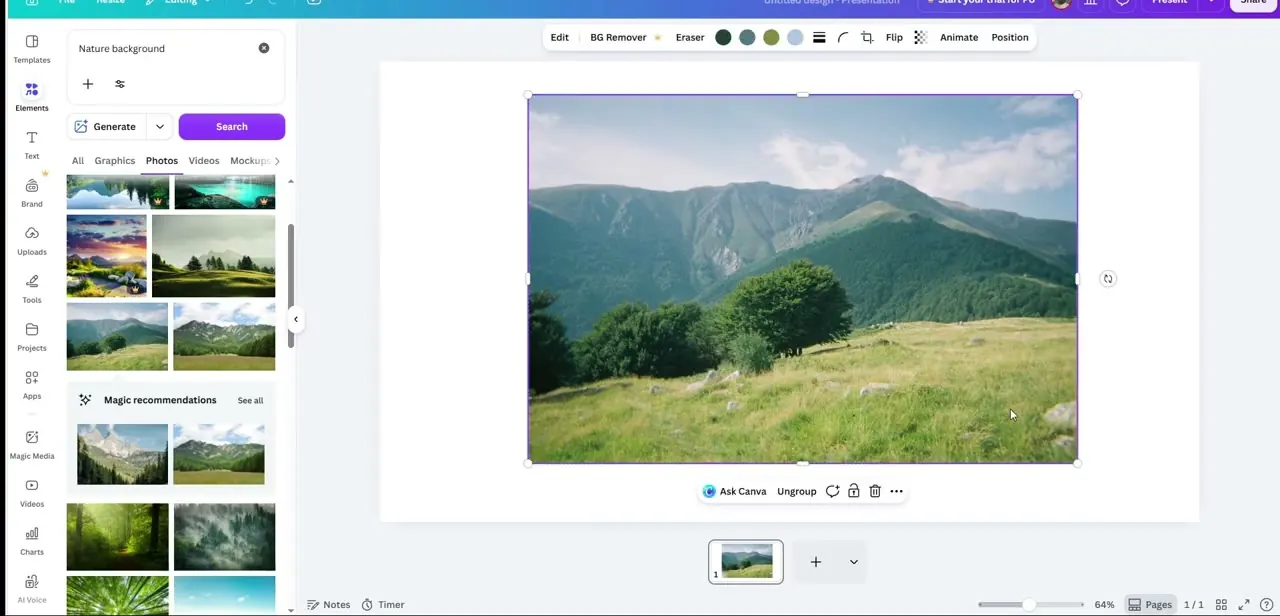
Click the image so its selection handles appear and the contextual toolbar switches to image-specific tools: Edit, BG Remover, Eraser, and Animate among them. Animation applies per element in Canva, not to a whole page by default, so this selection step matters. If text or a logo sits layered over the photo, click the actual image layer, not the group, unless you want everything animating together.
03Open Animate and choose Pan
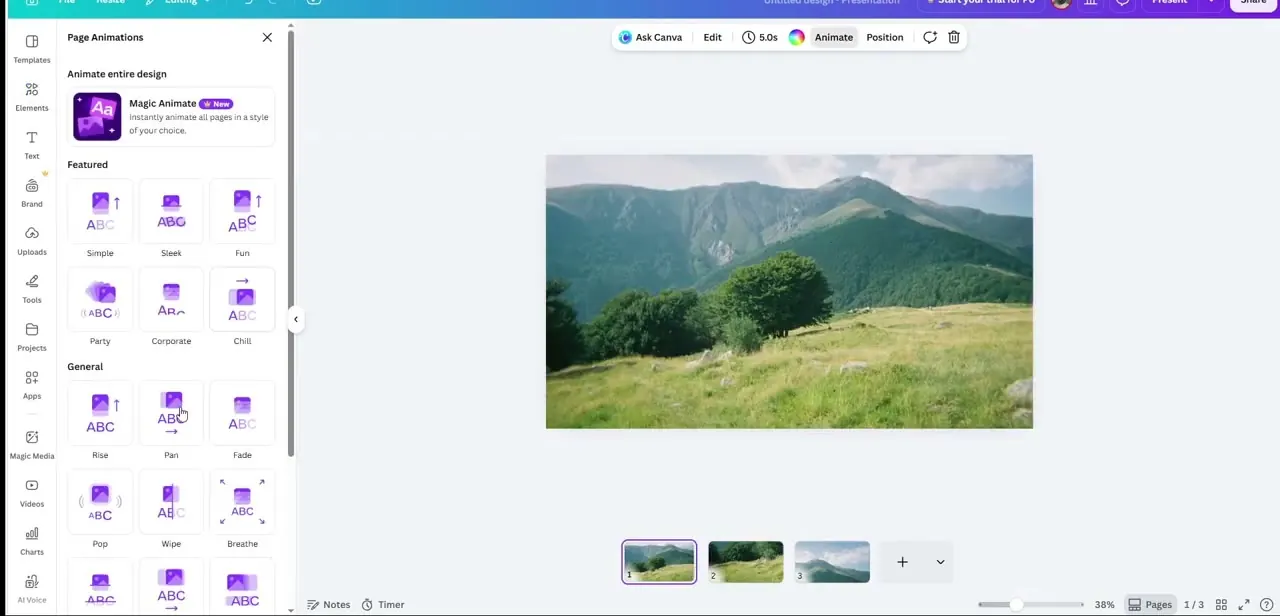
Click Animate and a panel opens on the left with animation styles grouped into Featured (Simple, Sleek, Fun, Party, Corporate, Chill) and General (Rise, Pan, Fade, Pop, Wipe, Breathe, and more below). Pan delivers the classic slow-drift effect, moving the image steadily across the frame for the time it's on screen; it's what most people mean when they say a photo has "pan and zoom" applied, even though Canva files it under motion, not a combined named effect.
Breathe, sitting next to it, does a gentle zoom pulse instead of a directional pan, so try both on the same image to see which suits the content. Some styles carry a small crown icon marking them Canva Pro-only. Free accounts get a smaller set per element than Pro, Teams, Education, or Nonprofit accounts do, so check for a crown on whichever style you pick.
04Set the animation's speed
The Animate panel has its own speed control for element animations, a preset of Slow, Medium, or Fast, plus more precise duration settings, so you don't need to touch the whole page's length just to make a pan feel calmer or snappier. The page's own duration on the timeline still caps how long the animation gets to run; a page held for only a second or two cuts the pan short even on the Slow setting. Scrub the page in the preview after adjusting either control to see how it actually plays out.
05Apply it consistently across a multi-page video
If your video has several image pages back to back, reapplying the same style to each keeps the movement consistent instead of jarring the viewer with a pan on one slide and a hard cut on the next. Canva doesn't offer a button to copy an animation to every page at once, so this means reselecting each image and reapplying Pan (or whichever style you settled on) individually, tedious for a long video, but worth it for anything meant to feel professionally produced.
06Use it deliberately, not on every image
Pan and zoom-style movement works best when it guides attention toward something specific, a product detail, a key phrase in overlaid text, instead of getting applied reflexively to every photo in the video. A page that's mostly text with a small supporting image often reads better with no animation at all, or a subtle Fade, so the pan on your actual hero shots stands out instead of blending into a video where everything moves all the time.
| Style | Motion | Good for |
|---|---|---|
| Pan | Slides the image steadily across the frame for the animation's duration | Wide, landscape-style photos with room to travel |
| Breathe | A gentle zoom pulse in and out, no directional movement | Tighter crops, portraits, or product shots where panning would run out of frame |
When it doesn't work
The pan barely seems to move.
Why: Often a tightly cropped image with little room to travel within the frame, or a very short page duration on the timeline.
Fix: Use a wider source image, or increase the animation's own speed setting and the page's timeline length.
Animate only shows options for a group, not the photo underneath.
Why: Text or a logo layered over the image got selected together with it, so Canva treats it as one grouped element.
Fix: Click directly on the photo layer, or ungroup, before opening Animate.
Reapplying Pan to every page in a long video is easy to miss on one slide.
Why: Canva applies animations per element with no bulk-apply-to-all-pages button.
Fix: Work through pages in timeline order and confirm each shows the Pan label in its corner before moving to the next.
Frequently asked questions
What does the pan and zoom effect actually do?
In Canva, it's a page animation applied to an image. Pan moves the image across the frame for as long as the page is on screen, while Breathe adds a subtler zoom-like pulse instead of directional movement.
How do I control how fast the pan moves?
The Animate panel has its own speed preset, Slow, Medium, or Fast, plus finer duration settings. The page's timeline length also matters, since it caps how long the animation has to play out.
Do I need design experience to use this feature?
No. Selecting an image and clicking Animate is the whole process. The harder part is choosing which images benefit from movement instead of applying it to everything by default.
Can I apply the same animation to multiple images at once?
Not in a single action. Canva applies animations per element, so on a multi-page video you'll need to select each image and reapply the style individually to keep the movement consistent.
Is Pan available on a free Canva account?
Usually, but some animation styles are marked Pro-only with a small crown icon and free accounts get a smaller set per element. Check for a crown on Pan or Breathe in your own account before planning a video around either one.
Sources and last check
Click path, screens, and the Featured/General animation categories come from a recorded walkthrough. Checked against Canva's official Help Center in September 2026, which corrects the earlier draft's claim that the Animate panel has no speed control: it has a Slow/Medium/Fast preset and duration settings for element animations, separate from the page's own timeline length, and this pass rewrote the speed-related steps and FAQ around that.
About the author

Impran M N
I've been hooked on technology for as long as I can remember — especially the new tools and AI apps that seem to land every other week. Easy Tech Tuts is where I write up whatever I've just worked out: I do the task in the real product, record the screen, and turn it into the guide I wish I'd found first.