Easy Tech Tuts
How to Connect Zoom to GoHighLevel Calendar Easily 2026
By Impran M NLast checked against official docs
Manually creating a Zoom link and pasting it into every booking confirmation doesn't scale past a handful of appointments a week. GoHighLevel has a native video conferencing connection built into its calendar settings that generates a fresh Zoom link automatically every time someone books.
One thing the setup screens don't make obvious: this connection lives on each user's own profile, not on the sub-account as a whole, and it only works on certain calendar types. This guide shows where the setting lives, what the Zoom authorization screen looks like, and the constraints HighLevel's own documentation puts on both.
Before you start
- A Zoom account for each team member who takes bookings, since the connection is per user, not per sub-account
- A calendar already set up as one of the types that support dynamic Zoom links: Personal, Round Robin, Collective, or Service
01Understand the per-user connection, then open the settings
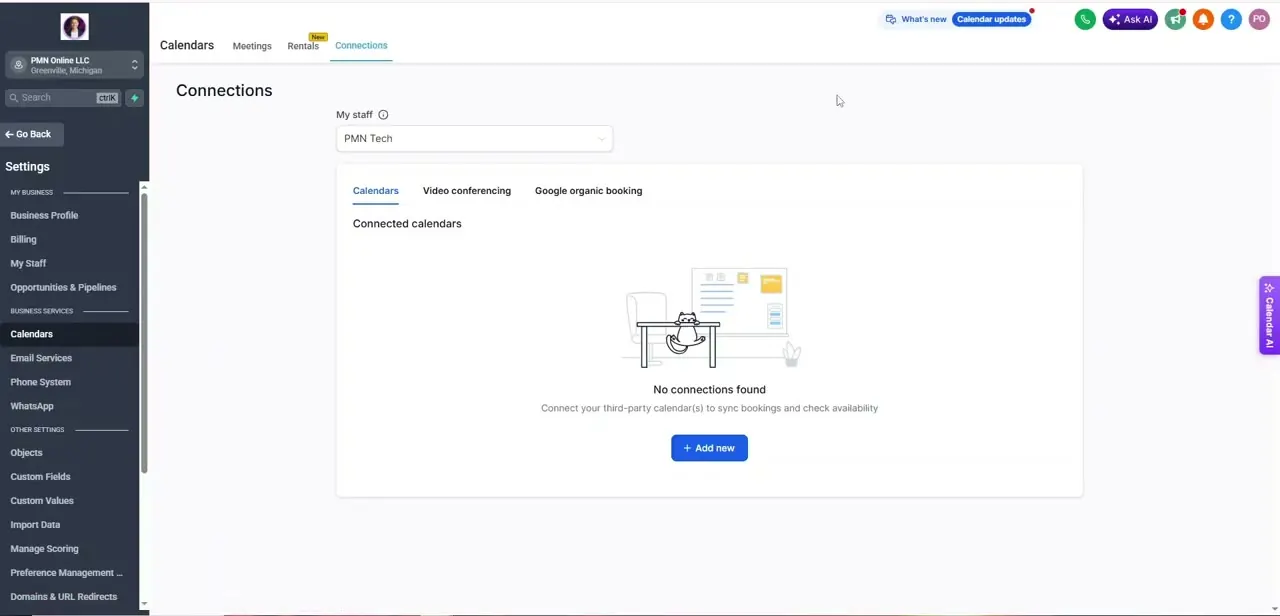
GoHighLevel ties a Zoom connection to an individual user's profile, not to the sub-account as a whole: one Zoom account per user, and each teammate taking bookings needs to connect their own. Start from either of two places: Settings, then My Profile, then the Video conferencing tab under Calendar, or Settings, then Calendars, then Connections.
Connections lists every third-party tool your calendars can talk to, video conferencing included, and on a fresh sub-account it opens to an empty state reading "No connections found" under its Calendars tab. That's easy to mistake for the whole page instead of one of its several tabs.
02Open the Video conferencing tab and click Connect on Zoom
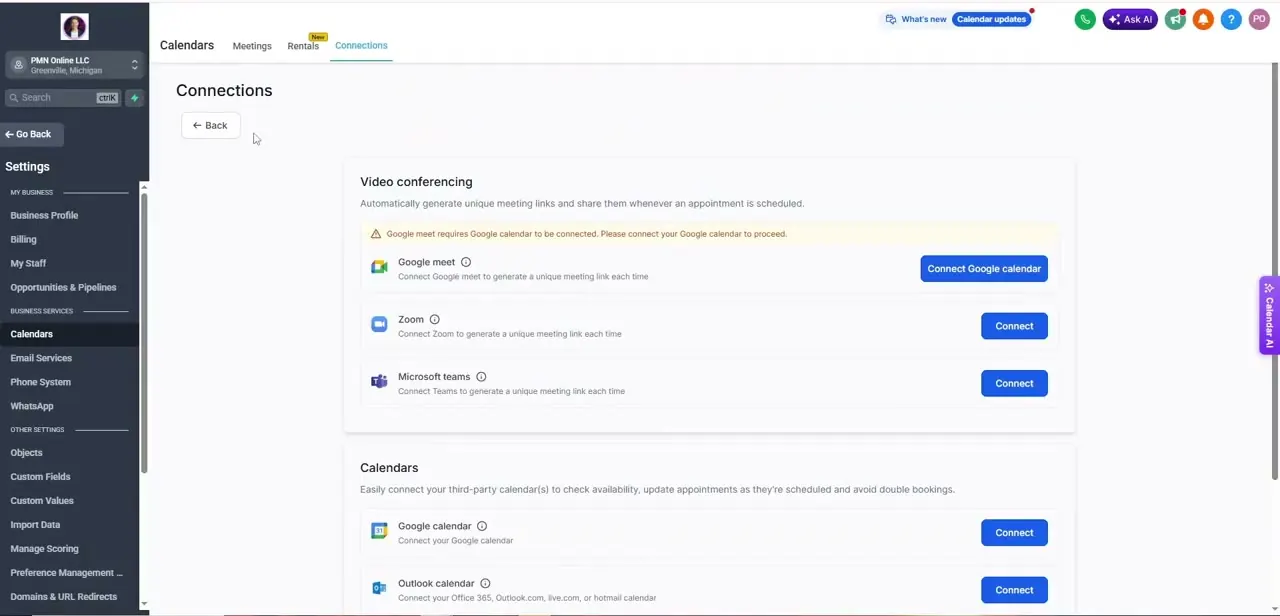
Within Connections, switch to the Video conferencing tab. It lists Google Meet, Zoom, and Microsoft Teams side by side, each with its own Connect button, plus a line explaining that connecting one lets GoHighLevel generate a unique meeting link every time an appointment is booked. Google Meet needs Google Calendar connected first; Zoom has no such prerequisite, so you can connect it on its own.
03Sign in to Zoom and authorize
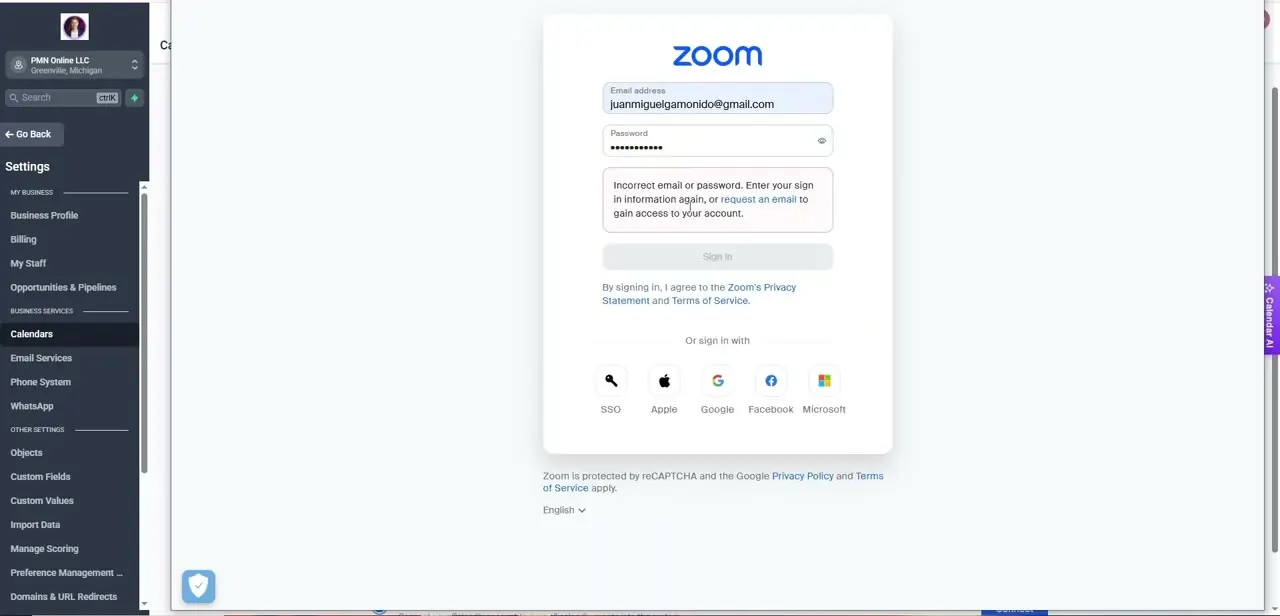
Clicking Connect opens Zoom's own sign-in screen in an overlay, with the usual email and password fields plus SSO, Apple, Google, Facebook, and Microsoft as alternatives. Sign in with the Zoom account this user should book meetings through.
Because the connection lives on your own profile, a colleague doing the same thing later authorizes their own Zoom account separately, and the two don't overwrite each other. After signing in, approve the permissions GoHighLevel requests, and you land back on Connections with Zoom showing as connected.
04Set Zoom as the meeting location on an eligible calendar
A connected Zoom account only generates links on calendar types that support it. Per GoHighLevel's own documentation, that's Personal, Round Robin, Collective, and Service calendars; other calendar types won't offer Zoom as a meeting-location option no matter how the account is connected. Open the calendar you want to use it on, find its meeting location setting, and choose Zoom instead of a physical address or phone call.
05Confirm the automatic link generation works
Book a test appointment through the calendar's public booking page, as a client would. A working connection puts a unique Zoom join link and dial-in details in both the confirmation screen and the confirmation email, generated fresh for that booking instead of a static link set once. Zoom's API allows roughly 100 meeting-creation requests a day per connected account, so a very high-volume calendar could hit that ceiling before the day resets.
When it doesn't work
Zoom shows connected, but one teammate's calendar still isn't generating links
Why: The connection is tied to each user's own profile. Connecting Zoom under your account doesn't connect it for anyone else.
Fix: Have that teammate sign in and connect their own Zoom account under their profile.
A specific calendar never offers Zoom as a meeting location
Why: Dynamic Zoom links only work on Personal, Round Robin, Collective, and Service calendars.
Fix: Switch the calendar to one of those types, or add the Zoom link manually for other calendar types.
Links stopped generating partway through a heavy booking day
Why: Zoom's API caps meeting-creation requests at around 100 per day per connected account.
Fix: Wait for the daily reset, or spread bookings across a second connected Zoom account for high-volume calendars.
Frequently asked questions
Do I need a paid Zoom account to connect it to GoHighLevel?
A standard Zoom account is enough to authorize the connection. Meeting length limits and participant caps still follow whatever Zoom plan that account is on.
Will clients automatically receive the Zoom link after booking?
Yes, once Zoom is connected and set as the meeting location on an eligible calendar. GoHighLevel generates a unique link per booking and includes it in the confirmation email.
Does every team member need to connect Zoom separately?
Yes. The connection lives on each user's own profile, so a teammate taking their own bookings needs to sign in and authorize their own Zoom account, not share yours.
Why isn't my calendar generating Zoom links even though Zoom shows as connected?
Either the calendar isn't one of the types HighLevel supports for dynamic Zoom links (Personal, Round Robin, Collective, and Service), or the connection was made under a different user's profile than the one that owns the calendar.
Can I disconnect Zoom from GoHighLevel later?
Yes. Return to Settings, then Calendars, then Connections, then Video conferencing, and disconnect or reconnect Zoom from the same panel at any time.
Sources and last check
Click path and screens come from a walkthrough recorded in 2025. Re-checked against GoHighLevel's own support articles in September 2026: the original draft described this as an account-level connection, but HighLevel ties it to each user's profile instead. Its docs also limit dynamic Zoom links to Personal, Round Robin, Collective, and Service calendars, and note a roughly 100-meeting-per-day API ceiling per connected account. All three corrections are reflected above.
About the author

Impran M N
I've been hooked on technology for as long as I can remember — especially the new tools and AI apps that seem to land every other week. Easy Tech Tuts is where I write up whatever I've just worked out: I do the task in the real product, record the screen, and turn it into the guide I wish I'd found first.