Easy Tech Tuts
How to use Localwp, Localwp Full Tutorial 2026, Install WordPress Site like localhost & Plugin
By Impran M NLast checked against official docs
Local (often called LocalWP) lets you spin up a full WordPress website on your own computer in a few clicks, no hosting account or domain required. This guide covers downloading Local from the official site, running through its site-creation wizard including the environment choice most beginners skip past without understanding, and confirming a new WordPress install is running before touching themes or plugins. It's aimed at anyone who wants a safe, disposable place to practice WordPress or test changes before they touch a live server.
Before you start
- Windows 10/11 (64-bit), macOS Monterey (12) or later, or a Debian- or RPM-based Linux distro
- About 4GB of RAM and 1.5GB of free disk space, more if you plan to run several sites at once
01Download and install Local
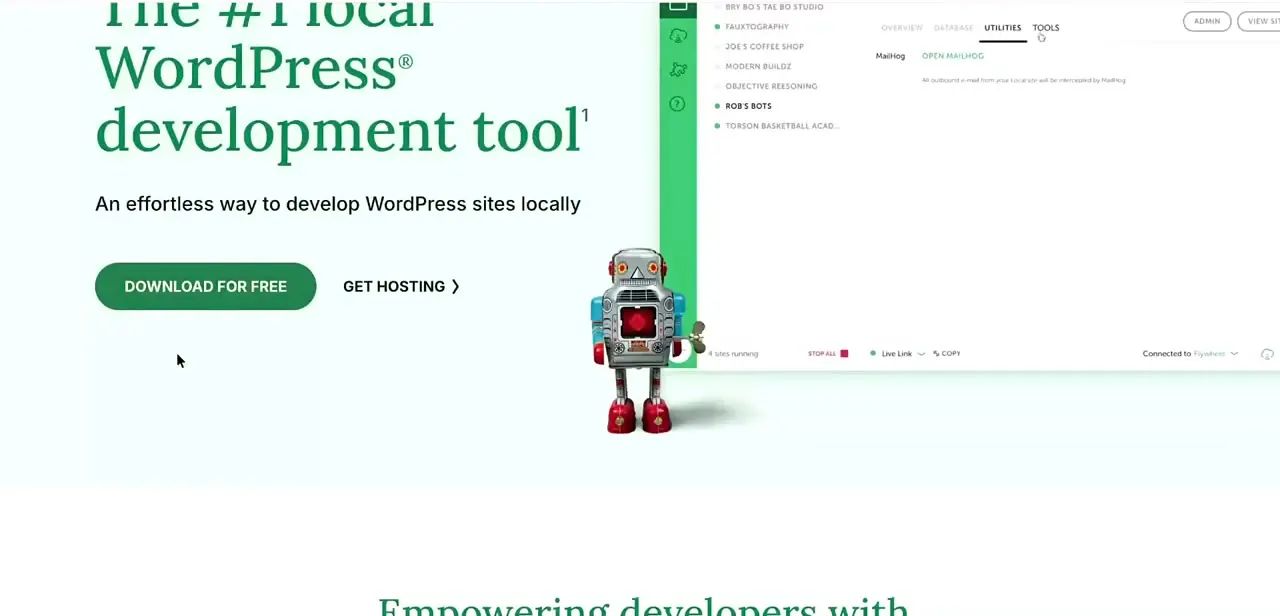
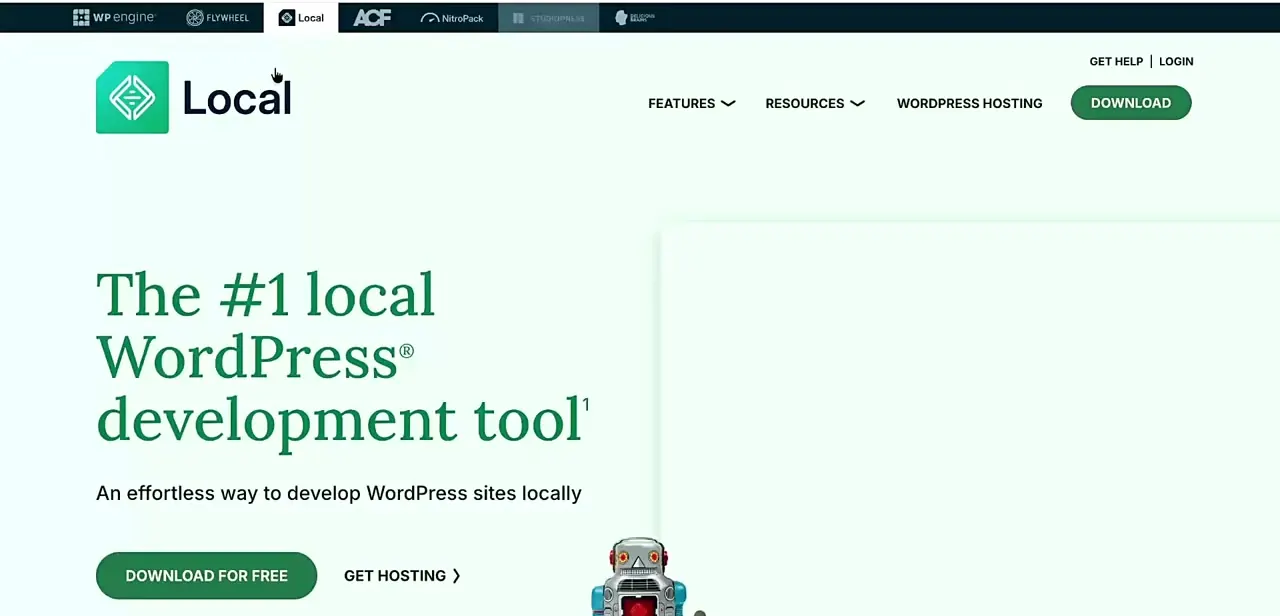
Local is built by WP Engine and distributed free from localwp.com, where the homepage bills it as "The #1 local WordPress development tool." It's available for Windows 10/11, macOS Monterey or later, and Linux, as a .deb package for Debian-based distros like Ubuntu or an .rpm for Fedora and Red Hat. The installer needs roughly 1.5GB of free disk space, and Local recommends at least 4GB of RAM. Local bundles its own PHP, web server, and MySQL, so there's nothing else to install separately to get a working WordPress environment.
02Create a new site and choose your environment
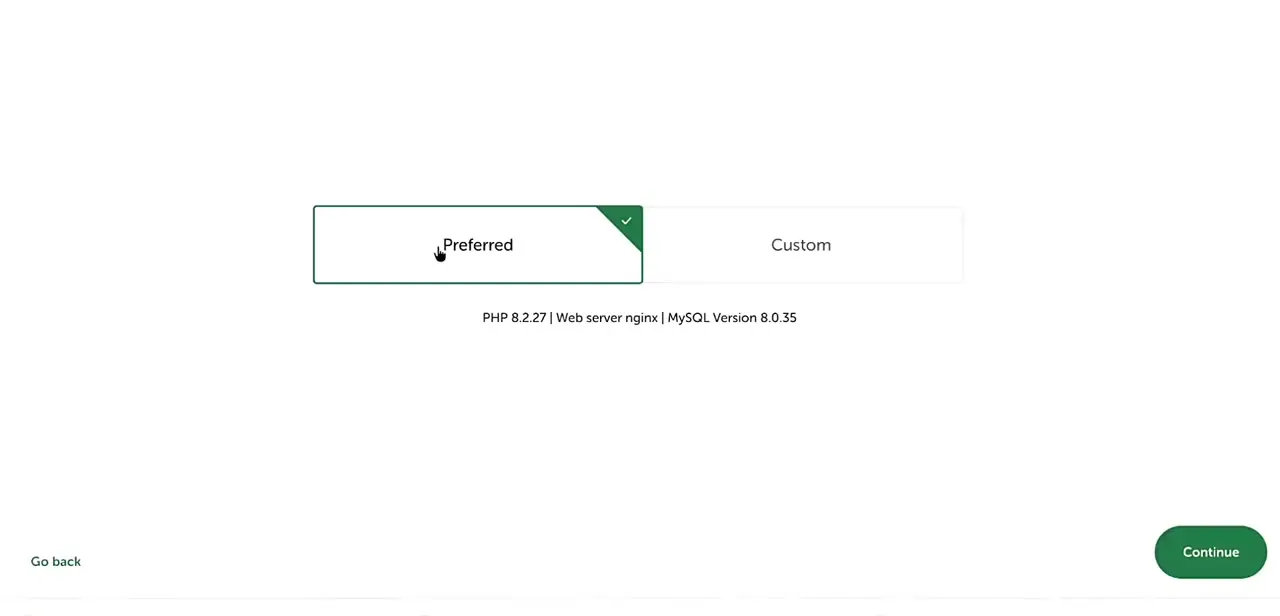
Once Local is installed, creating a site walks you through a short wizard: name the site, then choose an environment. This is the step that trips up beginners, since Local presents two options, Preferred and Custom.
Preferred applies Local's own tested pairing of PHP and MySQL versions with an NGINX web server (one setup showed PHP 8.2.27, nginx, and MySQL 8.0.35), and it suits most beginners. Custom lets you pick different PHP or MySQL versions by hand, which matters if your live host runs something older and you want the local site to behave the same way before you migrate.
03Confirm the site is live locally
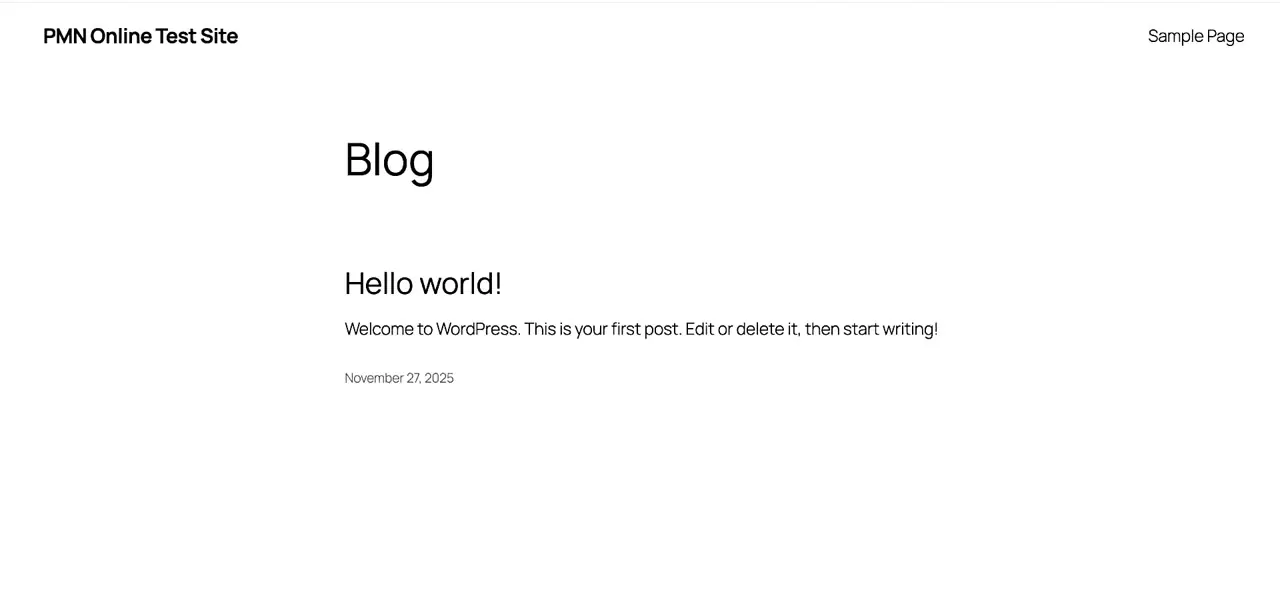
After the wizard finishes, Local starts the site's local server automatically, and it's reachable in your browser like any WordPress install, just pointed at a local address instead of a real domain. A fresh install shows the default WordPress theme with the standard "Hello world!" post under Blog: confirmation that everything installed correctly and you're ready to start customizing.
04Work inside the site: themes, plugins, database, and SSL
From here, working on your local site is the same as working on a live one. Log in to the WordPress dashboard at the site's local admin URL and install themes or plugins from the same Add New screens you'd use anywhere else.
Page builders like Elementor install and run the same way, which is why Local is popular for testing: you can try a heavy plugin or a theme switch with no risk to a production site. For the database, open the site's Database tab inside Local and use the built-in database viewer there instead of setting up a separate client, or copy the connection details shown on that tab into an external tool like MySQL Workbench, DBeaver, or TablePlus.
For HTTPS, the Site Overview page has an SSL section with a Trust button. One click creates and trusts a certificate so you can test SSL-dependent behavior, such as mixed-content warnings, before your real domain has one configured. On newer macOS versions Local can't always trust the certificate automatically, and you may need to set it to "Always Trust" in Keychain Access yourself.
05Troubleshoot and export when you're ready to go live
If a site won't start, restart it from Local's site list first, then check the app's built-in logs for the specific service that failed to boot before restarting Local itself. Once you're happy with the result, right-click the site and choose Export.
Local packages the entire wp-content folder, plus a database export, into a single zip: everything a host needs to bring the site online. That's the intended endpoint of the workflow: build and break things locally, then push a finished, tested site live.
When it doesn't work
The built-in database viewer won't open from the Database tab
Why: This is a known intermittent issue with the Adminer-based tool some Local versions ship.
Fix: Restart the site, or Local itself, and try again. If it still fails, copy the connection details from the Database tab into an external client like MySQL Workbench or TablePlus instead.
A local site won't start
Why: A port conflict, or a service the site depends on failed to boot.
Fix: Restart just that site from Local's site list, then check Local's built-in logs for the specific service before restarting the whole app.
The SSL certificate still shows a browser warning after clicking Trust
Why: Recent macOS versions block Local from trusting certificates automatically.
Fix: Open Keychain Access, find the certificate, and set "When using this certificate" to "Always Trust," per Local's macOS SSL documentation.
Frequently asked questions
Is Local free to use?
Yes. Local's own FAQ describes it as free for anyone to use, with no paid tier gating features like Live Links, SSL, or the database tools covered here.
Does Local run on Linux, or only Windows and Mac?
All three. Local ships as a .deb package for Debian-based distros such as Ubuntu, and as an .rpm for Fedora and Red Hat, alongside its Windows and macOS builds.
What's the difference between the Preferred and Custom environment when creating a site?
Preferred uses Local's tested default combination of PHP, web server, and MySQL versions. Custom lets you choose versions manually instead, which helps if you need your local site to match an older live hosting environment exactly.
Can I move a site built in Local to a live host later?
Yes. Right-click the site and choose Export; Local packages the wp-content folder and a database export into a zip you can hand to almost any host.
Why isn't my Local site loading?
Often a local server conflict or a site that hasn't fully started. Restarting the site from Local's site list, or checking the app's logs for the specific service that failed, resolves most cases.
How do I open my site's database without installing a separate app?
Open the site's Database tab inside Local, where a built-in database viewer is one click away. The same tab shows connection details if you'd rather point an external tool such as MySQL Workbench at it instead.
Sources and last check
Click path and screens come from a walkthrough recorded in August 2026. OS support, minimum system requirements, the SSL Trust flow, the Database tab, and the export/import behavior were re-checked against Local's official help docs in September 2026. That check corrected two things this guide got wrong: Local also ships for Linux, not only Windows and Mac, and its database viewer sits behind the site's Database tab, not a general tools menu.
About the author

Impran M N
I've been hooked on technology for as long as I can remember — especially the new tools and AI apps that seem to land every other week. Easy Tech Tuts is where I write up whatever I've just worked out: I do the task in the real product, record the screen, and turn it into the guide I wish I'd found first.