Easy Tech Tuts
How to Save, Import & Export Templates in WordPress Using Elementor 2026 Easily
By Impran M NLast checked against official docs
Reusing page designs across WordPress sites, or backing up your layouts, gets much easier once you know how Elementor's template system works. A page built once doesn't need rebuilding from scratch on the next client site: save it as a template, export the file, and import it wherever it's needed. This guide covers saving a page to your Template Library, exporting it as a JSON file, importing it elsewhere, and what to check when a template comes in with pieces missing.
01Open the page you want to reuse
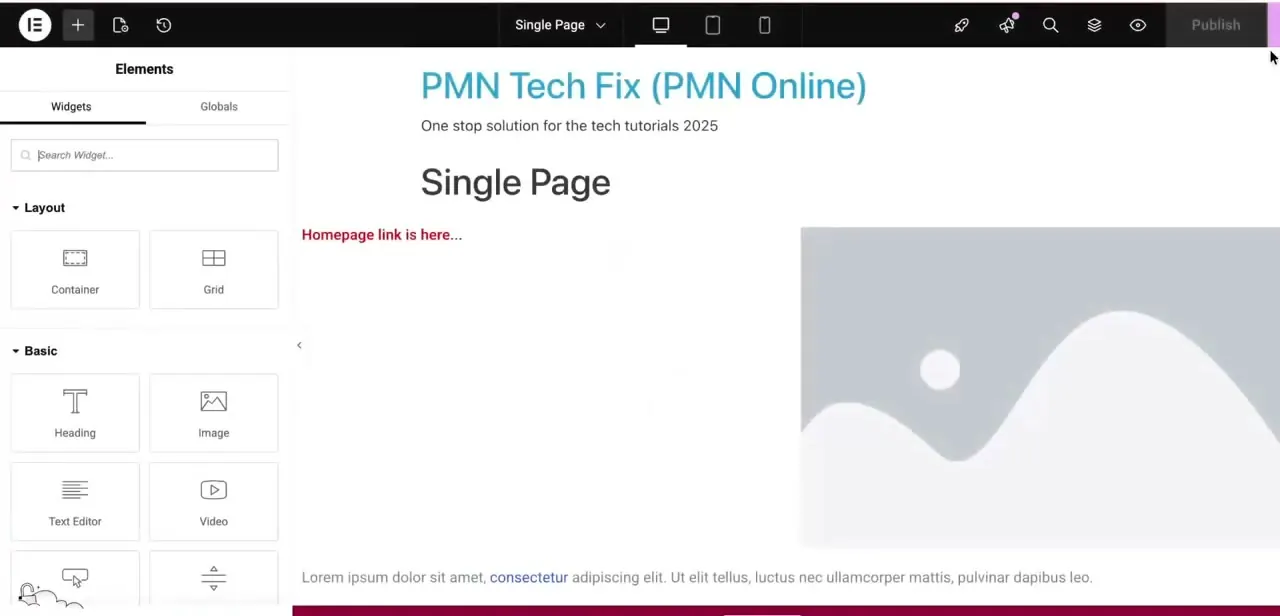
In the Elementor editor, open the page whose layout you want saved for later. The Widgets panel on the left confirms you're in the standard editing view, with Layout elements like Container and Grid at the top and Basic elements like Heading and Text Editor below. Any page you can edit in Elementor can become a template, whether it's a full page, a single section, or a container.
02Save the page as a template
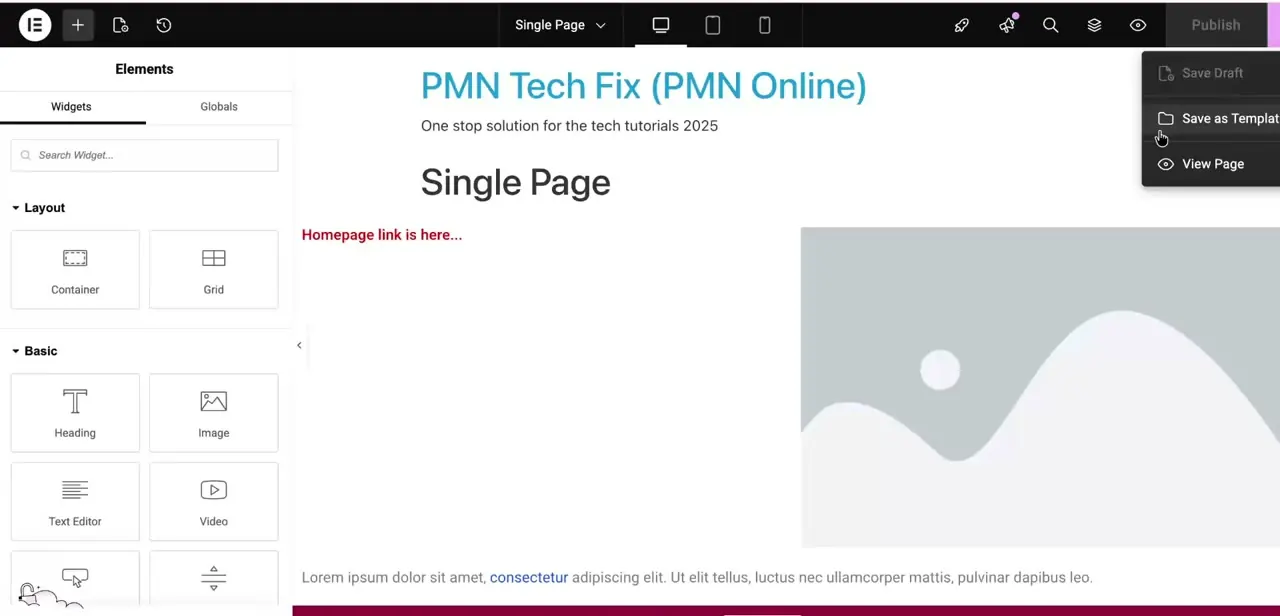
Click the small arrow next to the Publish button to open its dropdown, which shows Save Draft, Save as Template, and View Page. Choose Save as Template and give it a name you'll still recognize months from now.
Elementor's own documentation adds a step worth knowing about here: the save dialog now asks you to choose Site Templates or Cloud Templates. Site Templates stores the design locally on this one site, available to anyone with access to it, free on any Elementor plan.
Cloud Templates saves it to your personal Elementor account instead, making it reusable on any site you connect that account to, but it needs an active Elementor Pro subscription and is only accessible to the account holder. For the JSON export-and-import workflow in this guide, choose Site Templates.
03Export the template as a JSON file
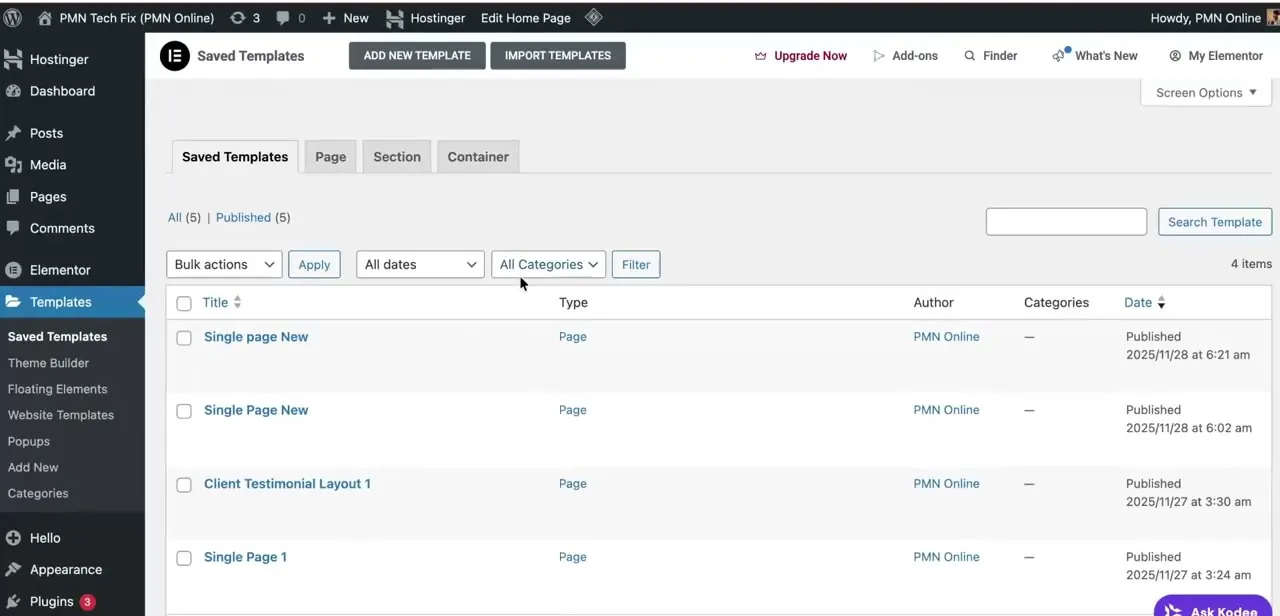
Go to Templates → Saved Templates in the WordPress admin sidebar to see every template saved on the site, listed with its type, author, and date. Find the one you just created and use its export option to download it as a .json file.
Elementor's current help documentation describes the same export from inside the editor's Template Library instead: open the Template Library, click Templates, find the template, click the ellipsis next to its name, and select Export. Either route produces the same JSON file, and either is fine to use.
04Import the template into another site
On the destination site, open the same Templates → Saved Templates screen and click Import Templates near the top. Upload the .json file, and Elementor adds it to that site's Template Library within seconds. Elementor's documentation also supports uploading directly from the in-editor Template Library: open it, click Templates, click the upload icon, select the file (Elementor accepts both .json and .zip here), confirm, then click Insert to add it straight to the page you're on.
05Fix a template that fails to import or comes in missing widgets
The most common cause of a broken import is a plugin mismatch between the two sites. If the original template used a widget from Elementor Pro or a third-party addon, that widget won't render on a site missing the same plugin.
Check what the template depends on before importing; if it uses a specific icon pack or a form plugin's widget, install that on the destination site first. A template that fails to import entirely, instead of coming in with gaps, is usually a corrupted or incomplete JSON file. Re-export from the source site and try again.
06Keep your Template Library organized
Once you're saving templates regularly, naming and categorization stop being optional. Use Elementor's Categories option under Templates to group designs by type: headers, testimonial sections, pricing tables, so you're not scrolling a flat list of similarly-named entries months later. A consistent naming convention, like starting each template's name with the section type it represents, pays off the moment you're hunting for one specific layout in a growing library.
| Option | What it moves | Requires |
|---|---|---|
| Site Templates (this guide) | One page, section, or container, manually via JSON/zip export and import | Free, any Elementor plan |
| Cloud Templates | One page, section, or container, synced automatically across any site tied to your account | Elementor Pro |
| Website Templates (Kit) | An entire site: pages, posts, media, theme, plugins, and settings | Free to export as zip; saving to a cloud library needs an Advanced plan or higher |
From Elementor's own help documentation. If you're moving one design, Site or Cloud Templates are the right tool; for migrating a whole site, use Website Templates under Elementor > Tools instead.
When it doesn't work
The imported template is missing widgets or sections
Why: The destination site doesn't have a plugin or Elementor Pro widget the original template relied on.
Fix: Check what the template uses before importing, and install any matching plugins or Pro features on the destination site first.
A teammate can't find a template that was saved
Why: It was saved to Cloud Templates instead of Site Templates, which ties it to the personal Elementor account of whoever saved it.
Fix: Re-save the design choosing Site Templates so it lives locally on the site, visible to everyone with access to it.
The import fails completely instead of coming in with gaps
Why: Usually a corrupted or incomplete JSON file, not a plugin mismatch.
Fix: Re-export the template from the source site and upload the fresh file.
Frequently asked questions
Does exporting Elementor templates work with the free version?
Yes. Saving, exporting, and importing a Site Template as JSON works in both Elementor Free and Elementor Pro. Cloud Templates, which sync across sites automatically, need Elementor Pro.
Why is my imported Elementor template missing widgets?
Usually because the destination site is missing a plugin or Elementor Pro widget the original template relied on. Check what the template uses before importing and install matching plugins first.
Can I import an Elementor template into a completely different theme?
Generally yes, since Elementor templates are largely theme-independent, though fonts, colors, or spacing inherited from the theme's own global styles may look different on the new site.
How do I move my whole template library to a new website?
With Elementor Pro, Cloud Templates sync automatically without manual export. On the free version, export each template as its own JSON file from Saved Templates, then import them one at a time on the destination site.
Where do I find templates I've already saved?
Templates → Saved Templates in the WordPress admin sidebar lists them all with type, author, and date. The same templates also appear under My Templates in the in-editor Template Library.
Is this the same as exporting my whole website?
No. This guide covers a single template. Moving an entire site, pages, media, theme, and plugins included, is a separate feature called Website Templates (or Kits), found under Elementor > Tools.
Sources and last check
Click path and screens come from a recorded walkthrough using the WordPress admin's Saved Templates screen. Re-checked against Elementor's own help documentation in September 2026, which added the Site Templates vs Cloud Templates choice now shown in the Save as Template dialog, confirmed the in-editor Template Library as an alternate export/import route, and clarified that the separate Website Templates (Kit) feature, not covered by this guide, is what to use for moving an entire site instead of one template.
About the author

Impran M N
I've been hooked on technology for as long as I can remember — especially the new tools and AI apps that seem to land every other week. Easy Tech Tuts is where I write up whatever I've just worked out: I do the task in the real product, record the screen, and turn it into the guide I wish I'd found first.