Easy Tech Tuts
How to install localwp, How to Setup Localwp on Mac, Windows, Ubuntu, Linux, Create New WP Site 2026
By Impran M NLast checked against official docs
LocalWP has become a default way developers spin up WordPress sites without paying for hosting or registering a domain first, since everything runs on your own machine until you're ready to go live. This guide covers getting LocalWP from its official site, confirming your computer meets the minimum requirements, and what happens automatically once a new site is created, whether you're on Mac, Windows, or Linux.
Before you start
- A valid email address — LocalWP's download form requires one before it hands you the installer link
01Download LocalWP from the official site
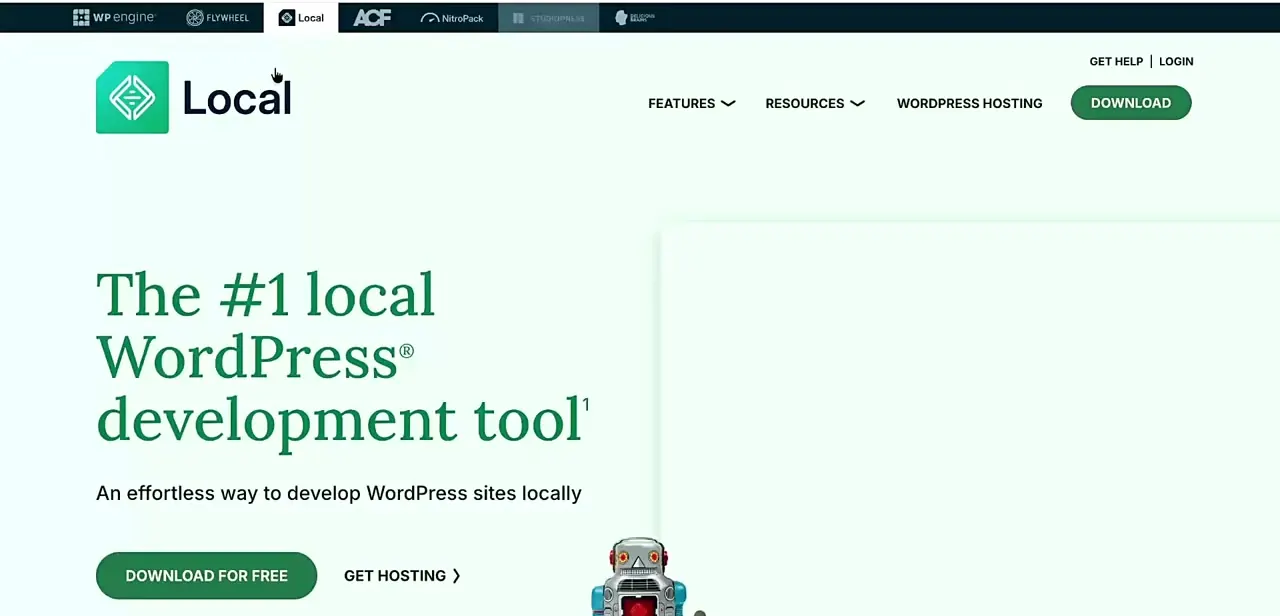
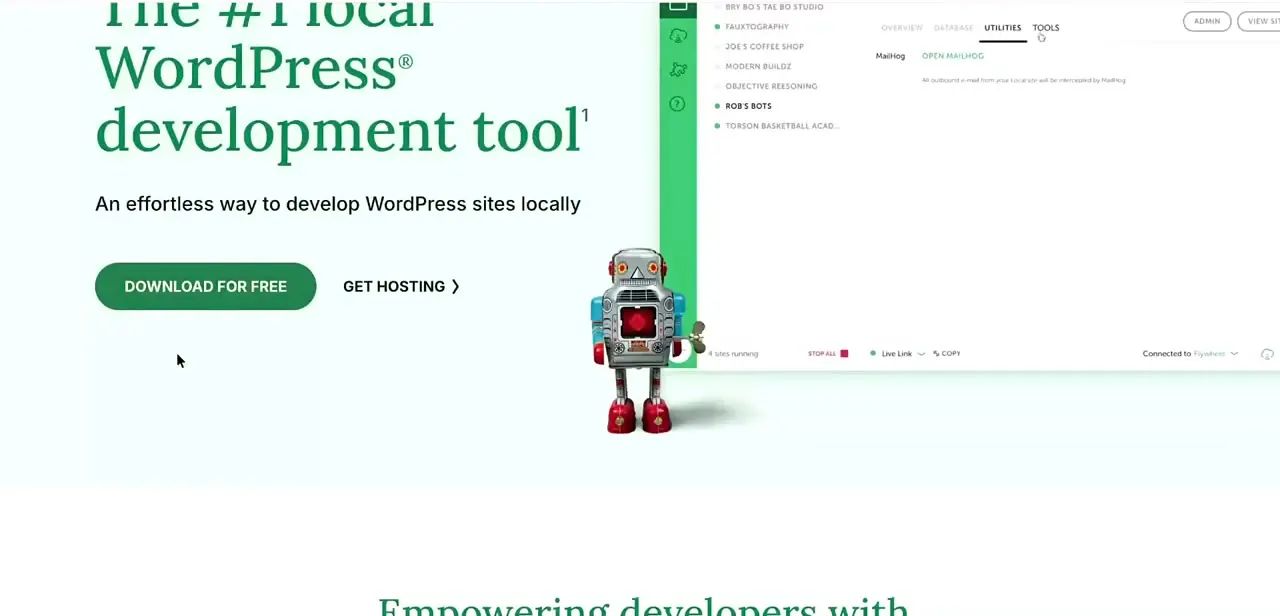
LocalWP's homepage bills it plainly as "The #1 local WordPress development tool," with a single Download for Free button front and center. The site detects your operating system and offers the matching installer: a Mac .dmg, a Windows .exe, or a Linux package.
It asks for an email address before releasing the download link, so have one ready. If you'd rather host instead of develop locally, there's also a Get Hosting link next to the download button, but that's a separate product from the local tool covered here.
02Check the minimum system requirements first
Before installing, confirm your machine clears LocalWP's baseline: at least 4GB of RAM and roughly 1.5GB of free disk space, running macOS Monterey (12) or higher, Windows 10 64-bit or Windows 11, or a 64-bit Linux distribution. Windows 7, 8, 8.1, and any 32-bit build are no longer supported.
On Linux, Local ships both a Debian-based (.deb) build and an RPM-based (.rpm) build, but its own team formally tests only Ubuntu and Pop!_OS; other distributions such as Fedora or Debian itself will likely work but aren't officially verified. These aren't demanding numbers, but checking first saves a failed install partway through on an older laptop or a machine already tight on storage.
03Run the installer for your platform
Open the downloaded file and walk through the setup prompts, which mostly ask where to install the app and whether to launch it once finished. Mac and Windows installs are single-package installers and tend to be the fastest.
Windows may show Defender pop-ups during setup; allow each one so Local's internal components can talk to each other. On Linux, double-click the .deb or .rpm file to hand it to your system's package manager, or install it from the command line. Across every platform, Local handles the underlying server environment itself, so there's no separate step to install PHP, MySQL, or a web server by hand.
04Create your first WordPress site
Once Local is open, creating a site is the point of the tool: name your site, and Local provisions a complete WordPress install behind the scenes, ready to open in your browser or log into as an admin within a minute or two. This replaces what used to require a hosting account, a domain, and a manual WordPress installation just to test a theme or a plugin.
05See what Local sets up automatically
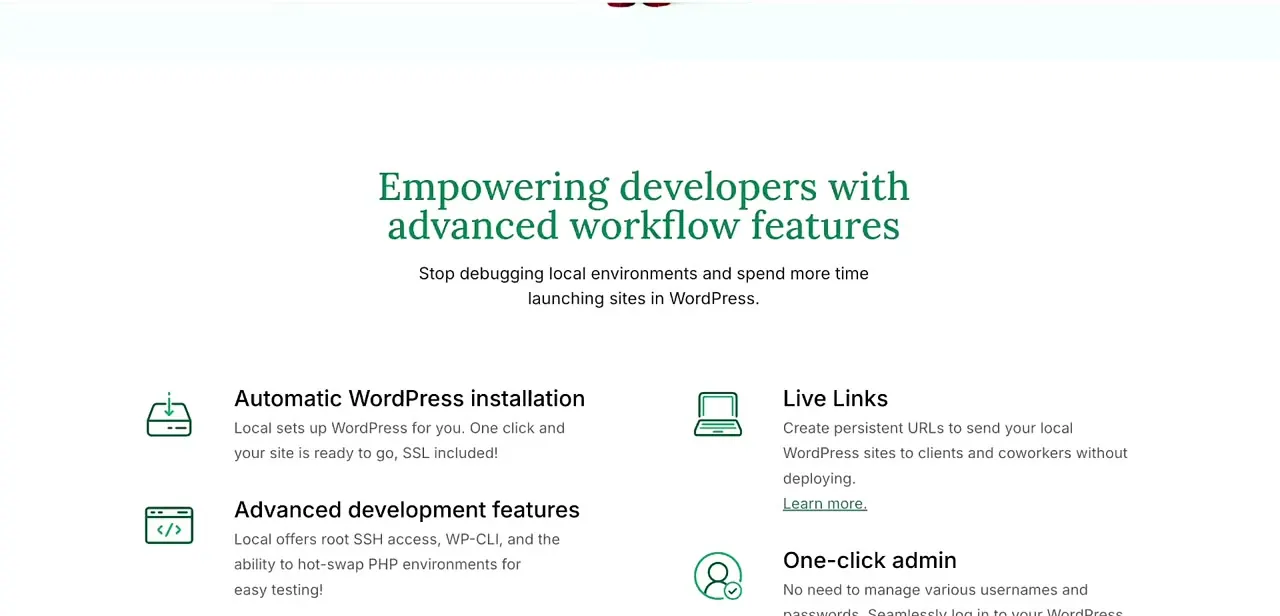
Local's own feature list explains why setup feels fast: one click and the site is ready, SSL included, so you get a working HTTPS local site without configuring a certificate yourself. One-click admin logs you straight into the WordPress dashboard without juggling usernames and passwords for each site.
Live Links can generate a persistent, shareable URL for a site still running only on your machine, useful for showing a client or coworker a work in progress without deploying it anywhere. A database tool gives direct access to WordPress tables for anyone who needs to inspect or edit them without a separate app. For anyone who needs to go further, Local also exposes root SSH access, WP-CLI, and the ability to swap PHP versions for compatibility testing.
06Install themes and plugins like you would on a live site
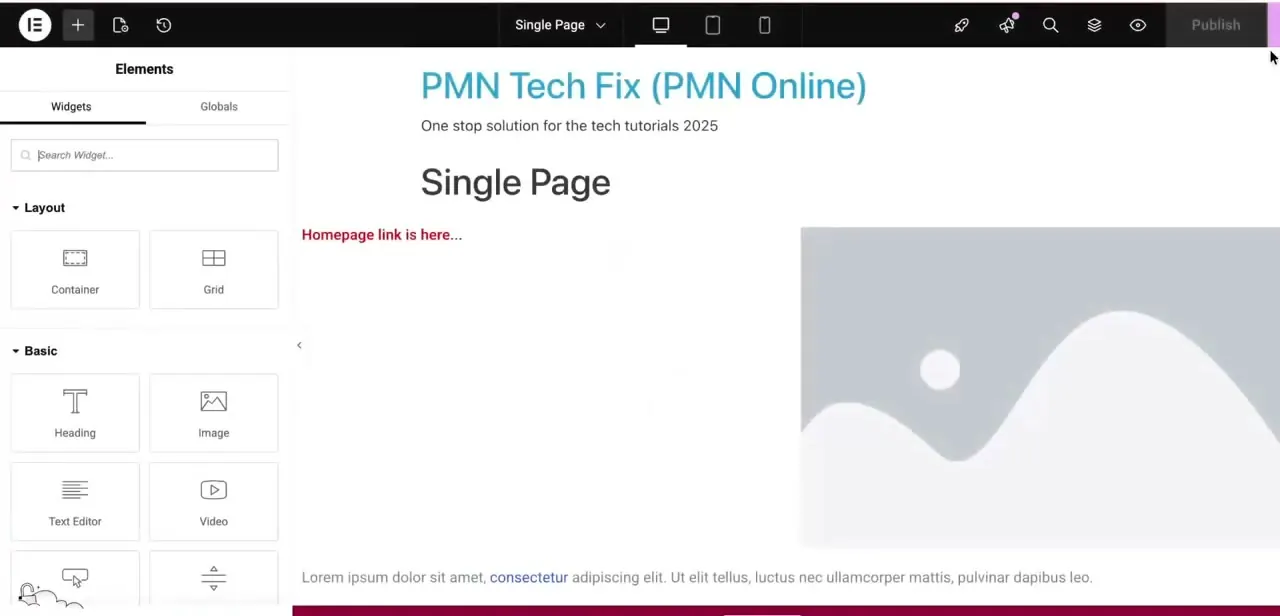
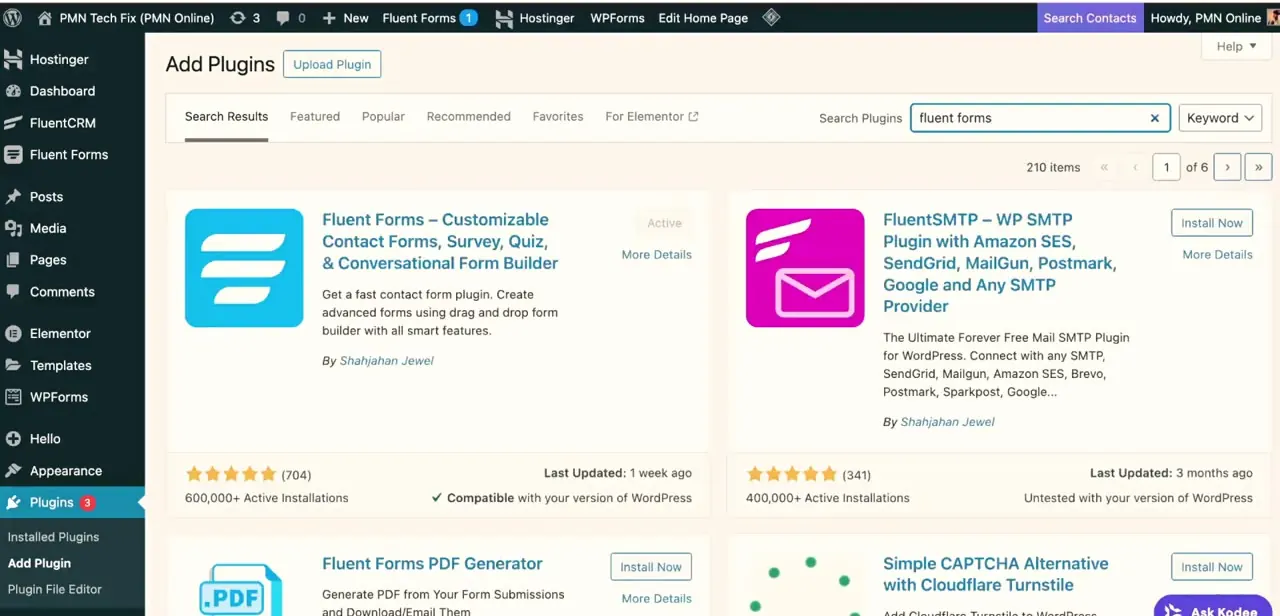
Once your local site is running, the WordPress admin behaves like a hosted install: search and install themes and plugins from the repository, upload a zip file, or activate a page builder like Elementor to test it before it ever reaches a production server. This is the main reason developers keep sites in Local long after the initial build — it's a safe place to try a plugin update or theme change with nothing on the line.
When it doesn't work
Local won't launch, or a site inside it won't load
Why: Another program is occupying the same local port Local needs, or your system no longer meets the minimum requirements.
Fix: Restart Local, close any other local server software running on the same machine, and double-check the requirements from step two.
The installer refuses to run on Windows
Why: You're on Windows 7, 8, 8.1, or a 32-bit build. Local dropped support for these starting with v8.0 and v8.3.
Fix: Upgrade to Windows 10 64-bit or Windows 11. If you're stuck on legacy hardware, an older Local release may still install, though it won't get current updates.
The downloaded Linux package won't install
Why: The .deb build doesn't run on an RPM-based distribution, and the .rpm build doesn't run on a Debian-based one.
Fix: Grab the build matching your distribution from the download page. Remember only Ubuntu and Pop!_OS are officially QA-tested; other distributions may need extra troubleshooting of their own.
Frequently asked questions
Is LocalWP free to use?
Yes. Local is free and always will be, per its own site. The Get Hosting link nearby leads to WP Engine, which owns Local; that's a separate paid product for anyone who also wants live hosting.
Does LocalWP work the same on Mac and Windows?
The core workflow — download, install, create a site — is the same across Mac, Windows, and Linux, though the installer format differs: a .dmg on Mac, an .exe on Windows, and a .deb or .rpm package on Linux.
What are the minimum system requirements for LocalWP?
At least 4GB of RAM and about 1.5GB of free disk space, with macOS Monterey (12) or higher, Windows 10 64-bit or Windows 11, or a 64-bit Linux distribution. Windows 7, 8, 8.1, and any 32-bit build are no longer supported.
Does Local support Fedora and other Linux distributions?
Local ships an RPM-based build alongside its Debian-based one, so Fedora and similar distributions can install it. Local's team only formally QA-tests Ubuntu and Pop!_OS, though, so other distributions aren't officially verified even if they work in practice.
Can I install Elementor or other plugins in LocalWP?
Yes. Once your local WordPress site is running, its admin dashboard works like a live site's, so you can install any theme or plugin from the repository or upload one directly.
What is Live Links in LocalWP used for?
Live Links creates a persistent, shareable URL for a site that's only running on your local machine, letting you show a client or coworker your work without deploying it to a real host.
Sources and last check
Download flow and the feature-summary screen come from a recorded walkthrough. System requirements, the Linux .deb/.rpm distinction, the Windows legacy-version cutoff, and the free-forever claim were re-checked against Local's own help docs in September 2026 — that check corrected the earlier claim that Fedora is tested the same as Ubuntu, and added the email-gate on downloads, which the original draft didn't mention.
About the author

Impran M N
I've been hooked on technology for as long as I can remember — especially the new tools and AI apps that seem to land every other week. Easy Tech Tuts is where I write up whatever I've just worked out: I do the task in the real product, record the screen, and turn it into the guide I wish I'd found first.