Easy Tech Tuts
How to Set Up a WhatsApp Campaign in Brevo Easily 2026
By Impran M NLast checked against official docs
Brevo lets you run WhatsApp marketing broadcasts from the same dashboard you already use for email and SMS, without touching Meta's developer console directly. The setup is short but plan-gated, and it depends on a piece most guides skip over: WhatsApp marketing messages have to use a template Meta has already approved, so you can't just type a message and hit send the way you would with email. This guide follows Brevo's own documentation for the setup, plus the plan, cost and approval details that catch people out before a single message goes out.
Before you start
- A Brevo plan that includes WhatsApp campaigns (Professional or Enterprise)
- A WhatsApp Business account linked to Brevo, with at least one verified phone number connected
- A WhatsApp message template that has already been approved by Meta
01Confirm your plan supports WhatsApp campaigns
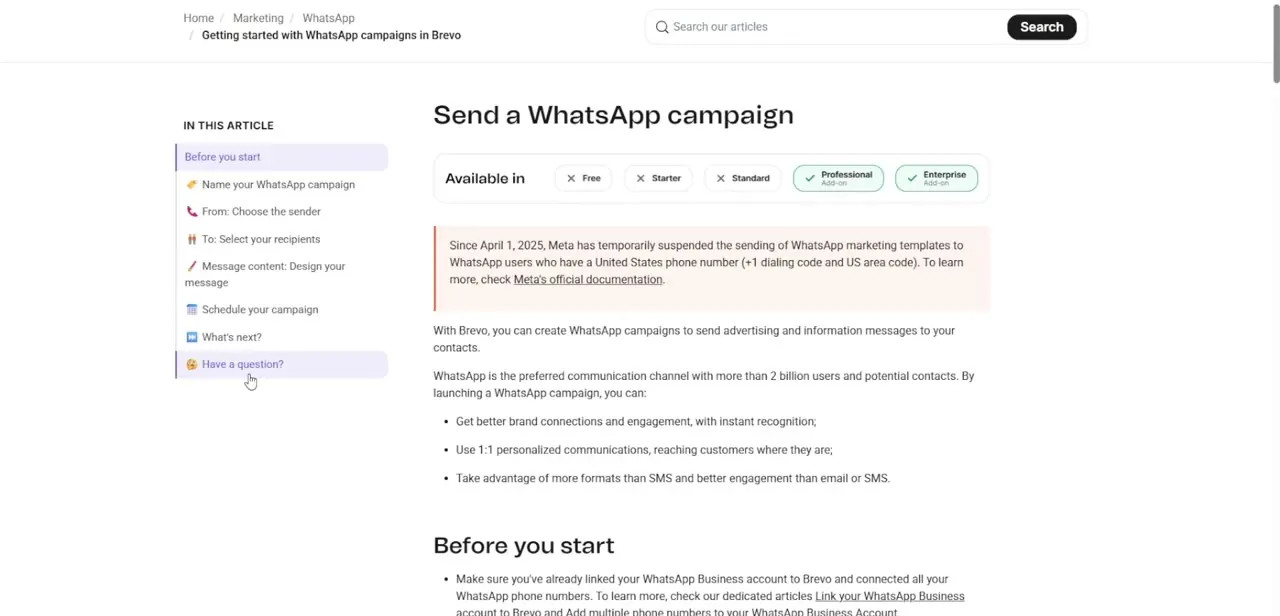
Brevo's own plan comparison marks Free, Starter and Standard with an X for WhatsApp campaigns, while Professional and Enterprise show it as an available add-on. If you're on a lower plan, the Marketing > Campaigns > WhatsApp path described below simply won't have anything to click, so it's worth checking this before working through the rest of the setup.
02Link your WhatsApp Business account and get a template approved
Before any of the campaign screens matter, Brevo needs your WhatsApp Business account linked and at least one phone number connected; verifying that account also raises your daily sending limits. Separately, you'll need at least one WhatsApp template, since Brevo's own documentation is explicit that a campaign can only be scheduled once its associated template shows Approved status.
Templates go through Meta's own review, not Brevo's, so build and submit one before you plan a send date. Brevo also prohibits sending passwords in readable form or any content requiring authentication, such as auto-login links, inside a WhatsApp message; keep that in mind while drafting the template.
03Create the campaign and give it an internal name
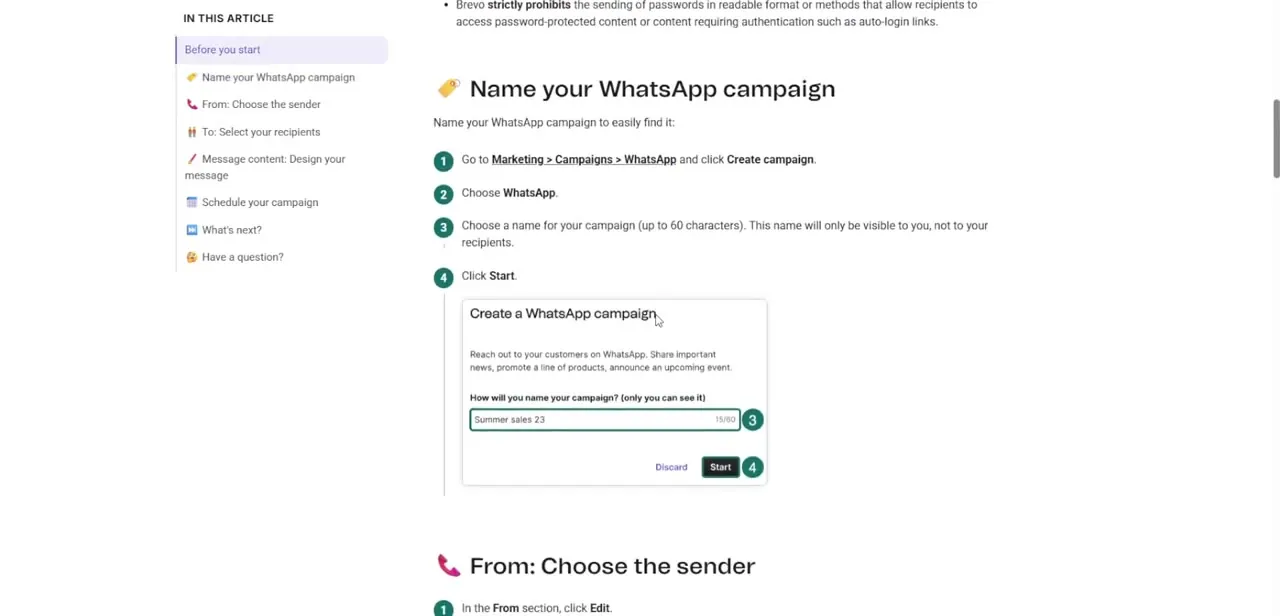
Go to Marketing, then Campaigns, then WhatsApp, and click Create campaign. Name it in the text field that appears, up to 60 characters. This name is visible only to you inside the Brevo dashboard; recipients never see it, so use something that helps you find the campaign later, not anything customer-facing.
04Choose the sender and recipients
In the From section, pick which of your connected, verified WhatsApp numbers the campaign sends from; recipients see this as the number they can reply to directly. In the To section, choose the contact list or segment that receives the campaign, and optionally exclude specific lists. Because WhatsApp marketing is opt-in and Meta actively polices unsolicited messages, only send to contacts who've explicitly consented to WhatsApp communication and who already have the WHATSAPP attribute populated on their record; reusing an email list without checking that consent is a fast way to get a sender number flagged.
05Attach the approved template and schedule the send
Click Start creating to open the template selection modal, then choose your already-approved template instead of composing free text from scratch. Once it's attached, use the scheduling section to send immediately or set a future date and time. One limitation worth checking before you plan a US-focused send: Meta suspended WhatsApp marketing template sends to US-coded numbers starting April 1, 2025, and as of this writing that pause is still in effect with no announced end date, so verify current status if your list includes US contacts.
When it doesn't work
The campaign won't let me schedule a send
Why: Its attached WhatsApp template hasn't reached Approved status with Meta yet.
Fix: Check the template's status in Brevo before scheduling. Submit it for Meta review early, since approval isn't instant, and don't plan a send date around a template still pending review.
Messages to US contacts are being rejected or never send
Why: Meta's ongoing suspension of WhatsApp marketing template sends to US-coded phone numbers, in place since April 1, 2025.
Fix: Check Meta's own current guidance before including US numbers in a marketing send. Utility and authentication templates aren't affected by this suspension the same way.
A template gets rejected during Meta's review
Why: The message likely violates a content rule, commonly including a password, an auto-login link, or other content that requires authentication to access, all of which Brevo and Meta explicitly disallow in WhatsApp messages.
Fix: Remove the offending content and resubmit. Keep templates to plain marketing copy and links that don't require the recipient to already be signed in.
Frequently asked questions
Do I need a Meta Business account to use WhatsApp campaigns in Brevo?
Yes. Your WhatsApp Business account and at least one phone number must be linked and verified in Brevo before the campaign builder is usable, through a separate connection flow, not inside the campaign screen itself.
Which Brevo plans include WhatsApp campaigns?
Free, Starter and Standard don't include it, according to Brevo's own plan comparison. Professional and Enterprise offer it as a paid add-on, billed separately from the plan through prepaid message credits.
Why can't I just type a message and send it?
WhatsApp marketing requires a template that Meta has pre-approved. Brevo's documentation confirms a campaign can only be scheduled once its template shows Approved status, so drafting and submitting the template is a separate step that has to happen before you build the campaign.
Can I send WhatsApp marketing messages to US phone numbers right now?
Meta paused WhatsApp marketing template sends to US-coded numbers on April 1, 2025, and that pause was still active as of this check in September 2026 with no end date announced. Confirm current status with Meta before planning a US-focused send.
Will my recipients see the campaign name I choose?
No. The internal campaign name, up to 60 characters, is for your own organization inside Brevo and never appears to the person receiving the message.
Sources and last check
Steps, plan gating and content restrictions were re-checked against Brevo's own help article on sending a WhatsApp campaign in September 2026. The original version of this guide treated message composition as free text; Brevo's documentation makes clear a campaign can only be scheduled once its attached template has Meta's Approved status, which this rewrite adds as a prerequisite and a troubleshooting entry. The US marketing-template suspension was confirmed still active as of this check, with no end date announced.
About the author

Impran M N
I've been hooked on technology for as long as I can remember — especially the new tools and AI apps that seem to land every other week. Easy Tech Tuts is where I write up whatever I've just worked out: I do the task in the real product, record the screen, and turn it into the guide I wish I'd found first.