Easy Tech Tuts
How to Connect WhatsApp to GoHighLevel Easily 2026
By Impran M NLast checked against official docs
GoHighLevel now has a native WhatsApp channel, connected from Settings instead of installed as an app, using Meta's embedded signup or by syncing an existing WhatsApp Business account. That's a change from how this used to work: for a while, WhatsApp only reached GoHighLevel through third-party connector apps in the App Marketplace, and plenty of guides (including an earlier version of this one) still describe only that route. This guide covers both paths: the native channel, and the Marketplace apps that remain useful when the native setup doesn't fit your account.
Before you start
- Admin access to the GoHighLevel sub-account you're connecting
- For the native channel: a Meta Business Manager you control, and a phone number that isn't currently logged into the personal WhatsApp app
- For a Marketplace connector app: whatever that specific app's authorization flow asks for, often a WhatsApp Business Platform account or a QR-code scan from WhatsApp Business
01Check the native WhatsApp channel first
In your sub-account, go to Settings, then WhatsApp. GoHighLevel offers three ways to connect: New Number, which walks you through Meta's embedded signup to provision a fresh WhatsApp Business number; Coexistence, which links a phone number that's already active in the WhatsApp Business App on your phone, so both the app and the CRM keep working on the same number; and BSP Migration, for moving an existing WhatsApp Business Platform setup over from another provider.
Coexistence isn't available for phone numbers based in Nigeria or South Africa, and it supports only one number per account. New Number needs a phone number that isn't already claimed by the personal WhatsApp app. If your situation fits one of these three paths, it's the more direct route; messages land in the same Conversations inbox as your SMS and email.
02Start from your GoHighLevel dashboard
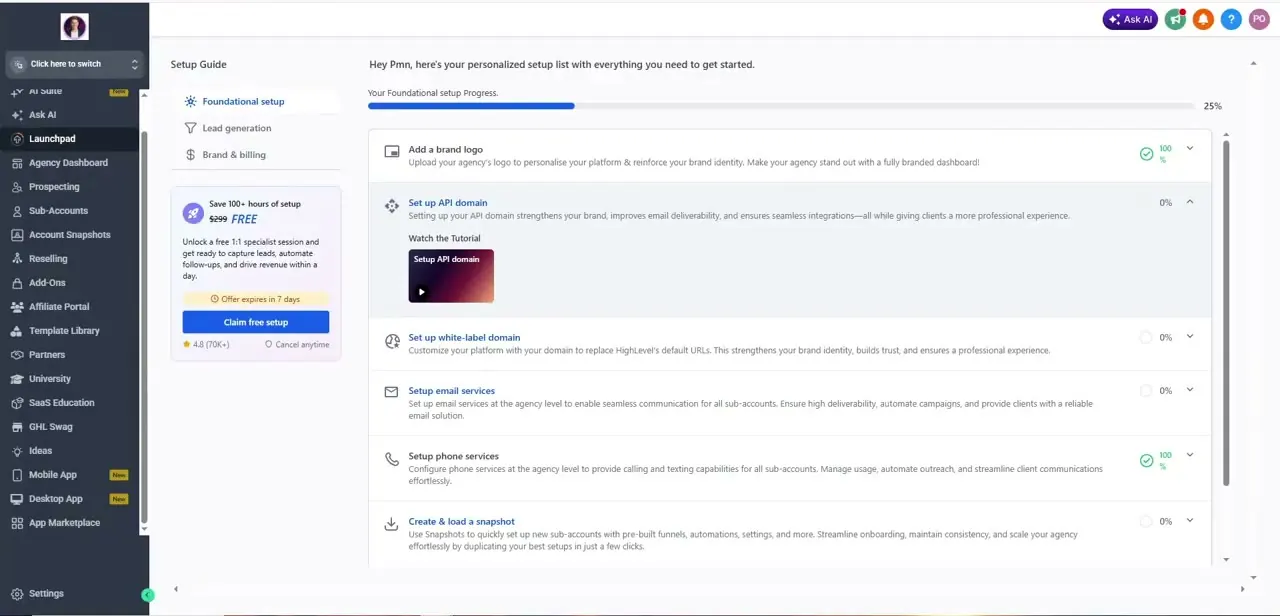
If the native channel doesn't fit, for example you're already paying for a third-party WhatsApp provider, or you want a workflow the native setup doesn't cover, the App Marketplace is the alternative. Log into your sub-account and open the Launchpad, which lays out a checklist of foundational setup items: contacts, lead generation, communication channels, each with its own completion percentage. Confirm your phone and email services are already configured here first, since some connector apps expect those pieces in place before they'll finish their own setup.
03Open the App Marketplace and compare connector apps
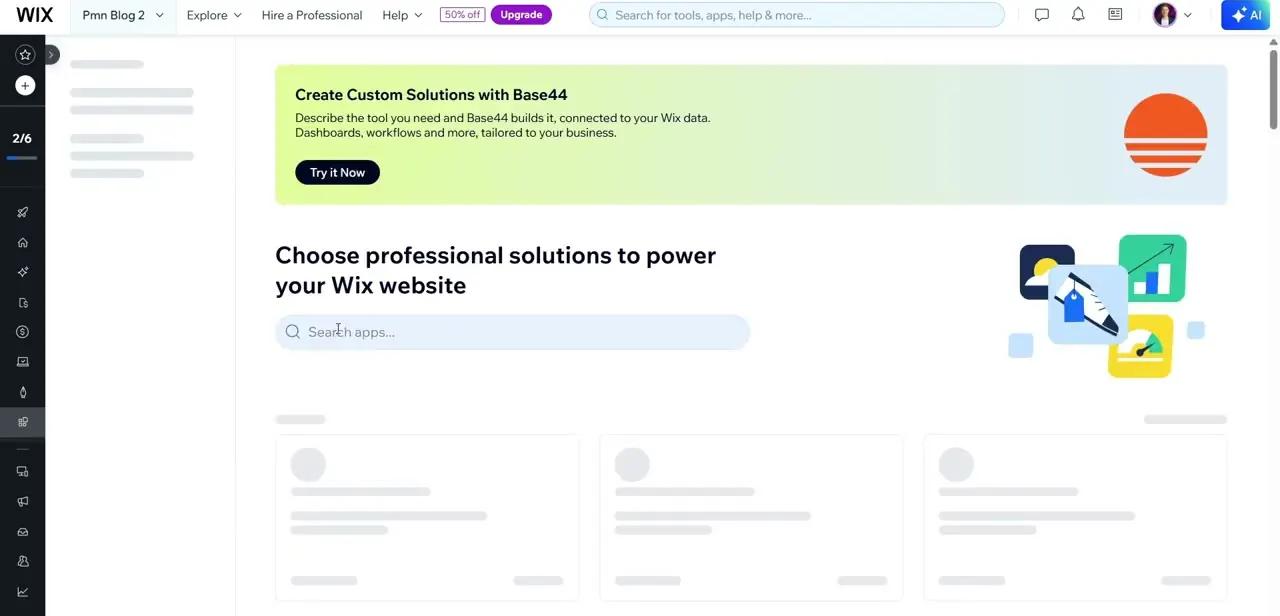
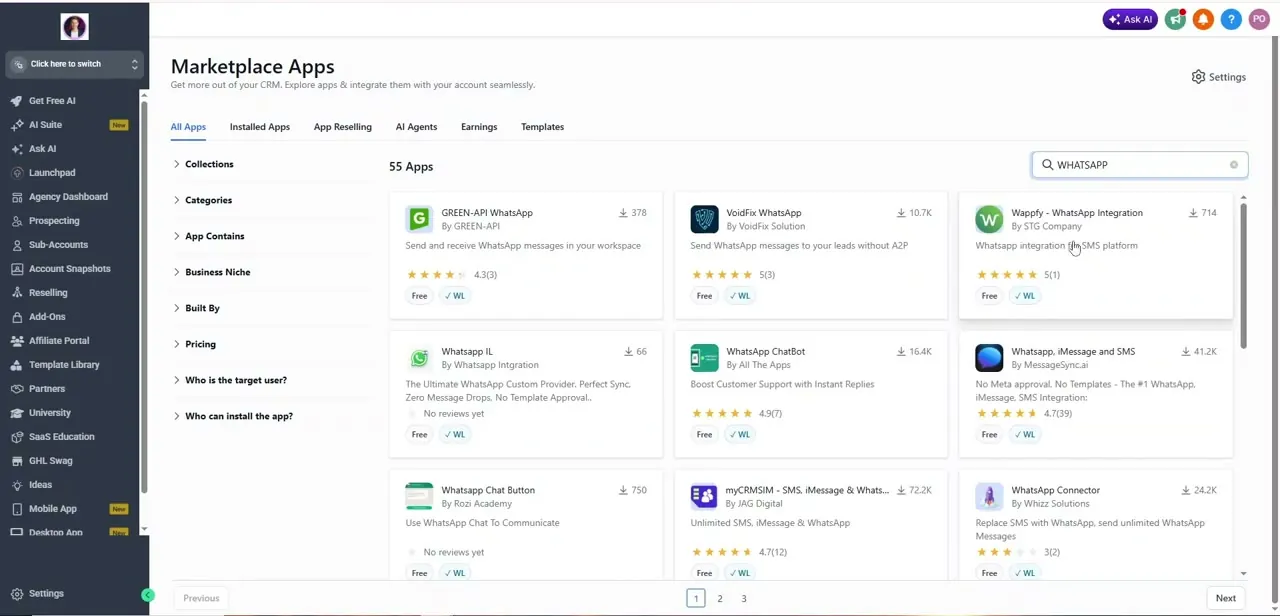
From the left sidebar, click Marketplace Apps, then search "WhatsApp" in the search bar at top right. You'll see a results page full of independent apps: GREEN-API WhatsApp, VoidFix WhatsApp, Wappfy, WhatsApp ChatBot, WhatsApp Connector, and more, each built by a different developer with its own install count, rating, and pricing.
These split roughly into two camps. Some connect through WhatsApp's official Cloud API via Meta, where message templates need pre-approval and costs are usage-based, but delivery is stable and sanctioned.
Others promise a faster sync of an existing WhatsApp Business account without Meta approval, quicker to set up, but more exposed if WhatsApp changes how it treats third-party access. Read each listing's description before installing; the difference between them matters more than the star rating.
04Install and configure the app you picked
Click into the app's listing and hit Install. You'll be walked through that app's own authorization flow: typically logging into WhatsApp Business, scanning a QR code, or entering API credentials from a WhatsApp Business Platform account, depending on which app you chose.
This step lives entirely inside the third-party app's own flow, so what you see will vary more than it does for a native channel. Afterward, most apps ask you to set basic preferences: which sub-account the number is tied to, whether incoming messages create new contacts automatically, and how outbound messages get tagged. Get contact-creation right here; it's the setting most likely to either flood your CRM with duplicates or silently drop a lead if it's misconfigured.
05Test the connection and automate replies
Message your connected WhatsApp number from a personal phone and check that it appears in GoHighLevel's Conversations tab within a minute or two. If nothing shows up, the most common cause is an incomplete authorization step or a webhook that didn't save; most connector apps show a status indicator on their own settings page that flags a broken connection.
Once messages are flowing, build a workflow that triggers on a new WhatsApp contact or inbound message: an instant acknowledgment, a routing tag, or a scheduled follow-up. Keep the automated reply short. WhatsApp is a more personal channel than email, and a message that reads like a form response tends to get ignored faster there than anywhere else.
| Native (Settings > WhatsApp) | Marketplace connector app | |
|---|---|---|
| Setup | Meta embedded signup, Coexistence, or BSP migration, built into GoHighLevel | Each app's own flow: QR code, API keys, or a Cloud API login |
| Where messages land | The same Conversations inbox as SMS and email | Usually Conversations too, but depends on the app |
| Cost | Per-sub-account add-on fee plus per-message pricing | Set independently by each app, shown on its listing |
| Best fit | A single number on a supported account type | A provider you already use, or a workflow the native channel doesn't cover |
When it doesn't work
Settings > WhatsApp won't let you finish embedded signup.
Why: The phone number is still active in the personal WhatsApp Business App, and Meta's embedded signup needs a number that isn't already claimed there.
Fix: Use Coexistence instead if you want to keep using that number on your phone, or free the number up first.
Coexistence setup fails immediately for a number based in Nigeria or South Africa.
Why: GoHighLevel's own documentation lists both countries as unsupported for Coexistence specifically.
Fix: Use New Number (embedded signup) or BSP Migration for those numbers instead.
Nothing shows up in Conversations after installing a Marketplace connector app.
Why: Usually an incomplete authorization step in that app's own flow, or a webhook it needed to save that didn't.
Fix: Check the connector app's own settings page for a connection status indicator before assuming GoHighLevel itself is at fault.
Frequently asked questions
Does GoHighLevel have a native WhatsApp integration?
Yes, now. Settings > WhatsApp offers Meta's embedded signup for a new number, Coexistence for an existing WhatsApp Business App number, or BSP Migration from another provider. Marketplace connector apps still exist for setups the native channel doesn't cover.
Which connection method should I use?
If you want to keep sending and receiving on your phone's WhatsApp Business App while also seeing messages in GoHighLevel, use Coexistence. If you're setting up a number that's never been used in the WhatsApp app, use New Number. If you're moving from another WhatsApp Business Platform provider, use BSP Migration.
When would I still use a Marketplace connector app instead?
When you're already paying for a specific third-party provider, or need a workflow the native channel doesn't support. Read each app's listing carefully; some use the official Cloud API and some don't, and that affects stability and cost.
Is connecting WhatsApp free?
No. The native channel adds a per-sub-account fee plus per-message costs that vary by country and category. Marketplace apps price themselves independently, shown on their listing before you install.
Why isn't my WhatsApp message showing up in GoHighLevel?
For the native channel, check that setup fully completed under Settings > WhatsApp. For a Marketplace app, an incomplete authorization step or a webhook that didn't save is the usual cause; check that app's own status indicator.
Sources and last check
The Marketplace click path and screens come from a recorded walkthrough of a real sub-account. Checked against HighLevel's official support articles in September 2026, GoHighLevel has since added a native WhatsApp channel under Settings that the recording predates; this pass restructured the article to lead with that native path and kept the Marketplace steps as the alternative they've become; the earlier draft described them as the only option.
About the author

Impran M N
I've been hooked on technology for as long as I can remember — especially the new tools and AI apps that seem to land every other week. Easy Tech Tuts is where I write up whatever I've just worked out: I do the task in the real product, record the screen, and turn it into the guide I wish I'd found first.