Easy Tech Tuts
How to View Udemy Video Transcript on Desktop | Read Along or Search Text | Easily 2026
By Impran M NLast checked against official docs
Reading along with a transcript instead of pausing a video repeatedly can make studying a Udemy course far more efficient, especially for dense or technical material. The feature is easy to miss because it sits as a small icon in the video player toolbar, not a labeled button, and the way the text syncs and highlights as the video plays isn't obvious until you've seen it once. This guide walks through opening a course, finding the Transcript control, and using the synced, searchable text to follow along or review a lesson without constantly hitting pause.
01Open a course you're enrolled in
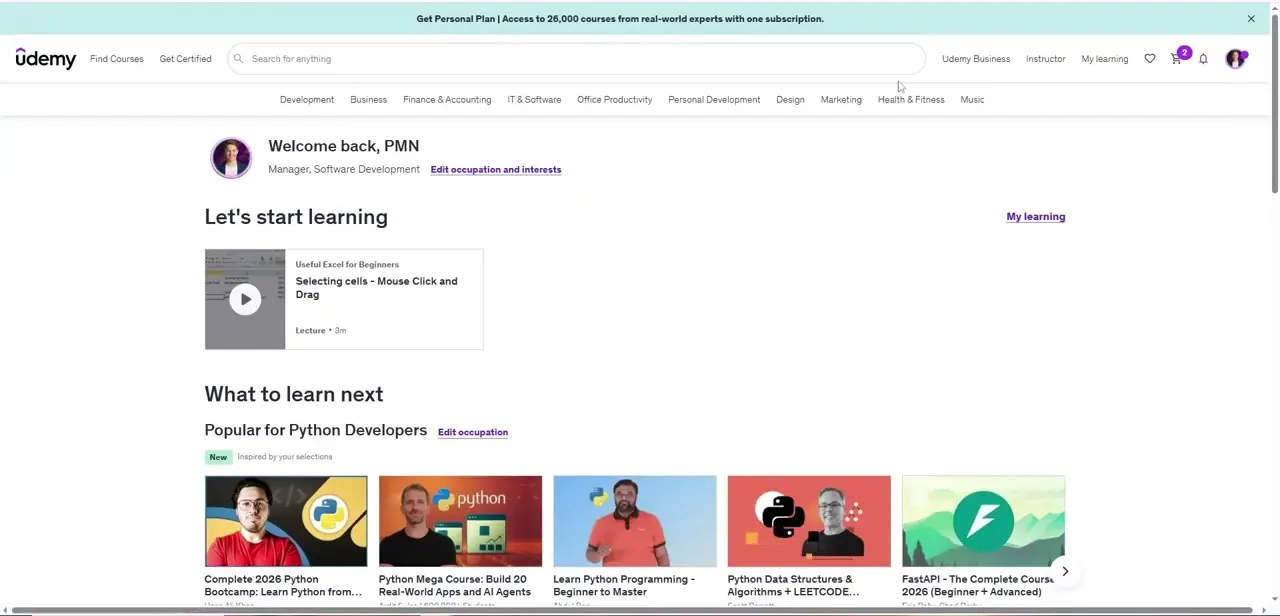
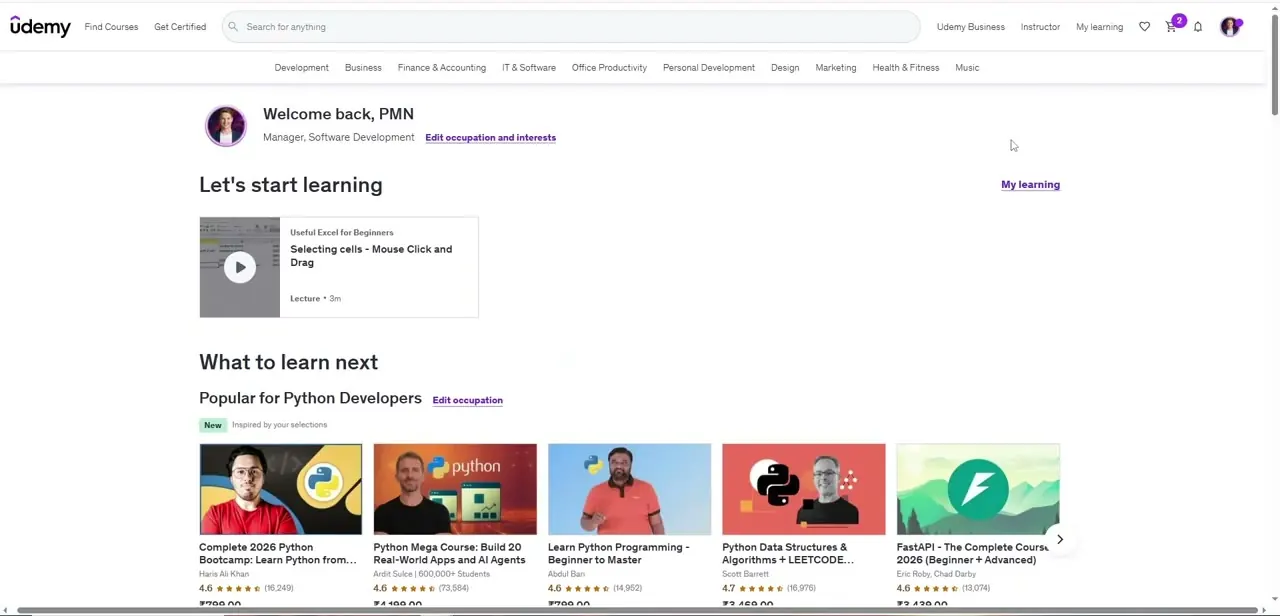
From your Udemy dashboard, the "Let's start learning" section shows your most recent lecture with a play button and running time, the fastest way back into a course already started. Click into the lecture to open the video player. Every transcript control lives inside that player; there is no separate transcript page outside it.
02Find the Transcript icon in the player toolbar
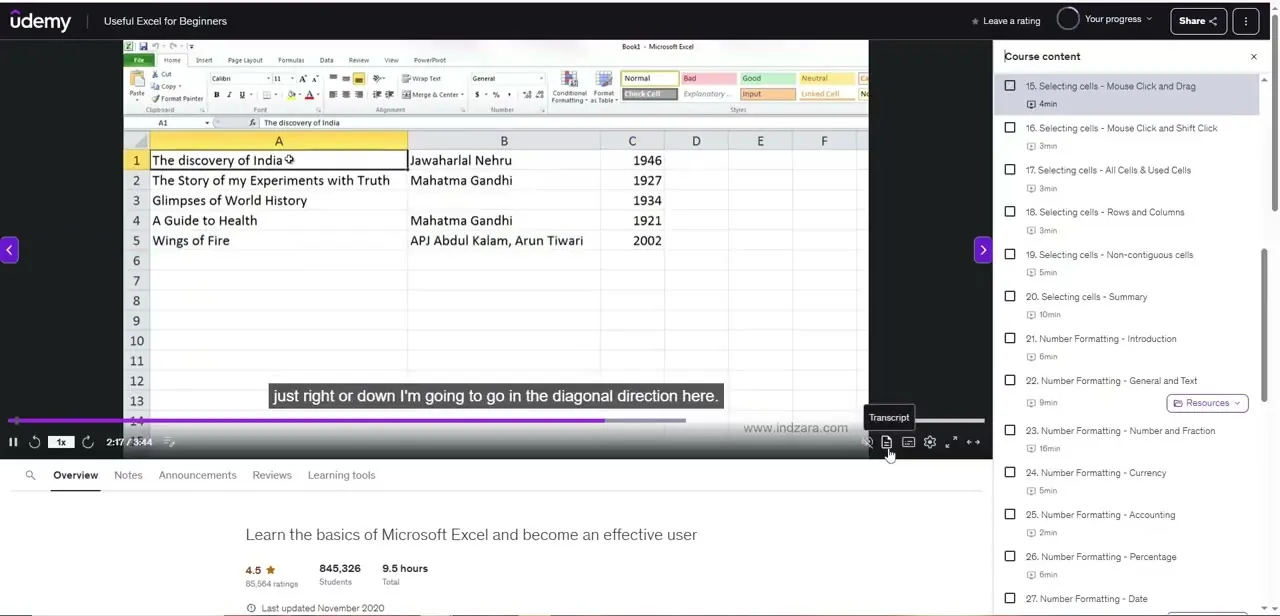
Inside the video player, look at the row of small icons along the bottom-right edge, next to playback speed and settings. One is a document-shaped icon; hovering over it pops up a "Transcript" label, since there's no permanent text next to the icon itself. Clicking it opens the transcript panel on the right side of the player, replacing whatever was showing there before, such as the course content list.
03Read along with the synced text, and turn off autoscroll to browse freely
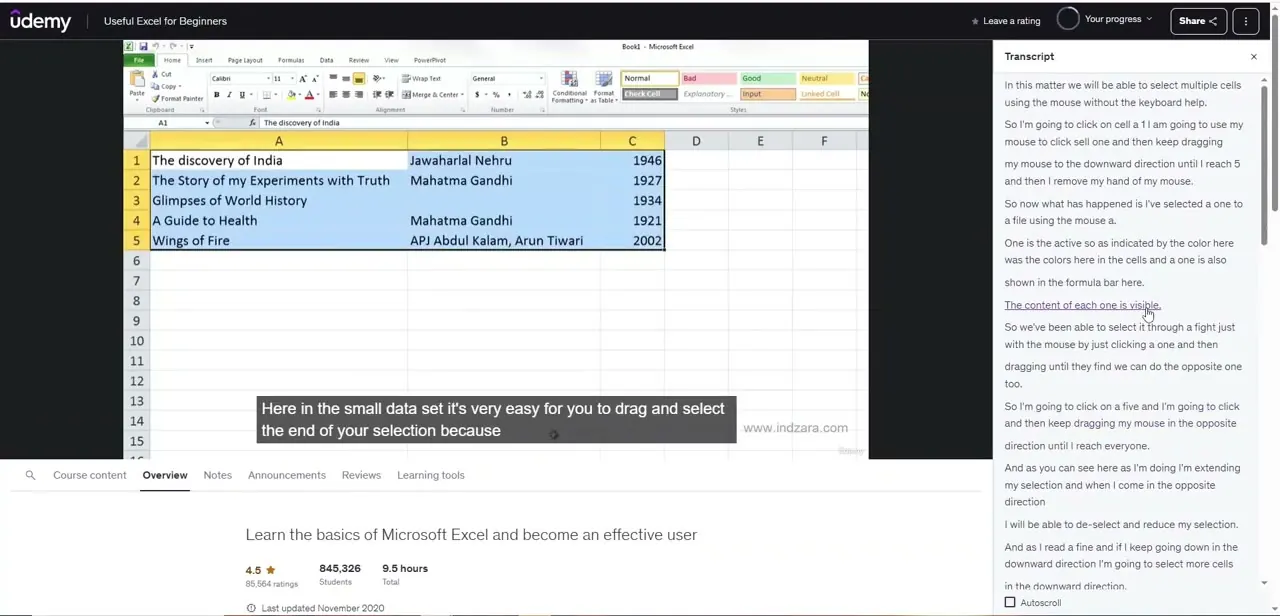
Once open, the transcript panel shows the lecture's full spoken content broken into short lines, with the line matching the current point in the video underlined and highlighted as it plays. This makes it easy to follow dense, fast-paced instruction, like a spreadsheet formula walkthrough, without rewinding every few seconds to catch a missed detail.
An Autoscroll checkbox at the bottom of the panel is checked by default, keeping the highlighted line in view as the video progresses. Uncheck it to scroll back through earlier parts of the transcript without the panel jumping back to the current playback position. This is useful when relocating a specific instruction from earlier in the video: scroll at your own pace and click any line to jump the video straight to that point, instead of dragging the seek bar and guessing.
04Search for specific text within the transcript
The transcript panel also includes a text-search option: type a word or phrase and jump directly to where it's spoken in the video instead of scanning manually. This is the fastest way to relocate a specific term or step in a long lecture. Searching "formatting" in a spreadsheet course, for instance, jumps past unrelated sections straight to the part that covers it.
05Combine transcripts with notes, and know when to use them
Because the transcript is plain text, it's easy to copy a passage into your own notes or a separate summarization tool instead of retyping what the instructor said, which can cut down review time before an exam or before applying what was learned at work. Transcripts matter most for technical or jargon-heavy lessons, where a single mispronounced or misheard term throws off understanding, and for studying in a noisy environment or a non-native language, where reading alongside listening improves comprehension. For simpler conceptual lectures, the panel may not need to be open at all; it's a tool to reach for when the material gets dense, not something to run permanently.
Frequently asked questions
Where is the Transcript button in the Udemy player?
It's a small document-shaped icon in the video player's bottom-right toolbar, next to playback speed and settings. Hovering over it shows a "Transcript" tooltip.
Can I search for specific words in a Udemy transcript?
Yes. The transcript panel includes a search function that jumps directly to the point in the video where a specific word or phrase is spoken.
What does the Autoscroll option do?
When checked, the transcript panel automatically scrolls to keep the currently spoken line in view. Uncheck it to browse the transcript independently of playback.
What language does the transcript appear in?
Udemy's own support documentation for the browser player states that transcripts display in whatever language is currently selected for subtitles, so switch the subtitle language first if the transcript needs to match.
Does the transcript feature work on mobile?
Udemy's Business help documentation states plainly that transcripts are not available on the Udemy Business mobile app or mobile site. This guide covers the desktop browser player; behavior on the standalone consumer mobile app wasn't confirmed in this check.
Sources and last check
Player layout, the Transcript icon, autoscroll, and search come from a recording. Udemy's own support pages for this feature blocked direct fetching in September 2026 (HTTP 403 on both support.udemy.com and business-support.udemy.com), so the language and mobile-availability notes above are corroborated only through search-result summaries of those official pages, not a full page read, and are flagged as such in the FAQ.
About the author

Impran M N
I've been hooked on technology for as long as I can remember — especially the new tools and AI apps that seem to land every other week. Easy Tech Tuts is where I write up whatever I've just worked out: I do the task in the real product, record the screen, and turn it into the guide I wish I'd found first.