Easy Tech Tuts
How to Upload Your Course on Udemy | Instructor Setup Guide | Easily 2026
By Impran M NLast checked against official docs
Getting a course uploaded correctly on Udemy starts with a short setup wizard, not a file-upload button. Udemy asks for a working title and a few planning questions before any video file gets touched, and skipping past those screens too fast is a common reason instructors end up with a messy draft to clean up later.
This guide covers what the setup screens ask, how to build an instructor profile students will trust, and how to organize materials once upload begins. It's aimed at both new and experienced instructors.
01Prepare your course content first
Have the lesson outline, recorded videos, and any supporting files ready before starting Udemy's upload process. Instructors who begin the wizard without a plan tend to leave courses sitting in draft status for weeks, because the setup screens ask questions that are far easier to answer once the course's structure is already decided.
02Open your Courses dashboard and start creation
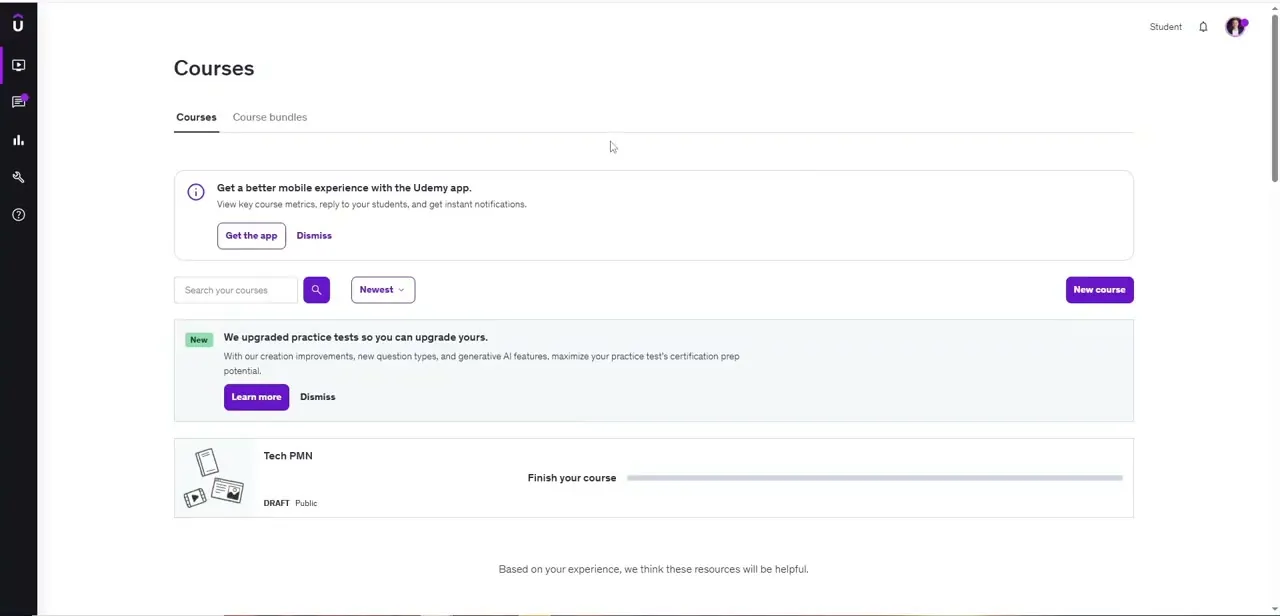
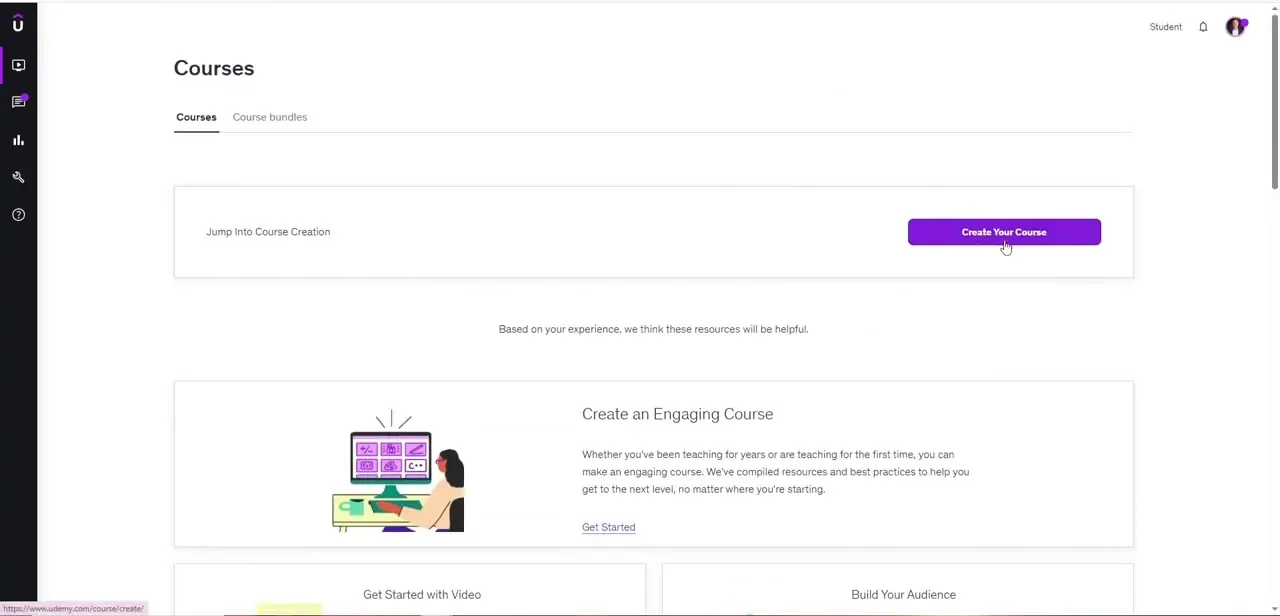
From the instructor view, the Courses page has a "Jump Into Course Creation" panel with a prominent Create Your Course button, plus linked resources underneath: guides on creating an engaging course, getting started with video, and building an audience. Skimming those resources first is worth the few minutes, since they're written for the exact stage about to start.
03Give your course a working title
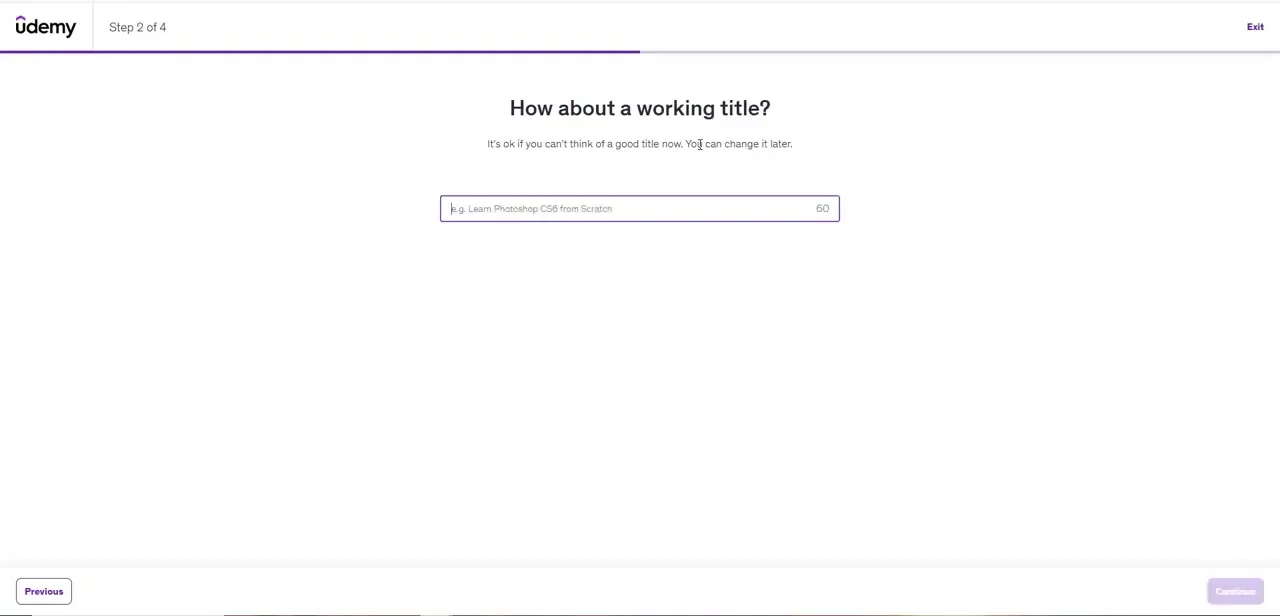
Step 2 of the setup wizard asks for a working title, with placeholder text such as "Learn Photoshop CS6 from Scratch" showing the kind of specific, outcome-focused phrasing that works. Udemy says directly that this title is not final and can change later, so the field is best used to describe what the course teaches instead of chasing marketing language that will likely get revised once the course is finished.
04Tell Udemy your weekly time commitment
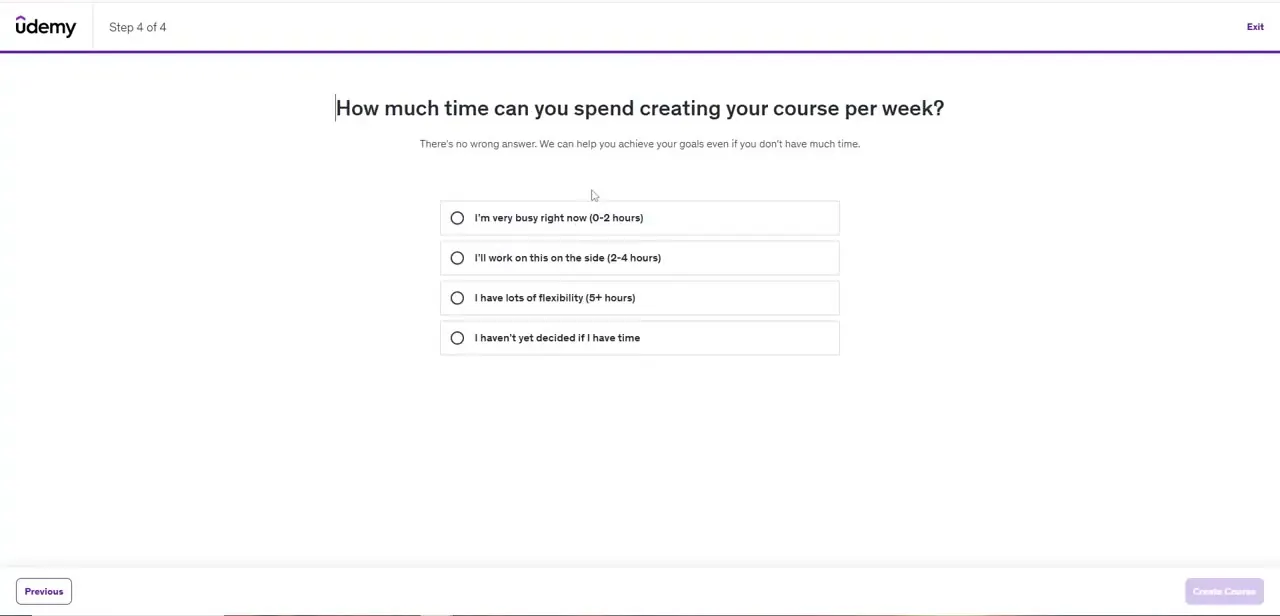
The wizard's last step asks how many hours per week can realistically go toward building the course, with four options ranging from "very busy right now" up to "lots of flexibility." Udemy states there's no wrong answer and that it can help reach the goal regardless of available time. The honest answer shapes the pacing guidance shown afterward, so overstating available time has no upside.
05Set up your instructor profile
Students check who's teaching before trusting an unfamiliar course. Fill in the instructor profile with a clear bio, a professional photo, and any credentials relevant to the subject. This profile appears on every published course, so getting it right once beats patching it together after the first course is already live.
06Upload your course materials in order
With the shell created and the profile in place, upload videos and supporting files section by section, in the same sequence planned during outlining. Uploading out of order is one of the more common causes of a confusing course structure, since Udemy's builder generally reflects the order content was added in until it's manually rearranged.
07Follow best practices for course visibility
Once everything is uploaded, review what affects discoverability: a complete instructor profile, a clear course description, and an organized curriculum all feed into how Udemy surfaces a course in search and recommendations. A course that's technically finished but thin on these details struggles to reach students even when the content itself is strong.
Frequently asked questions
What do I need before uploading a course to Udemy?
Prepared, organized course content and a completed instructor profile, so the upload wizard doesn't stall mid-setup on questions that assume both already exist.
Can I change my course title after the setup wizard?
Yes. Udemy says directly on the working-title step that the title doesn't need to be final yet, since it can be changed later.
Does my instructor profile affect course sales?
A well-built profile with a clear bio and real credentials builds trust with potential students before they watch a single lesson, which affects enrollment and engagement.
What order should I upload my materials in?
The same order the course was outlined in. Udemy's builder generally keeps content in the order it was added, so uploading out of sequence means manually rearranging sections afterward.
How can I make my uploaded course more visible on Udemy?
A complete instructor profile, an organized curriculum, and a clear course description all feed into discoverability, on top of the usual best practices for course setup.
Sources and last check
Screens and click path come from a recorded walkthrough of the Courses dashboard and setup wizard, the same recording behind the companion guide on creating a Udemy course. Udemy's support and Teaching Center pages returned a 403 (blocked) response to fetch requests during this pass, so the profile and visibility guidance could not be re-checked against a live Udemy document this time. This revision focuses on cutting overlap with the companion article and tightening prose instead of adding claims that couldn't be verified.
About the author

Impran M N
I've been hooked on technology for as long as I can remember — especially the new tools and AI apps that seem to land every other week. Easy Tech Tuts is where I write up whatever I've just worked out: I do the task in the real product, record the screen, and turn it into the guide I wish I'd found first.