Easy Tech Tuts
How to Contact Udemy Support | Fastest Ways to Reach Them | Easily 2026
By Impran M NLast checked against official docs
Whether you're troubleshooting course access or a content upload issue, knowing the right channel to reach Udemy support saves a lot of back-and-forth. Udemy routes most requests through a virtual agent named Alex before a human ever sees them, and knowing how that flow works, search first, chat second, escalate third, gets you to an answer faster than emailing and waiting.
This guide walks through the help center, the virtual agent, and escalation paths so you can pick the fastest route for your specific problem. It covers both learners and instructors dealing with account, course, or payment issues.
01Start at the Udemy help center
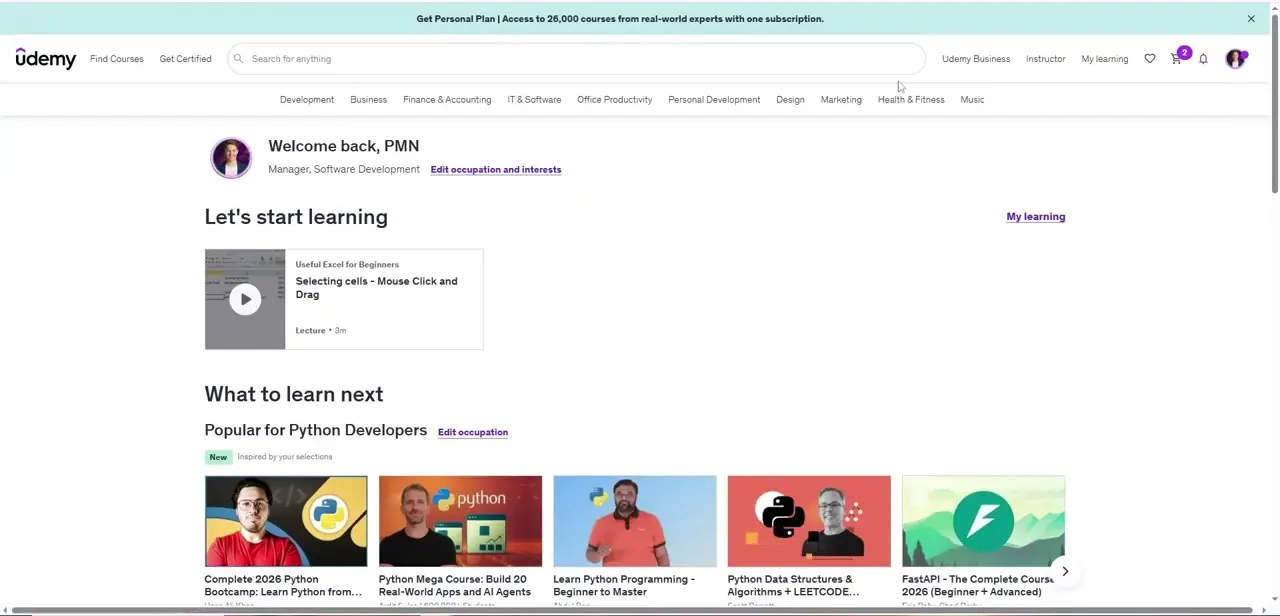
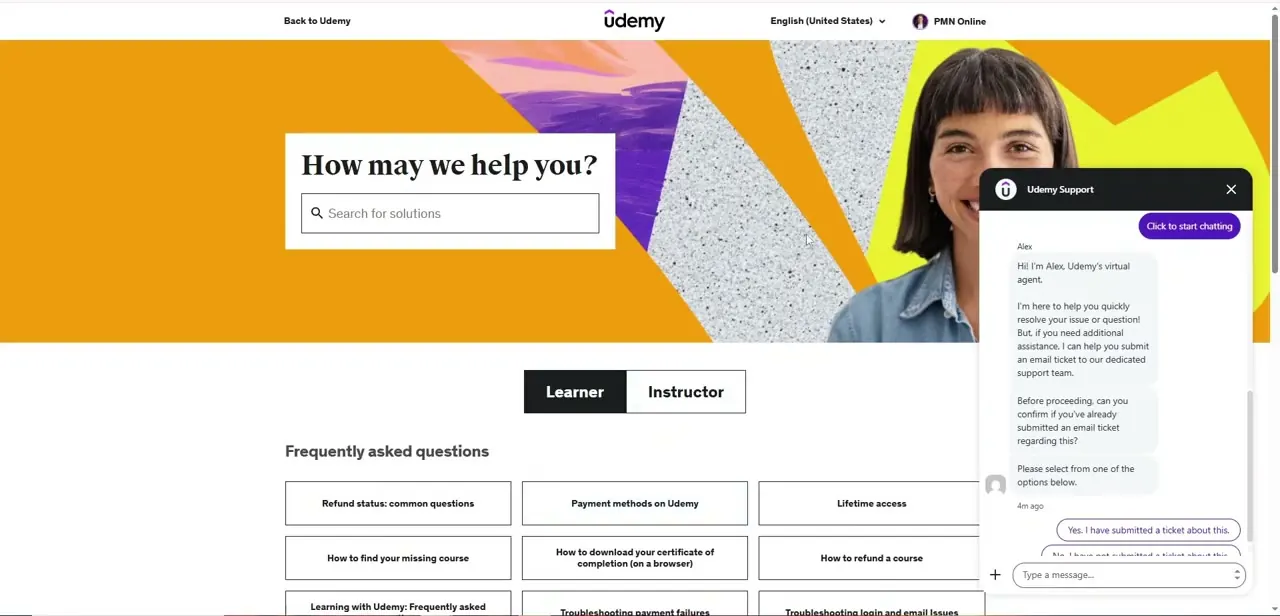
From any Udemy page, the help center is reached through the support link in the account menu and opens on a "How may we help you?" search box, with tabs to filter guidance for Learner or Instructor. A learner is usually asking about access or refunds, while an instructor is more likely asking about payouts or content tools, so picking the right tab narrows the results before you've even typed a query.
02Search for your specific issue first
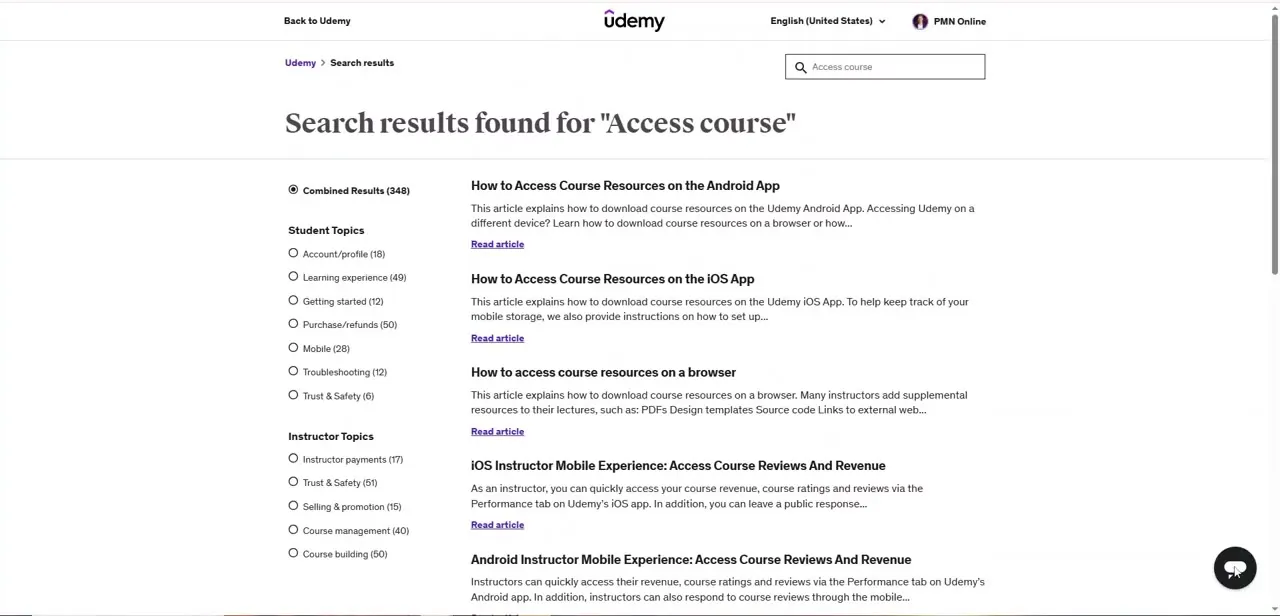
Typing a query like "Access course" returns a results page split into Student Topics and Instructor Topics, with matching articles such as "How to Access Course Resources on the Android App" listed alongside a result count for each category. Skimming these first often resolves the issue in under a minute, faster than waiting on any chat queue.
03Use Contact Us to reach the virtual agent
Every help center article carries a Contact Us option, and opening it connects you to Udemy's virtual agent, Alex, who asks clarifying questions before looping in a human. Udemy's own support documentation lists Alex as available when the article you're viewing is in English, German, Portuguese, Spanish, or Turkish; it typically checks whether you've already submitted an email ticket about the same issue, so answer accurately rather than starting a duplicate thread.
04Escalate directly from within a course
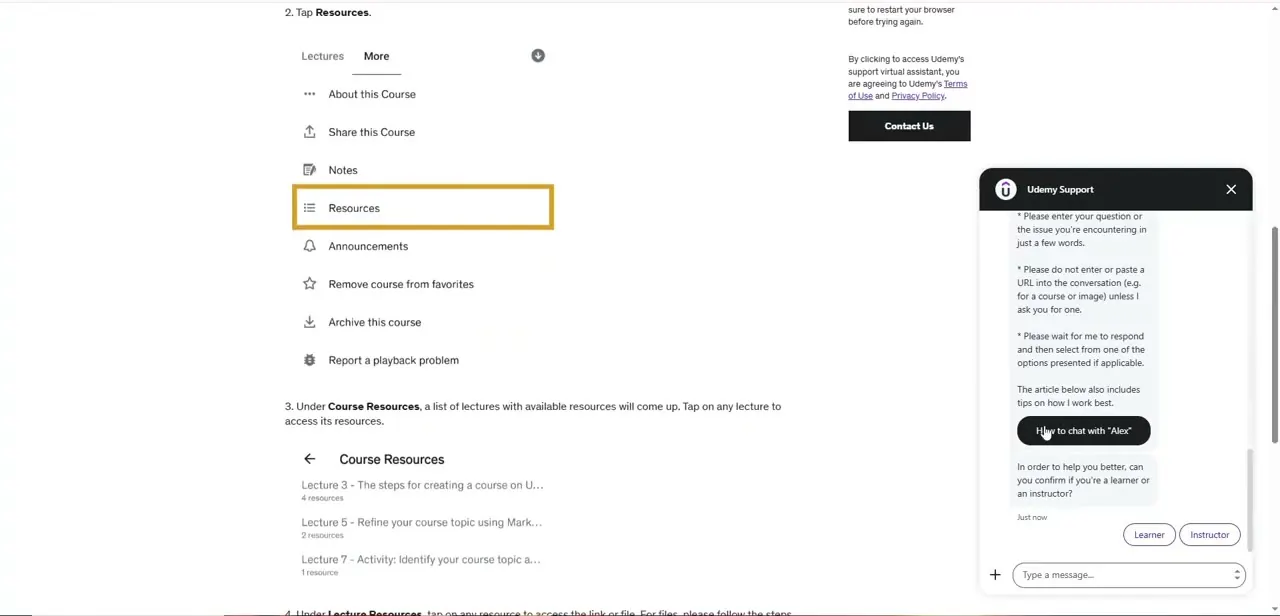
If your issue is specific to a course you're taking or teaching, open that course and look for the Resources tab in the lecture sidebar, or scroll to the Contact Us button near the bottom of a lesson page. The support chat follows you here too, and asks whether you're a learner or an instructor before routing your request, since the two run through different resolution paths.
05Know what to expect after you escalate
Automated responses from Alex handle routine requests quickly. Save more complex problems, like content upload failures or policy disputes, for an escalated email ticket where you can lay out full detail with attachments.
Once a ticket is escalated to a human agent, Udemy typically provides a reference number or confirmation email; hold onto it, since quoting it in any follow-up matches your case to the existing thread instead of starting over. If a few business days pass without a reply on something time-sensitive, reply to the same thread rather than opening a new ticket.
When it doesn't work
The chat only shows a form, not the virtual agent Alex
Why: Udemy's support documentation lists Alex as available for help center articles in English, German, Portuguese, Spanish, and Turkish. Other languages may route differently.
Fix: Switch the help center's language if you need Alex specifically, or continue through whatever contact form appears.
I can't find a phone number for Udemy support
Why: Udemy's own documentation states there's no phone support for individual learners or instructors. Phone access, where it exists, is limited to Udemy Business Enterprise accounts.
Fix: Use help center search, the Contact Us chat, or an email ticket instead. Enterprise admins should check their dedicated Udemy Business contact for phone options.
Frequently asked questions
What's the fastest way to contact Udemy support?
Search the help center first for a documented fix, then use Contact Us to reach virtual agent Alex, who resolves straightforward issues quickly and routes anything more complex to a human.
Can instructors and students both use Udemy support?
Yes. The help center and the support chat both offer Learner and Instructor paths, and the chat will ask which one applies before routing your request.
Does Udemy use AI for customer support?
Yes. Udemy's support chat opens with a virtual agent, Alex, that asks clarifying questions and can resolve or route common requests before a human agent gets involved.
Is there a phone number for Udemy support?
Not for individual learners or instructors, according to Udemy's own documentation. Phone support, where available, is limited to Udemy Business Enterprise accounts.
Does Alex work in every language?
Udemy's support documentation names English, German, Portuguese, Spanish, and Turkish as the languages where Alex is available on help center articles.
Sources and last check
Click path and screens come from a recorded walkthrough. Udemy's official 'How to contact Udemy Support' page returned a 403 to direct fetching in this session, so it was not read firsthand; the language limits on Alex and the lack of individual phone support, both added above, come from that page's own text as surfaced through search rather than from a page I opened myself. Treat those two points as secondhand pending a direct check.
About the author

Impran M N
I've been hooked on technology for as long as I can remember — especially the new tools and AI apps that seem to land every other week. Easy Tech Tuts is where I write up whatever I've just worked out: I do the task in the real product, record the screen, and turn it into the guide I wish I'd found first.