Easy Tech Tuts
How to Use Multiple Slack Accounts Easily 2026
By Impran M NLast checked against official docs
If you work across a client server, a personal community, and your own company's Slack, logging in and out all day wastes time and loses your place in every conversation. Slack's desktop app is built to hold several workspaces at once and let you flip between them with a click or a keyboard shortcut. This guide walks through the dialog Slack uses to add a workspace, what the identity step looks like the first time you land in a new one, and how switching differs from that initial setup.
01Open your workspace menu from the top-left corner
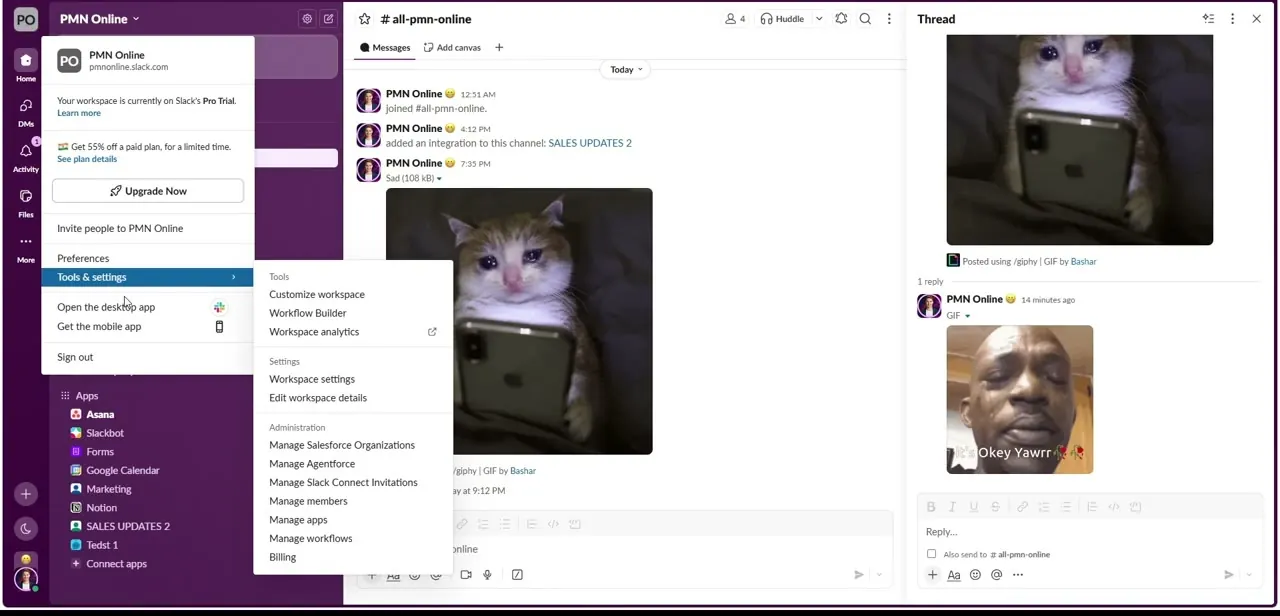
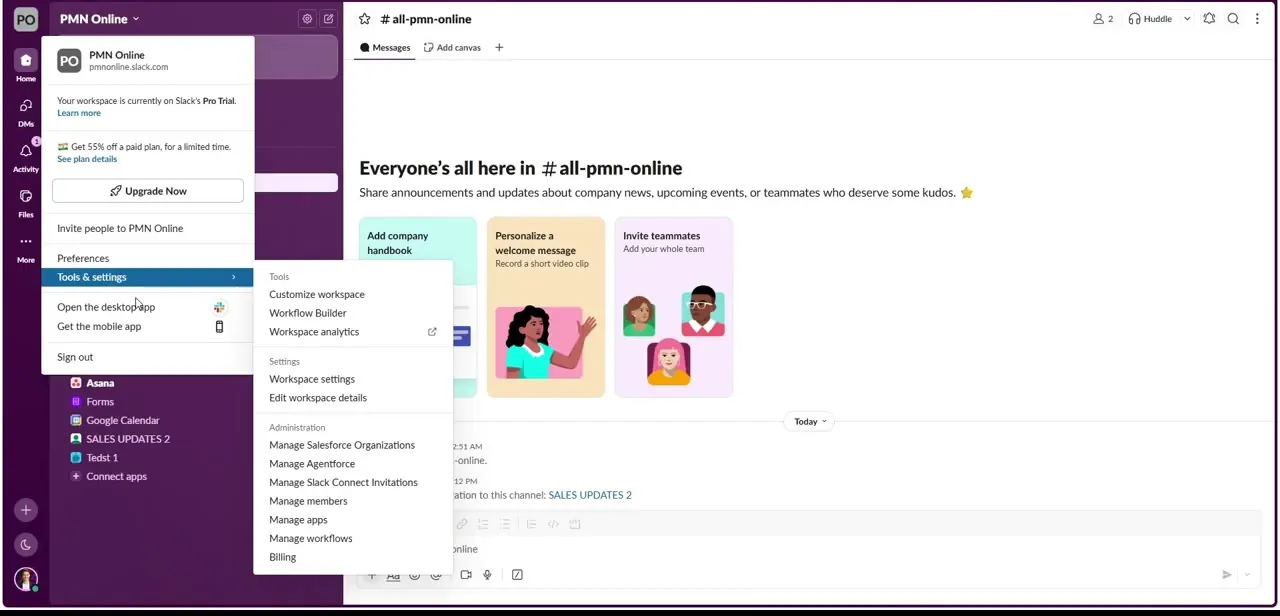
Click your workspace name in the top-left corner of the Slack desktop app, "PMN Online" in this walkthrough. This opens a dropdown that starts with your current workspace card (name, URL, and plan status) and then drops into a Tools & Settings flyout with entries like Customize workspace, Workflow Builder, and Manage members. This isn't the multi-workspace switcher itself, but it's the doorway to it: the option to add another workspace lives next to your profile avatar.
02Choose how you want to add the next workspace
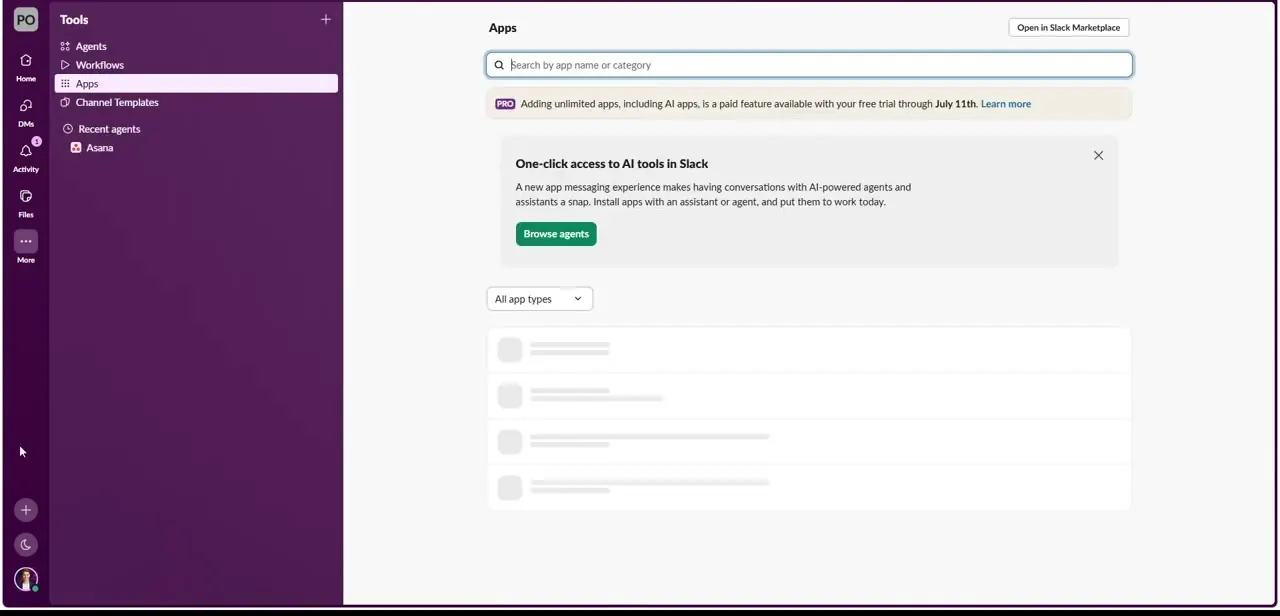
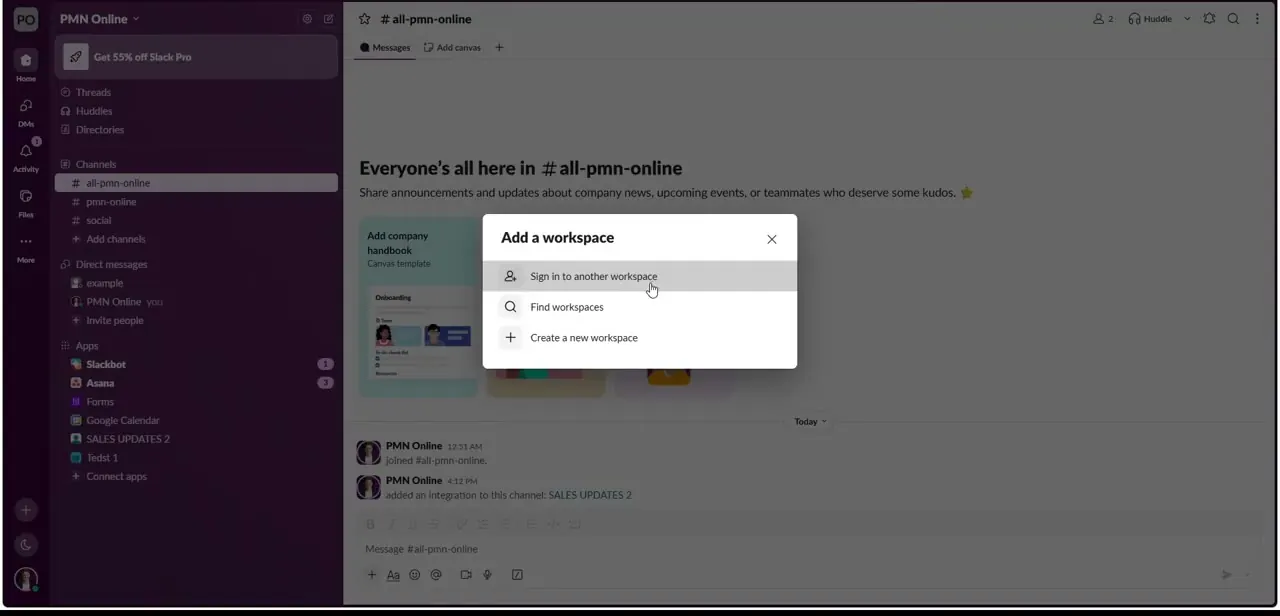
Clicking the plus icon near your workspace list opens the "Add a workspace" dialog, where three real paths split apart. "Sign in to another workspace" is what you want if you already have a login for a second Slack team; it sends you to your browser to authenticate with that team's email or SSO.
"Find workspaces" searches for teams tied to your current email address, useful if a coworker added you somewhere and you never got the invite link. "Create a new workspace" starts a brand-new team from scratch. Pick the option that matches your situation before clicking, since each leads to a different setup screen.
03Fill in your identity for the new workspace
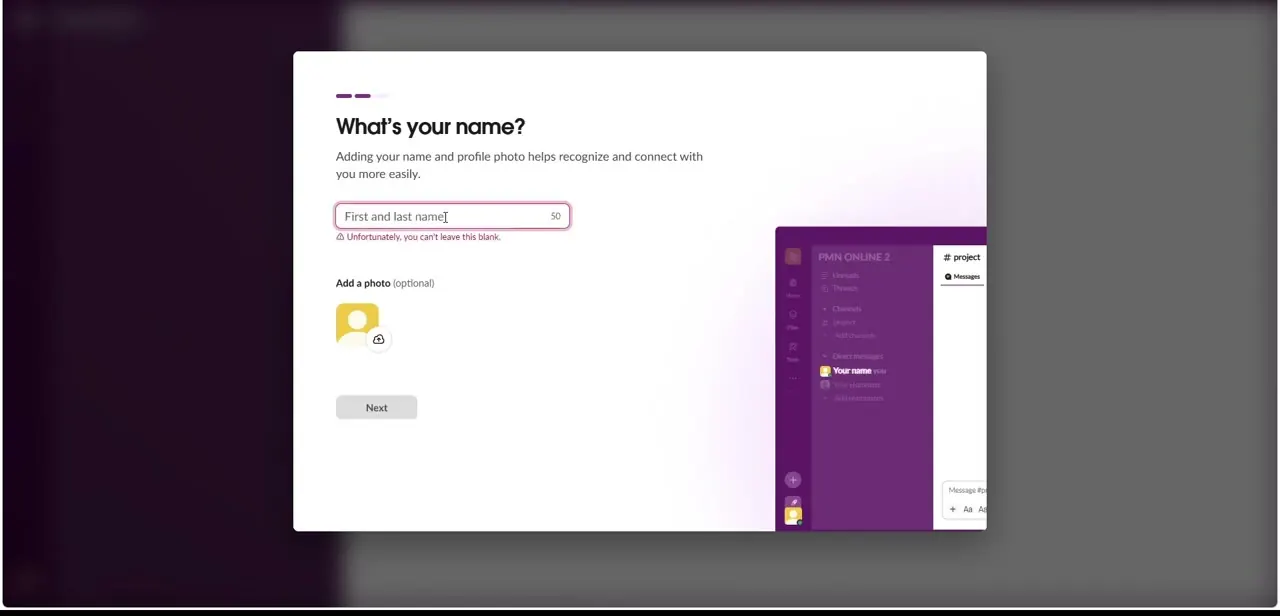
Whether you're joining an existing team for the first time or spinning up a new one, Slack asks for a name and, optionally, a profile photo before letting you in. Identity is scoped per workspace, not global.
The display name and picture you use in one team don't carry over to another, which lets you use a nickname in a separate community without touching your main profile. You can't leave the name field blank; add a photo now or skip it and set one later from that workspace's own settings.
04Answer the first-run setup questions
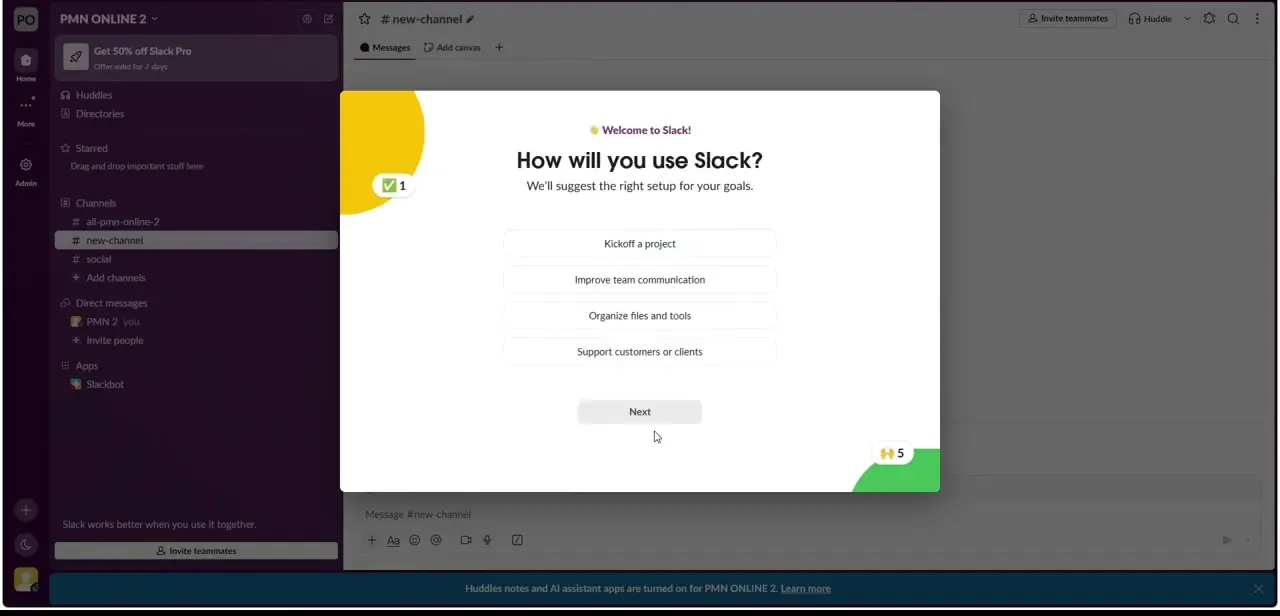
A freshly created or freshly joined workspace often greets you with a short onboarding question, "How will you use Slack?", with options like kicking off a project, improving team communication, or supporting customers. This appears once per workspace and just tailors the starter channels and suggested apps you're shown; it has no effect on workspaces you already have connected. Once you click through it, the new workspace settles into your sidebar with its own channel list.
05Switch between workspaces day to day
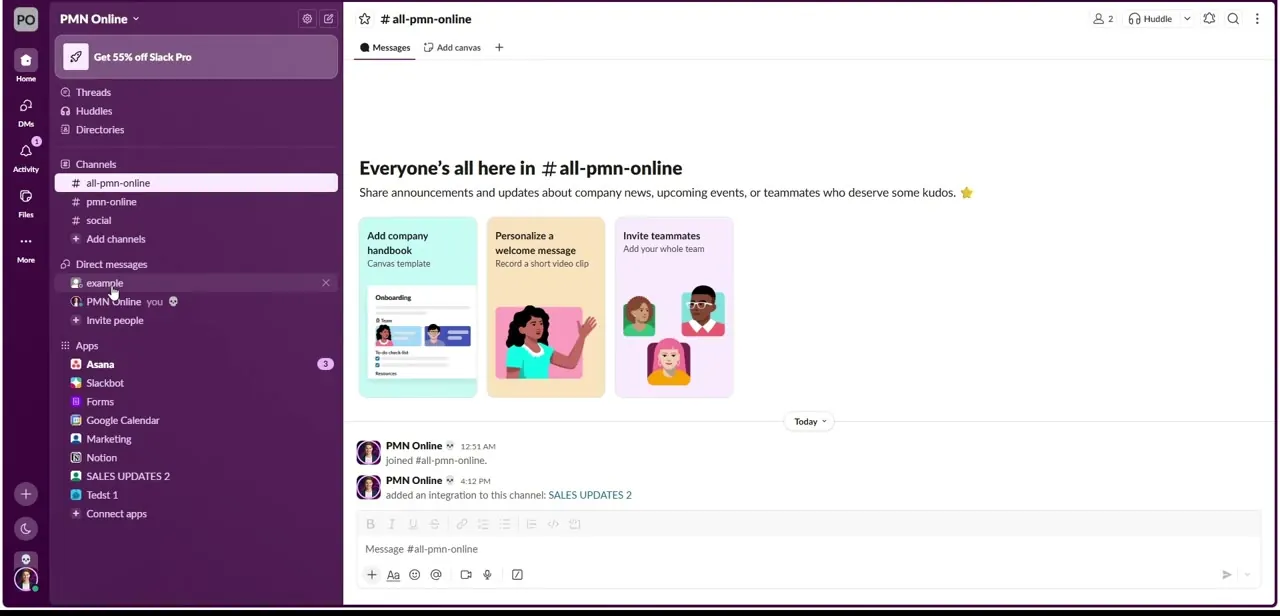
Once you have more than one workspace connected, Slack adds a vertical rail of workspace icons along the left edge. Click any icon to jump into that team; channels, unread badges, and DMs swap instantly.
Slack's own shortcut list gives three ways to move around without the mouse: Cmd/Ctrl+[number] jumps straight to the workspace in that position on the rail (hover an icon on Mac, or check underneath it on Windows and Linux, to see its assigned number), while Ctrl+Tab and Ctrl+Shift+Tab step to the next or previous workspace regardless of position. The numbered shortcut only reaches as far as the number keys go, so drag a workspace's icon toward the top if it keeps sliding out of easy reach. Each workspace also keeps independent notification settings, so you can silence a noisy client server without muting the one you actually need alerts from.
When it doesn't work
Cmd/Ctrl plus a number doesn't jump to the workspace you expect.
Why: The number corresponds to the workspace's position on the rail, which shifts whenever you add, remove, or reorder one.
Fix: Check the number shown on or under the icon (Mac shows it on hover; Windows and Linux show it directly) rather than guessing, or drag your most-used workspace toward the top.
The new workspace's identity screen won't let you continue.
Why: Slack requires a display name before granting access to a workspace; unlike the photo, that field can't be left blank.
Fix: Enter any name, even a placeholder. You can change it later from that workspace's own profile settings.
Frequently asked questions
Is there a limit to how many workspaces I can add?
Slack doesn't impose a strict limit on the number of workspaces you can connect to a single desktop app, though large numbers make the icon rail harder to scan and push the numbered shortcuts out of easy reach.
Can I mute notifications for one workspace only?
Yes, each workspace has its own notification settings you can adjust independently from the others.
Do I need a different email for each workspace?
No. You can use the same email across multiple workspaces as long as you were invited to or created each one separately; Slack treats membership per workspace, not per email.
What's the difference between the name I set here and my main Slack profile?
They're independent. The name and photo you enter when joining a new workspace only apply inside that workspace, so you can use a different display name per team.
What keyboard shortcuts actually work for switching workspaces?
Cmd/Ctrl+[number] jumps to a specific workspace by its position on the rail, and Ctrl+Tab / Ctrl+Shift+Tab step to the next or previous one, regardless of position, per Slack's own shortcuts list.
Sources and last check
Click path and screens come from a recorded walkthrough. The keyboard shortcuts were re-checked against Slack's own shortcuts page in September 2026, which lists Cmd/Ctrl+[number] for jumping to a specific workspace plus Ctrl+Tab and Ctrl+Shift+Tab for stepping to the next or previous one. This guide previously mentioned only the numbered shortcut.
About the author

Impran M N
I've been hooked on technology for as long as I can remember — especially the new tools and AI apps that seem to land every other week. Easy Tech Tuts is where I write up whatever I've just worked out: I do the task in the real product, record the screen, and turn it into the guide I wish I'd found first.