Easy Tech Tuts
How to Sync Google Calendar With Slack, Connect & Integrate Easily 2026
By Impran M NLast checked against official docs
The Google Calendar app for Slack puts your schedule inside Slack. It sets your status automatically during meetings, sends a reminder before an event starts (with a join button when the invite has a video link), and lets you accept or decline invites from the message.
Installing it takes a couple of minutes. The part that trips people up is status sync, which reacts only to certain events. A test event you create just for yourself won't change your status, so this guide explains which events count and how to check that the sync is working.
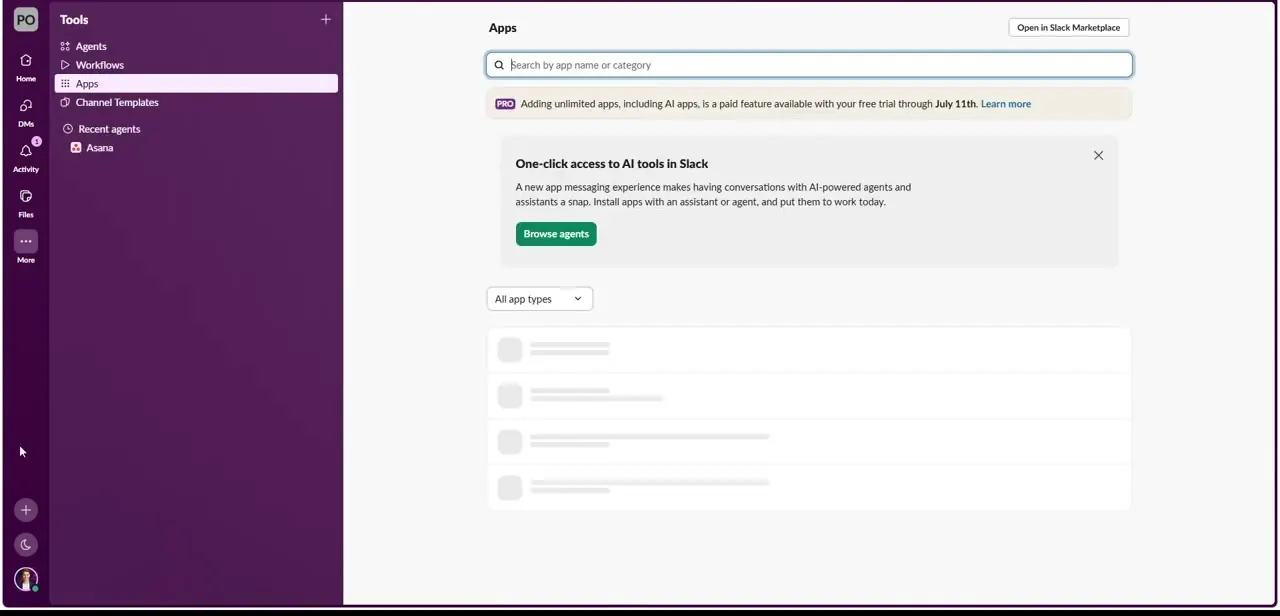
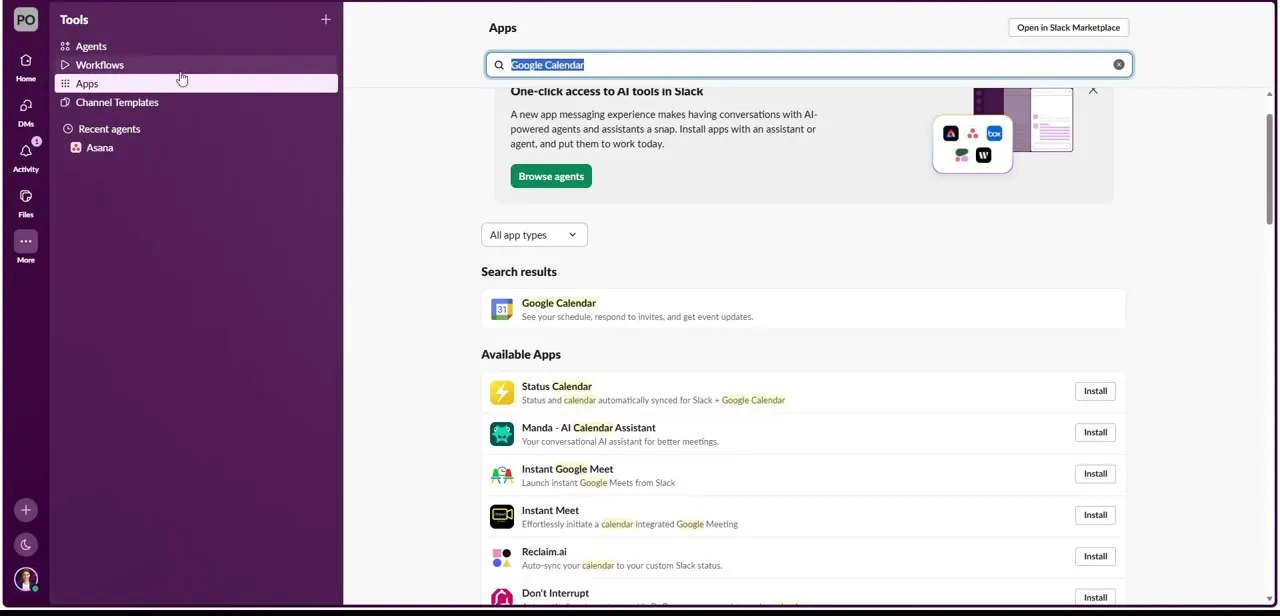
01Open Agents & tools, then Apps
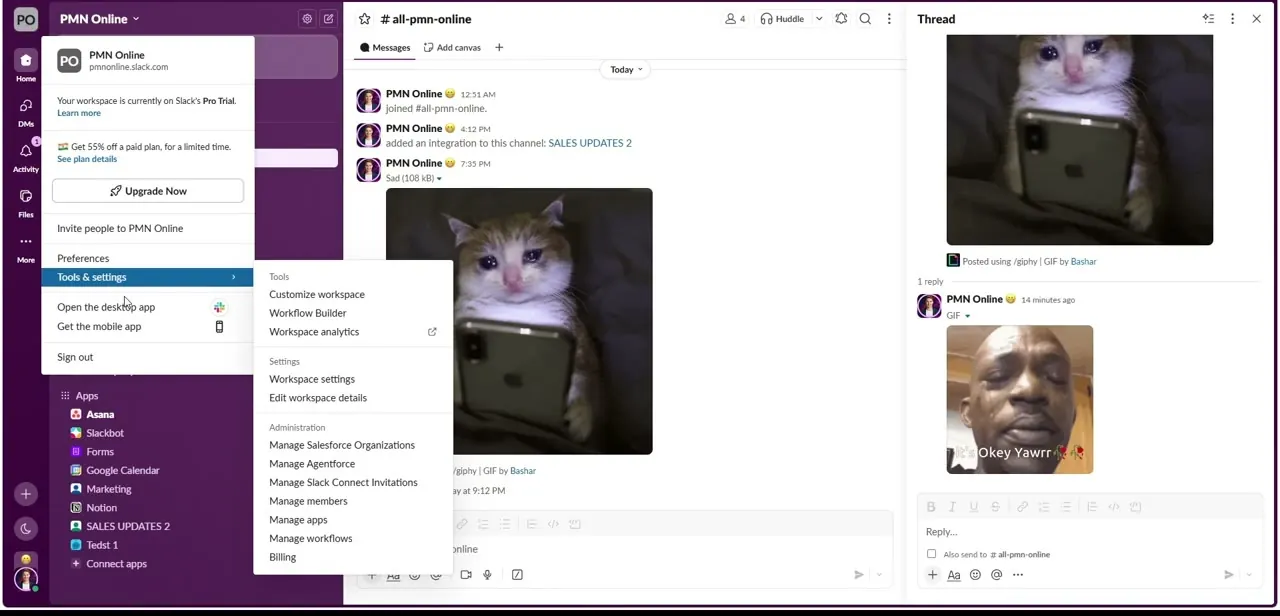
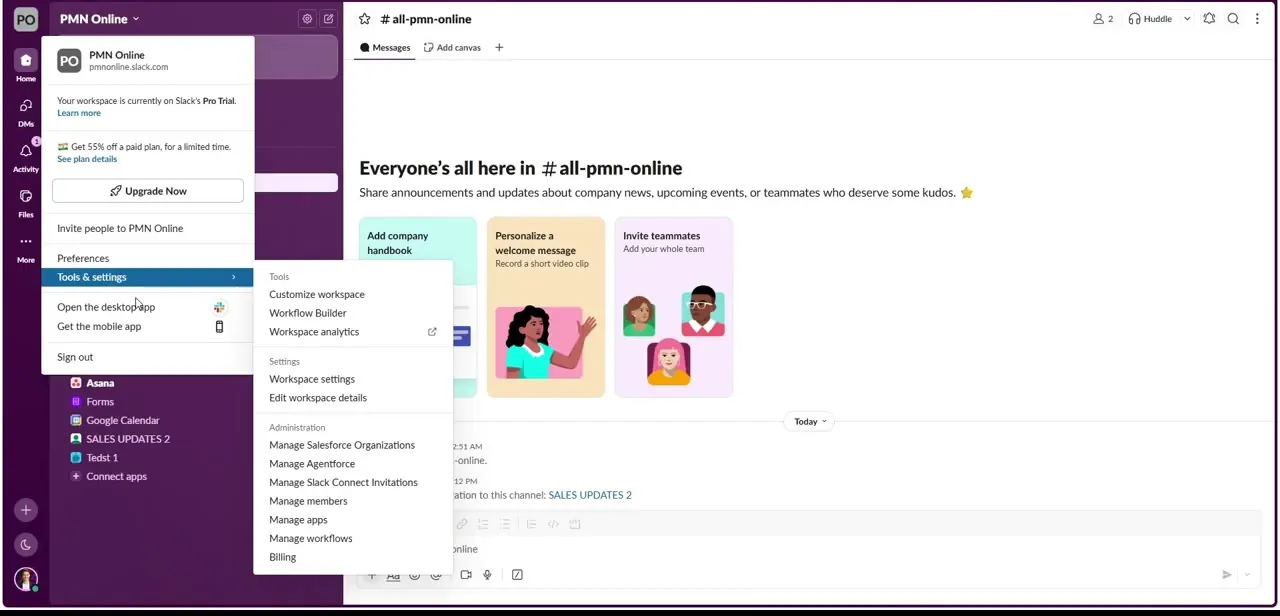
In the Slack desktop app, click Agents & tools in the left sidebar and choose Apps. The recording shows this menu as Tools; Slack has since renamed it, and its help pages now say Agents & tools.
The Apps page is the general directory for every integration, not a calendar menu. On a free-trial workspace a banner near the top may point out that adding unlimited apps is a paid feature.
02Search for Google Calendar and pick the official app
Type "Google Calendar" in the search field. The official Google Calendar app sits at the top.
Underneath, under Available Apps, are third-party tools such as Status Calendar and Reclaim.ai that overlap with it. For status syncing and invite replies, the official app is the one you want.
03Check the listing
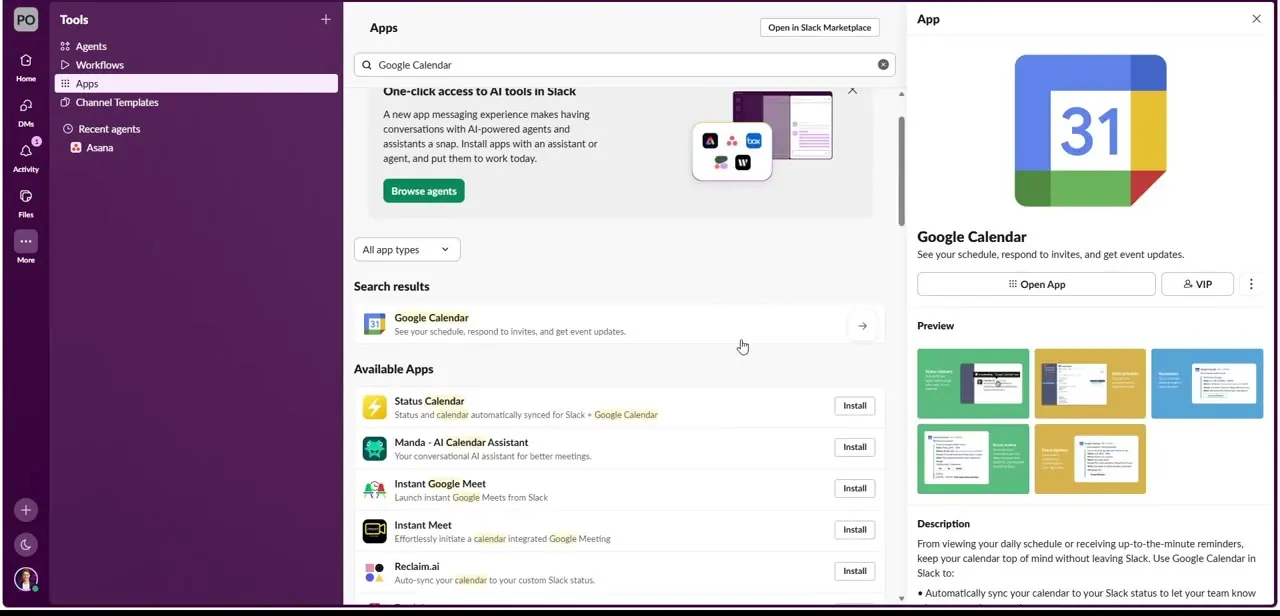
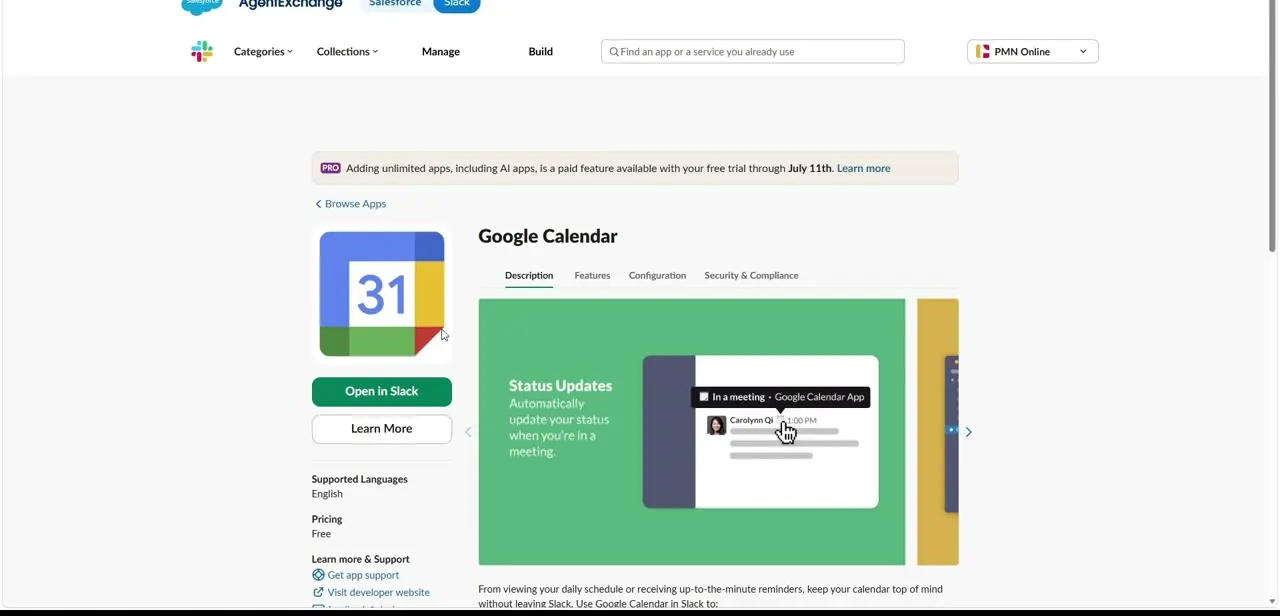
Clicking the result opens a side panel with the app's description, "See your schedule, respond to invites, and get event updates", and an Open App button. The full marketplace listing lists the features and the limits: your status won't include the meeting name, you can override it at any time, and status sync works only with the primary calendar on the connected Google account.
04Add the app and connect your Google account
If nobody in your workspace has installed the app yet, click Add to Slack on the marketplace listing, then Allow, then Open Slack. Only one member has to do this.
Everyone else only connects their own calendar. To connect yours, open the app from Agents & tools, then Apps, and click Connect an account.
Slack hands you to Google's sign-in and consent screen. Check the email address shown before you click Allow; with several Google accounts signed in, it's easy to connect the wrong one. Once connected, you can add more calendars from that Google account under Accounts in the app's settings, though only the primary one can drive your status.
05Turn on status sync and test it with a real meeting
On the app's Home tab, click Settings and switch on status sync. Your status updates at the start of your next qualifying meeting.
Not every event qualifies. Slack sets "In a meeting" only for events that have other invitees, and only if you've accepted the event or it marks you as Busy.
Events with OOO or PTO in the title set "Out of office" instead. If two events overlap, the app doesn't update your status at all.
So to test, invite a colleague to a short event a few minutes out and accept it. A solo placeholder on your own calendar won't change anything. While you're in Settings, open Notification preferences to choose how early reminders arrive and whether you hear about all-day events, invitations, updates and cancellations.
When it doesn't work
My status didn't change when the meeting started
Why: The event didn't qualify. It had no other invitees, you hadn't accepted it and it wasn't marked Busy, or it overlapped another event. A status you set yourself also takes priority over the app.
Fix: Check the event's guest list and your RSVP, remove the overlap, and clear any status you set manually.
Events stopped syncing or the app shows stale data
Why: The authorisation between Slack and Google has broken.
Fix: On the app's marketplace page, open the Configuration tab, click Revoke under Your Authorisation, then click Add to Slack and reconnect.
I can't add calendar notifications to a channel
Why: Channel notifications from the Google Calendar app are a paid-plan feature.
Fix: Upgrade the workspace, or keep using personal reminders, which work on the free plan.
Frequently asked questions
Which events change my Slack status?
Accepted events, or events that mark you Busy, that have other invitees set "In a meeting". Events titled with OOO or PTO set "Out of office". Overlapping events don't change your status.
Can I connect more than one calendar?
Yes. You can add as many calendars as you like from the connected Google account, and they'll show in your schedule and reminders. Status sync, however, only works with your primary calendar.
Will the app overwrite a status I set myself?
No. A status you set manually takes priority, and you can remove or change the synced one at any time.
Can I join the meeting from the Slack reminder?
Yes, when the event contains a video link such as Google Meet, Zoom or a Slack huddle. The reminder gets a join option once the meeting starts.
How do I disconnect my calendar?
Open the app from Agents & tools, then Apps, go to Settings, click Disconnect calendar and confirm. If your organisation uses domain-wide authentication, you can disconnect calendars but not your Google account itself.
Is the Google Calendar app for Slack free?
Yes. The listing shows it as free. Channel notifications and the shared-calendar daily or weekly schedule need a paid Slack plan.
Sources and last check
The Apps screens, search results and marketplace listing come from the original screen recording. The install and connect steps, status-sync rules, notification settings, disconnect path and paid-plan features were re-checked against Slack's help centre in September 2026. That check updated the menu name from Tools to Agents & tools, corrected the earlier FAQ that said only one calendar can be connected, and replaced a test step that would never have triggered a status change.
About the author

Impran M N
I've been hooked on technology for as long as I can remember — especially the new tools and AI apps that seem to land every other week. Easy Tech Tuts is where I write up whatever I've just worked out: I do the task in the real product, record the screen, and turn it into the guide I wish I'd found first.