Easy Tech Tuts
How to Join a Channel in Slack Easily 2026
By Impran M NLast checked against official docs
Staying connected to the right project rooms and department updates gets harder as a Slack workspace grows past a handful of channels. This guide covers where the full channel list lives in Slack's current layout, how to tell which ones you're already in, how to filter down to just the channels you haven't joined, and a lesser-known option for joining a channel only temporarily.
01Start from your Channels list in the sidebar
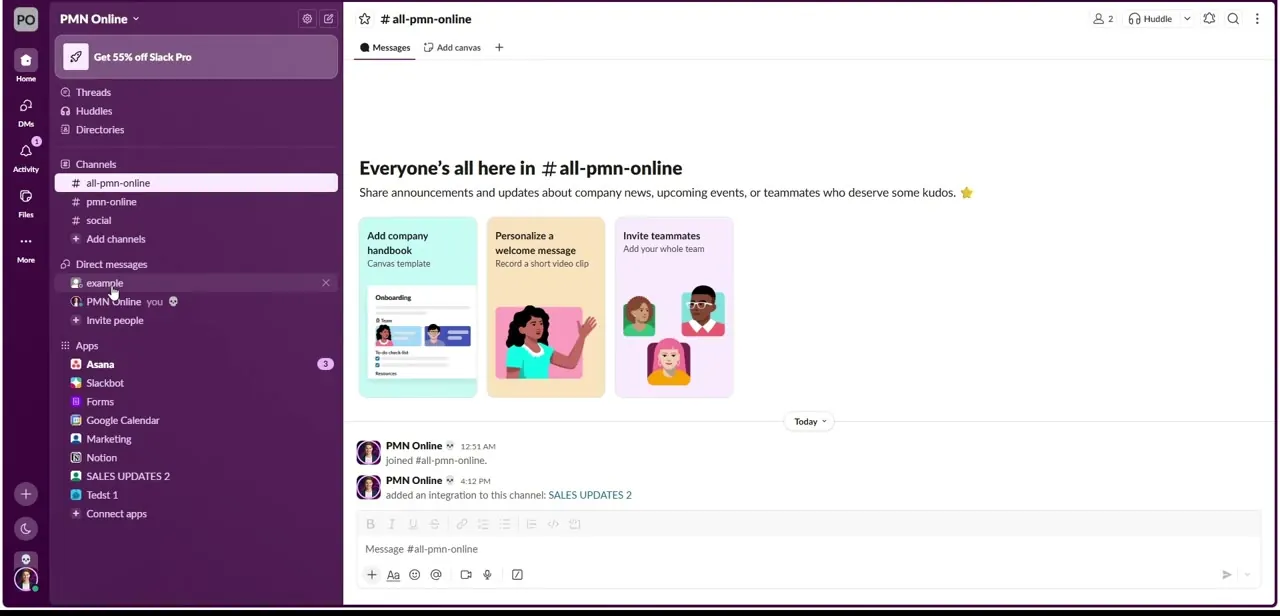
The left sidebar shows a Channels section listing every room you've already joined, with an Add channels link underneath for anything new. This is your home base for daily use, but it only shows channels you're in; it won't surface public rooms you haven't joined, which is why finding new ones means going somewhere else in the app. Below Channels you'll also see Direct messages and any installed apps, sharing the same sidebar space.
02Open Directories and switch to the Channels tab
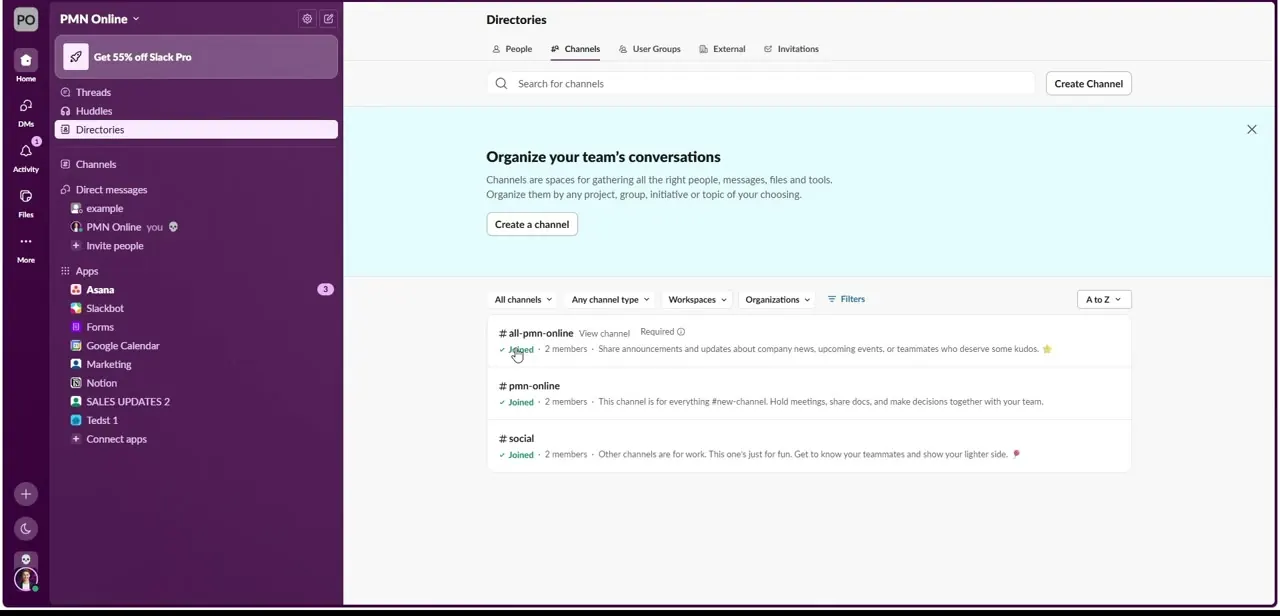
From Home, click Directories, then select the Channels tab. This is the full-workspace channel list, separate from the short one in your sidebar.
Each row shows the channel name, member count, a short description, and whether you've already joined it. A Create Channel button sits next to the search bar if none of the existing ones fit.
03Filter the list down to channels you haven't joined
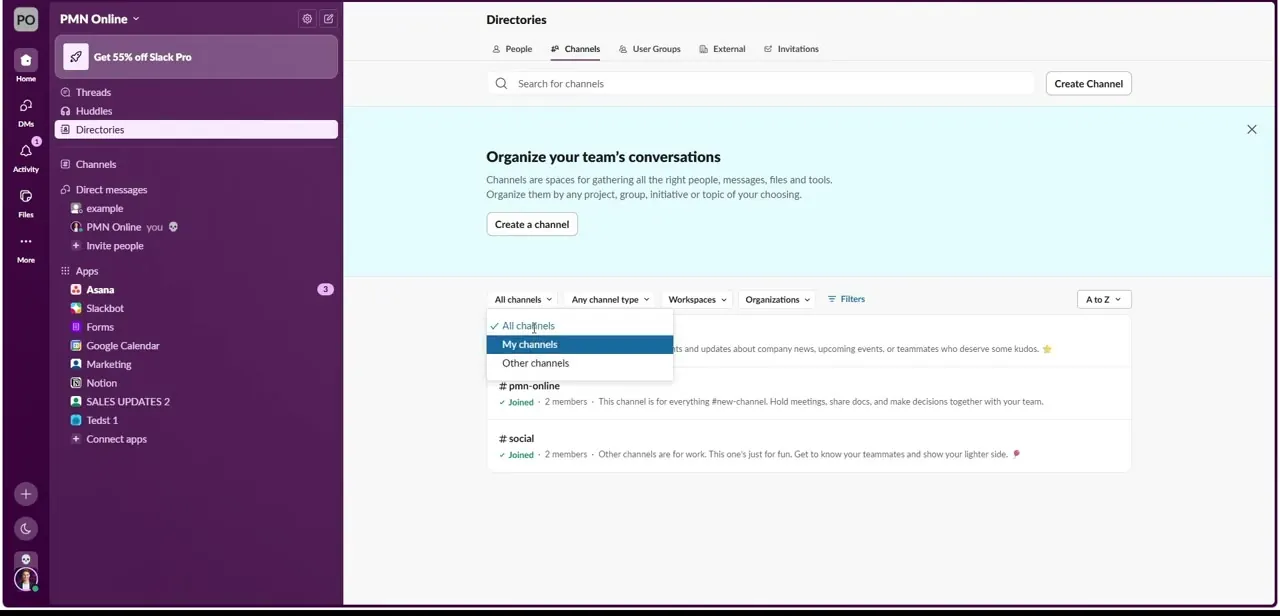
The dropdown above the list defaults to All channels, which mixes ones you're in with ones you're not. Switch it to Other channels to see only the rooms you haven't joined, or My channels to confirm what you're already a member of. On a workspace with dozens of channels this narrows things fast, without reading every description.
04Check a channel's description before joining
Each row in the directory carries a one-line description set by whoever created the channel. Read it before joining, since names alone can be ambiguous on a busy workspace.
A channel marked Required is mandatory for everyone in the workspace, and members generally can't leave it; anything without that tag is optional. If the purpose still isn't clear, open the channel directly and skim recent messages before committing.
05Join the channel and confirm it in your sidebar
Click a channel's row, or its Join button on rooms you haven't joined, to add it to your account. It appears back in your sidebar's Channels list immediately, and in most workspaces you can scroll back through its full message history from before you joined.
If it's a channel you only need briefly, click the arrow next to Join instead and pick Just for today, For 48 hours, or For 1 week; Slack drops you from it automatically once that period ends, and it lists it under a separate Temporary channels section in the meantime. If your sidebar feels cluttered after joining several channels, drag them into custom sections to group them by project or team.
Frequently asked questions
Can I join a private channel the same way?
No, private channels don't appear in the public Directories list. You need an invite or request from an existing member to get into one.
How do I leave a channel later?
Open the channel, click its name at the top, and choose Leave channel from the details menu, unless it's marked Required, in which case you likely can't.
What does joining a channel temporarily do?
Picking a duration (a day, 48 hours, or a week) from the arrow next to a channel's Join button adds you for that window only. Slack removes you automatically once it's up, and the channel sits in a Temporary channels section of your sidebar until then.
Can I organize joined channels into custom sections?
Yes, drag any channel in your sidebar into a custom section, or create a new section from the Channels header's options menu.
Will I see message history from before I joined?
Yes, in most workspaces new members can scroll back through a public channel's full history once they join.
What's the difference between 'All channels' and 'Other channels' in the filter?
All channels shows everything in the workspace regardless of membership. Other channels narrows that list to only the ones you haven't joined yet.
Sources and last check
Click path and screens come from a recorded walkthrough of Slack's Directories panel. Re-checked against Slack's official Help Center in September 2026: the Directories-to-Channels-tab path and the filter options matched the article as written, and one genuinely useful option the article was missing, joining a channel temporarily for a set period, was added to the final step and FAQ.
About the author

Impran M N
I've been hooked on technology for as long as I can remember — especially the new tools and AI apps that seem to land every other week. Easy Tech Tuts is where I write up whatever I've just worked out: I do the task in the real product, record the screen, and turn it into the guide I wish I'd found first.