Easy Tech Tuts
How to Integrate Slack With WhatsApp, Connect Easily 2026
By Impran M NLast checked against official docs
WhatsApp has no built-in connection to Slack. The two products were never designed to talk to each other, so anything that moves messages between them runs through a third-party app installed from Slack's own Marketplace, typically a bridge that relays a WhatsApp Business number into a Slack channel in both directions. This guide follows that real path: finding a connector inside Slack's app directory, reading what a listing actually promises and charges before installing it, and finishing setup on the provider's own site, since the WhatsApp Business API handshake happens there rather than inside Slack.
Before you start
- A WhatsApp Business number you're ready to connect
- Permission to install apps in your Slack workspace. If app-installation approval is turned on, only an owner or an approved admin can add a new connector.
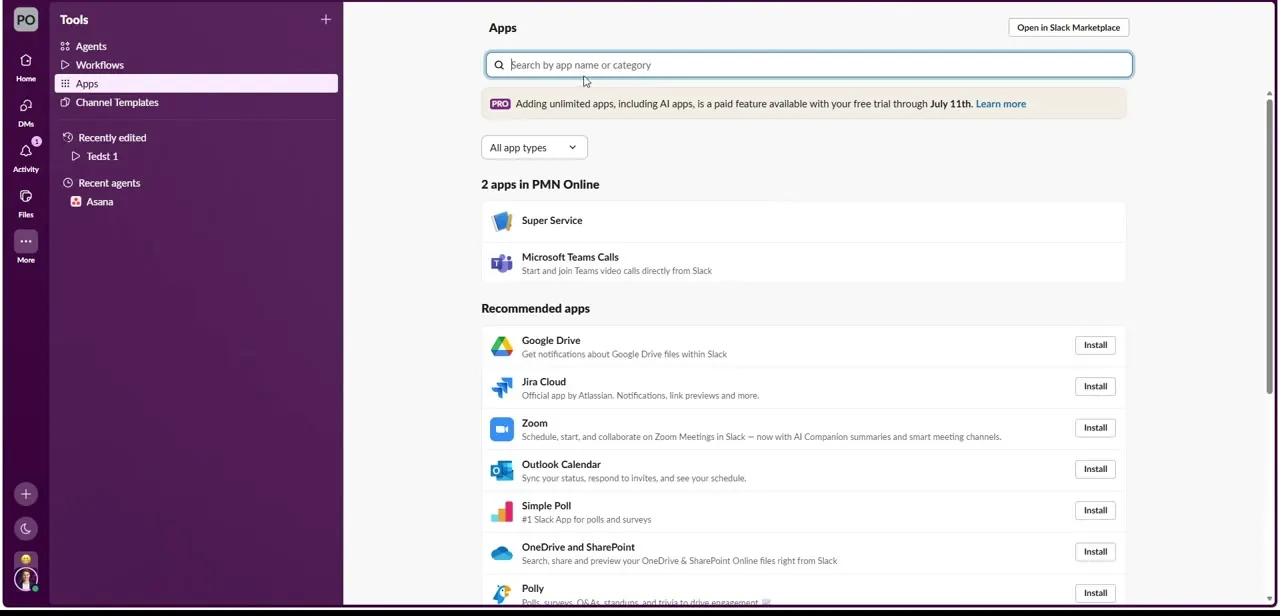
01Open Slack's app directory
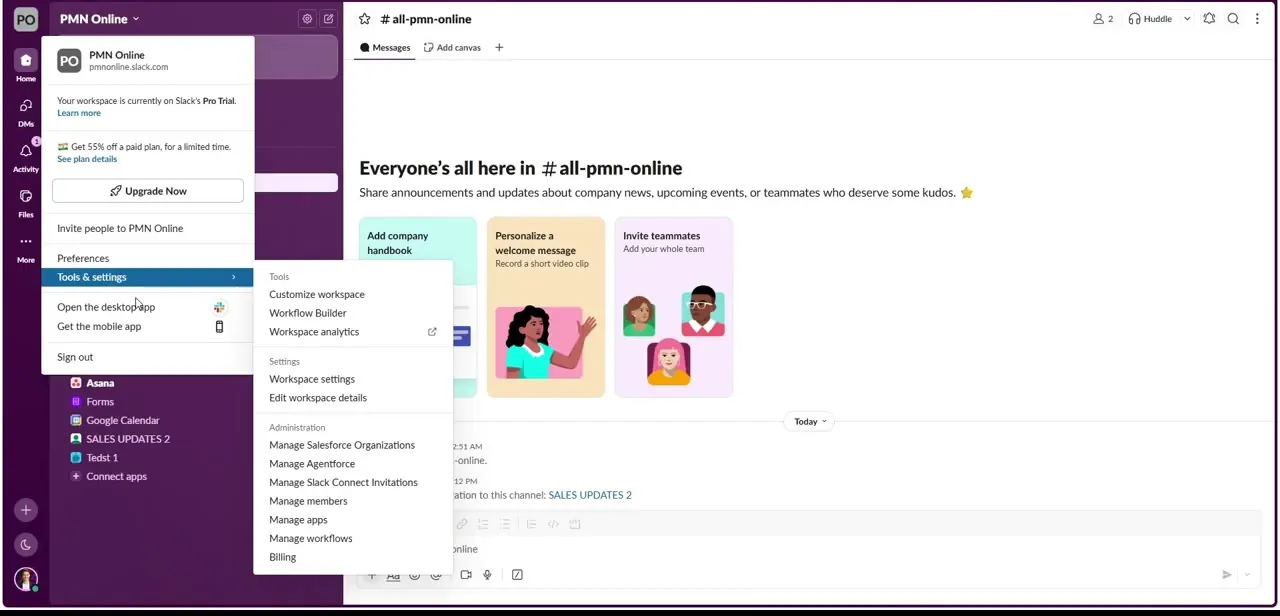
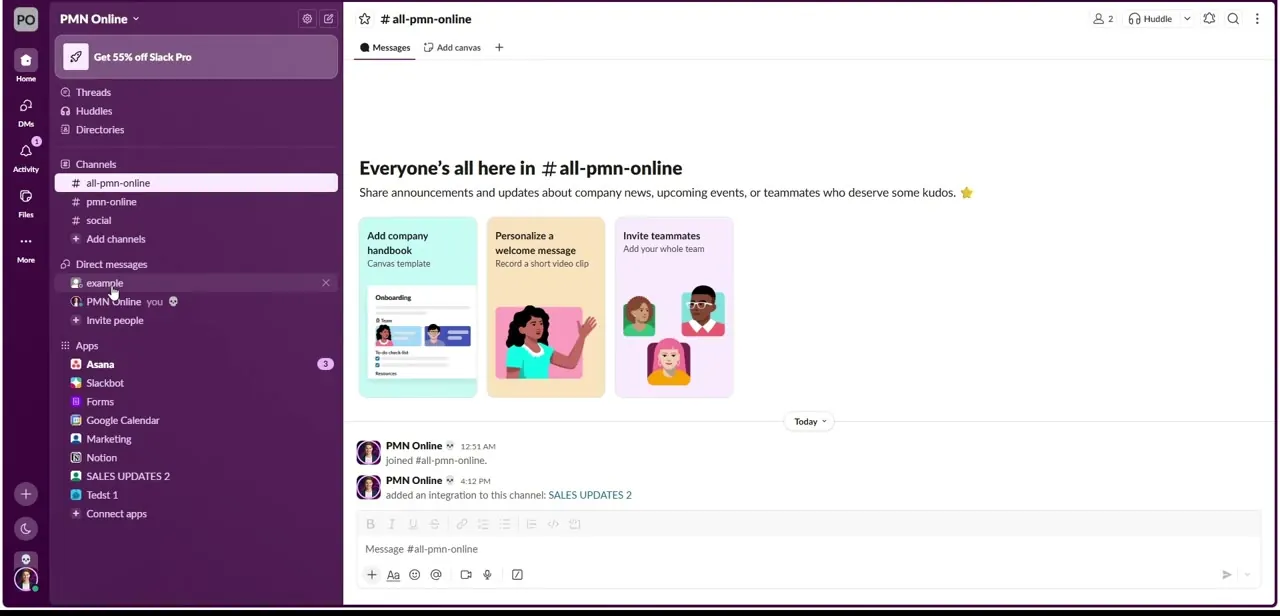
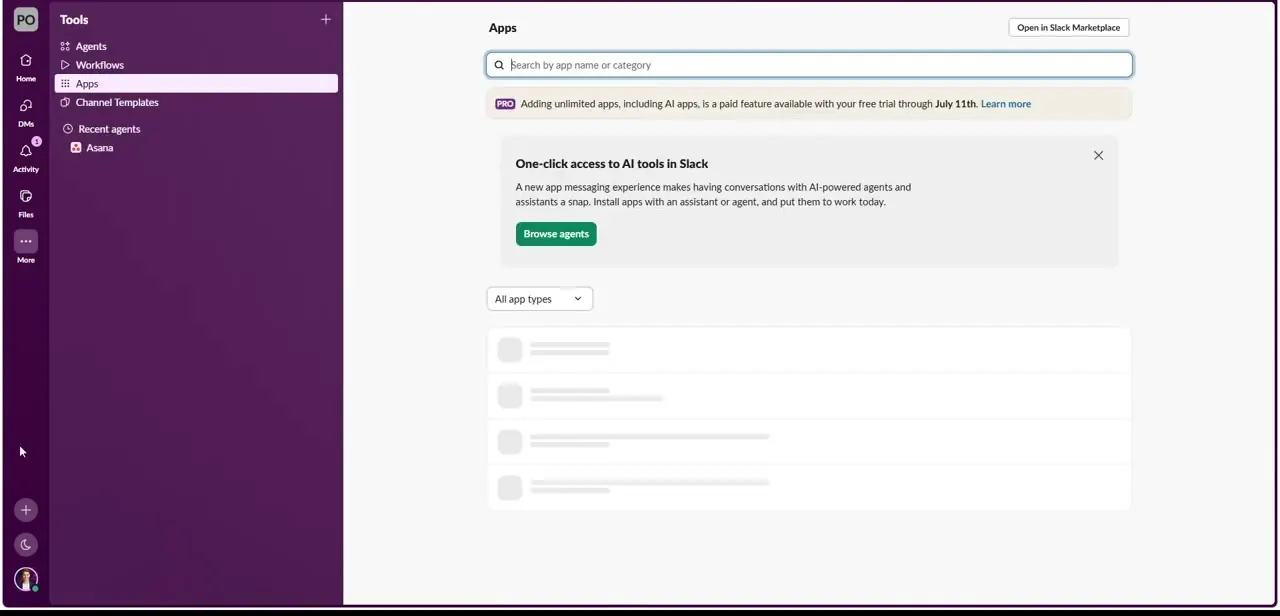
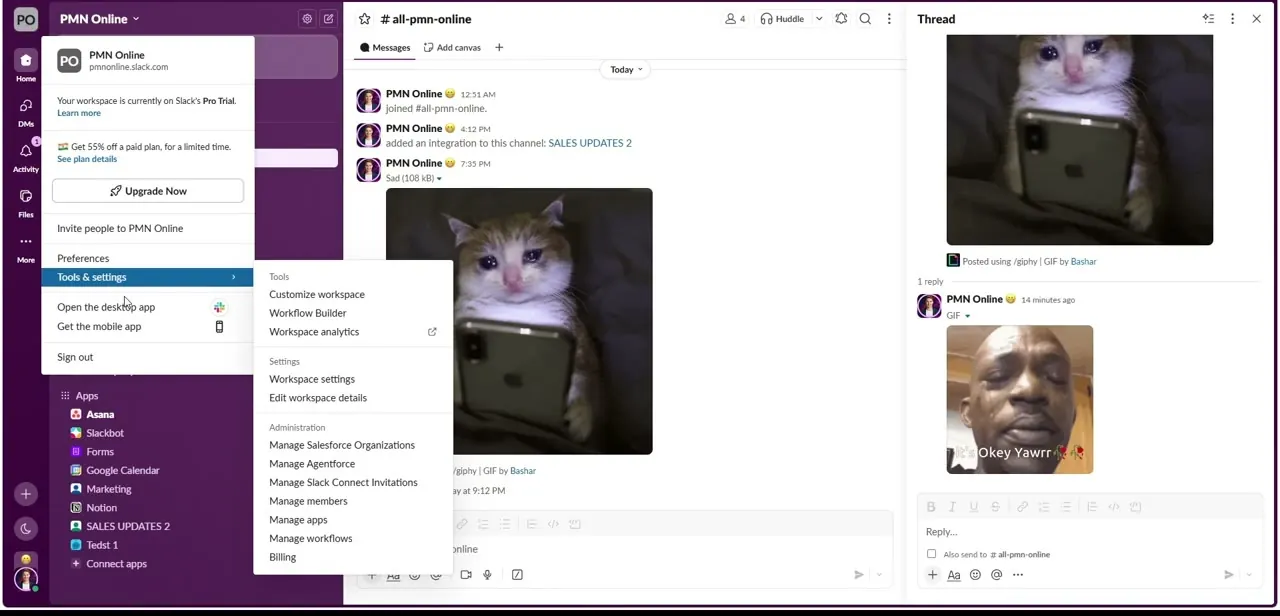
Slack moved where this lives. As of September 2026, Slack's own instructions point to Agents & tools in the left sidebar, then Apps, rather than the workspace-name dropdown. If your sidebar doesn't show Agents & tools yet, look for a Tools entry instead, or click your workspace name in the top-left corner and open Tools & settings, which still leads to the same Apps page on workspaces that haven't switched over.
02Search for a WhatsApp connector
WhatsApp isn't part of Slack's Recommended apps row, since it isn't an official Slack partner integration the way Google Drive or Zoom are. Search the Marketplace directly for a WhatsApp-specific connector by name. Check the category tags on any result before installing; a real WhatsApp bridge is usually tagged Customer Support or Communication, not something adjacent.
03Read the listing before you install
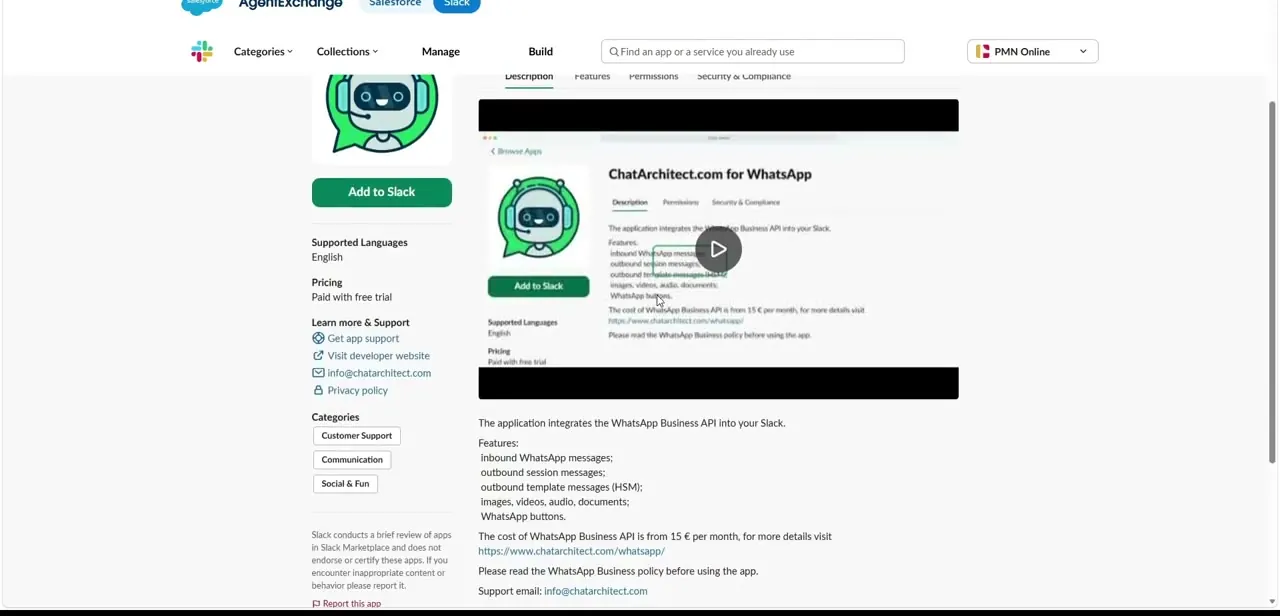
Every WhatsApp connector on Slack runs through its own Marketplace listing page, which spells out what it does, what permissions it wants, and how it's priced. ChatArchitect.com for WhatsApp is one example: its listing states it integrates the WhatsApp Business API into Slack, with inbound WhatsApp messages, outbound session and template messages, media support for images, video, audio and documents, and WhatsApp buttons.
Pricing starts from €15 a month for the WhatsApp Business API layer, separate from whatever Slack itself charges. The permissions it requests cover viewing channel and conversation content and posting into channels, which is worth reading closely before granting them to any WhatsApp bridge, not just this one.
04Finish setup on the provider's own site
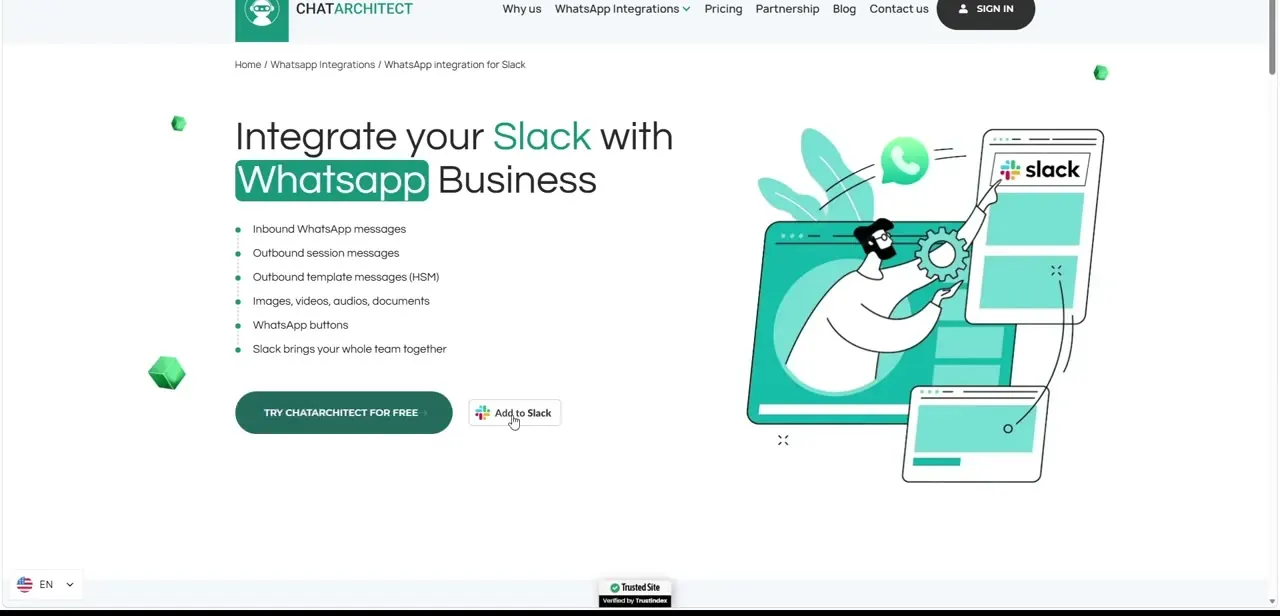
Clicking Add to Slack routes you off Slack and onto the connector's own website, since the WhatsApp Business API handshake happens there. ChatArchitect describes itself as an official WhatsApp Business API provider and offers a free trial before its paid tier starts.
Treat that page as the real terms of the integration. Slack only hosts the discovery listing, and its review of Marketplace apps isn't the same as an endorsement.
05Authenticate your WhatsApp number and map it to a channel
From the provider's setup portal, you'll typically link your WhatsApp Business number either by scanning a QR code with your phone, or by entering WhatsApp Business API credentials if you're on that tier. Once verified, the connector asks which Slack channel should receive incoming messages.
Pick a dedicated channel rather than a general one so customer conversations don't get lost in unrelated chatter. If you handle more than one WhatsApp number, most connectors let you map each one to its own channel.
06Test the bridge in both directions
Before relying on this for real customers, send a test message from WhatsApp to the connected number and confirm it lands in the mapped Slack channel. Then reply from inside Slack and check it actually arrives back on the sender's WhatsApp app.
Bi-directional delivery is the part that's easiest to assume works and hardest to notice when it silently doesn't. Run this test again after any pricing-tier change, since outbound template messages are commonly gated to a paid plan even when inbound messages work on a free trial.
When it doesn't work
WhatsApp doesn't appear in Slack's Recommended apps.
Why: It isn't an official Slack partner integration, so Slack doesn't surface it automatically.
Fix: Search the Marketplace directly by name, or open a connector's listing URL directly.
Inbound messages arrive in Slack but replies never reach WhatsApp.
Why: Outbound template messages are commonly restricted to a paid tier, even when inbound viewing works on a free trial.
Fix: Check the provider's pricing tier and upgrade if outbound delivery is what's gated.
Installing the app fails with a permissions error.
Why: App installation approval is turned on for the workspace, and you're not an owner or approved admin.
Fix: Ask a workspace owner to install it, or to approve your request.
Frequently asked questions
Does Slack have a native WhatsApp integration?
No. WhatsApp and Slack don't connect natively; every integration between them runs through a third-party connector installed from the Slack Marketplace, such as a WhatsApp Business API bridge app.
Do I need WhatsApp Business API for this to work?
It depends on the connector's tier. Some offer a simpler setup for a single number, but full features like outbound template messages typically require the WhatsApp Business API, priced separately from Slack.
Can I connect multiple WhatsApp numbers to one Slack workspace?
Yes. Most connectors support mapping several numbers to different channels so conversations from different lines don't mix.
Will replies from Slack show up correctly in WhatsApp?
Yes, when the bridge is configured correctly a reply typed in the mapped Slack channel appears to the customer as a normal WhatsApp message. Test this before going live.
Why can't I install the connector myself?
Some workspaces turn on app-installation approval, which limits installs to owners or approved admins. Ask whoever manages your workspace to install it or approve your request.
Sources and last check
Screens and click path come from a recorded walkthrough. In September 2026, the app-directory entry point was re-checked against Slack's own help article, which now points to Agents & tools in the sidebar rather than only the workspace-name menu this guide previously described. ChatArchitect.com for WhatsApp's features and €15/month starting price were confirmed directly on its Slack Marketplace listing and its own product page.
About the author

Impran M N
I've been hooked on technology for as long as I can remember — especially the new tools and AI apps that seem to land every other week. Easy Tech Tuts is where I write up whatever I've just worked out: I do the task in the real product, record the screen, and turn it into the guide I wish I'd found first.