Easy Tech Tuts
How to Add Google Calendar to Notion, Link, Import & Embed in Page, Dashboard Database Easily 2026
By Impran M NLast checked against official docs
If you plan your day in Google Calendar but manage projects in Notion, keeping the two in sync can save a lot of tab-switching. Notion doesn't have a native Google Calendar integration.
Instead, you make a calendar public in Google's own settings, copy its public URL, and drop that into a Notion embed block, which renders your live calendar inside the page. This guide follows Notion's documented method for doing that, including the one setting people skip that stops the embed from working at all.
Before you start
- A Google account and a Notion account signed in with the same email address; Notion's own instructions specify the embed works when the two match
01Open the Google Calendar you want to embed
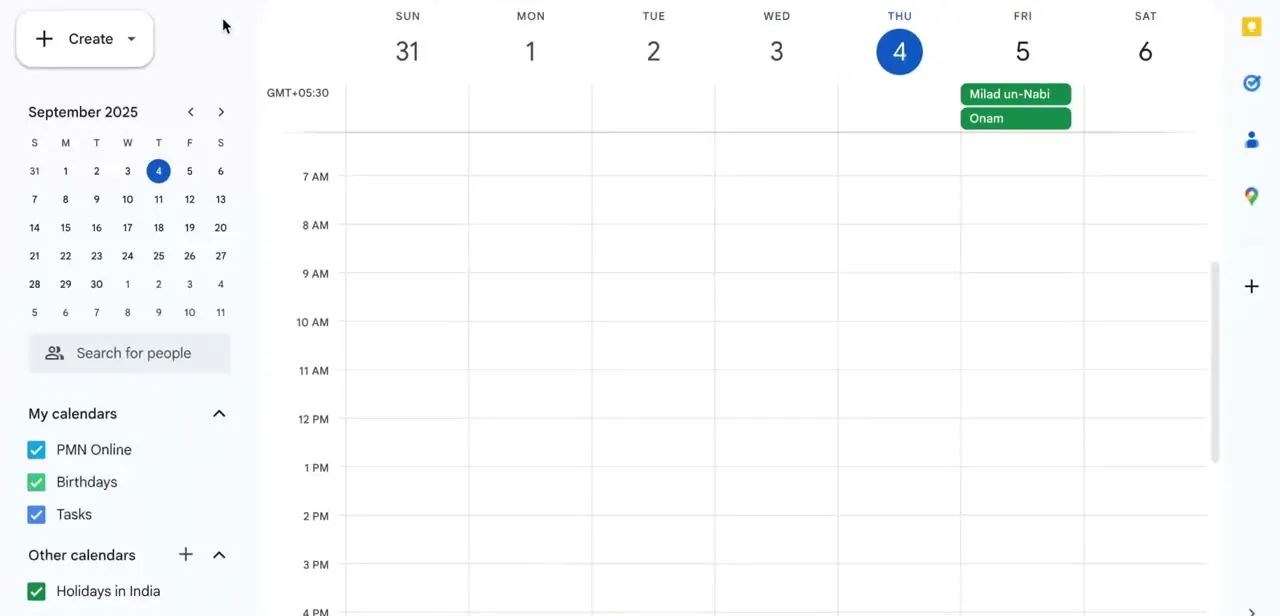
Start in Google Calendar and confirm which calendar you're embedding. The sidebar lists "My calendars" (a primary calendar, Birthdays, Tasks) plus any "Other calendars" you've subscribed to, like a regional holiday calendar. Each one has its own separate settings and its own separate embed link, so pick the specific calendar whose events you want visible in Notion instead of assuming one link covers everything on screen.
02Make that calendar public
Click the three dots next to the calendar and choose Settings and sharing. Under Access permissions, check Make available to public, then choose whether visitors see the full event details or only your free/busy status.
This step is easy to skip because nothing in the embed flow itself forces it, but it's required: a private calendar has no public URL to hand to Notion, so without it the embed simply won't render for anyone else viewing the page. If you'd rather not expose your main calendar, create a separate calendar for the events you want visible and embed that one instead.
03Copy the calendar's public URL
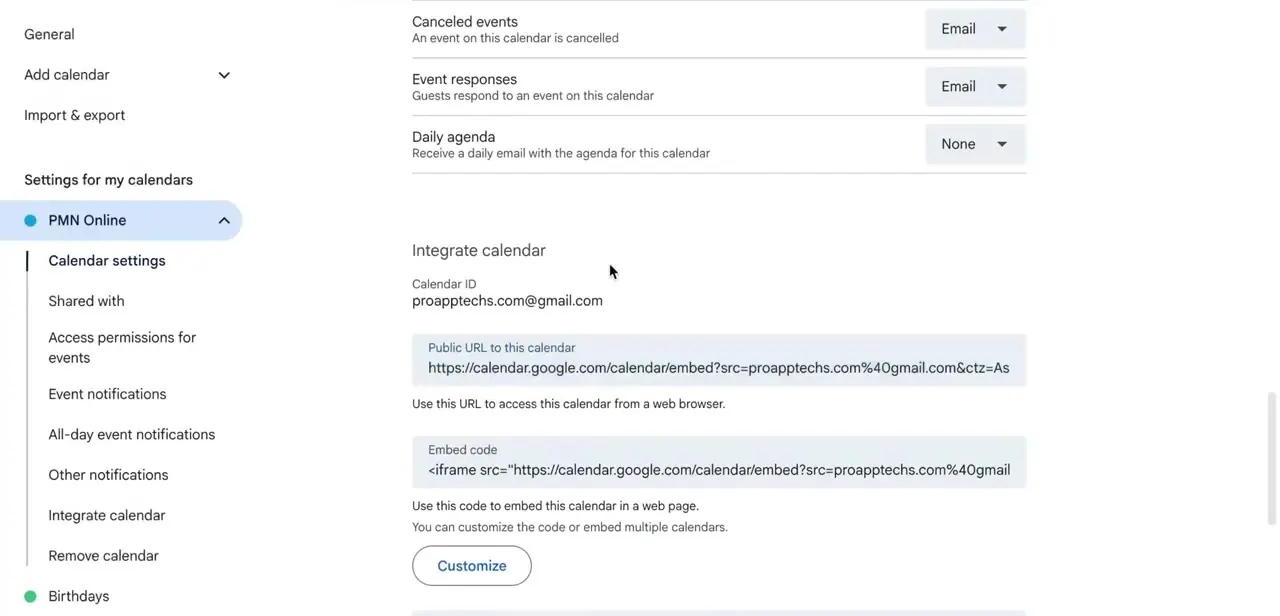
Still in that calendar's settings, scroll to Integrate calendar. This section lists the Calendar ID, a Public URL to this calendar, and a full HTML embed code with an iframe tag.
Copy the Public URL field itself; that's what Notion needs, not the surrounding HTML. Note that Google only exposes this section from a computer's browser, not from the Google Calendar mobile app.
04Paste it into a Notion embed block
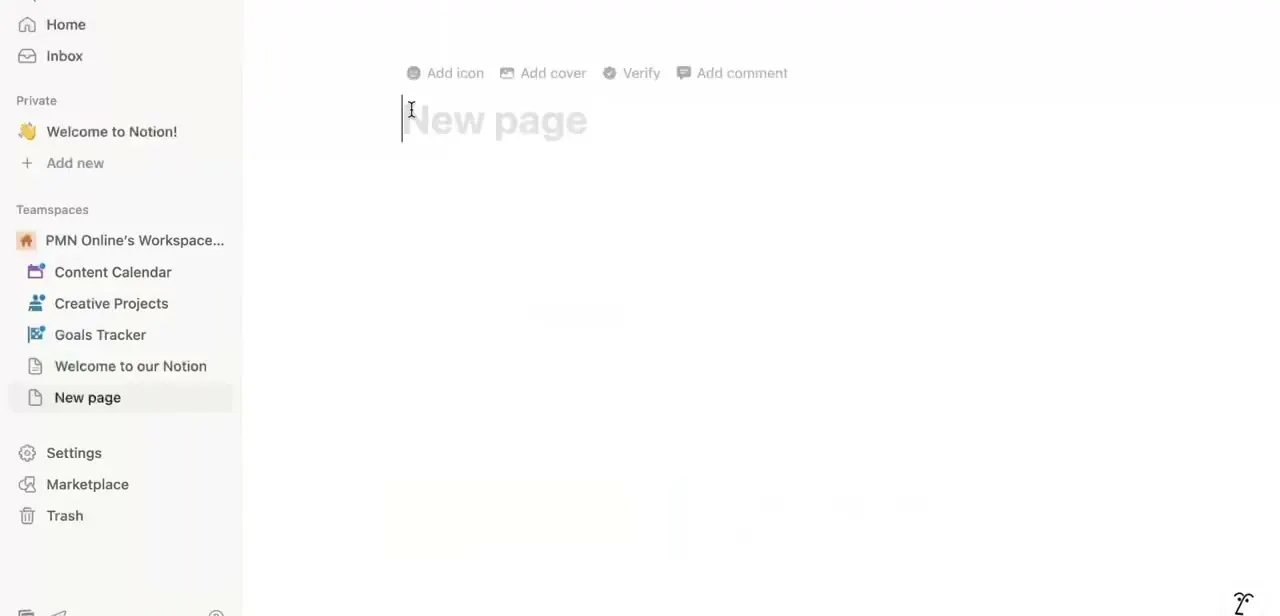
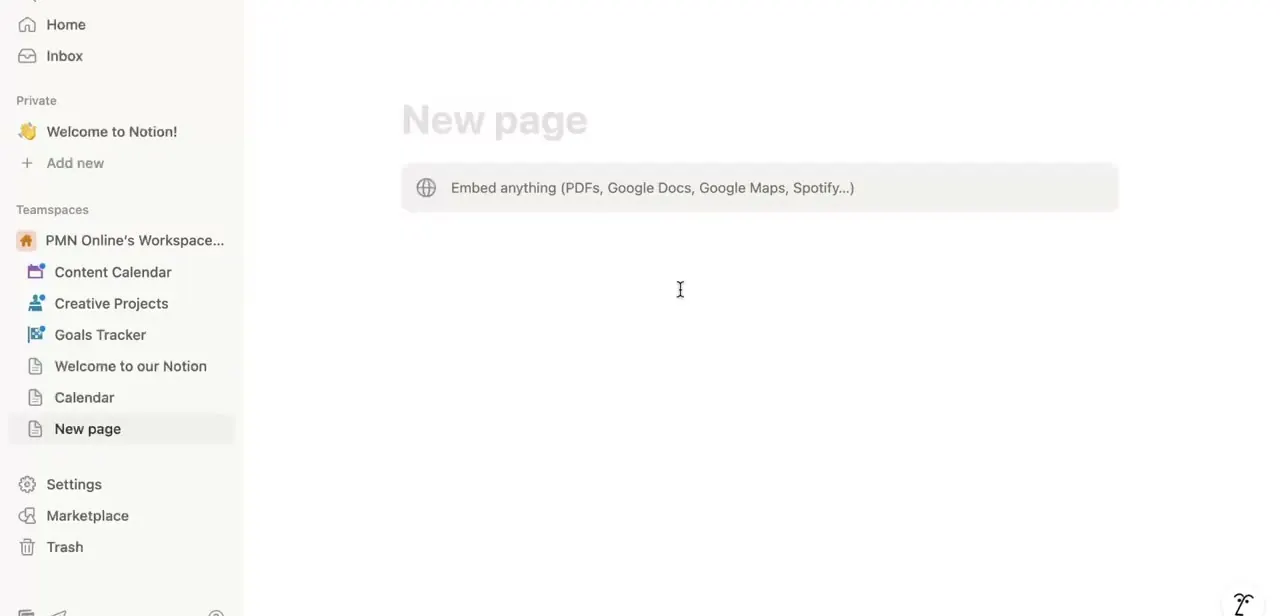
In Notion, open the page where you want the calendar to live and paste the URL directly onto the page. Notion recognizes the link and offers to embed it; choose Create Embed from the menu that appears. A blank page also shows an "Embed anything (PDFs, Google Docs, Google Maps, Spotify...)" block you can add first and paste the link into.
05Resize, position, and build a dashboard
Once the calendar renders, drag its corner handles so a useful range of the week or month is visible without forcing anyone to scroll inside a tiny window. Move it like any other Notion block, above or below a task database, or into a column next to one, so deadlines from Google Calendar and open tasks from Notion sit in the same glance. The embed is read-only and live, so a change made in Google Calendar shows up automatically with nothing to resync.
06Remember the embed is one-way
Because the embed can't write data back into Notion, an event on your calendar doesn't automatically become a row in a task database. If you want a specific event tracked with a status, owner, or notes, add it as a database entry yourself with a matching date. That's the tradeoff of this method: zero setup and always current, but linking a specific event to a specific task stays a manual step.
When it doesn't work
Notion shows a plain link instead of a live calendar
Why: The calendar wasn't made public before the URL was copied, or the pasted text was the full iframe HTML instead of just the Public URL value.
Fix: Turn on Make available to public under Access permissions first, then copy only the Public URL to this calendar field and paste that alone.
The embedded calendar isn't the one you meant to share
Why: Settings and Integrate calendar are specific to whichever calendar you opened them from; it's easy to be in the wrong one if you have several.
Fix: Reopen the calendar list, confirm the calendar name at the top of the settings page, and copy its URL from there.
Can't find Integrate calendar or a public URL option at all
Why: Google only exposes calendar embed settings from a desktop browser; the option isn't available in the Google Calendar mobile app.
Fix: Switch to a computer to generate the link, then use it in Notion on any device.
Frequently asked questions
Does the embedded calendar update automatically?
Yes. It's a live embed of your Google Calendar, so any change you make there reflects in the Notion embed automatically, with no resyncing needed.
Can I edit events directly from Notion?
No. The embed block is a view-only window into Google Calendar. To add or edit an event, open Google Calendar itself.
Is this free?
Yes. Embedding a Google Calendar's public link into Notion uses features built into both products, with no paid app or plugin required.
Do I have to make my whole calendar public?
No. Create a separate calendar for just the events you're comfortable sharing, make that one public, and embed it instead of your main calendar.
Can I embed multiple calendars in one dashboard?
Yes. Each calendar has its own settings and its own public URL, so you can add one embed block per calendar anywhere on a Notion page.
Sources and last check
Click path and screens come from a recorded walkthrough. Re-checked in September 2026 against Notion's own help page and Google Calendar's own help page: both confirmed the calendar must be set to public before the embed link works, and Notion's docs specifically call for the plain Public URL, not the full iframe embed code. The original version never mentioned the public-access requirement, which is the correction most likely to save someone a stuck embed. Notion's page also states the method works when the Google and Notion accounts share an email address, added here as a prerequisite; that specific claim wasn't independently testable and is stated only because Notion's own documentation says it.
About the author

Impran M N
I've been hooked on technology for as long as I can remember — especially the new tools and AI apps that seem to land every other week. Easy Tech Tuts is where I write up whatever I've just worked out: I do the task in the real product, record the screen, and turn it into the guide I wish I'd found first.