Easy Tech Tuts
How to Add Calendar to Notion, Embed on Page, Dashboard, Database Easily 2026
By Impran M NLast checked against official docs
Notion doesn't have a separate "insert calendar" button. A calendar in Notion is a database wearing a Calendar layout, and any database needs at least one date property before that layout does anything useful.
That's what makes it flexible enough to sit on its own page, live inside a dashboard, or track the same tasks you already manage in a table. This guide covers the fastest way to start one, how to point it at the right date field, and how to put the same calendar in more than one place without duplicating your data.
01Start a calendar database
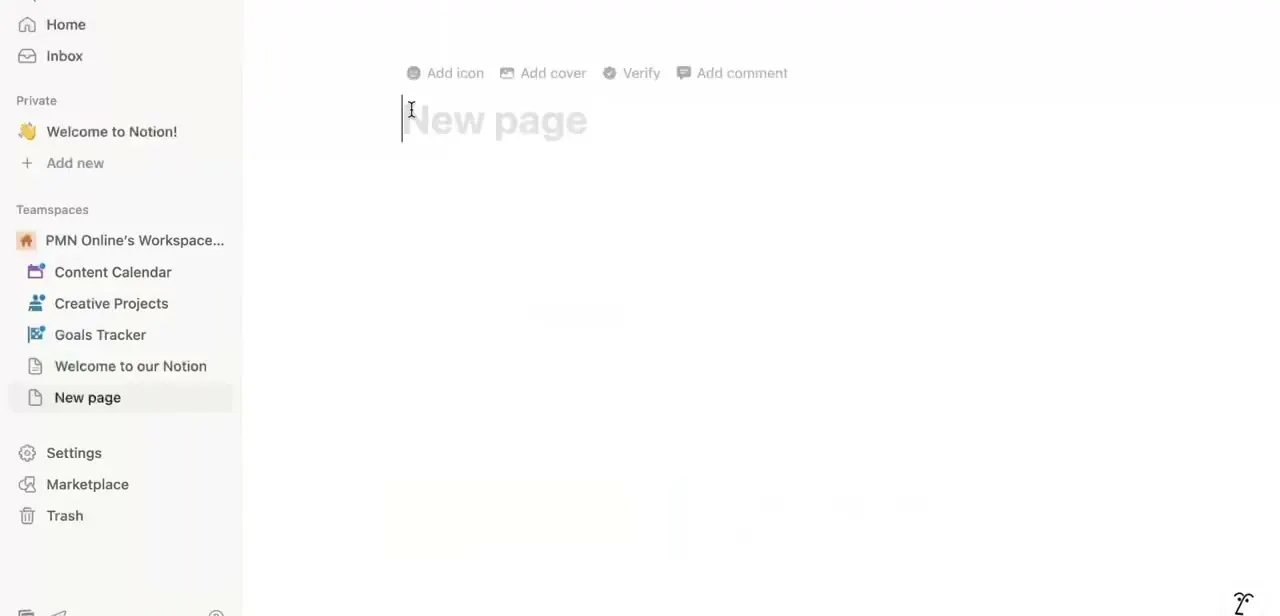
The quickest route is a new page: open the sidebar, add a blank page, and under "Get started with" click the ••• menu and choose Calendar. Notion builds a database with a date property already in place and switches straight to the Calendar layout.
If you'd rather build it manually, or add one inline on a page you already have, type /Calendar view and press enter, or add a database block and pick New empty database from the panel that opens, then switch its layout in the next step. Either path lands in the same place; the template shortcut just skips a step.
02Building it manually: create the database first
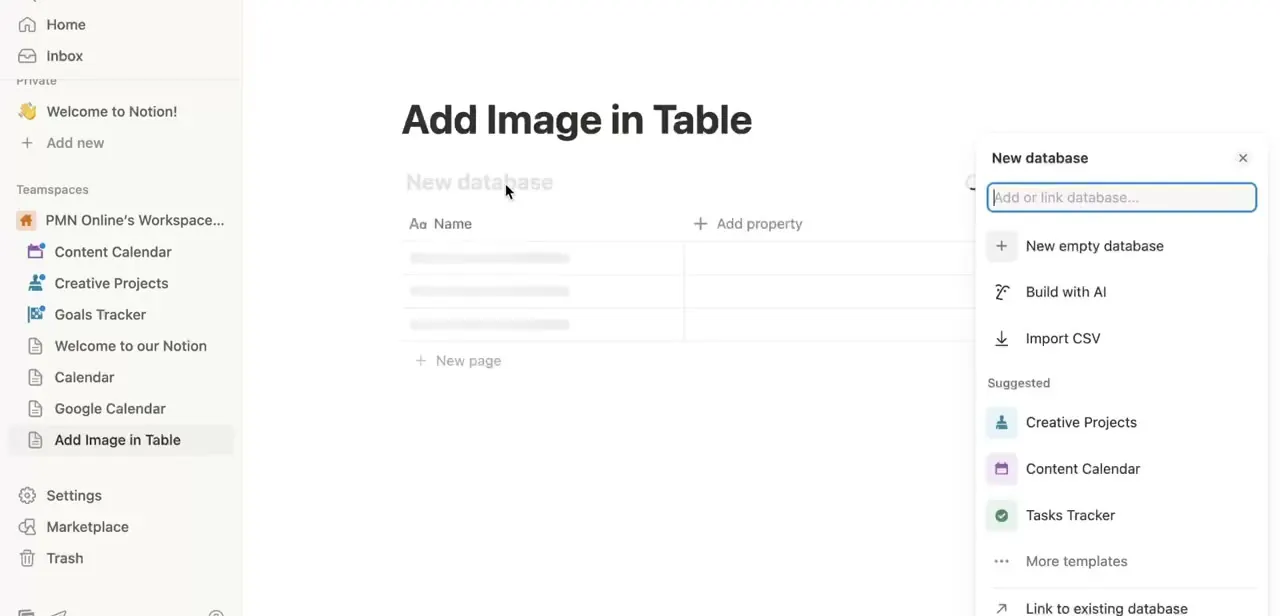
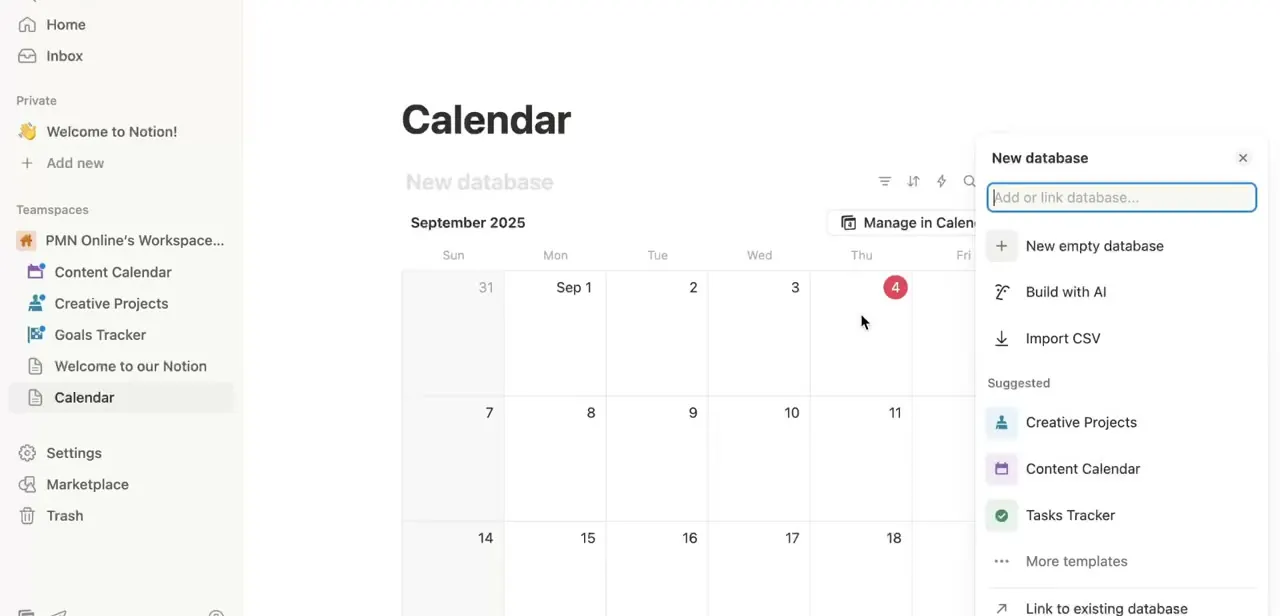
If you went the database-block route, Notion opens a New database panel with a few starting options: New empty database, Build with AI, Import CSV, or linking to a database you already have, plus a shortlist of suggested databases like Creative Projects or Tasks Tracker. For a calendar meant to hold its own events, New empty database is the simplest path. For a calendar meant to visualize an existing project's due dates, skip ahead and add a Calendar view to that database instead of creating a new one.
03Switch the layout to Calendar
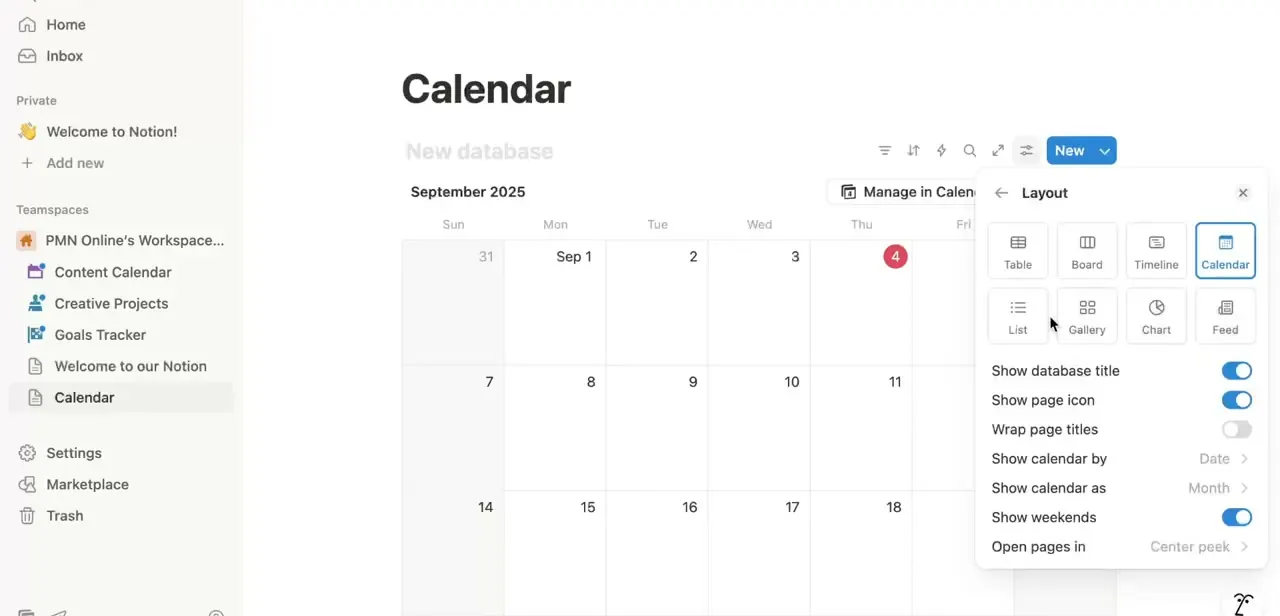
A database you built manually defaults to a table layout, so open the layout menu and choose Calendar from the grid of options alongside Table, Board, Timeline, List, Gallery, Chart, and Feed. Selecting it changes how the same underlying data displays: instead of rows, you get a month grid with items placed on the date pulled from a date property. A database needs at least one property of that type for Calendar to have anything to show.
04Point it at the right date field
Below the layout grid, two settings control behavior. "Show calendar by" picks which date property drives placement, which matters if your database has more than one, like a start date and a separate due date.
"Show calendar as" switches between Month and Week. If items aren't showing up where expected, check this setting first: the calendar only reflects whichever date property it's set to read from, not every date field on the page.
05Put the calendar somewhere else
To surface it outside its own page, open a dashboard page, type /, and search for the calendar's page name to insert it as a linked view, or copy the database block and paste it in. Either way keeps it synced to the same underlying data, so an event added from the dashboard shows up identically on the calendar's own page.
If you'd rather see deadlines from a database you already use, like a Content Calendar or Goals Tracker, add a new Calendar view directly on that database instead of building a separate one. That keeps a single source of truth: tasks stay in one place, and the calendar becomes another way to look at the same records instead of a duplicate list you update by hand.
When it doesn't work
An item doesn't appear anywhere on the calendar
Why: It has no value set in the date property the calendar is reading from, or "Show calendar by" is pointed at a different date property than the one that's filled in.
Fix: Open the item and confirm the relevant date field has a value, then check the calendar's "Show calendar by" setting matches that property.
You end up with two separate lists of the same tasks
Why: A new, unrelated database was created for the calendar instead of adding a Calendar view to the existing project database.
Fix: Delete the duplicate database and add a Calendar view directly on the original one instead.
Frequently asked questions
Is the Notion calendar feature free?
Yes. Calendar is one of the built-in database layouts available on Notion's free plan, alongside Table, Board, Timeline, List, and Gallery.
Can I turn an existing database into a calendar view?
Yes. Open the database, add a new view, and choose Calendar as the layout. Any item with a value in a date property places itself on the calendar automatically.
Does the calendar update automatically when I add new tasks?
Yes, because Calendar is just a view of the underlying database. Add or edit an item from any view and every other view of that same database reflects the change instantly.
Can I have multiple calendars on one dashboard?
Yes. You can embed calendar views from different databases on the same dashboard page, so a content calendar and a personal goals calendar sit side by side.
What's the difference between the Calendar layout and Notion Calendar?
The Calendar layout described here is a database view inside your workspace. Notion Calendar is a separate scheduling app that syncs with Google Calendar accounts. Related, but a different product from embedding a calendar view on a page.
Sources and last check
Click path and screens come from a recorded walkthrough. Re-checked against Notion's own help article on calendar view databases, September 2026, which confirmed the date-property requirement and added the faster "Get started with > Calendar" template path this guide previously left out in favor of only the manual database-block route. The free-plan availability of Calendar was separately confirmed against Notion's help documentation.
About the author

Impran M N
I've been hooked on technology for as long as I can remember — especially the new tools and AI apps that seem to land every other week. Easy Tech Tuts is where I write up whatever I've just worked out: I do the task in the real product, record the screen, and turn it into the guide I wish I'd found first.