Easy Tech Tuts
How to Chat on Monday.com Easily 2026
By Impran M N
Project conversations scattered across email chains make it hard to know who said what and when. This guide covers Monday.com's built-in communication tools, from writing updates on individual tasks to tagging teammates with @mentions and catching up through your personal Inbox. It's meant for anyone who wants project discussion tied directly to the work being tracked.
01Open the Updates Section
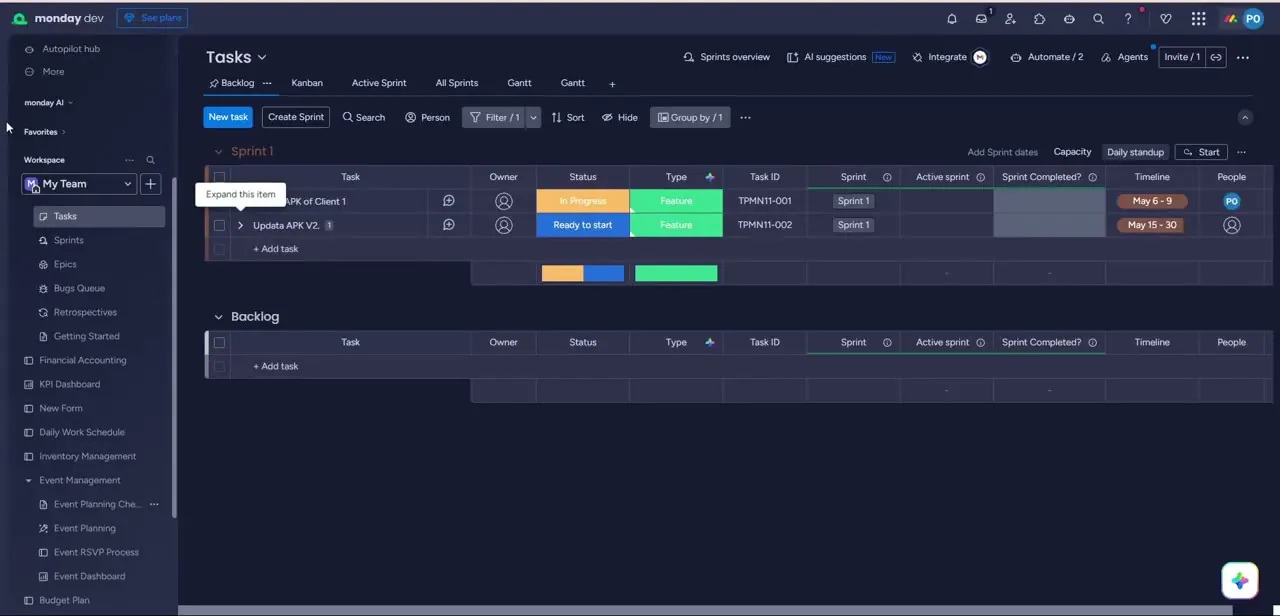
Click the speech bubble icon on any item or task row to open its conversation panel.
02Write and format an update
Type your update, format the text, and attach files or images directly within the item's conversation card.
03Use @mentions to notify people
Type @ followed by a name to instantly notify individual team members, guests, or entire teams about the update.
04Reply and acknowledge updates
Reply to specific updates to keep threads organized, and use likes to acknowledge messages without adding noise.
05Check your personal Inbox
Open your Inbox feed to see every conversation, mention, and update across all your active boards in one place.
06Adjust notification preferences
Fine-tune your notification settings to reduce noise while still catching the updates that matter.
Frequently asked questions
How do I notify a specific teammate about an update?
Use the @mention feature by typing @ and their name to instantly notify them, a group, or a guest.
Can I attach files to an update?
Yes, you can attach files or images directly within an item's conversation card alongside your written update.
Where do I see all my mentions across different boards?
Your personal Inbox feed aggregates every conversation, mention, and update across all your active boards in one view.
Can I stop getting notified on every single update?
Yes, notification preferences can be adjusted to reduce communication noise while keeping the alerts you actually need.
Watch the full walkthrough
The same steps, demonstrated on screen from start to finish.