Easy Tech Tuts
How to Do a Subitem Rollup in Monday.com Easily 2026
By Impran M NLast checked against official docs
When a task has several subitems, opening each one to gauge overall progress gets tedious fast. monday.com's rollup feature summarizes subitem data straight onto the parent row, so a glance at the board tells you what would otherwise take expanding every subitem to piece together. This guide follows the click path on a sprint board: from a task with a subitem attached, through the column setting that turns rollups on, to the summary appearing on the parent row.
01Find a task that already has subitems
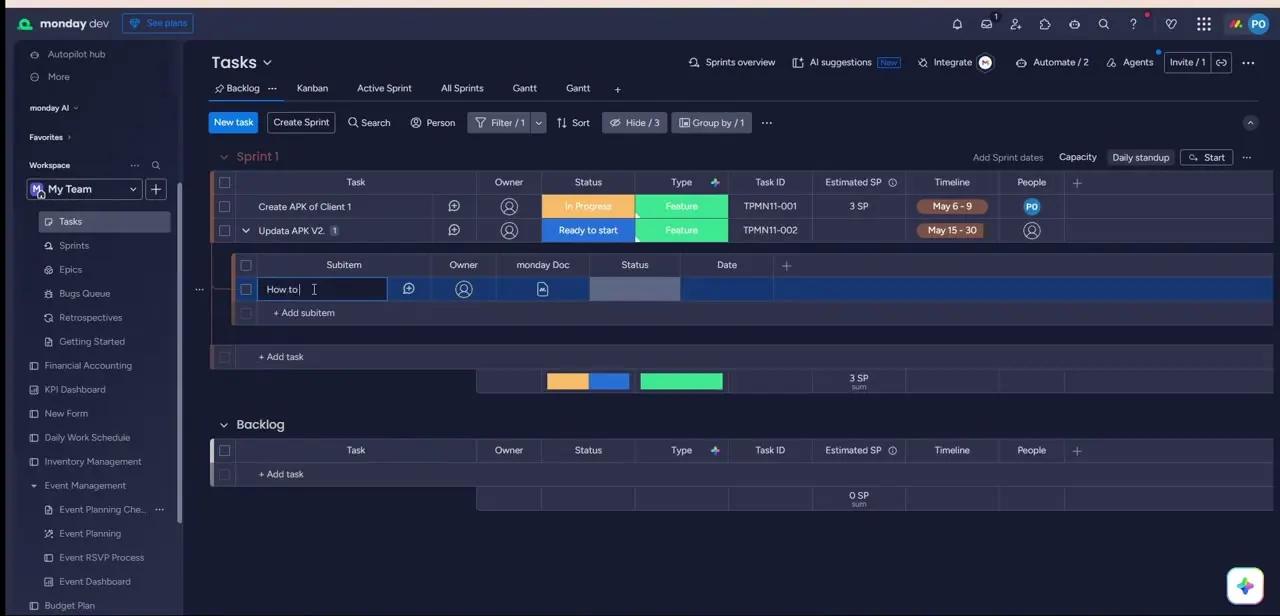
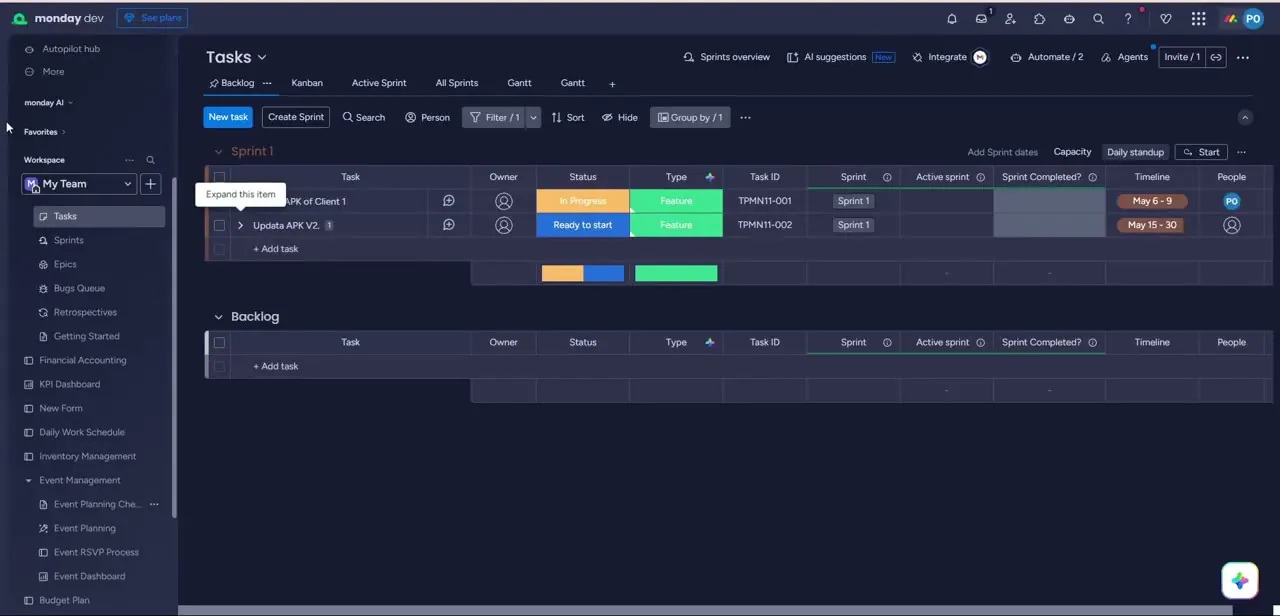
On a working board like a sprint backlog, a task with subitems shows a small count badge next to its name. A task called "Updata APK V2" with a "1" badge has one subitem nested underneath it, collapsed by default.
Hovering over the row surfaces an expand control. You need at least one subitem with a column worth summarizing, like Status, Numbers, or Date, before there's anything to roll up.
02Expand the subitem table
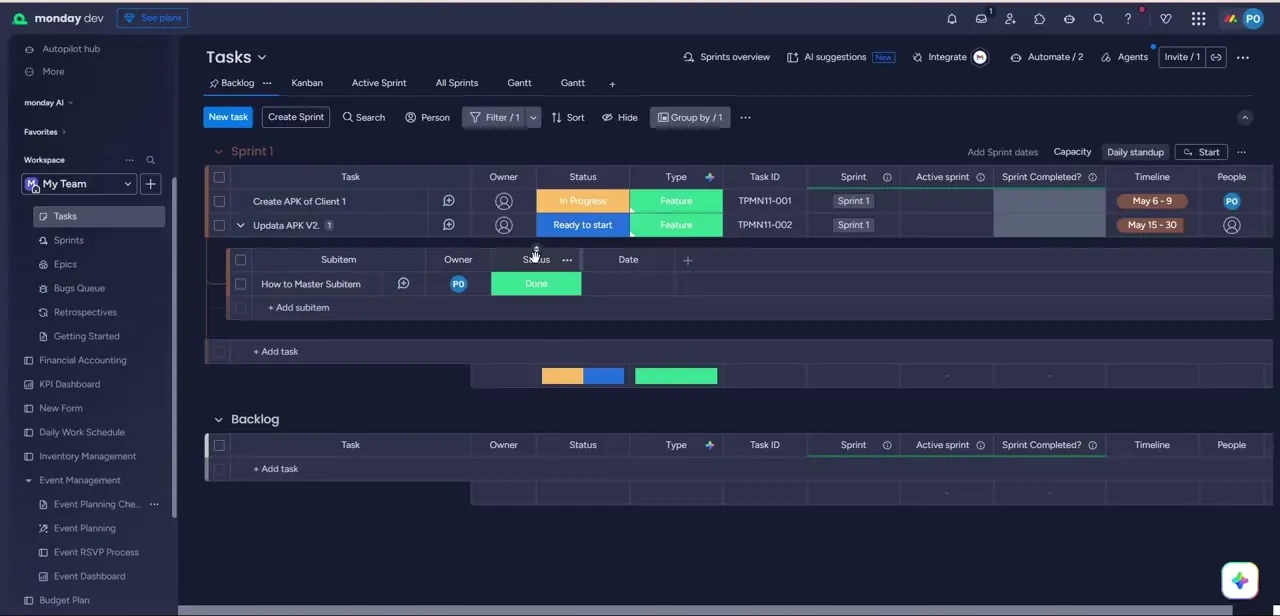
Clicking the expand arrow opens a mini table nested under the parent task, with its own header row: Subitem, Owner, Status, Date, and an option to add more columns. Here, the subitem "How to Master Subitem" already has its Status set to Done.
This nested table behaves like a small board of its own; subitems, owners, and statuses are set independently of the parent task above it. Subitem columns are shared board-wide, though. Every subitem on the board uses the same column structure, so a column added under one task exists under all of them.
03Turn on the rollup from the column menu
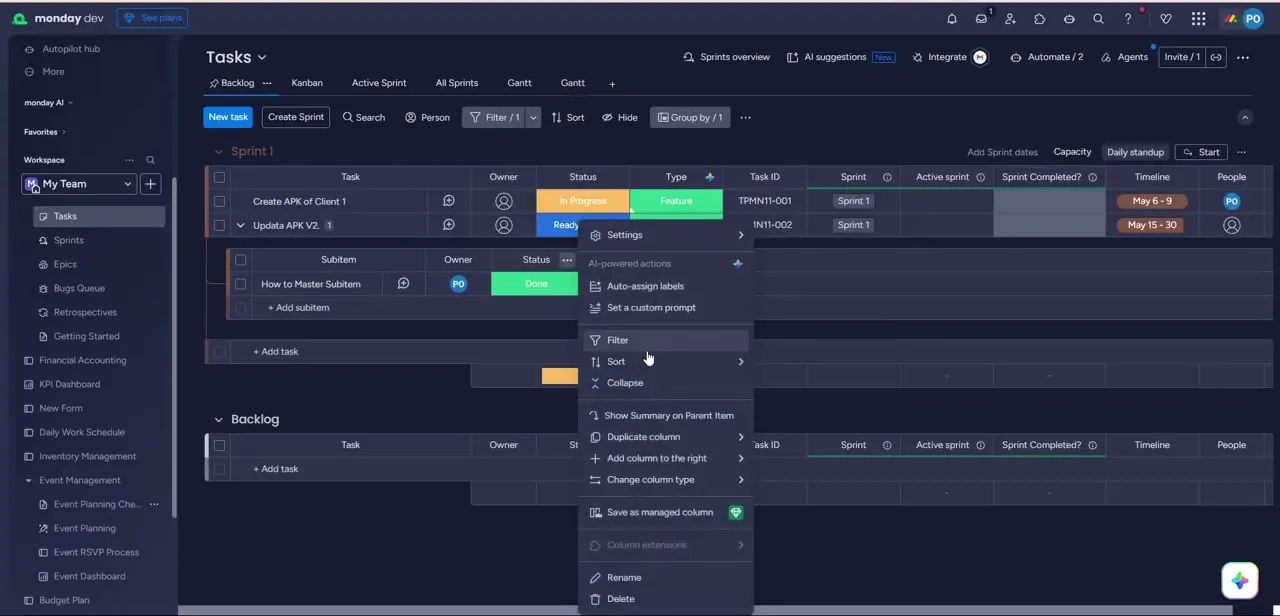
Click the three-dot menu on the subitem Status column header. Beyond Filter, Sort, and Collapse, and a set of AI-powered actions, Show Summary on Parent Item sits partway down the list. The toggle is the whole setup; there's no separate configuration screen. monday.com's own documentation lists Status, Numbers, Date, Tags, and Time Tracking among the column types this works on, so the feature isn't limited to the two shown here.
04See the summary on the parent row
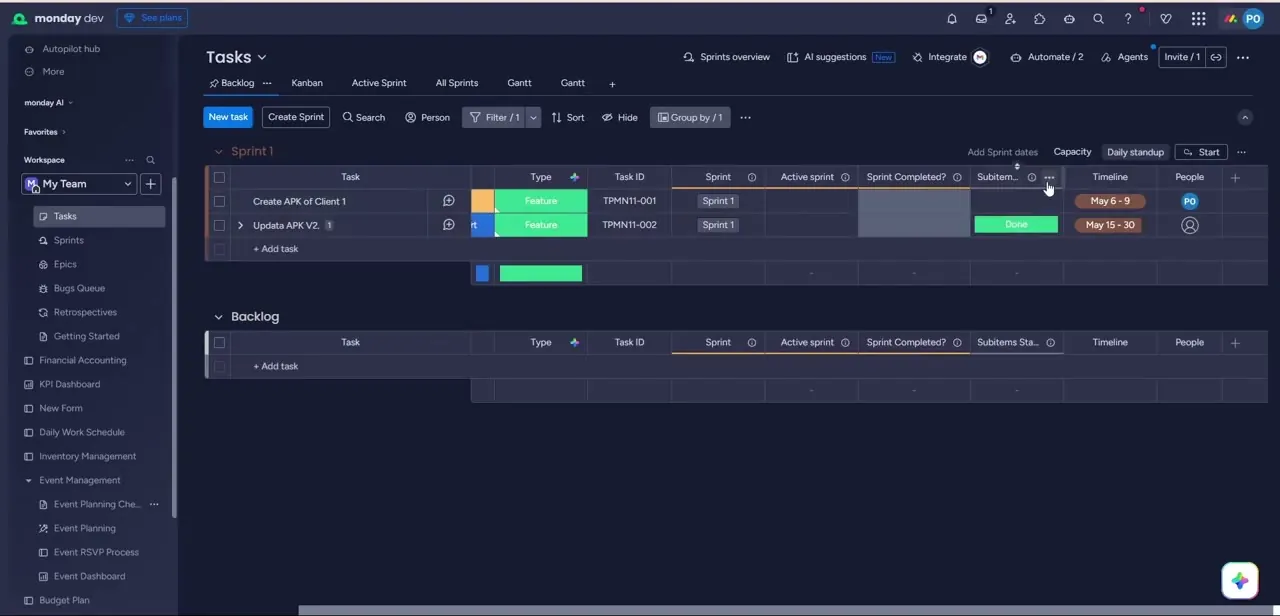
Once enabled, a new column appears at the parent level, labeled something like "Subitems Sta..." when the header truncates, sitting alongside the task's other columns. For a Status column, the summary shows the subitem's value directly, in the same color it carries at the subitem level. Widen the column if the truncated label is confusing; there's no separate way to rename it.
05Match the calculation to the column, then put it to work
What a rollup shows depends on the column type. A Status column rolls up as the value itself or, with subitems in different states, a completion indicator.
A Numbers column tracking hours or budget can roll up as a sum, minimum, or maximum, depending on the calculation you pick in the same column settings. Once the rollup column exists at the parent level, it behaves like any other column: filter the board by it, sort by it, or reference it as a condition inside an automation recipe.
When it doesn't work
Show Summary on Parent Item doesn't do anything, or the column never appears at the parent level
Why: No subitem under that task has a value in the column yet, or the parent task has no subitems at all.
Fix: Add at least one subitem and set a value in that column first. The rollup summarizes existing data; it doesn't create any.
The new parent-level column header is cut off, like "Subitems Sta..."
Why: monday.com truncates long auto-generated column names to fit the board's default column width.
Fix: Widen the column by dragging its right edge. The summary itself isn't affected, only the label.
I want a rollup for a column that only exists on one subitem
Why: Subitem columns apply to the whole board. Every subitem shares the same column structure, so there's no per-task column.
Fix: Add the column once, board-wide, from any subitem's column settings. It can't be scoped to a single task.
Frequently asked questions
How do I get subitem data to show on the parent row?
Open the three-dot menu on the subitem column you want to summarize and select Show Summary on Parent Item. A matching column appears at the parent level.
Which column types support a rollup?
monday.com's documentation lists Status, Numbers, Date, Tags, and Time Tracking, among others. What the summary shows depends on the column type: a value or completion indicator for Status, an aggregate like sum or max for Numbers.
Do I need a subitem before setting up a rollup?
Yes. The feature summarizes existing subitem data, so at least one subitem with the target column populated needs to exist first.
Can I filter or sort by the rolled-up value?
Yes. Once the summary column exists at the parent level, it works like any other column for filtering, sorting, and as a trigger or condition inside automations.
Does the rollup update automatically when a subitem changes?
Yes. It reflects the current state of the subitems underneath it without a manual refresh.
Sources and last check
Re-checked against monday.com's official "All about subitems" support article in September 2026. That check broadened the list of column types the rollup supports beyond Status and Numbers, and added the board-wide column-structure constraint, which explains a common point of confusion the earlier draft didn't cover.
About the author

Impran M N
I've been hooked on technology for as long as I can remember — especially the new tools and AI apps that seem to land every other week. Easy Tech Tuts is where I write up whatever I've just worked out: I do the task in the real product, record the screen, and turn it into the guide I wish I'd found first.