Easy Tech Tuts
How to Assign Tasks on Monday.com Easily 2026
By Impran M N
Unclear task ownership creates accountability gaps that slow projects down. This guide covers how to assign work in Monday.com using the People column, from adding individual or multiple owners to a task to setting up automatic notifications and tracking workload with the My Work panel and Workload widget.
01Add the People column
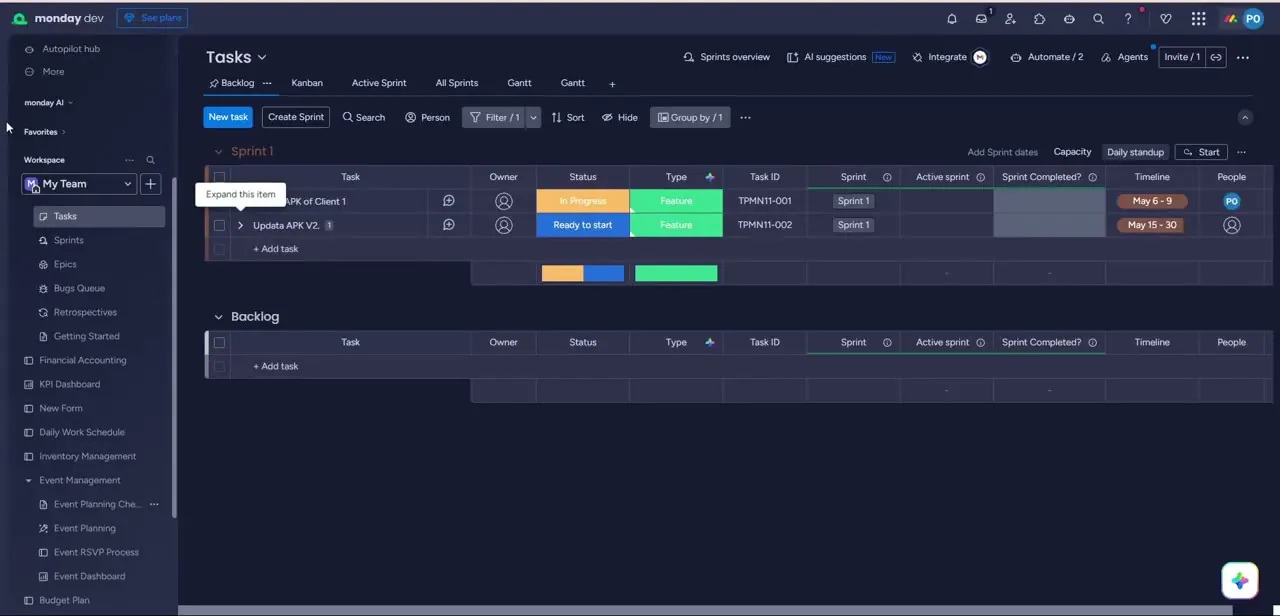
Locate the column directory on your master board and add the essential People Column.
02Assign individual team members
Assign individual team members, external guests, or entire pre-defined teams to specific task rows.
03Enable multiple assignees
Activate multi-person assignment settings for tasks that require collaborative steps.
04Automate assignment notifications
Set up automations to notify users via email, Slack, or internal alerts the moment a task is assigned to them.
05Check the My Work view
Use the My Work space for a personalized, aggregated view of every task assigned to you across all boards.
06Track team workload
Use the Workload Widget to monitor team bandwidth and manage resource allocation visually.
Frequently asked questions
Can I assign a task to more than one person?
Yes, you can activate multi-person assignment settings to allow multiple assignees on a collaborative task.
Will people be notified when they're assigned a task?
Yes, low-code automations can send email, Slack, or internal alerts instantly when a task is assigned.
Where can I see everything assigned to me?
The My Work space aggregates every task assigned to you across all your workspace boards in one view.
Can I see if a team member is overloaded?
Yes, the Workload Widget visualizes team bandwidth so you can manage resource allocation before someone gets overloaded.
Watch the full walkthrough
The same steps, demonstrated on screen from start to finish.