Easy Tech Tuts
How to Share a Microsoft Forms Presentation Easily 2026
By Impran M NLast checked against official docs
Running a live poll or quiz during a webinar or training session works best when responses show up on screen in real time, without switching windows or emailing links mid-session. This guide covers finding your form in the Forms dashboard, opening it in the editor, and triggering Present mode from the toolbar so attendees can join by scanning a QR code and watch their answers populate the screen live. It's built for presenters, trainers, and educators who want the interactive-poll moment without fumbling for the right button in front of an audience.
Before you start
- A form or quiz already built in Microsoft Forms
- A screen you can project or share so attendees can see the QR code
01Find your form in the Forms dashboard
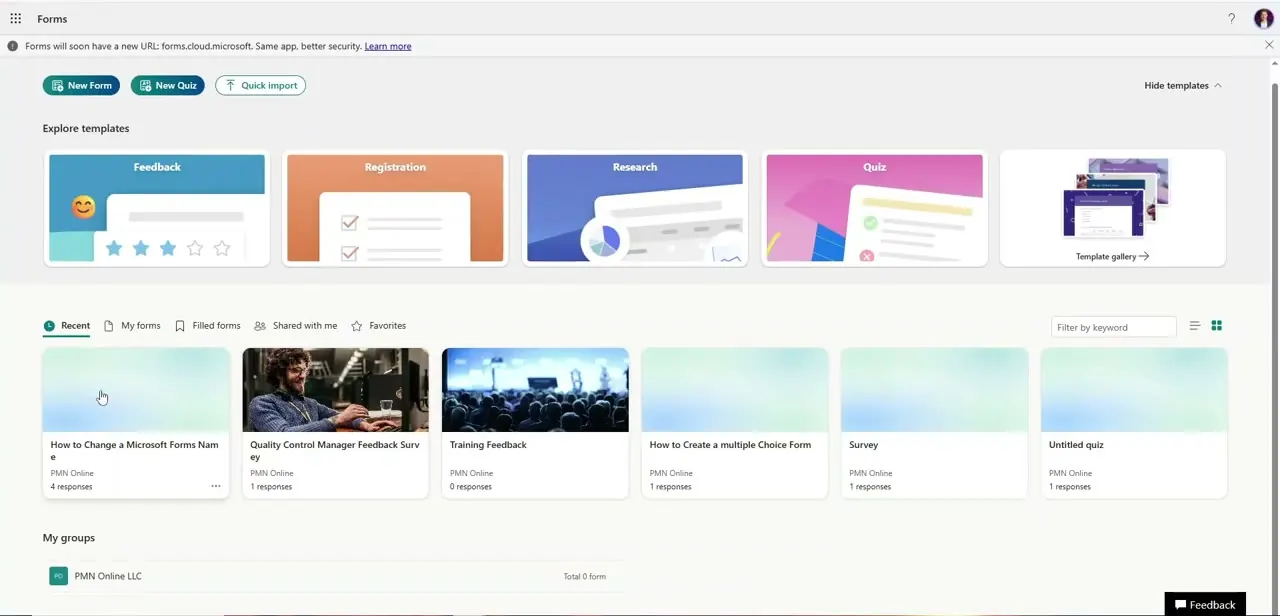
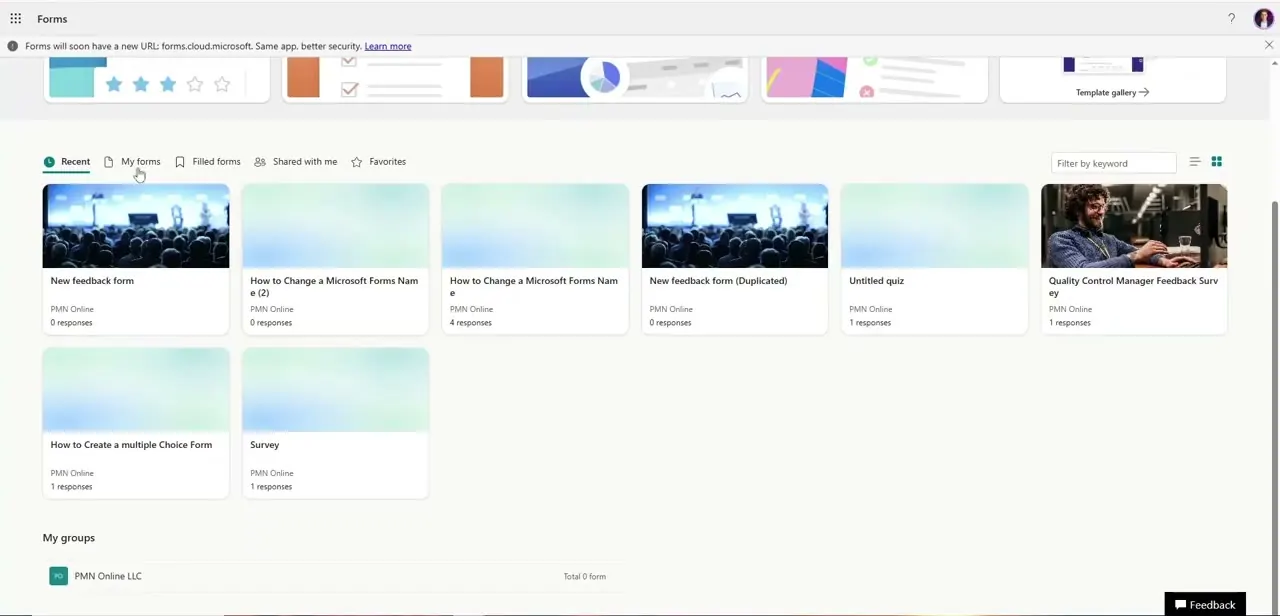
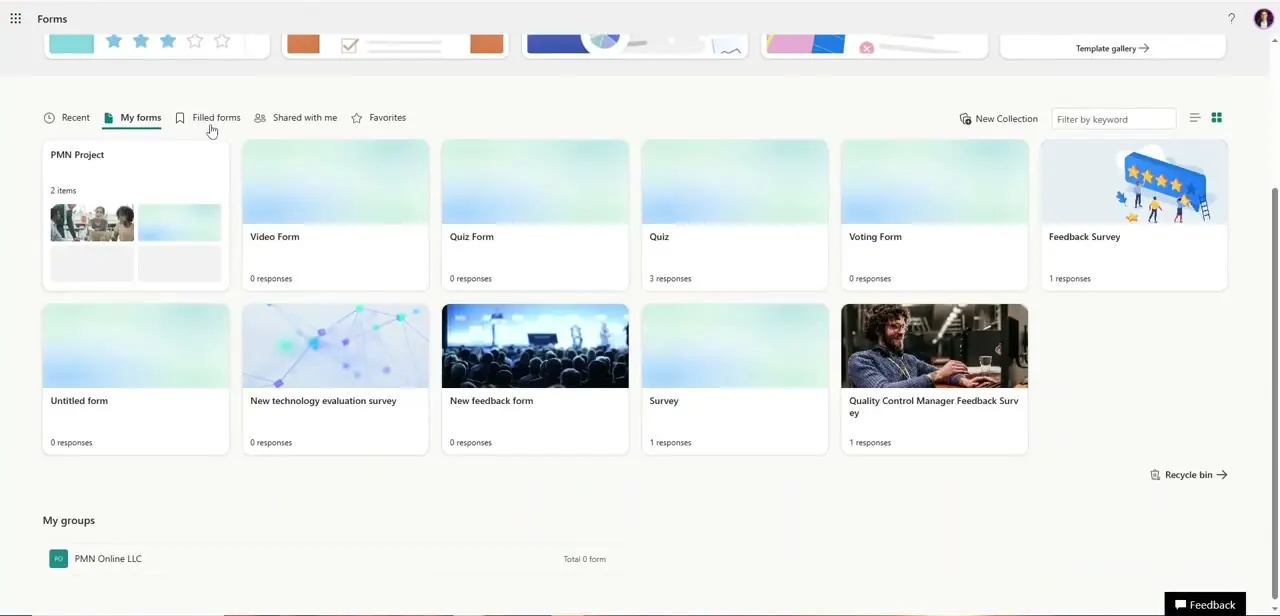
Microsoft Forms keeps everything you've built in one library view, organized under tabs like Recent, My forms, Filled forms, and Shared with me. Each form shows up as a card with its name and a running response count underneath, so you can see at a glance which surveys are still live and which have already collected answers. If you've got a lot of forms, the filter box in the top right narrows the list by keyword instead of scrolling through every card.
02Open the form you want to present
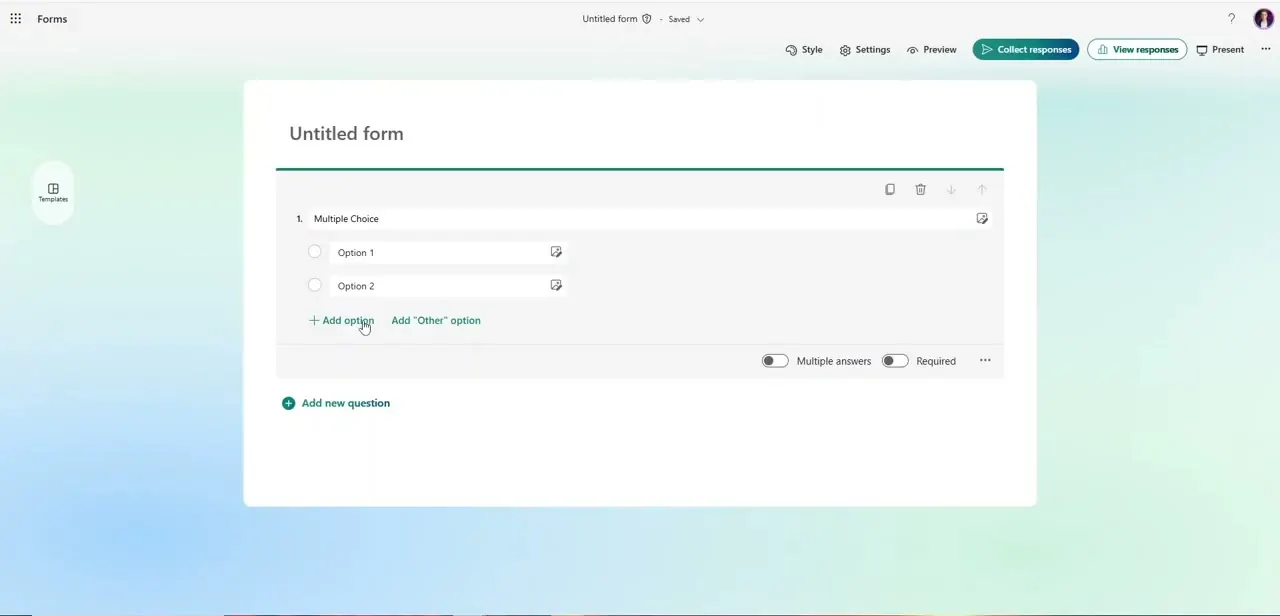
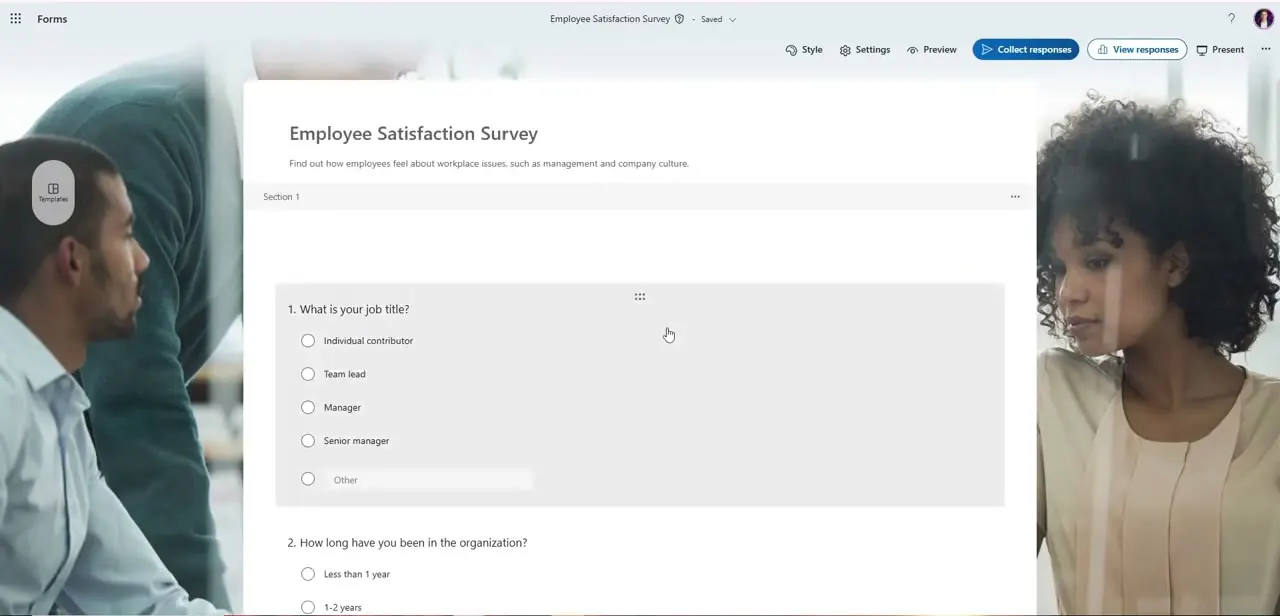
Clicking a card opens the full editor for that form, with the title and description at the top and each question laid out underneath in the order respondents will see them. The toolbar along the top holds every mode you'll need for a live session: Style, Settings, Preview, Collect responses, View responses, and Present, all in one row, so there's no separate app or menu to hunt through once you're ready to go live.
03Click Present to go live
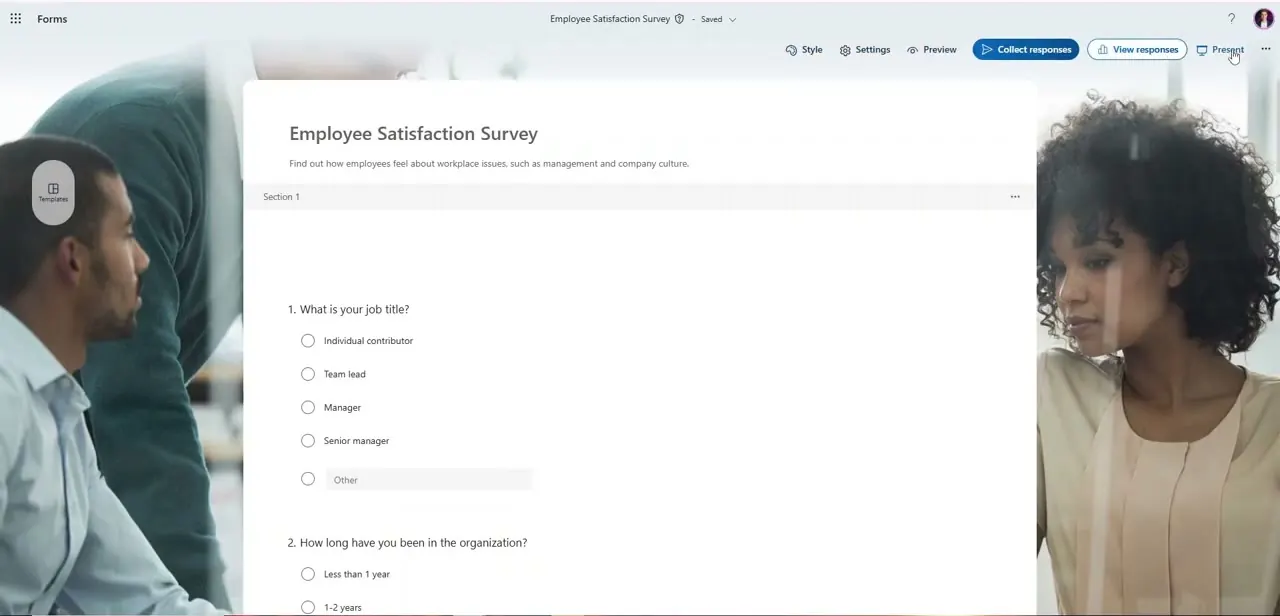
The Present button sits at the far right of the toolbar, next to View responses. Microsoft's own documentation describes this as launching an interactive present mode: the form expands into a full-screen display designed to be projected or screen-shared, and a QR code plus a shorter URL appear on screen for attendees to scan or type in, no app install or account required on their end. Make sure the mode selected is the interactive one built for presenting to a group, not a plain read-only view, since that's what produces the live, on-screen QR code and updating results covered here.
04Get attendees answering
With Present mode active, tell your audience to point their camera at the QR code on screen. Most phones open the link straight from the camera app without a separate scanner.
The short URL is usually shown alongside the code for anyone who'd rather type it in. As responses come in, the display updates on its own, turning into live bar charts or word clouds depending on the question type, so the room sees results building instead of waiting for a manual refresh.
05Switch between result views mid-session
Different question types render differently once results start streaming in: multiple choice tends to show as a bar chart, while open text responses can render as a word cloud. A layout toggle near the bottom of the presentation screen lets you swap between the available chart views on the fly, useful if you want to linger on one visualization for discussion before moving to the next question's results.
06Embed the same form inside a PowerPoint slide
If you're running a PowerPoint deck instead of presenting from the browser, Forms has a native add-in for that, and Microsoft has extended its present mode into PowerPoint directly. From PowerPoint's Insert tab, choose the Forms option, paste in your form's web address, and pick the preset built for interactive meetings so the poll anchors correctly to the slide. That keeps the audience inside your deck the whole time instead of bouncing them to a separate browser tab for the live question.
When it doesn't work
Attendees are asked to sign in before they can respond
Why: The form's response settings restrict who can respond to people in your organization.
Fix: Open Settings before presenting and switch to allowing anyone with the link to respond, if your audience includes people outside your organization.
The embedded poll doesn't behave like the live browser version once inserted into PowerPoint
Why: A different preset was chosen when adding the Forms add-in from the Insert tab.
Fix: Re-insert the form and select the preset built for interactive meetings, which is the one that mirrors Present mode's live, updating behavior.
Frequently asked questions
Do attendees need a Microsoft account to respond?
It depends on your form's permission settings. You can configure it to allow anyone with the link to respond, or restrict it to accounts inside your organization.
Can I embed a live poll directly inside my PowerPoint slides?
Yes. PowerPoint's Insert tab has a native Forms add-in where you paste your form's link and present it as an interactive slide instead of switching to a browser.
How do attendees join the live form quickly?
Present mode generates an on-screen QR code, usually alongside a short URL, that attendees can scan with their phone camera or type in to join instantly.
Can I switch between chart types while presenting?
Yes. A layout toggle near the bottom of the presentation screen lets you swap between the available live result visualizations, like bar charts and word clouds.
Where is the Present button located?
In the toolbar at the top of the form editor, on the far right next to View responses. Clicking it launches the full-screen interactive display covered in this guide.
Sources and last check
Click path and screens come from a walkthrough recorded in 2025. The existence and mechanics of Present mode (the QR code, short URL, and live-updating results) were cross-checked against Microsoft's own support documentation and Microsoft's Forms blog on the Community Hub in September 2026; the specific support page for Present mode itself returned no usable content when fetched directly, so that detail rests on Microsoft's search-indexed description instead of a page read in full, and is flagged as such here instead of being overstated.
About the author

Impran M N
I've been hooked on technology for as long as I can remember — especially the new tools and AI apps that seem to land every other week. Easy Tech Tuts is where I write up whatever I've just worked out: I do the task in the real product, record the screen, and turn it into the guide I wish I'd found first.