Easy Tech Tuts
How to Create Multiple Correct Answer Questions in Microsoft Forms Easily 2026
By Impran M NLast checked against official docs
Single-choice questions fall short when a quiz needs more than one right answer, whether you're certifying technical skills or grading a compliance test. This guide shows how a plain Multiple Choice question in Microsoft Forms converts from radio buttons to checkboxes the moment you turn on Multiple answers, and how the Select total options setting controls exactly how many boxes a respondent can check. It also covers the part Microsoft doesn't put front and center: Forms grades a multi-answer question as all-or-nothing, so a respondent who misses one correct box gets zero, not partial credit.
01Start with a fresh Multiple Choice question
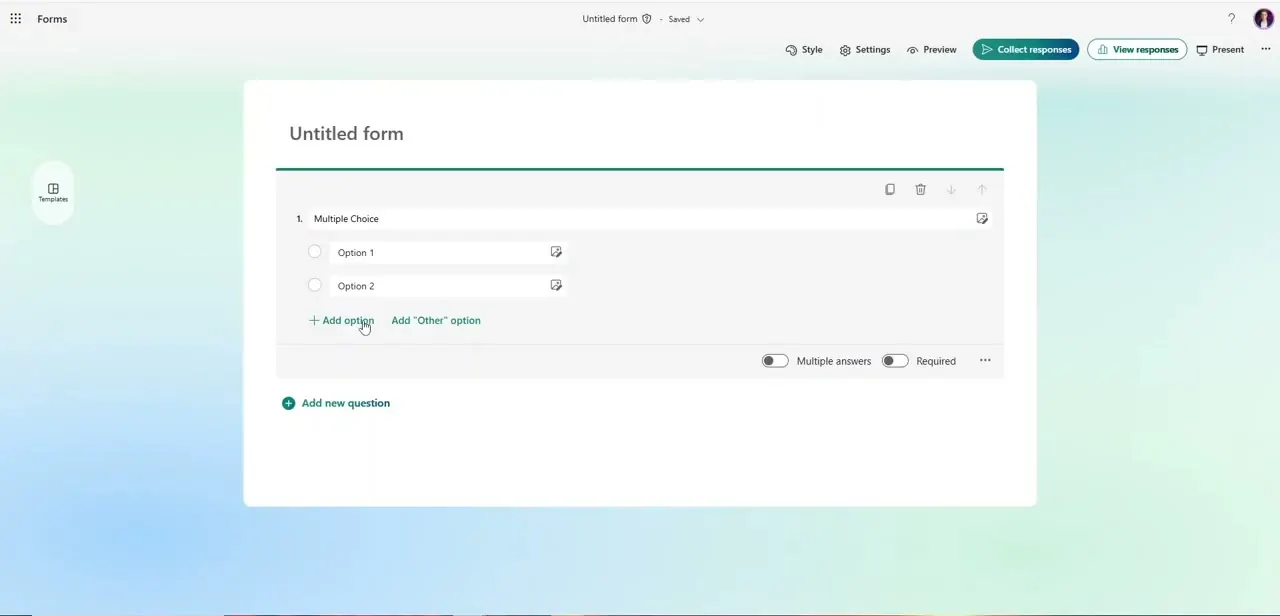
Add a new question and choose the Multiple Choice type. By default it behaves like a normal single-answer question: each option gets a round radio button, so only one can be selected at a time.
Below the option list sit two toggles side by side, Multiple answers and Required, both off at this starting point. Every question begins in this state, so multi-answer behavior is something you turn on deliberately, not something built in from the start.
02Flip on Multiple answers
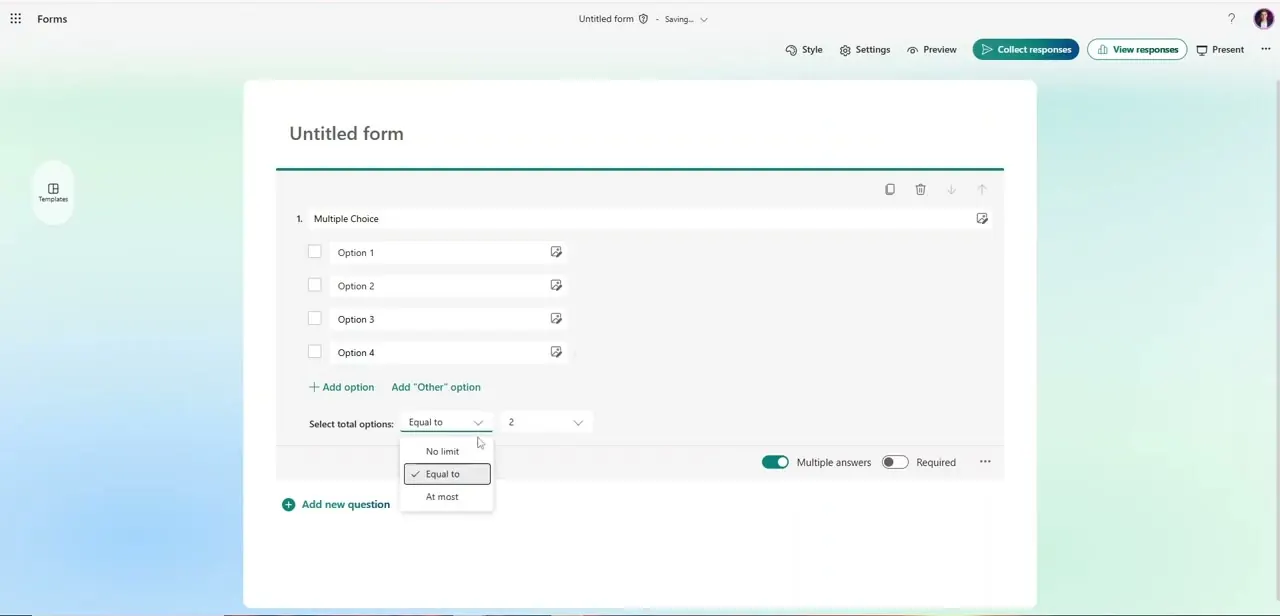
Switch the Multiple answers toggle on, and the option markers change immediately from round radio buttons to square checkboxes, the visible signal that respondents can now select more than one option. This one toggle is the entire mechanism; there's no separate question type to hunt for.
03Set how many options must be selected
Once Multiple answers is on, a new control appears labeled Select total options, with a dropdown offering No limit, Equal to, and At most, paired with a number field. No limit lets a respondent check as many or as few boxes as they want.
Equal to forces an exact count, useful for a question where you know precisely how many of the listed items are correct. At most caps the number they're allowed to check without requiring they hit that number.
04See the finished checkbox layout
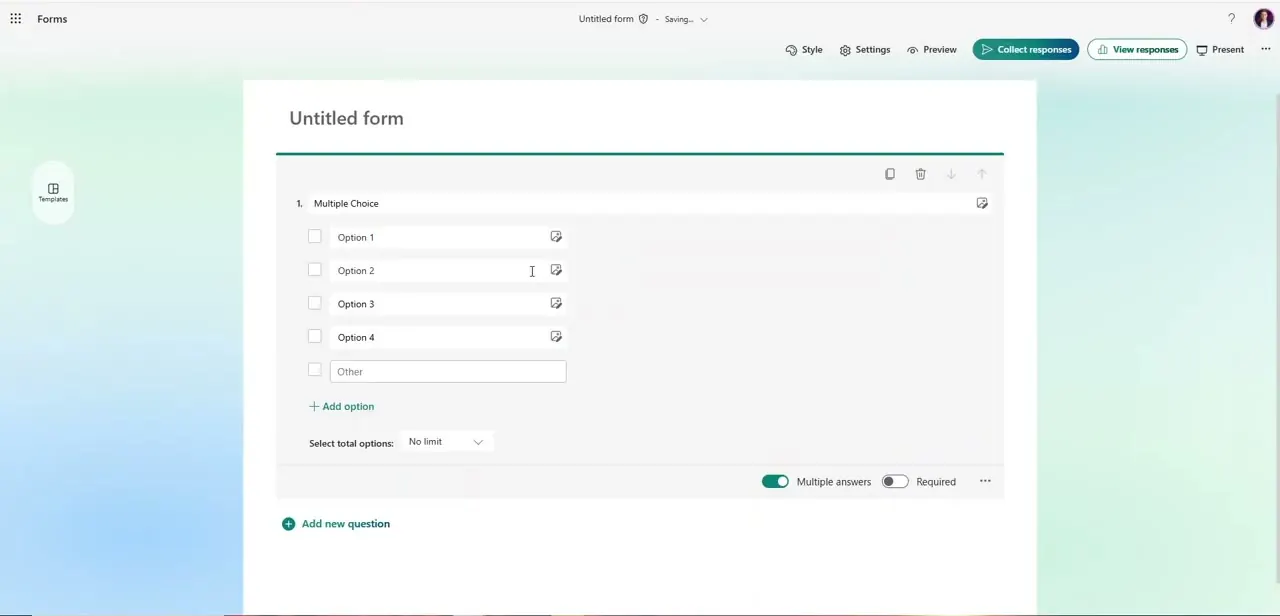
With Multiple answers on and the total-options rule set, the question settles into its final shape. Every option, including any custom Other field you've added, now shows a checkbox instead of a radio button, and the Select total options row stays visible under the option list as a permanent part of the question, not a one-time setup step.
05Add this to a quiz, and know its grading rule
The checkbox mechanics work in any form, but automated correct-answer grading and point values only exist inside the Quiz format. If you're building an assessment instead of a plain survey, start the project as a quiz, since that unlocks marking specific options as correct and assigning a point value once the multi-answer rule is set.
The grading itself is all-or-nothing per question. A respondent has to select every correct option and no incorrect ones to earn full points; missing one correct box, or checking a single wrong one, scores that question at zero.
Microsoft Forms has no built-in partial-credit setting for multi-answer questions. If partial credit matters for a given question, the workaround is manual: reopen that response under grading and adjust the score by hand, or split the question into several single-answer questions that can each be graded and weighted separately.
06Turn on Required for questions that can't be skipped
The Required toggle sits right next to Multiple answers in the same row, and switching it on stops a respondent from submitting the form without answering that question. For a multi-select scoring question, this matters more than it might for open text: an empty answer under a loose grading setup can otherwise slip through and skew your results.
07Preview before you publish
Run the Preview option before sharing the quiz with real respondents. It renders the question exactly as they'll see it, so you can click through the checkboxes yourself and confirm the total-options rule behaves as expected, for instance that Equal to blocks submission until the right number of boxes are checked.
When it doesn't work
A respondent who got most of a multi-answer question right still scored zero for it
Why: Forms grades multi-answer questions as all-or-nothing. Selecting all but one correct option, or one extra wrong option, earns no points for that question.
Fix: Manually adjust that response's score from the grading view, or redesign the question as separate single-answer questions if partial credit needs to count.
Scores don't change after editing the correct-answer key
Why: Forms doesn't retroactively rescore responses that were already submitted and graded when the answer key changes.
Fix: Reopen and manually review already-graded responses after changing an answer key.
Frequently asked questions
Do I need a quiz instead of a regular form?
Yes. Automated correct-answer grading and point values only exist in the Quiz format. The multi-answer checkbox behavior itself works in any form, but scoring requires a quiz.
What does the Select total options setting control?
It restricts how many checkboxes a respondent can select on a multi-answer question: No limit for any number, Equal to for an exact count, or At most for a maximum.
Does a respondent get partial credit for selecting some but not all correct answers?
No. Microsoft Forms scores a multi-answer question as all-or-nothing: every correct box checked and no incorrect ones, or zero points for that question. The only workaround is adjusting an individual response's score by hand.
Can I go back and edit correct answers after responses come in?
You can edit the answer key at any time, but scores already given won't automatically recalculate unless you go back and review those responses again.
How is a multi-answer question different from a regular Multiple Choice question?
The option markers switch from round radio buttons to square checkboxes once you turn on Multiple answers, and a Select total options rule appears to control how many can be checked.
Can I assign a different point value to each option?
No. Points are set once for the whole question, in a single Points box, not per option. That's part of why the all-or-nothing grading rule exists: there's no per-answer weighting to fall back on.
Sources and last check
Screens and click path come from a walkthrough recorded in July 2025. Point assignment was re-checked against Microsoft's own quiz-creation support article in September 2026. That article doesn't document the all-or-nothing grading behavior for multi-answer questions, so it was confirmed instead against a consistent pattern reported across multiple threads on Microsoft's own Q&A forum. That's the main correction this pass adds: the previous version didn't mention that a multi-answer question scores zero unless every correct box, and no incorrect one, is checked.
About the author

Impran M N
I've been hooked on technology for as long as I can remember — especially the new tools and AI apps that seem to land every other week. Easy Tech Tuts is where I write up whatever I've just worked out: I do the task in the real product, record the screen, and turn it into the guide I wish I'd found first.