Easy Tech Tuts
How to Change a Microsoft Forms Name Easily 2026
By Impran M NLast checked against official docs
Microsoft Forms doesn't put a rename option on its dashboard. The tile grid under Recent, My forms, and Filled forms looks like it should have one, since most apps hide that kind of edit behind a right-click or a three-dot menu, but Forms doesn't work that way.
The name lives inside the form itself, as the editable title at the top of the editor. This guide shows where that title field actually sits, why the dashboard's own three-dot menu isn't it, and what does or doesn't change when you retitle a form partway through collecting responses.
01Find the form on the dashboard
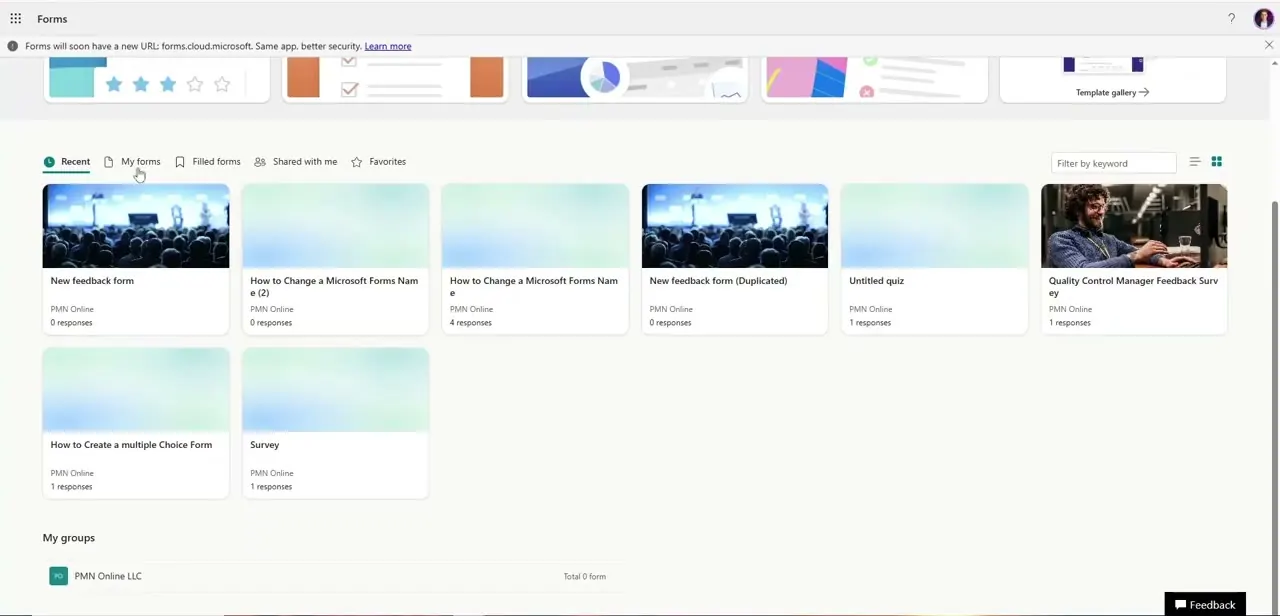
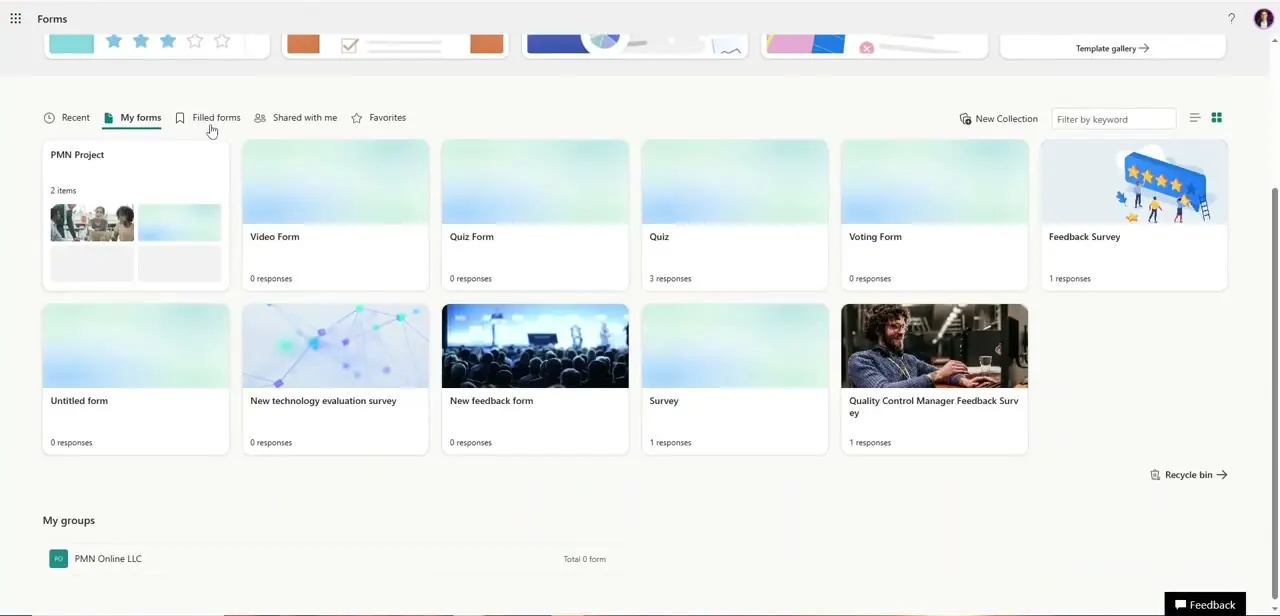
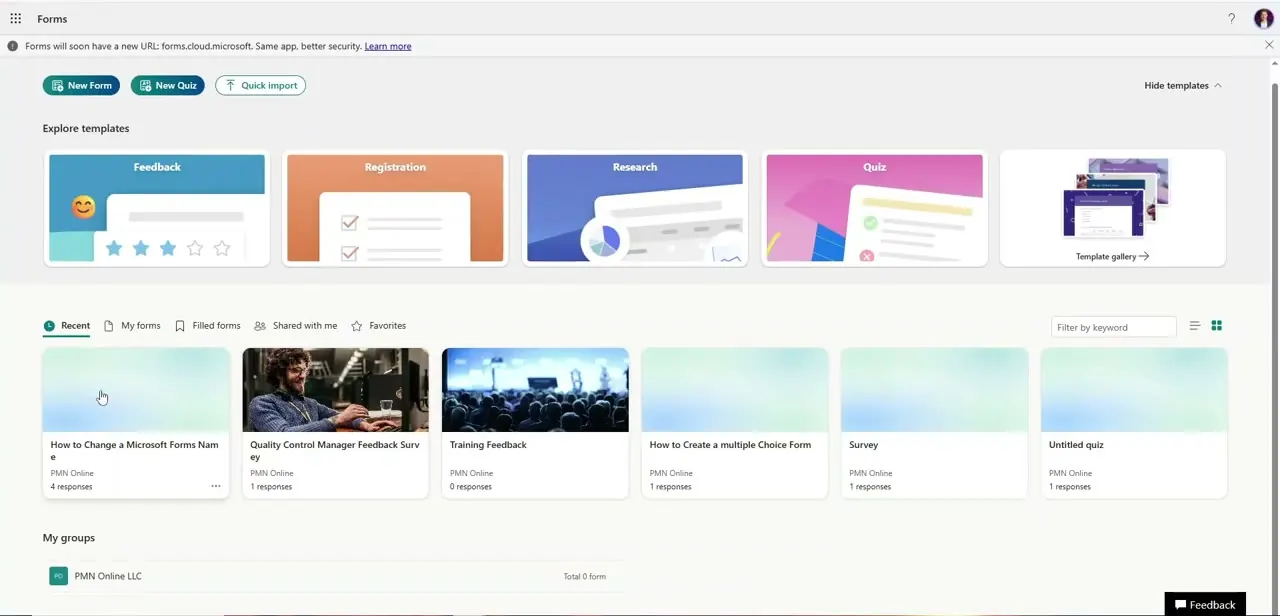
Open forms.office.com and sign in. Your forms show up as tiles under tabs like Recent, My forms, and Filled forms, each labeled with its title, its owner group, and a running count of responses.
Find the one you want to rename. You'll open it directly in the next step, not through its three-dot menu.
02Skip the three-dot menu
Hovering a tile reveals an ellipsis menu, and it's the natural place to look first. Microsoft's own support forum confirms what that menu actually contains: Open, Copy, Move to group, Favorite, and Remove from Recent.
"Group" here means a Forms group workspace, not a folder, and there is no Rename entry among them. Clicking through that menu looking for one is the most common dead end in this task. Go straight to Open instead.
03Open the form and click the title
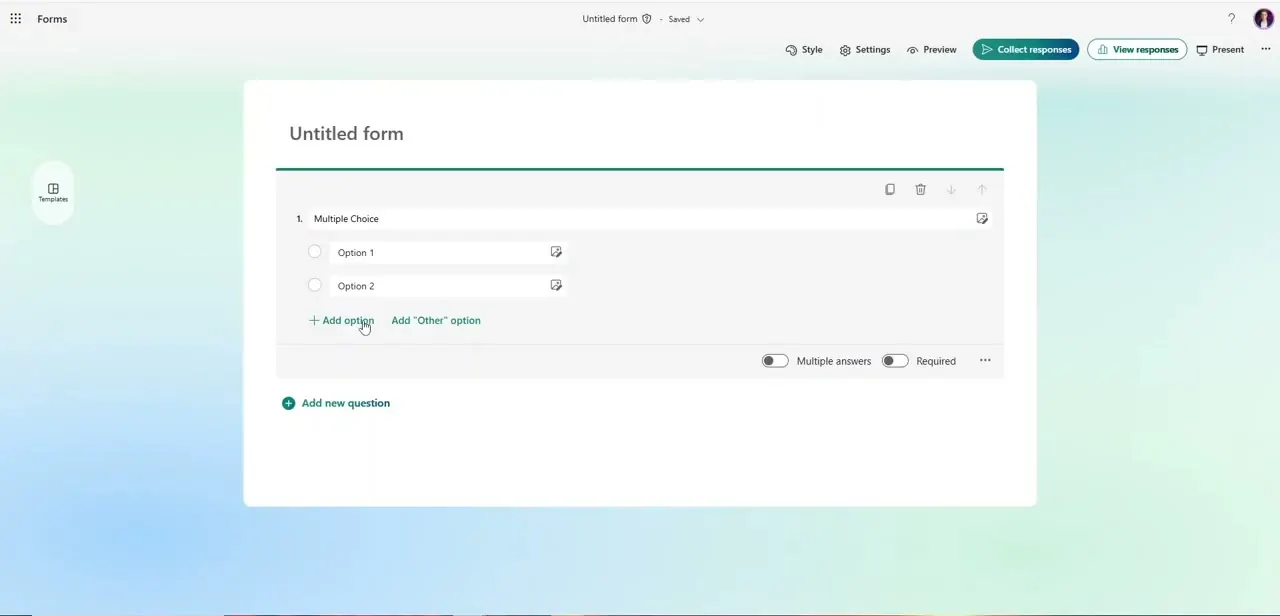
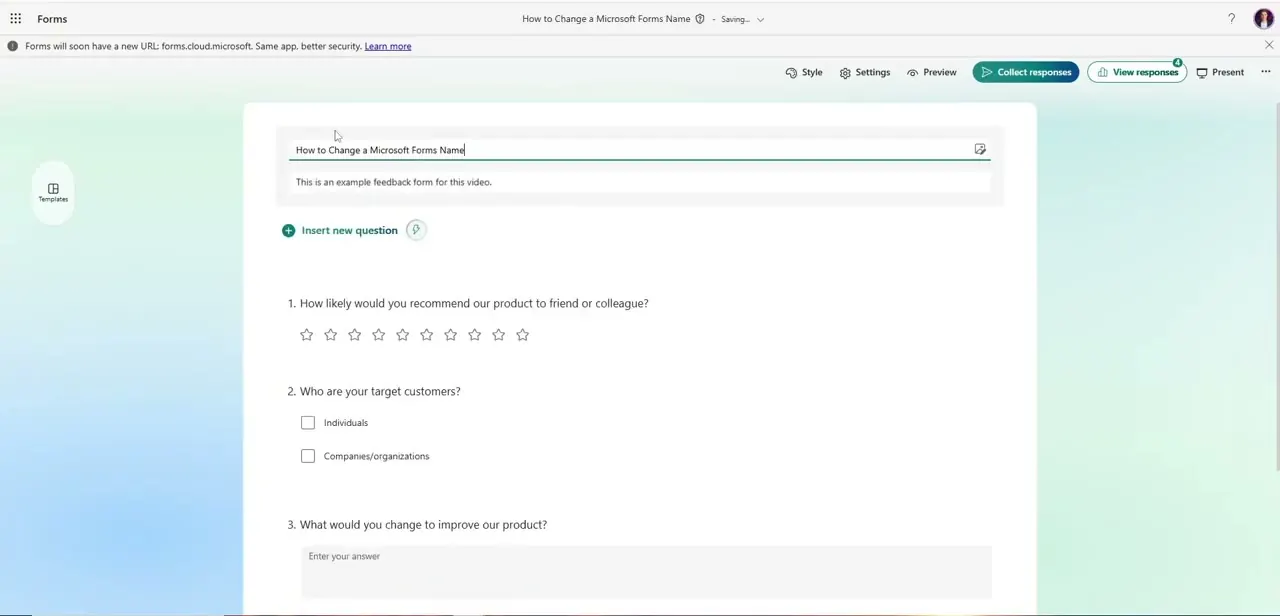
Click the tile to load the full editor. The form's name sits as a large header above the question list, and clicking directly on that text turns it into an active field with a blinking cursor.
No edit button, no settings panel. The title is the input.
04Replace the text and let autosave catch it
Select the existing title, delete it, and type the new one. There's no save button for this: press Enter, or click anywhere else on the canvas, and the editor's status indicator flashes "Saving…" before settling back to "Saved." If you're only fixing a typo, you don't need to clear the whole field. Click into the word and edit it in place.
05Confirm the link still works, then preview
A form's share link is built from its ID, not its title, so an existing link keeps working after a rename. Anyone who already has it will simply see the new name when they open it.
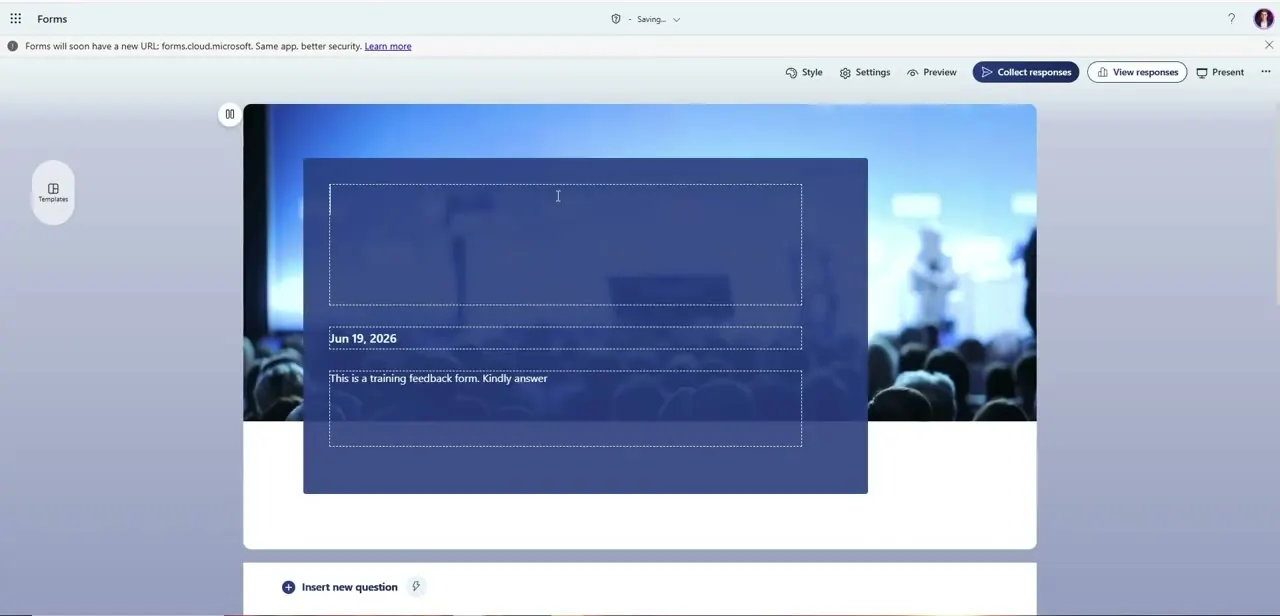
Before telling people the form is ready, click Preview in the toolbar to check how the new title wraps on desktop and mobile. A replacement title that looks fine in the editor can crowd the header on a phone screen.
Frequently asked questions
Where's the rename option in Microsoft Forms?
There isn't a dedicated one. Open the form and click directly on its title text at the top of the editor; it becomes an editable field.
Why doesn't the dashboard's three-dot menu have a rename option?
That menu is for Open, Copy, Move to group, Favorite, and Remove from Recent. It handles housekeeping across your form list, not editing an individual form.
Will renaming a form break my share link or lose responses?
No. Both the link and the collected responses are tied to the form's underlying ID, which doesn't change when you edit the title.
Do I need to save the new title manually?
No. Microsoft Forms saves it automatically as soon as you press Enter or click away from the title field, shown briefly by a "Saving…" indicator.
Sources and last check
Click path and screens come from a recorded walkthrough. In September 2026, the claim about the dashboard's three-dot menu was checked against Microsoft's own Q&A support forum, which lists that menu's actual contents as Open, Copy, Move to group, Favorite, and Remove from Recent, with no Rename entry. Microsoft's official support pages on creating and naming forms were also checked; Microsoft has not published a dedicated article for renaming an existing form, so this guide relies on the click-to-edit title behavior shown in the recording plus that forum confirmation.
About the author

Impran M N
I've been hooked on technology for as long as I can remember — especially the new tools and AI apps that seem to land every other week. Easy Tech Tuts is where I write up whatever I've just worked out: I do the task in the real product, record the screen, and turn it into the guide I wish I'd found first.