Easy Tech Tuts
How to Open the Document From Google Drive in Google Docs Easily 2026
By Impran M NLast checked against official docs
Whether a file opens straight into Google Docs depends on what kind of file it is. A document created in Docs opens in the editor when you double-click it.
A Word file you uploaded (.docx or .doc) behaves differently: Drive may show a preview first, and even once it is open in Docs it stays a Word file until you convert it. This guide covers finding the file quickly, opening it in Docs with Open with, and telling which mode you have landed in.
That last part matters. It decides whether add-ons and translation work, and whether your edits are saved as a Word file or a Google Doc.
01Start from the Drive home screen
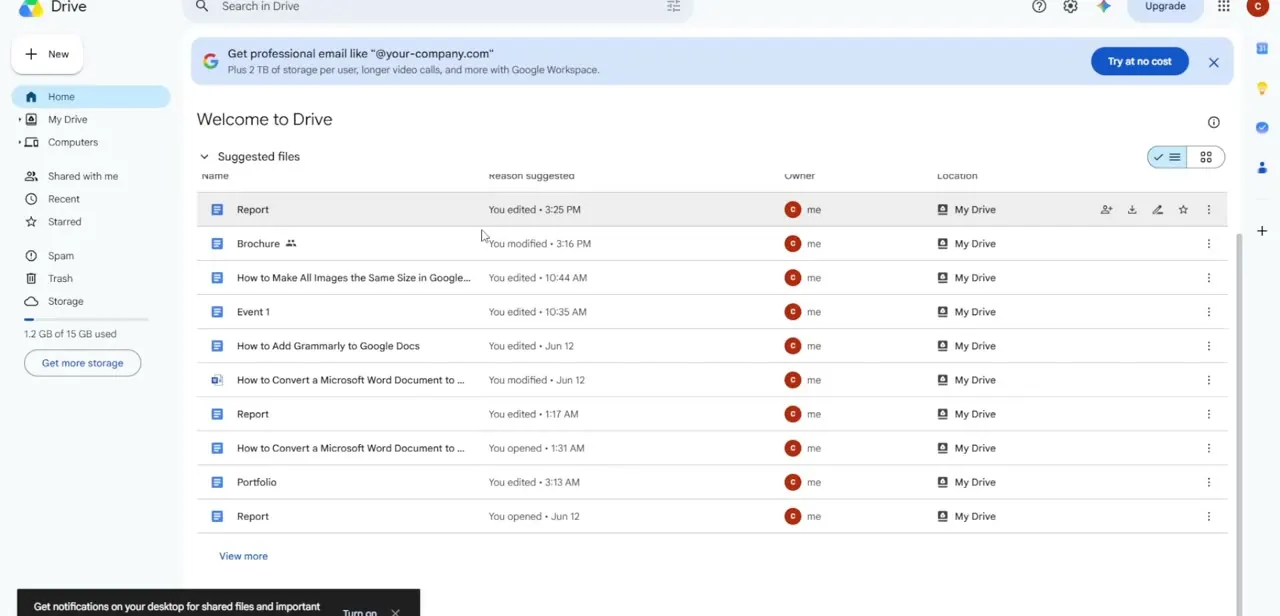
Open drive.google.com and check the Home view first. Google lists Suggested files here, ranked by recent activity, with each file's name, the reason it was suggested, the owner and its folder. Something you edited an hour ago is usually already on this list, which beats typing a search.
02Search when the file isn't recent
Type the file's name into the search bar at the top of Drive. To cut the results down, use the Type filter and choose Documents, which drops spreadsheets, PDFs and images from the list. A name plus a type filter is the quickest way to isolate one file in a crowded Drive.
03Right-click the file and choose Open with, then Google Docs
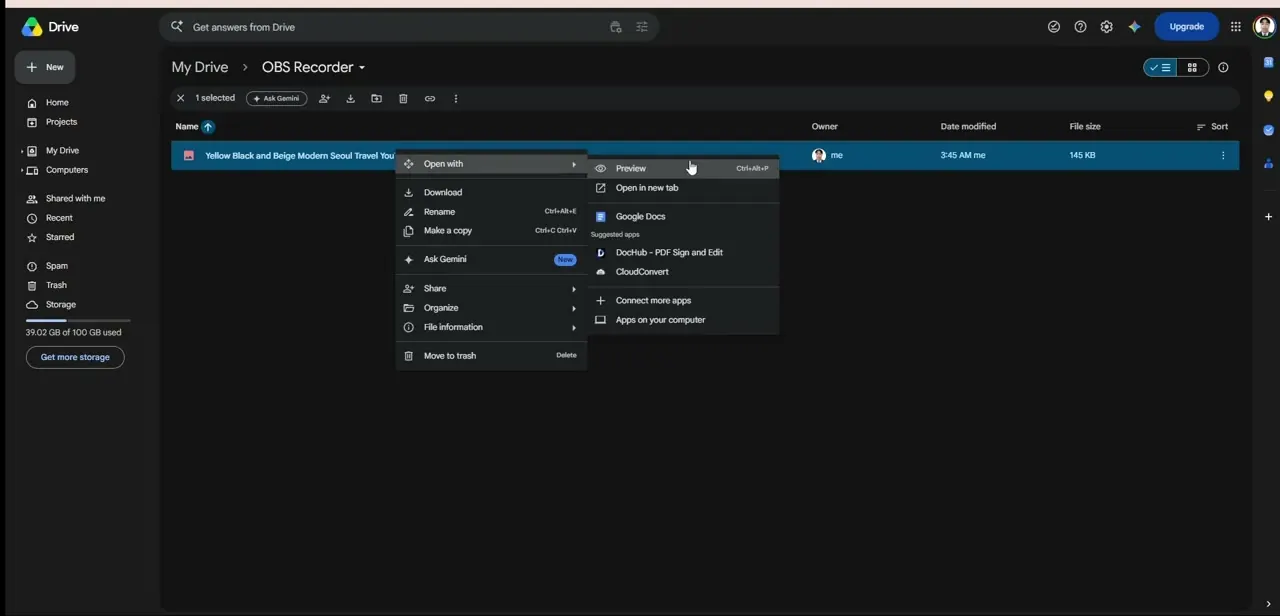
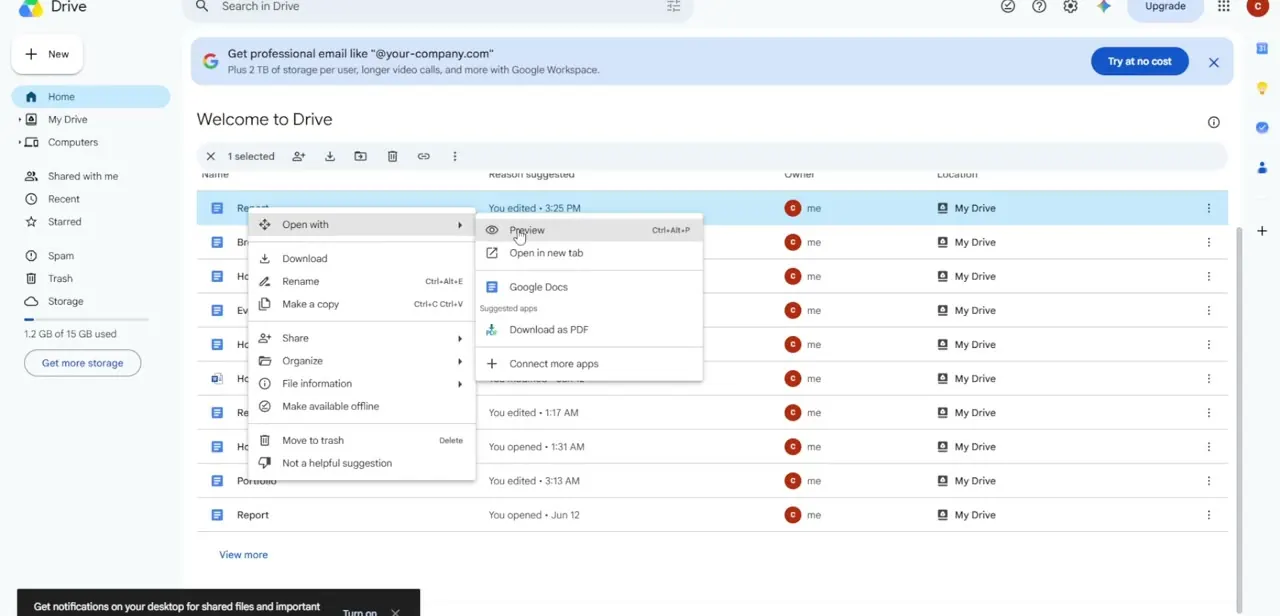
Right-click the file, hover over Open with, and pick Google Docs from the submenu. For a native Google Doc this does the same thing as double-clicking.
For a Word file it is the reliable route, because Google's help pages say that double-clicking an Office file in Drive opens a preview, where you cannot edit. If you do end up in the preview, you don't need to go back. Click Open with Google Docs at the top of the preview window and the file opens in the editor.
04Check whether you're editing a Google Doc or a Word file
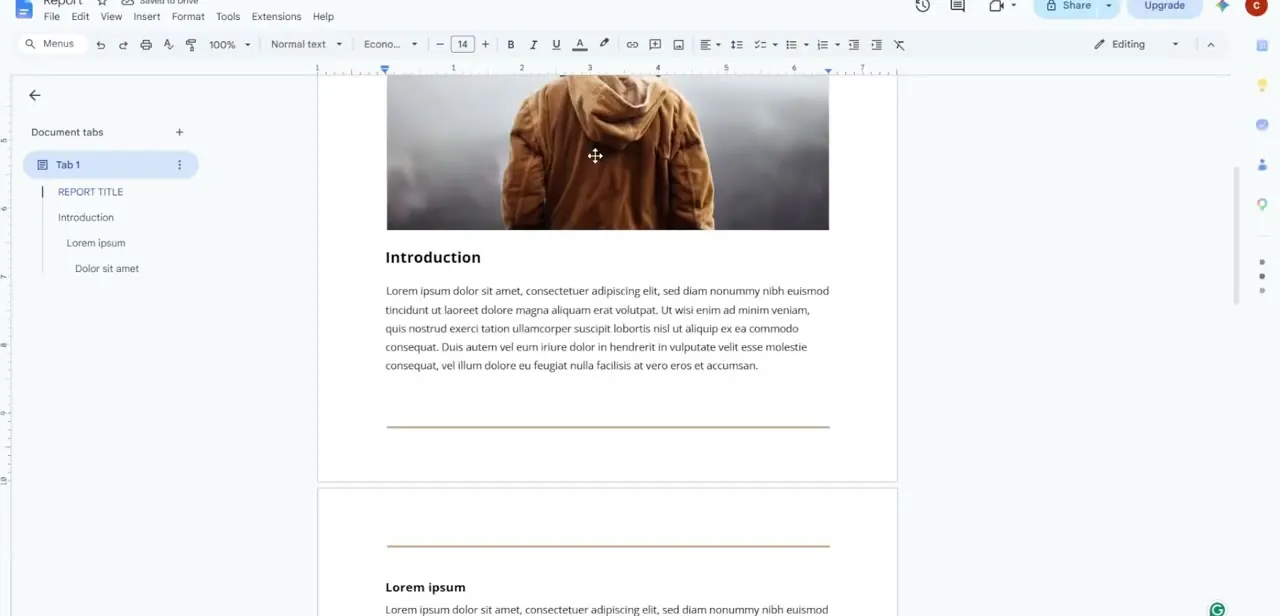
The file opens in a new tab with the usual Docs toolbar, ruler and menus. If it has tabs, they are listed in the Document tabs sidebar on the left.
Now look next to the document title. A small .DOCX label there means you are in Office editing: you can edit, comment and collaborate, and Google saves every change back to the original Word file.
What you lose are Google-only features. Google lists Apps Script, Workspace add-ons and Translate document as unavailable in Office editing.
If you need those, click File, then Save as Google Docs. That creates a separate Google Docs copy and leaves the Word original where it was, so you now have two files. Decide which one people should edit before you share either.
When it doesn't work
Double-clicking a file shows a preview I can't type into
Why: The file is an uploaded Office document. Drive opens those in its preview viewer, which supports zooming, printing and sharing but not editing.
Fix: Click Open with Google Docs at the top of the preview, or right-click the file in Drive and choose Open with, then Google Docs.
Add-ons, Apps Script or Translate document are missing from the menus
Why: The file is still a Word file open in Office editing mode, where Google disables these features.
Fix: Use File, then Save as Google Docs to make a native copy, and do the work in that copy.
Colleagues' edits are going into a different file from mine
Why: Converting a Word file creates a second file. One person is working in the .docx original and another in the Google Docs copy.
Fix: Pick one version, rename or move the other out of the shared folder, and reshare the link to the one you're keeping.
Frequently asked questions
Why does my file open as a preview instead of in Google Docs?
Because it's an Office file, not a Google Doc. Google Docs, Sheets and Slides files open in their editors when double-clicked; Office files, photos, audio and videos open in Drive's own viewer. Use Open with, then Google Docs, to get into the editor.
If I edit a .docx in Google Docs, does it stay a Word file?
Yes. Changes are saved to the original Office file in its original format. It only becomes a Google Doc if you choose File, then Save as Google Docs, and that makes a copy.
Can I make Drive convert Word files automatically when I upload them?
Yes. In Drive's Settings, turn on "Convert uploaded files to Google Docs editor format". Leave it off if you share Word files with people who still edit them in Word.
Can I open a different document without leaving Google Docs?
Yes. Inside the editor, click File, then Open, and pick the file from the dialog that appears. It loads in the current tab.
Sources and last check
Screens and the right-click Open with path come from the original screen recording. How Drive opens each file type, the preview behaviour for Office files, what Office editing disables, the Save as Google Docs conversion and the automatic-conversion setting were re-checked against Google's Drive and Docs Editors help pages in September 2026. That check replaced the earlier claim that double-click only sometimes opens a preview, and added the Office-editing distinction the previous version left out.
About the author

Impran M N
I've been hooked on technology for as long as I can remember — especially the new tools and AI apps that seem to land every other week. Easy Tech Tuts is where I write up whatever I've just worked out: I do the task in the real product, record the screen, and turn it into the guide I wish I'd found first.