Easy Tech Tuts
How to Connect Google Drive to Slack Easily 2026
By Impran M NLast checked against official docs
A Google Doc link dropped into Slack without the Drive integration is just a blue line of text: click it, wait for a new tab, hope you already have access. Connecting Google Drive to Slack turns that into a live card with comment activity, lets you grant view access without leaving the conversation, and makes file content searchable from Slack's own search bar. This guide covers finding the official app (Slack has since renamed the menu it sits under), what its listing and per-member authentication require, and the features its usage guide points you toward once it's live.
Before you start
- Permission to install apps in your Slack workspace, or a workspace admin who can install it for you
- A Google account for each teammate who wants to sign in individually and use the Drive features
01Find Google Drive in the app directory
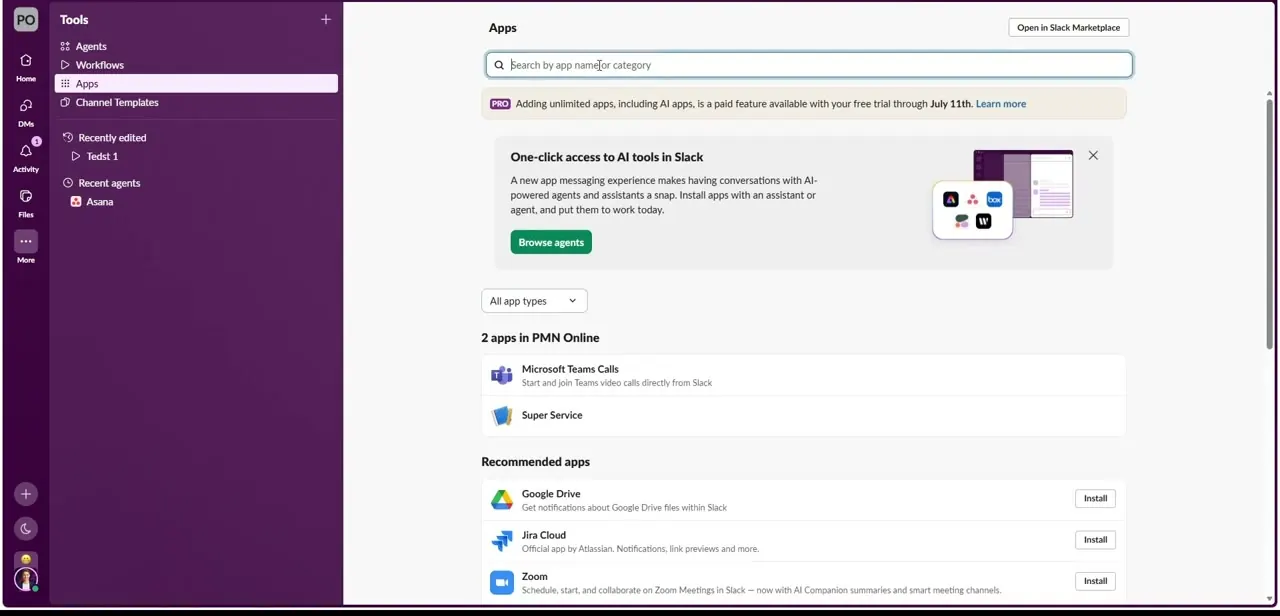
Open Agents & tools from Slack's left sidebar. Slack renamed this entry point from Tools sometime after this walkthrough was recorded, so on a current workspace look there instead.
Google Drive usually appears in the Recommended apps row without needing to search, described plainly as getting notifications about Google Drive files within Slack. Click Install next to it, or open the full listing first for more detail.
02Review what the app covers before installing
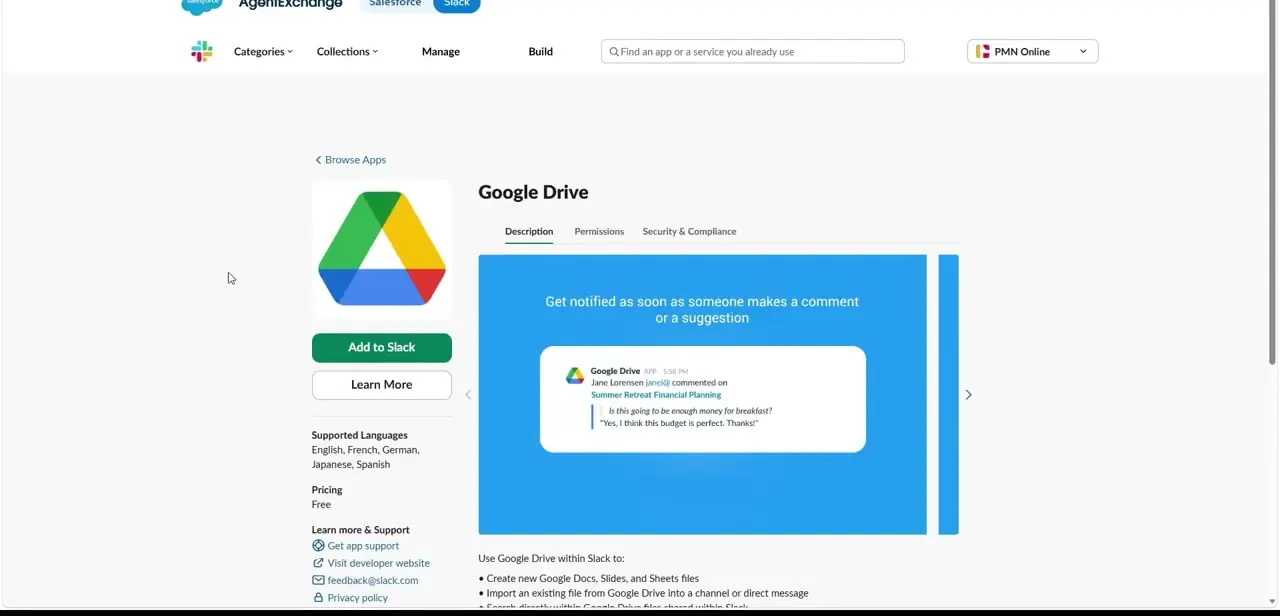
The full marketplace listing leads with its most useful feature: a notification the moment someone comments on or suggests an edit to a shared file, shown right on the page with a sample notification card. Below that, the listing covers what using Google Drive inside Slack gets you: creating new Docs, Slides, and Sheets without leaving Slack, and importing an existing Drive file into a channel or direct message. It's listed as free, and the listing shows support for English, French, German, Japanese, and Spanish.
03Install once, then have each teammate sign in with Google
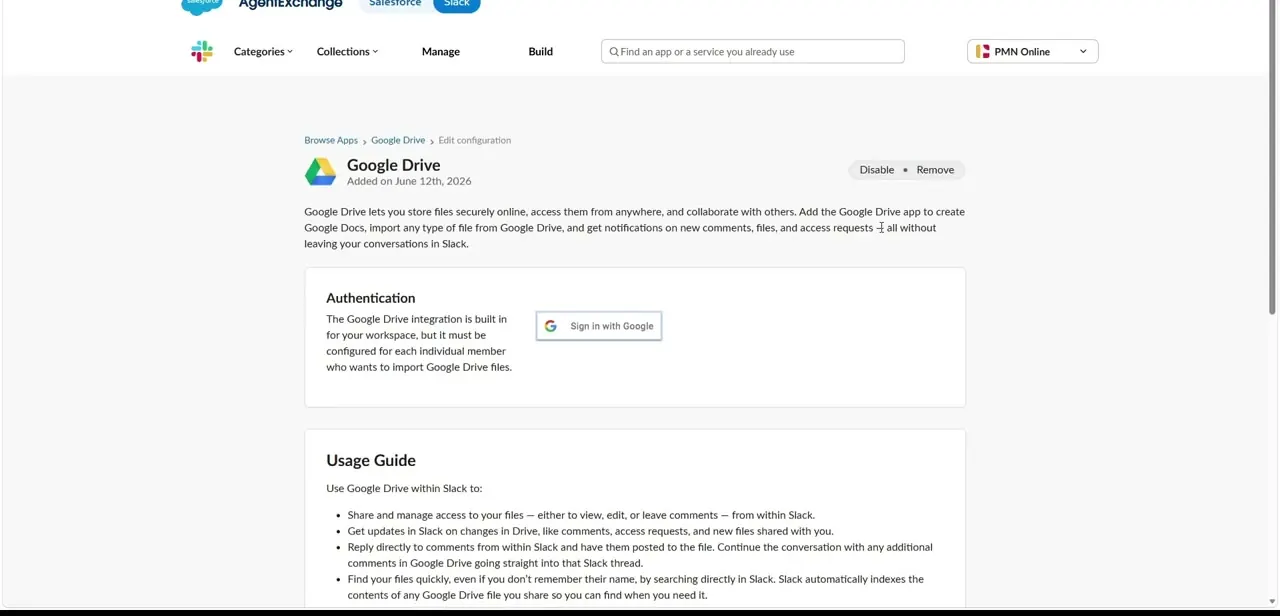
Installing the app is a one-time action by whoever adds it to the workspace. Its configuration page makes an important distinction clear right after: the integration itself is per member, so each teammate still has to sign in with their own Google account before they can import Drive files or get personalized notifications.
The Sign in with Google button on this page (Slack's current help docs call the equivalent action Connect Google Drive under Agents & tools) is what does that, and every teammate who wants the Drive features needs to click it once, under their own login. An organization's admin can also turn on domain-wide authorization ahead of time, so eligible accounts connect automatically instead of everyone clicking through by hand. Worth asking your Slack admin about before rolling this out to a large team.
04See what the integration enables day to day
The same configuration page includes a usage guide worth reading in full. It covers sharing and managing access to your files (viewing, editing, or leaving comments) directly from Slack, getting updates when a file changes or gets a new comment or access request, and replying to comments from inside Slack with the reply posted straight back to the file. It also covers search: Slack indexes the contents of anything you've shared, so a Drive file from weeks ago turns up by what's written inside it, not just its filename.
05Test link unfurling and an in-app permission grant
Paste a Google Doc, Sheet, or Slide link into a channel and confirm Slack expands it into a rich preview card with the file's title and type, instead of leaving it as plain text. Then try the access-request flow: if a teammate without view access clicks the link, Slack can surface an in-app permission prompt letting you grant access on the spot, instead of them requesting it separately in Google Drive and waiting for you to notice.
Frequently asked questions
Will Slack be able to access all my Drive files?
No. Slack only interacts with files you explicitly share as links or import into the workspace. It doesn't get standing access to your entire Drive by default.
Can I grant document access directly from Slack?
Yes. The integration supports in-app permission prompts so you can grant view access to channel members without leaving Slack to change sharing settings in Google Drive.
Will I get notified about comments on a shared document?
Yes. Comment and suggestion notifications are the integration's headline feature, along with alerts for new access requests and files shared with you.
Does every teammate need to sign in separately?
Yes, unless a workspace admin has turned on domain-wide authorization ahead of time. Otherwise each person clicks Sign in with Google under their own login before they can import files or get personalized notifications.
Where do I find this app if Tools doesn't have an Apps option anymore?
Look for Agents & tools in the left sidebar instead. Slack renamed the entry point; Google Drive's listing and install flow are otherwise unchanged.
Sources and last check
Click path and screens come from a walkthrough recorded in 2025. Re-checked against Slack's own help article and marketplace listing in September 2026: Slack has since renamed the Tools > Apps entry point to Agents & tools, which the original draft still pointed at by its old name. Per-member sign-in and the domain-wide admin option are confirmed current against Slack's help documentation.
About the author

Impran M N
I've been hooked on technology for as long as I can remember — especially the new tools and AI apps that seem to land every other week. Easy Tech Tuts is where I write up whatever I've just worked out: I do the task in the real product, record the screen, and turn it into the guide I wish I'd found first.