Easy Tech Tuts
How to Insert Watermark in Google Docs, Insert Draft Text & Image Watermark Easily 2026
By Impran M NLast checked against official docs
If you've gone looking for the watermark option in Google Docs and come up empty, you're not imagining it. Google relocated the feature into a new submenu, so the spot where longtime users expect to find it under Insert no longer shows it directly. This guide covers where it sits now, a fast fallback if you can't find it, and the Watermark panel itself: adding a "DRAFT" text stamp or a logo image, and adjusting its formatting and transparency so it looks intentional instead of like a mistake.
Before you start
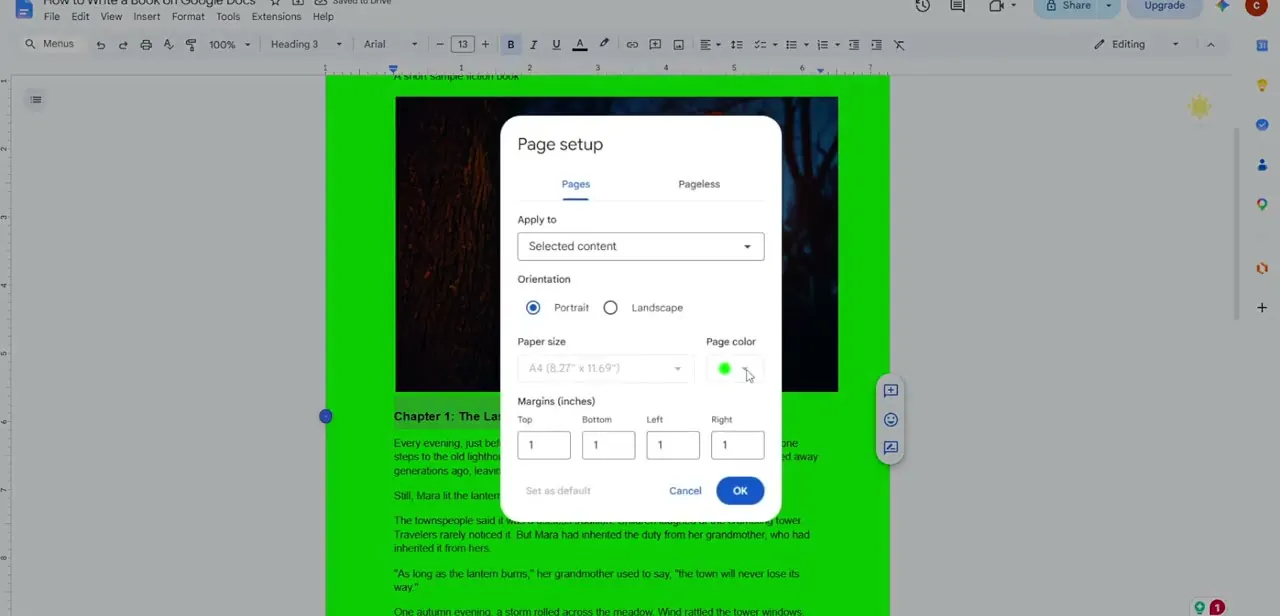
- The document must be in pages format, not pageless. Google's own documentation says watermarks aren't available in pageless documents, and any watermark already on the page disappears if you switch to pageless.
01Open your document
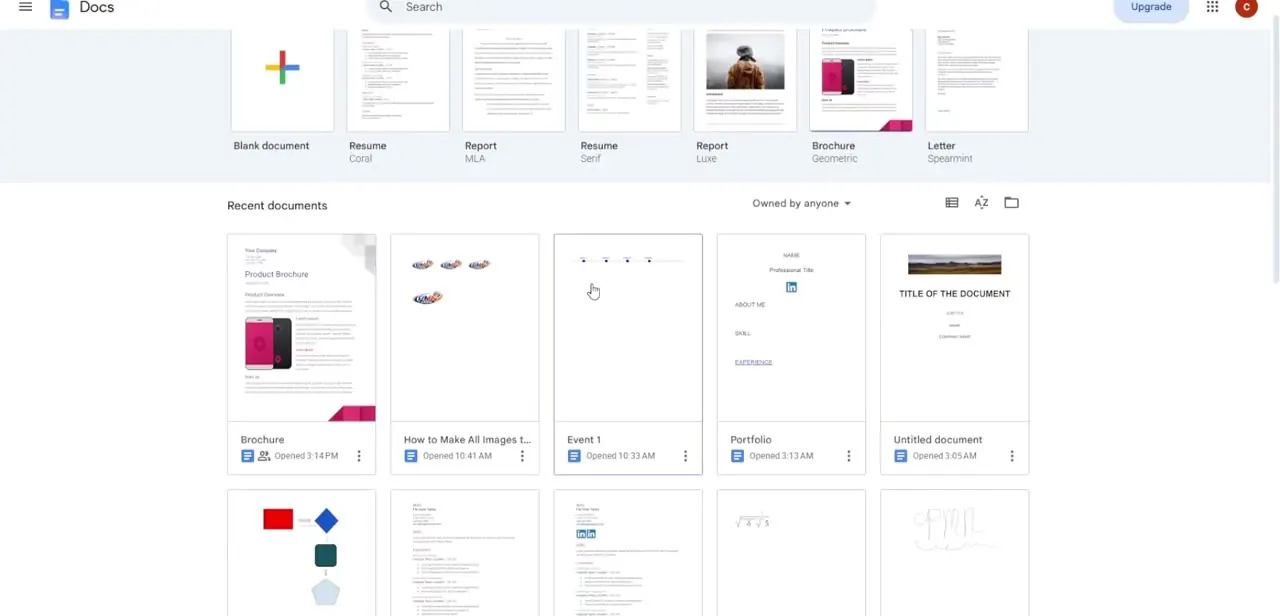
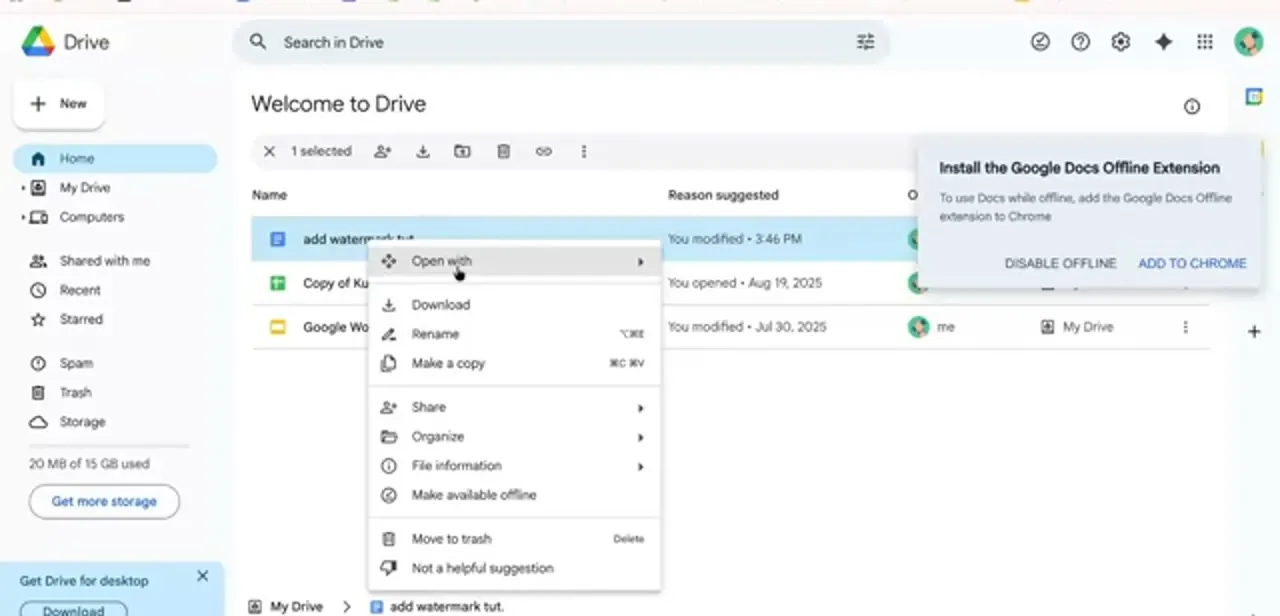
Start from Google Drive with the document you want to watermark. Right-clicking a file gives you the full context menu (Open with, Download, Rename, Share, and more), and selecting it opens the doc in the Docs editor, where the watermark tool lives in the top menu bar, not in Drive itself.
02Find Watermark under Insert, Page elements
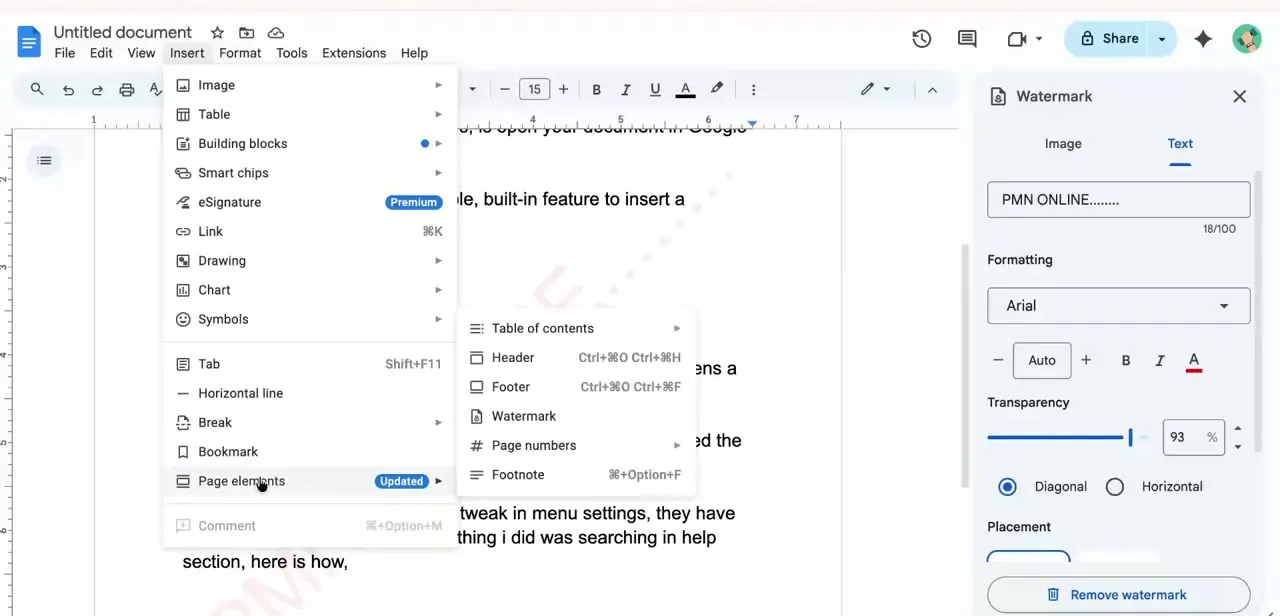
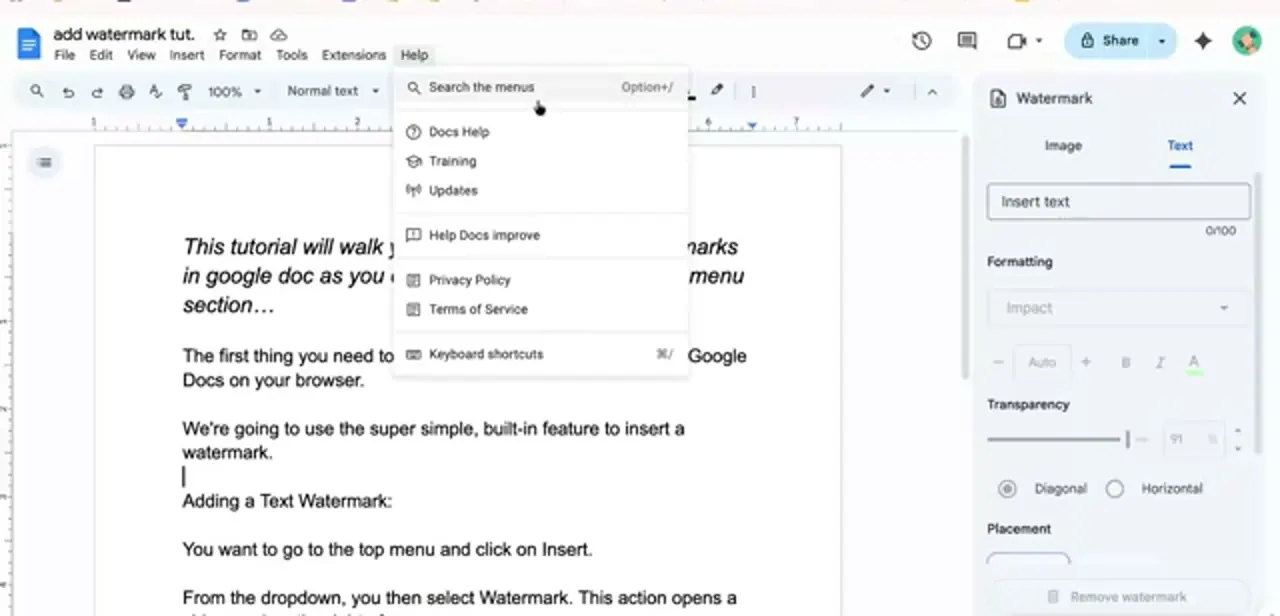
Google moved this option: it now sits under Insert, then Page elements, then Watermark, grouped with header, footer, and other page-level tools instead of listed directly under Insert the way older guides describe. If you'd rather not hunt for it, click Help in the top menu bar and choose Search the menus (or press Option+/), then type "watermark" to jump straight to it no matter which submenu it's currently filed under. That trick works for any Docs feature Google has recently reshuffled, not only this one.
03Open the Watermark panel
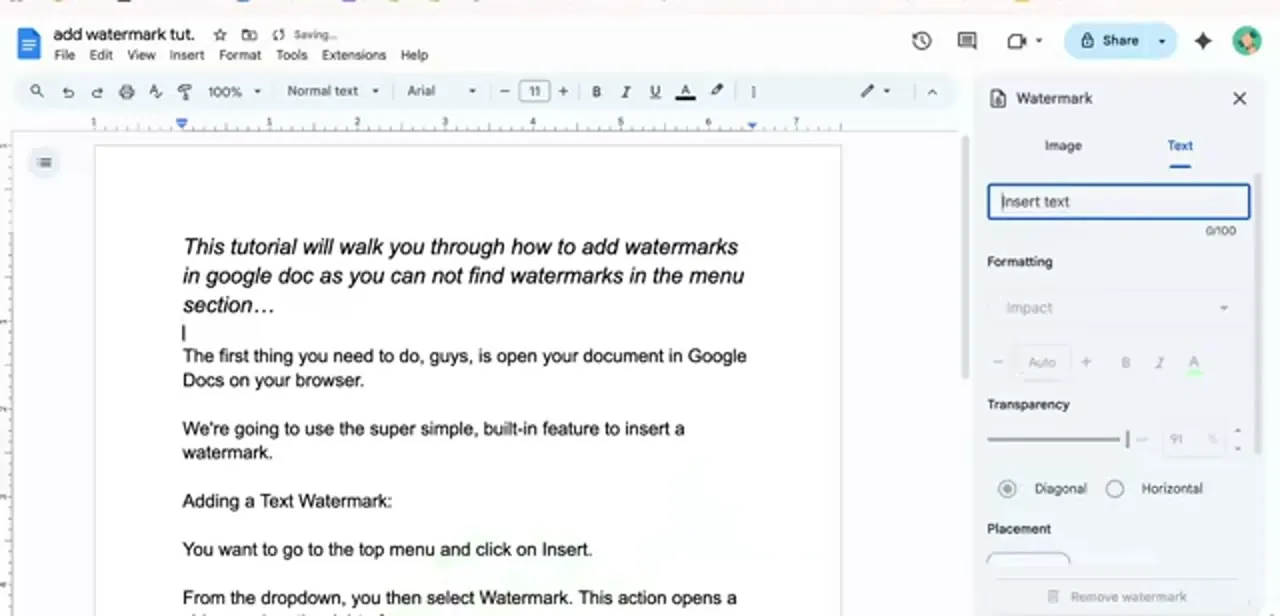
Selecting Watermark opens a side panel on the right with two tabs, Image and Text. The Text tab includes an Insert text field, a Formatting section for font and style, a Transparency slider, and Placement options for Diagonal or Horizontal. Every watermark setting lives in this one panel, so leave it open while you build the watermark in the next step.
04Add and format your text watermark
With the Text tab selected, type your watermark text into the Insert text field. "DRAFT" is the classic choice, but any short label works.
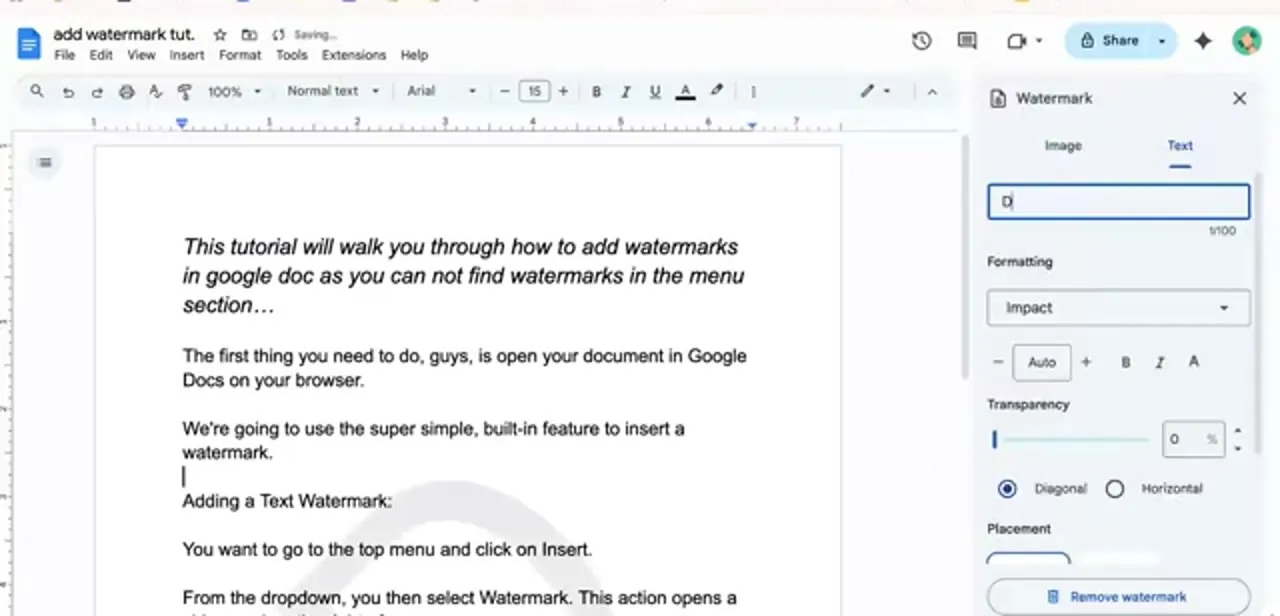
Pick a font under Formatting (Impact reads as a bold, legible stamp) and drag the Transparency slider toward 0% if you want the text more solid instead of faded into the background. Diagonal placement is selected by default and tends to read most clearly across a full page of text; Horizontal runs the watermark straight across if you'd rather have that.
05Switch to an image watermark, or remove one
Click the Image tab at the top of the same panel instead of Text to stamp a logo. It swaps the field for an upload option where you can select a file from your computer or Drive.
The same Transparency and Placement controls carry over, so a logo can be scaled down to something subtle instead of something that competes with the page's actual content. Once a watermark is applied, Remove watermark appears at the bottom of the panel if you want to clear it and start over.
When it doesn't work
Insert doesn't show Watermark anymore
Why: Google grouped it into a new Page elements submenu instead of leaving it directly under Insert.
Fix: Go to Insert, Page elements, Watermark, or use Help, Search the menus (Option+/) and type watermark to jump straight there.
Part of the watermark is missing, with visible gaps
Why: According to Google's own help page, this happens when text behind the watermark has a background color; the watermark is cut where that color sits.
Fix: Remove the background color from the text overlapping the watermark.
The watermark isn't showing up at all
Why: The document is in pageless format. Watermarks only render, and only work, in pages format.
Fix: Switch the document back to pages format; the watermark reappears once it's no longer pageless.
Frequently asked questions
Why can't I find Insert, Watermark anymore?
Google moved it. The option now lives under Insert, Page elements, Watermark instead of sitting directly under Insert.
Is there a faster way to find it if I forget the new path?
Yes. Open Help, choose Search the menus (or press Option+/), and type watermark. It jumps straight to the option no matter which submenu it's filed under.
Can I use both a text and image watermark at once?
No. The panel's Image and Text tabs are separate options; applying one replaces the other, so pick whichever type fits the document.
Why does my watermark have gaps in it?
Google's own help page attributes this to a background color behind the text on the page. Removing it lets the watermark show in full.
Why is the watermark missing entirely?
Check whether the document is in pageless format. Watermarks only display, and only work, when the document is in pages format.
How do I remove a watermark once it's added?
Reopen the Watermark panel the same way you found it, and click Remove watermark at the bottom of the panel to clear it.
Sources and last check
Click path and screens come from a recorded walkthrough. The current menu location (Insert, Page elements, Watermark), the pageless-format limitation, and the background-color cause of gapped watermarks were re-checked against Google's official Docs Editors Help page in September 2026; none of those three facts were in the original draft.
About the author

Impran M N
I've been hooked on technology for as long as I can remember — especially the new tools and AI apps that seem to land every other week. Easy Tech Tuts is where I write up whatever I've just worked out: I do the task in the real product, record the screen, and turn it into the guide I wish I'd found first.