Easy Tech Tuts
How to Add Watermark on Google Docs 2026
By Impran M NLast checked against official docs
Google Docs has a built-in watermark tool tucked a couple of menus deep. Once you find it, stamping a repeating "Confidential" label or a company logo across every page takes under a minute.
It moved recently, which is why some older tutorials point to the wrong menu, and it silently doesn't work at all on one common document format. A light "Draft" or "Confidential" watermark suits a document still under review; a logo suits a polished report going to a client. Either way, keep it faint enough that it sits behind your text rather than competing with it.
Before you start
- The document must be in pages format. Google Docs doesn't offer the watermark tool in pageless documents, and switching an already-watermarked document to pageless hides the watermark without deleting it.
01Open Insert, then Page elements, then Watermark
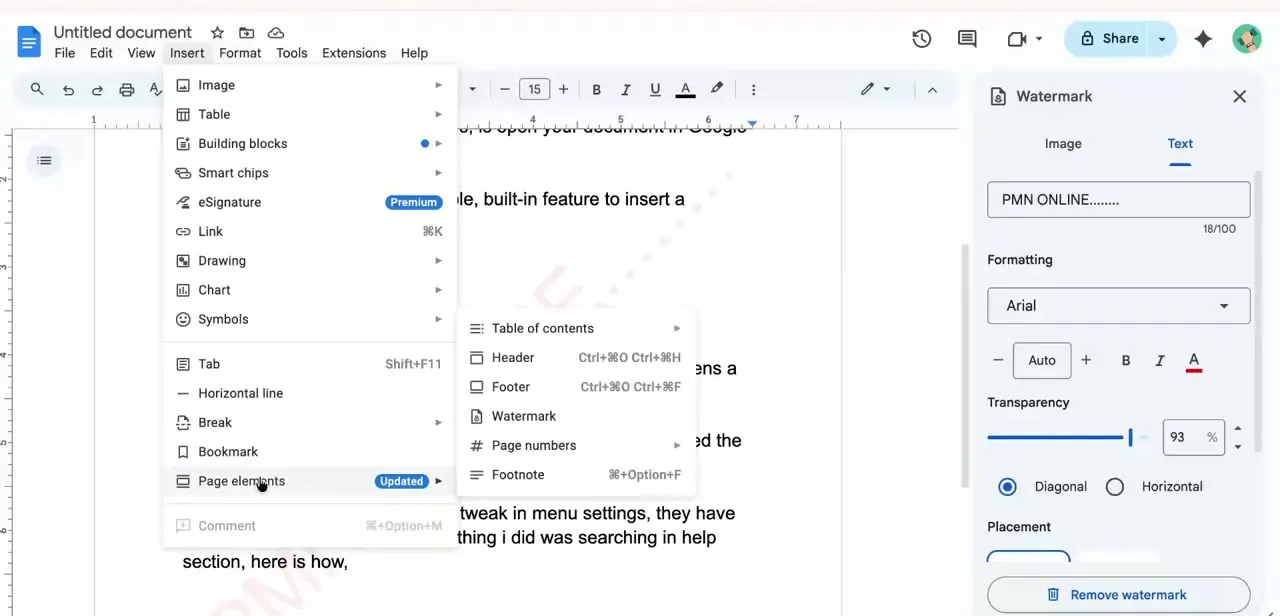
First, check the document isn't in pageless format; if it is, the Watermark option won't do anything useful. From the top menu, click Insert, then hover Page elements, a submenu that opens with Table of contents, Header, Footer, Watermark, Page numbers, and Footnote.
Watermark used to sit as its own top-level item directly under Insert, so if you've used this before and can't find it, that's the change: it's now nested inside Page elements. Clicking Watermark opens a panel on the right with Image and Text tabs at the top, where the rest of the setup happens.
02Type your text watermark
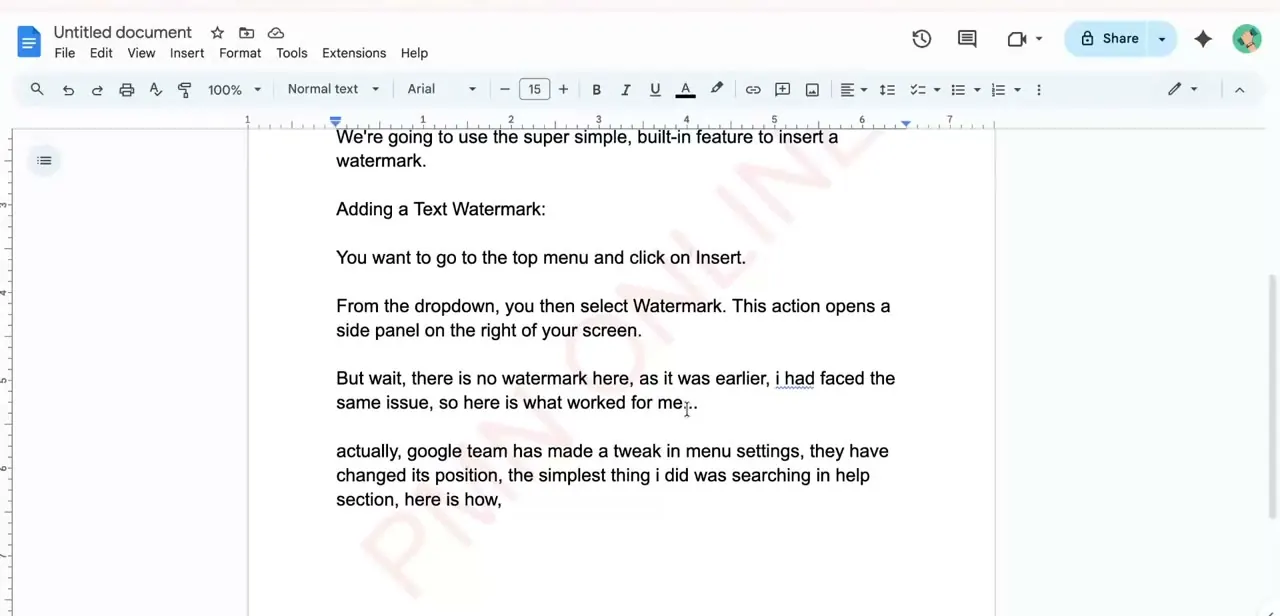
With the Text tab selected, type your watermark into the field, something like "Draft," "Confidential," or a company name. Google Docs renders it as large, light, repeating text diagonally across the page behind your content, updating live as you type.
Keep it to a short phrase; a full sentence stops reading as a watermark and starts reading as a diagonal paragraph. The watermark applies to the whole document at once. There's no separate step to copy it onto each page.
03Adjust the font, transparency, and orientation
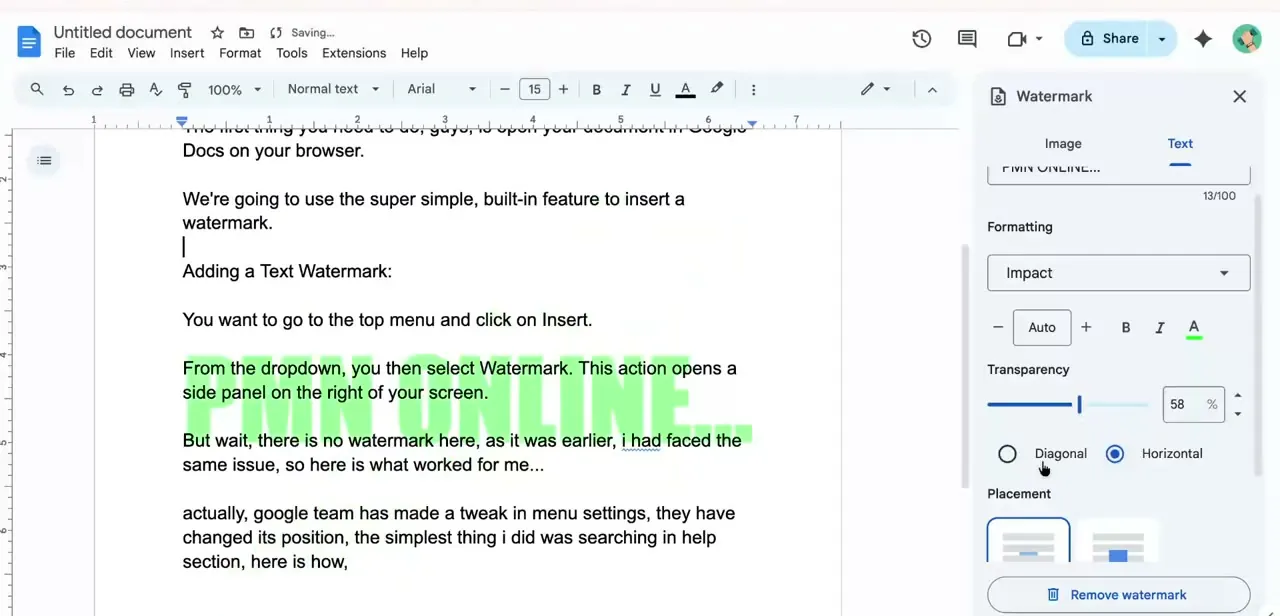
Below the text field, the formatting section changes the font (a bolder face like Impact reads more clearly than the default at a glance), plus bold, italic, underline, and color. The transparency slider is the setting most worth tuning: too opaque and it competes with your real text, too faint and it's pointless.
Something in the 50 to 70% range works for most fonts. Below that, a toggle switches the orientation between Diagonal and Horizontal.
04Use an image watermark instead of text
To stamp a logo instead of a line of text, click the Image tab at the top of the same panel. That switches it to an upload control pulling from your computer, Google Drive, a URL, or your camera; the same transparency and placement controls apply once the image is in.
If the image watermark shows odd gaps or a visible box around parts of it, a text background color elsewhere on the page is sitting on top of the watermark rather than behind it. Removing that background color usually clears it up.
05Edit or remove the watermark later
The fastest way to edit an existing watermark is to right-click it directly on the page, choose Select watermark, then click Edit watermark below it. Reopening Insert → Page elements → Watermark brings up the same panel too, and it's the only route to actually delete one: click Remove watermark at the bottom. Swapping one watermark for another works the same way as editing: open the panel, retype the text or switch tabs to move from text to image, and the change applies instantly across every page.
When it doesn't work
Watermark does nothing, or the option seems missing
Why: The document is in pageless format. Google Docs doesn't support watermarks there.
Fix: Switch the document to pages format, then insert the watermark.
An existing watermark disappeared
Why: The document was switched to pageless format at some point, which hides watermarks without deleting them.
Fix: Switch back to pages format and the watermark reappears.
An image watermark has visible gaps or boxy edges
Why: Text elsewhere on the page has a background color sitting on top of the watermark instead of behind it.
Fix: Remove the background color from that text.
Frequently asked questions
Can I use my own logo as a watermark in Google Docs?
Yes. Open Insert → Page elements → Watermark, switch to the Image tab, and upload a logo from your computer, Google Drive, a URL, or your camera.
Why doesn't the Watermark tool do anything in my document?
Check whether the document is in pageless format. Google Docs doesn't support watermarks there; switch to pages format first.
Does the watermark appear on every page automatically?
Yes. Once applied, it repeats across every page automatically, with no need to reinsert it page by page.
How do I remove a watermark once it's added?
Reopen Insert → Page elements → Watermark and click Remove watermark at the bottom of the panel.
Is there a faster way to edit an existing watermark than reopening the menu?
Right-click the watermark on the page, choose Select watermark, then click Edit watermark. That opens the same panel without going back through Insert.
I can't find Watermark under Insert anymore. Where did it go?
Google moved it into a submenu: click Insert, then hover Page elements, and Watermark is listed there alongside Header, Footer, and Page numbers.
Sources and last check
Click path and screenshots come from a walkthrough recorded in 2025/2026. Menu location, the remove-watermark step, and the formatting options were re-checked against Google's official Docs Editors Help in September 2026. That check added two things the article was missing entirely: watermarks don't work in pageless-format documents, and an existing watermark can be edited faster with a right-click rather than reopening the Insert menu. An unverifiable claim about a 100-character limit on the watermark text was removed, since it isn't stated in Google's documentation and couldn't be confirmed.
About the author

Impran M N
I've been hooked on technology for as long as I can remember — especially the new tools and AI apps that seem to land every other week. Easy Tech Tuts is where I write up whatever I've just worked out: I do the task in the real product, record the screen, and turn it into the guide I wish I'd found first.