Easy Tech Tuts
How to Create Google Docs Templates Easily 2026
By Impran M NLast checked against official docs
Standardizing letterheads, proposals, or weekly agendas is easier with a proper template than with copy-pasting old files and hoping nobody edits the wrong one. Google Docs supports this with heading styles, placeholder content, and a simple URL trick that forces anyone who opens a file to make their own copy instead of editing the original. This guide covers designing that master layout and locking it down, including a couple of details that trip people up: what heading styles populate, and a sharing setting that can quietly block a template from ever reaching the gallery.
01Start from a quick-start building block
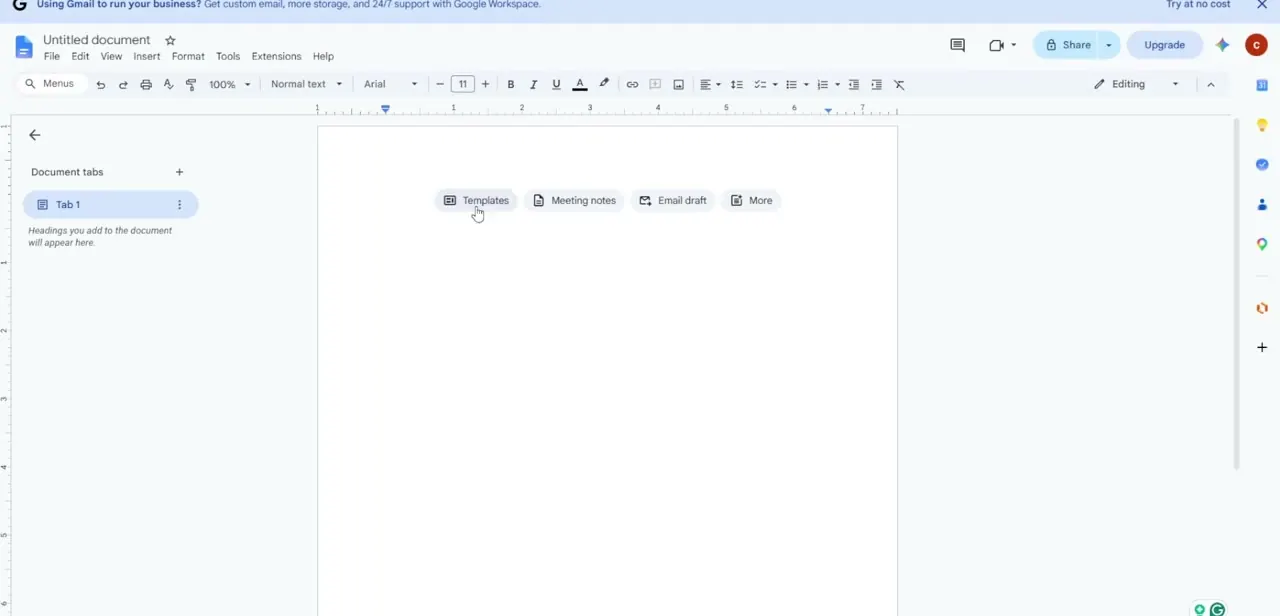
Open a new document and look for the row of quick-start chips Google Docs sometimes shows on a blank page: Templates, Meeting notes, Email draft, and more. These insert a pre-formatted skeleton to customize into a reusable layout, often faster than building every section's structure from scratch.
02Structure the layout with heading styles
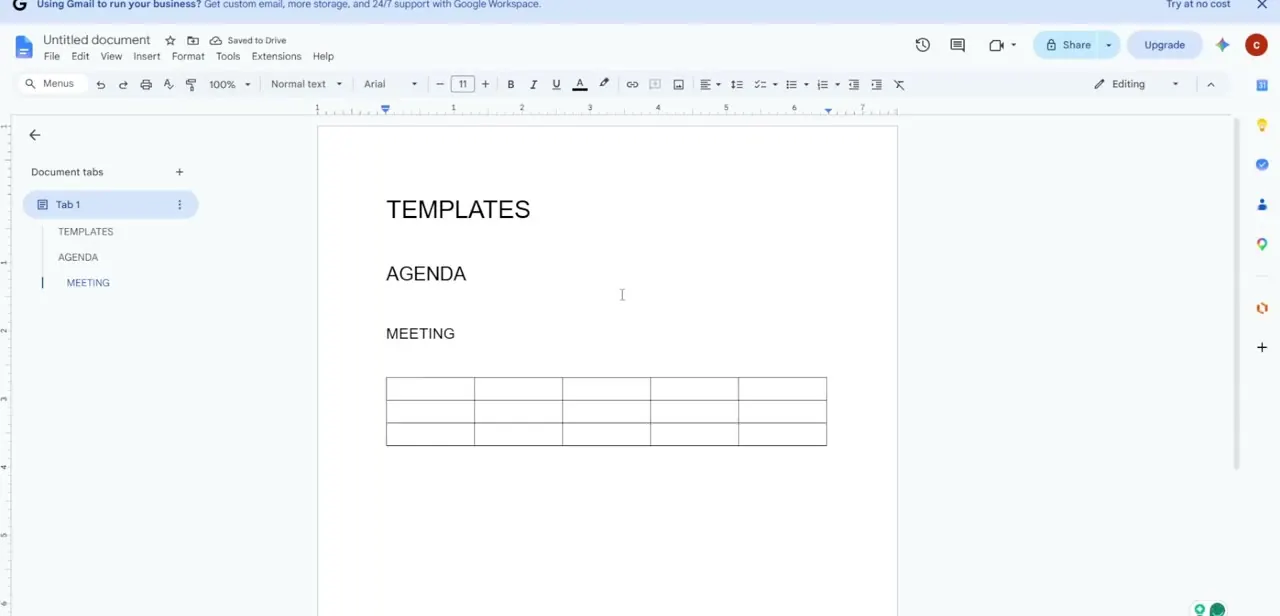
As the master file takes shape, apply Heading styles (Heading 1, Heading 2, and so on) to each section label instead of just making text bold. Google Docs lists every heading in that tab's outline, opened from Show tabs & outlines in the top-left corner, then Tab options and Show outline.
This is genuinely useful for a template: whoever copies it later can jump straight to a section instead of scrolling through a wall of text. One thing worth getting right: the outline is a different feature from Google Docs' Document tabs, which are separate sections created manually with Add tab. A heading never creates a new tab on its own; it only adds an entry to the outline of the tab it's written in.
03Mark placeholder fields clearly
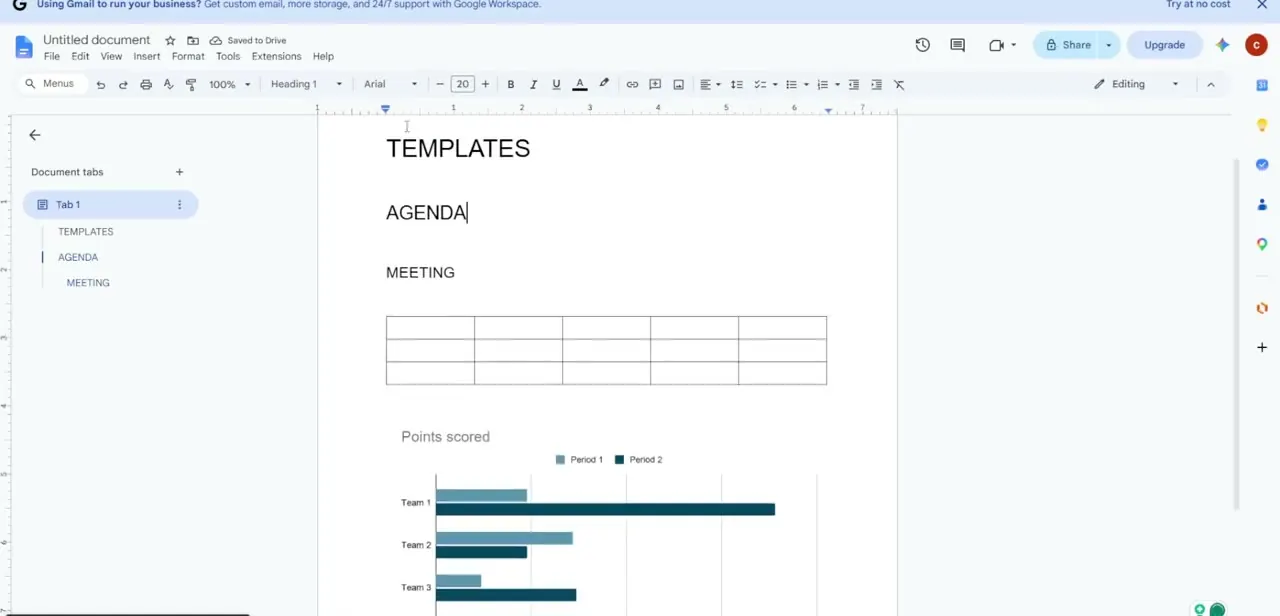
Wherever a future user needs to type their own information, mark it clearly. Bracketed placeholder text like [Client Name] or [Date] works, and so do tables or charts left with sample data that's obviously meant to be replaced. A distinct heading style, applied to a section title, keeps that placeholder structure visually separate from finished body content, so nobody mistakes a template field for real text.
04Lock down sharing on the master file, without locking it too hard
Click File, hover over Share, and set the baseline permission on the master document to view-only for anyone outside a small editing group. This is the single most important step for a template meant to be reused: without it, the first person who opens the file to "just check something" can overwrite the structure.
One thing to avoid: Google's own template documentation states that a file can't be submitted to an organization's Template Gallery if its sharing settings block viewers and commenters from downloading, printing, or copying it. View-only is fine; disabling download entirely will block the gallery step below.
05Submit it to your organization's Template Gallery
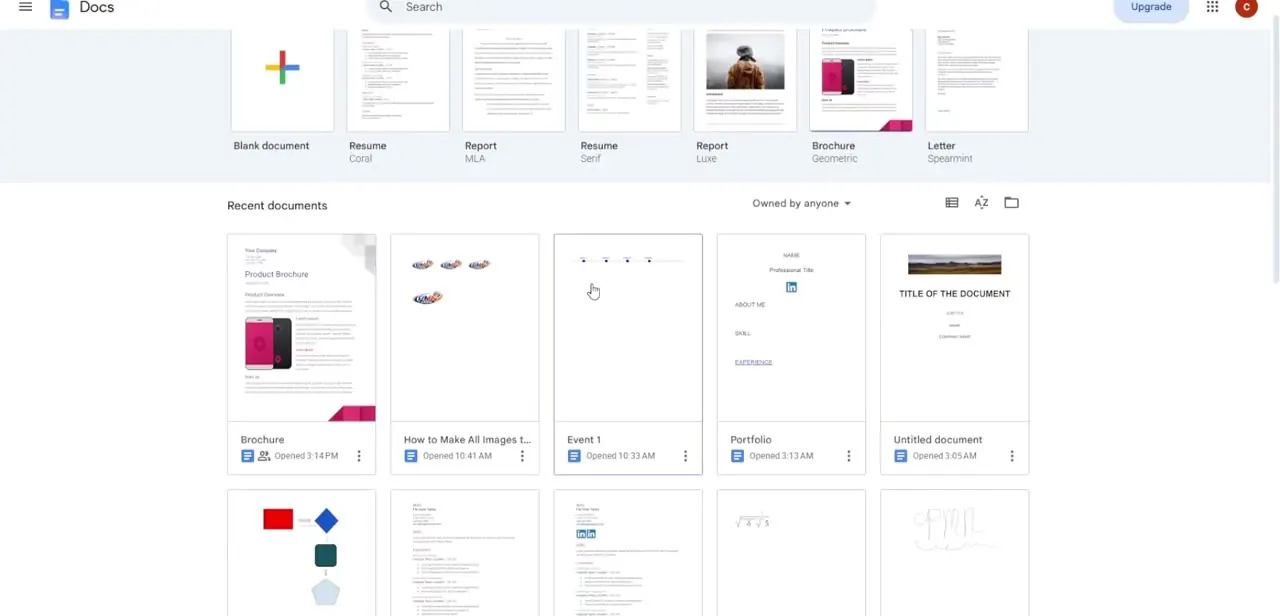
If the Google Workspace plan supports it, go to the Docs home screen, open Template Gallery, select the organization's tab, and click Submit Template. Choose the master file from Drive, assign it a category, and submit; it becomes visible to everyone in the organization once approved.
Whether this option appears, and what happens after clicking Submit, depends on how a Workspace admin has configured submissions: Open lets anyone add a template without approval, Moderated routes each submission to an admin for approval by email, and Restricted limits submitting to admins only. If Submit Template is missing entirely, or a submission never shows up, that's an admin setting to check, not a broken feature.
06Create a forced-copy link as a backup
Even without gallery access, a template can be shared safely with a simple trick: take the document's normal URL, delete the word edit near the end, and replace it with copy. Anyone who opens that modified link is prompted to duplicate the file into their own Drive instead of editing the original. It's a lightweight alternative to the gallery workflow, and it works for any file with view access, not only ones owned by the person sharing it.
When it doesn't work
Submit Template doesn't appear on the Docs home screen
Why: A Workspace admin may have turned off custom templates entirely, or set submissions to Restricted, which limits submitting to admins.
Fix: Ask whoever manages the Workspace admin console to check Template Gallery submission settings; Open and Moderated modes both let regular users submit, Restricted doesn't.
A finished template file can't be submitted, or the Submit option is greyed out
Why: The file's sharing settings block viewers and commenters from downloading, printing, or copying it, which Google's own template documentation lists as a submission blocker.
Fix: Loosen the sharing settings enough to allow downloading before submitting, while keeping edit access restricted to the intended small group.
A heading was added but nothing shows up in the sidebar
Why: The Show tabs & outlines panel, or that tab's Show outline option, might be collapsed or hidden.
Fix: Click Show tabs & outlines in the top-left corner, then Tab options and Show outline for the tab in question.
Frequently asked questions
What's the benefit of a force-copy link?
It automatically prompts anyone who opens it to duplicate the document into their own Drive instead of editing the original master file.
Do headings create Document tabs automatically?
No. Headings populate that tab's outline panel, a separate feature from Document tabs. Document tabs are created manually with Add tab and are meant for splitting one file into distinct sections; a heading style only adds a navigable entry to the outline of the tab it's written in.
Can I use placeholder text instead of leaving fields blank?
Yes, bracketed placeholder text or sample data left in tables and charts helps future users know exactly what to replace.
Why can't I submit my template to the gallery?
Two common reasons: sharing on the file is set to block downloading, printing, or copying it, which Google requires to be allowed for a template submission, or a Workspace admin has restricted who can submit. Check the file's sharing settings first, then ask an admin about the Template Gallery submission mode.
Who can submit a template to the gallery?
It depends on the organization's Workspace settings: Open allows any user, Moderated requires admin approval per submission, and Restricted limits it to admins only. Check with a Workspace admin if the option isn't visible.
Will editing the master template affect copies people already made?
No. Once someone copies a document, it becomes an independent file that later changes to the master won't touch.
Sources and last check
Click path and screens come from a walkthrough recorded in July 2025. The Document tabs versus outline distinction, the sharing-permissions requirement for gallery submission, and the admin-controlled submission modes were re-checked against Google's official Docs and Workspace Admin help in September 2026. That check corrected the earlier claim that headings automatically create Document tabs; they populate that tab's outline instead.
About the author

Impran M N
I've been hooked on technology for as long as I can remember — especially the new tools and AI apps that seem to land every other week. Easy Tech Tuts is where I write up whatever I've just worked out: I do the task in the real product, record the screen, and turn it into the guide I wish I'd found first.