Easy Tech Tuts
How to Import and Edit Google Docs in Canva Easily 2026
By Impran M NLast checked against official docs
A Google Doc is built for writing, not for looking good. There's no easy way to add brand colors, custom layouts or graphics without fighting the editor.
Canva can turn that plain text into a real design, but not the way most guides describe it: there's no button inside Canva that reaches into a live Google Doc and pulls its content across. Canva's own help pages describe the in-app Google Drive panel as a way to bring in images and videos, not documents.
To get a Google Doc's text into an editable Canva design, you export it first, then import that file. This guide covers the export step, the size limits Canva applies to that import, and the editing moves that turn plain paragraphs into something worth sharing.
Before you start
- A Google Doc you can download from (File, then Download, in Google Docs)
- A Canva account — the free plan covers everything in this guide
01Export the Google Doc as a Word file
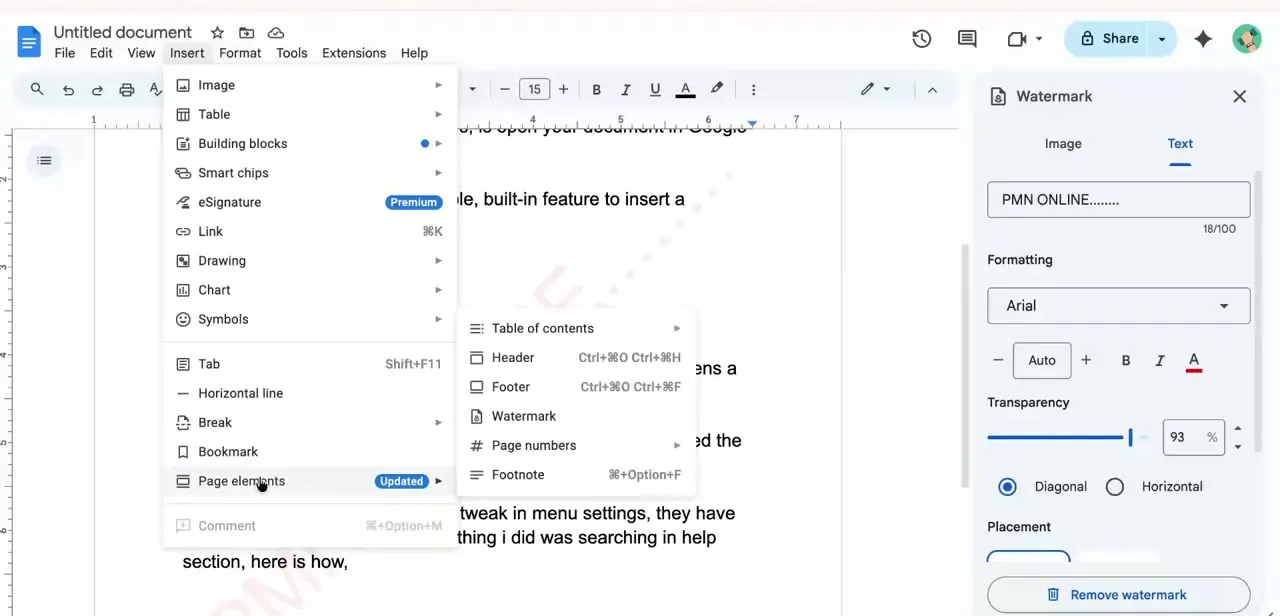
Canva has no feature that reads a live Google Doc directly. In Google Docs, open File, then Download, and choose Microsoft Word (.docx).
Canva's Word import keeps headings, paragraph structure and even comments intact, which is why .docx works better here than PDF: a PDF import turns each page into a flattened image inside an A4 design, not editable text. If the doc is short and unformatted, exporting as a plain .txt file also works. Canva turns a TXT file into a Canva Doc automatically, but you lose headings and lists in the process, so save that route for simple notes, not a structured document.
02Bring the file into Canva
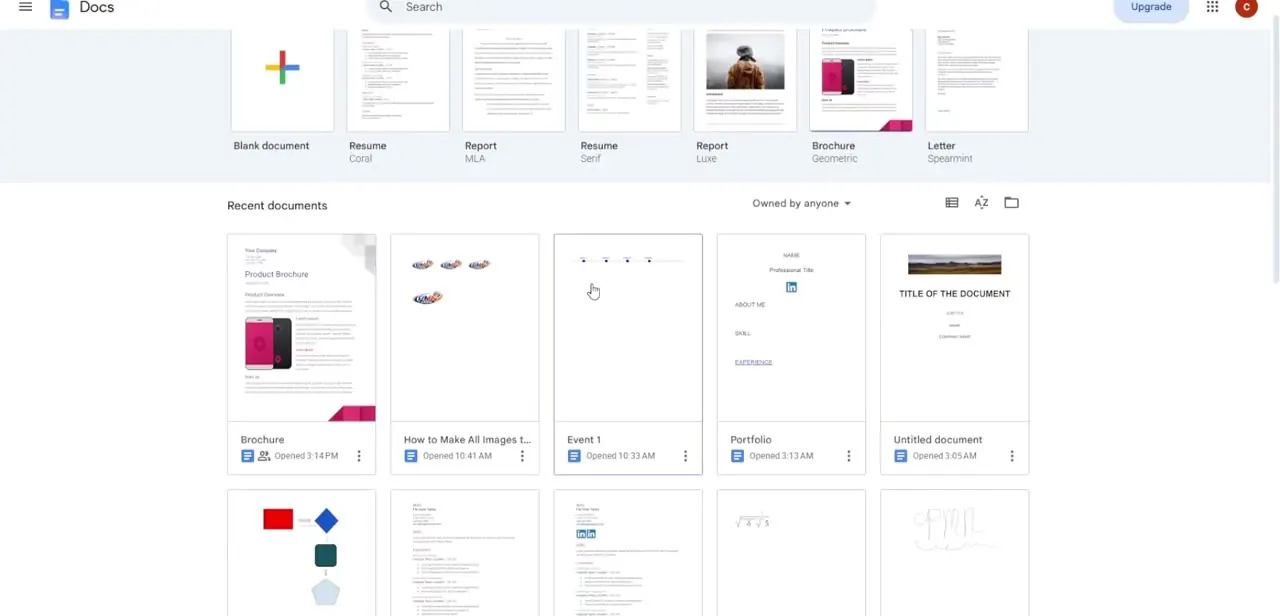
From Canva's home screen, use the Uploads panel in the left sidebar, or click Create a design and look for Import file near the bottom of the list. Select the exported Word file.
Canva's own size limits apply here: up to 300MB for a .docx or .dotx file, and up to 100MB for an older .doc file. Most single documents are nowhere near that ceiling. The file lands as a Canva Doc, a text-first design type, with each paragraph and heading kept as a separate, editable element, not flattened into an image.
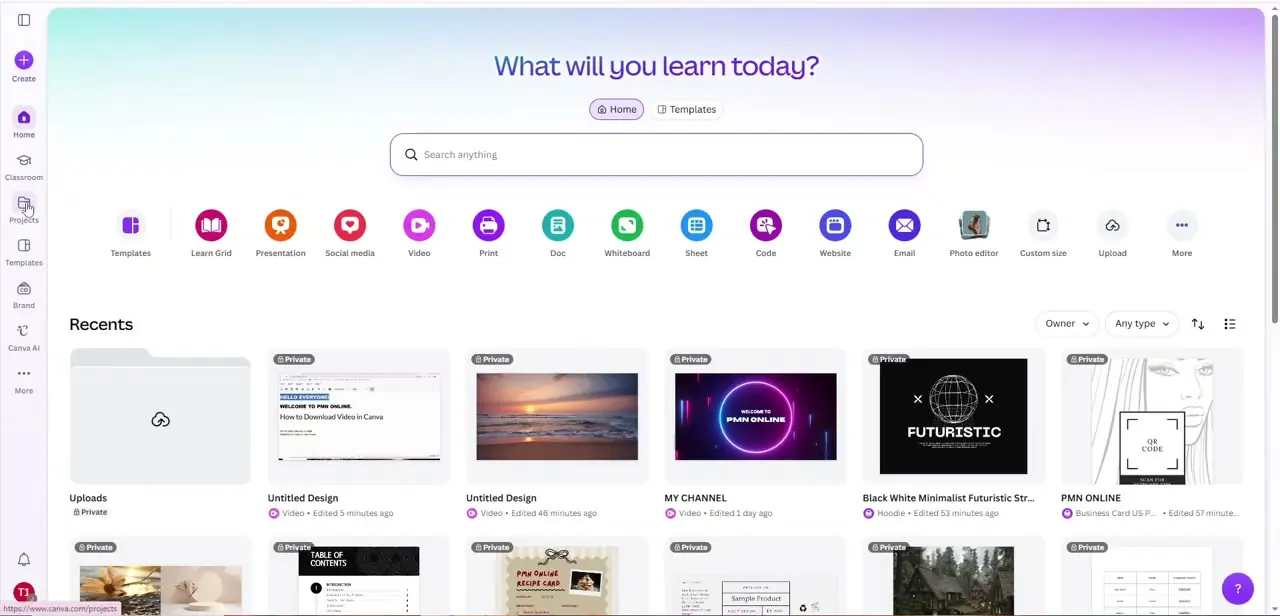
03If the file lives in Google Drive
Canva also has a Google Drive panel inside the editor, reachable from Apps in the side panel. It's built mainly for pulling in images and videos already sitting in Drive, so it isn't the documented route for a Google Doc's text.
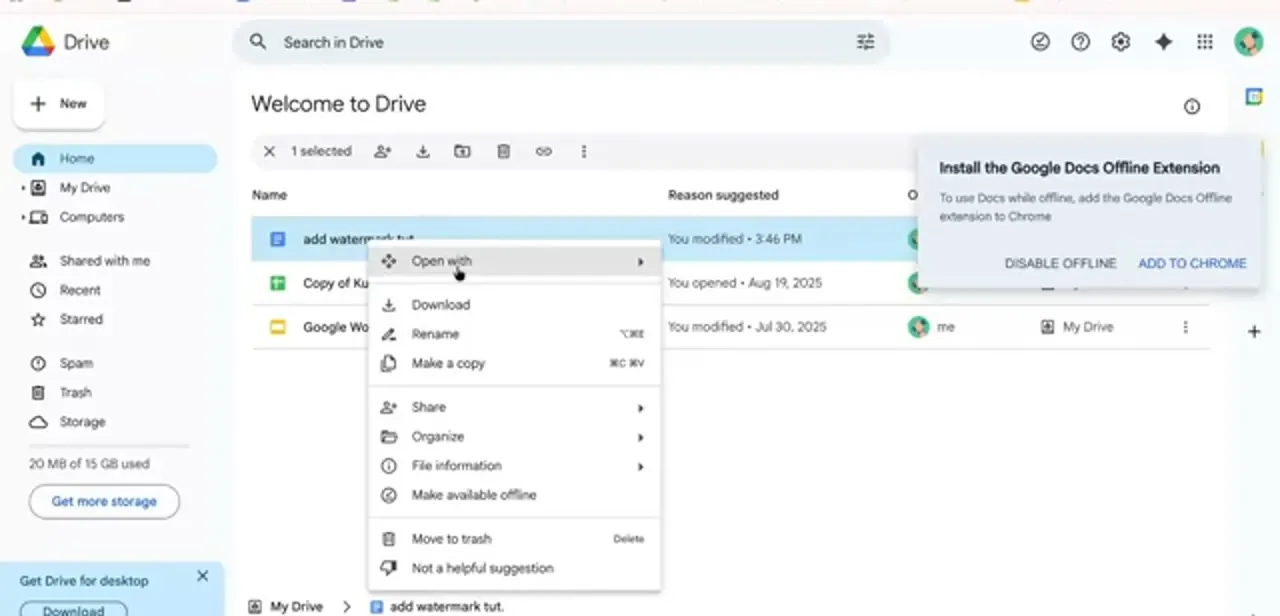
If you've saved the exported Word file into Drive, this panel can still surface it as a file to bring into a design. Teams on Canva for Google Workspace have a shortcut that skips the manual export: right-click the Google Doc inside Google Drive itself, choose Open with, then Canva. The add-on converts it into a linked design without touching the Download menu at all.
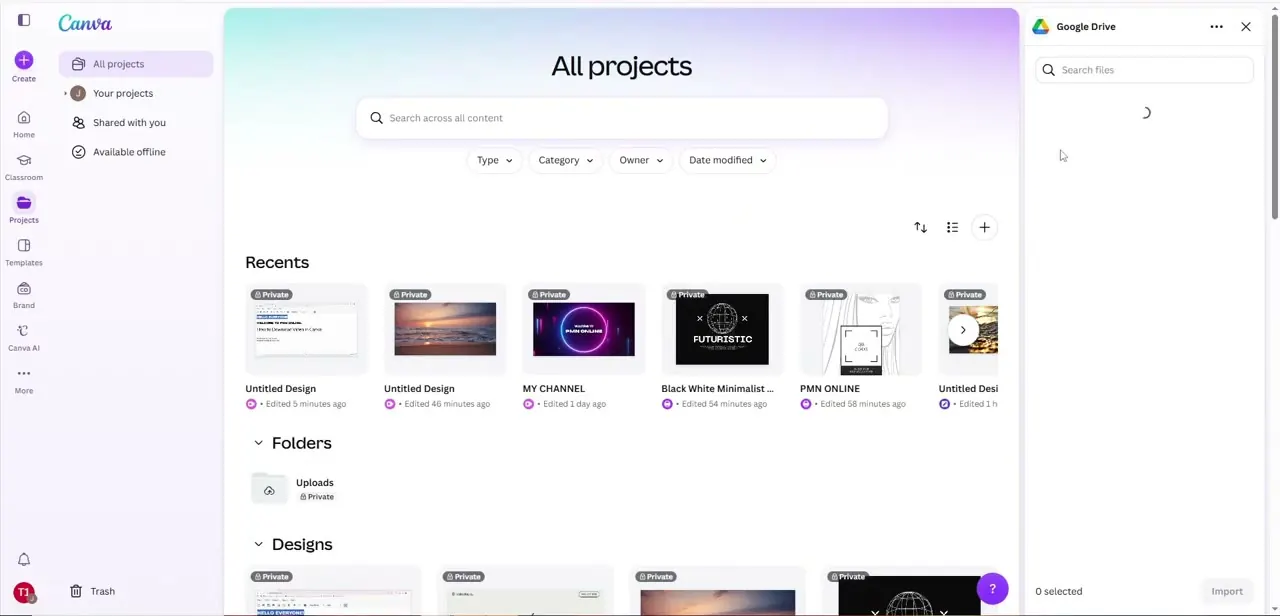
04Confirm the import, then adjust fonts, colors and layout
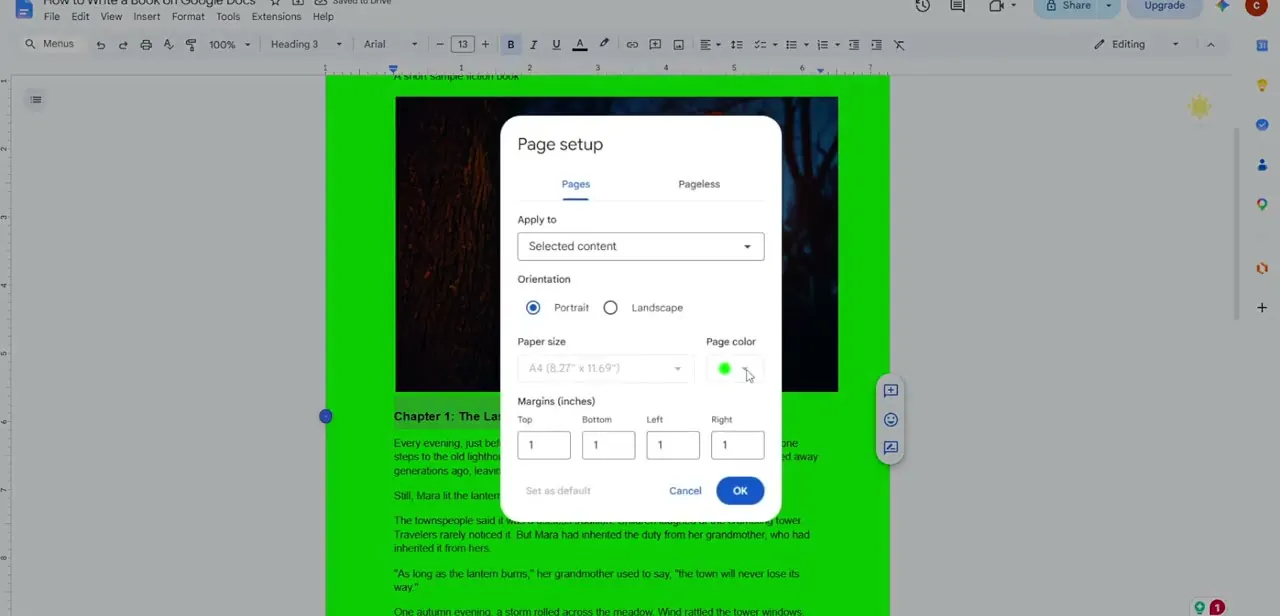
Canva shows a "Your design is ready" notification with an Open button once the conversion finishes. Inside, treat it like any other Canva project: click into text blocks to change fonts and sizes, select elements to recolor them against your brand palette, and drag sections around if the layout feels too text-heavy.
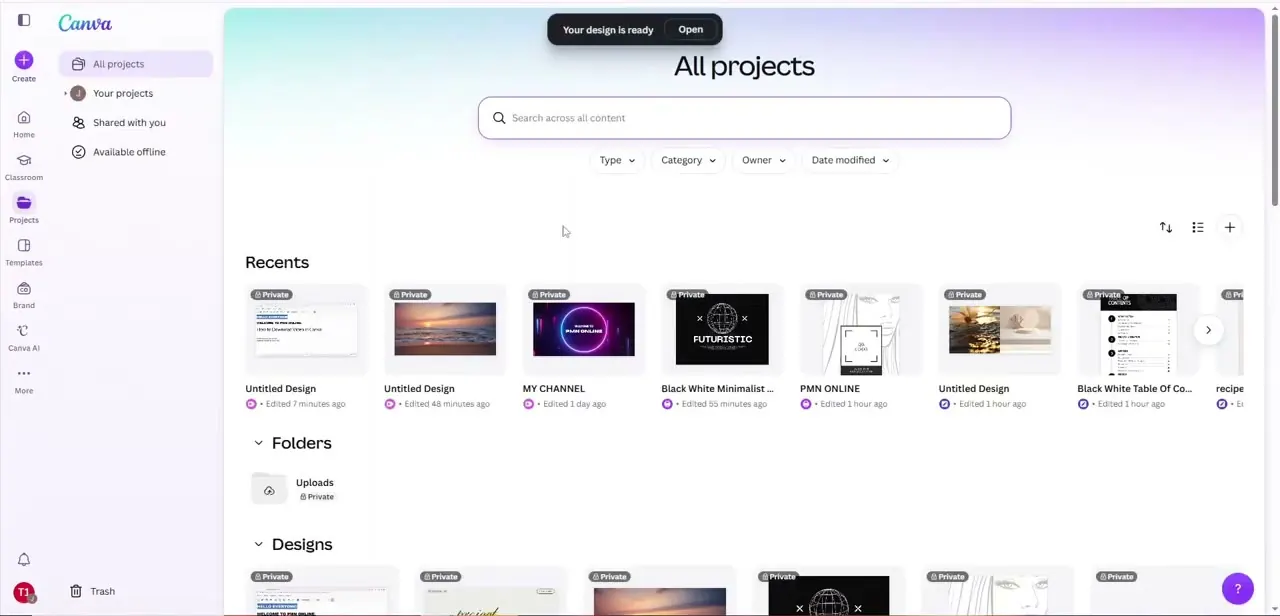
05Add graphics and branded elements
A converted document starts as text on a page, so this is where it becomes a design. Pull in icons, dividers, photos or a logo from Canva's element library to break up long text blocks, and apply brand colors and fonts consistently if you've set up Brand Kit. A colored header bar, a pull-quote treatment, or an icon next to a bullet list does more for readability than another font change.
06Review, then export or share
Scroll through the finished design at full size to check that nothing from the original text got cut off or misaligned. Long tables and unusual formatting are the most common casualties of the Word import and sometimes need manual fixes. Once it looks right, export as a PDF for a shareable, print-ready version, or use Canva's share link if you want collaborators commenting on the design instead of a separate copy of the file.
| Format | What happens in Canva | Best for |
|---|---|---|
| .docx / .dotx | Opens as an editable Canva Doc; headings, lists and comments carry over | Keeping the text editable and structured |
| Each page becomes a flattened image inside an A4 design | Preserving the exact visual layout, not further editing | |
| .txt | Opens as a plain Canva Doc with no formatting | Quick text with no headings or lists to preserve |
Limits per Canva's help center: .docx/.dotx up to 300MB, .doc up to 100MB, .pdf up to 300MB (500 pages max), .txt up to 5MB.
When it doesn't work
The Word file won't upload
Why: It's over Canva's size limit (100MB for .doc, 300MB for .docx or .dotx), or it's saved in an older or corrupted format.
Fix: Re-save as .docx if you're still on .doc, and confirm the file opens cleanly in Word before trying again.
Comments from the Google Doc show up inside the Canva design
Why: Canva's Word import brings in .docx comments along with the text.
Fix: Resolve or delete the comments in Google Docs before exporting, if you don't want them visible to design collaborators.
Tables or unusual formatting look broken after import
Why: Canva's Word import doesn't perfectly reproduce nested tables or uncommon spacing.
Fix: Rebuild the affected section manually inside Canva instead of trying to fix the imported version cell by cell.
Frequently asked questions
Can I import a Google Doc into Canva directly?
Not as a live document. Export it from Google Docs first (File, then Download, then Microsoft Word), and bring that file into Canva. The Canva for Google Workspace add-on can skip the manual export by letting you open a Doc from Google Drive with Canva directly.
Will the formatting survive the import?
Headings, paragraphs, lists and comments generally carry over from a .docx file. Complex tables or unusual spacing sometimes need manual fixes once the text lands in Canva.
Do I need Canva Pro?
No. Word-document import and the resulting Canva Doc work on the free plan. Canva Pro adds premium templates, elements and brand tools you might use while styling it, not the import step itself.
Can I keep editing in Google Docs after importing?
Yes, but the two stop syncing the moment you import. The Canva version is a separate file; later edits in Google Docs won't appear in it.
What if I just need the text, not the formatting?
Export the Google Doc as a .txt file instead of .docx. Canva turns it into a plain Canva Doc with no headings or lists, which is faster when formatting doesn't matter.
Sources and last check
Click path and screens come from a walkthrough recorded in July 2025. Re-checked against Canva's official help center in September 2026: Canva documents the in-app Google Drive panel as built for images and videos, not documents, and has no feature that imports a live Google Doc directly. That check replaced this guide's original one-step "select the Doc and import" claim with the documented route: export to Word, then import that file, with the Canva for Google Workspace add-on noted as a direct alternative.
About the author

Impran M N
I've been hooked on technology for as long as I can remember — especially the new tools and AI apps that seem to land every other week. Easy Tech Tuts is where I write up whatever I've just worked out: I do the task in the real product, record the screen, and turn it into the guide I wish I'd found first.