Easy Tech Tuts
How to do MLA Format on Google Docs Easily 2026
By Impran M NLast checked against official docs
MLA format is a handful of small rules applied consistently: one-inch margins, a readable 12-point font, double spacing everywhere, your surname and page number in the top-right corner, and a Works Cited list with hanging indents. None of it is hard in Google Docs.
Most mistakes come from Docs defaults that quietly disagree with MLA, like Arial 11 as the starting font, or a page-number menu that has moved since many older guides were written. This guide sets everything up from a blank document, then covers Google's own MLA template for when you want a head start.
01Start from a blank document in pages format
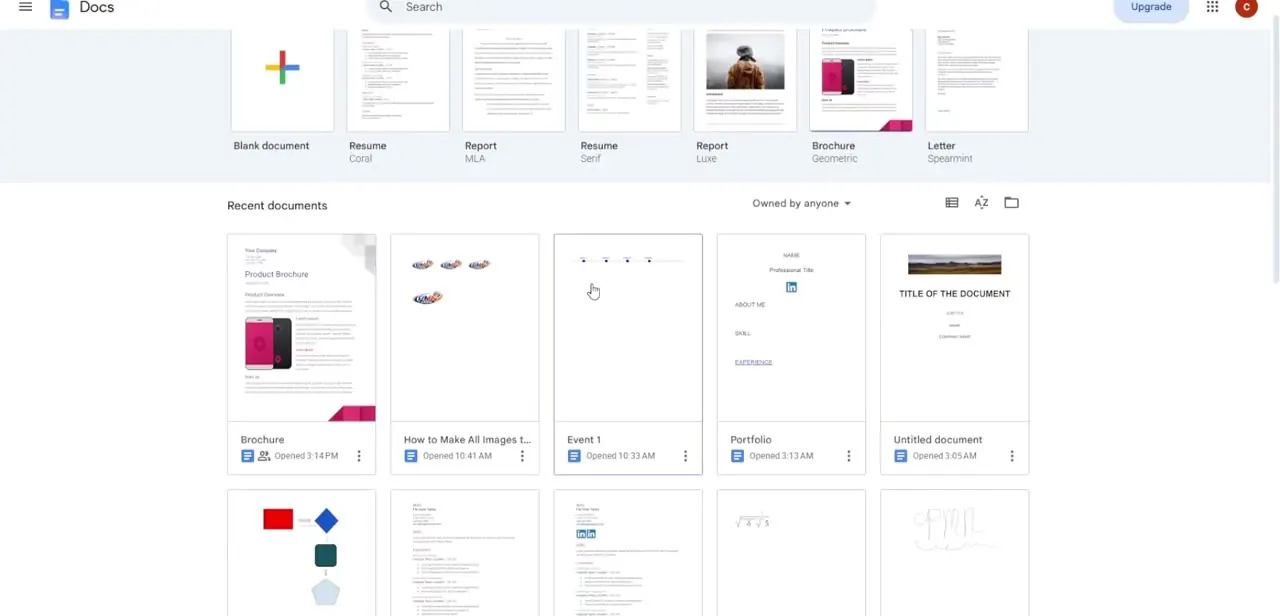
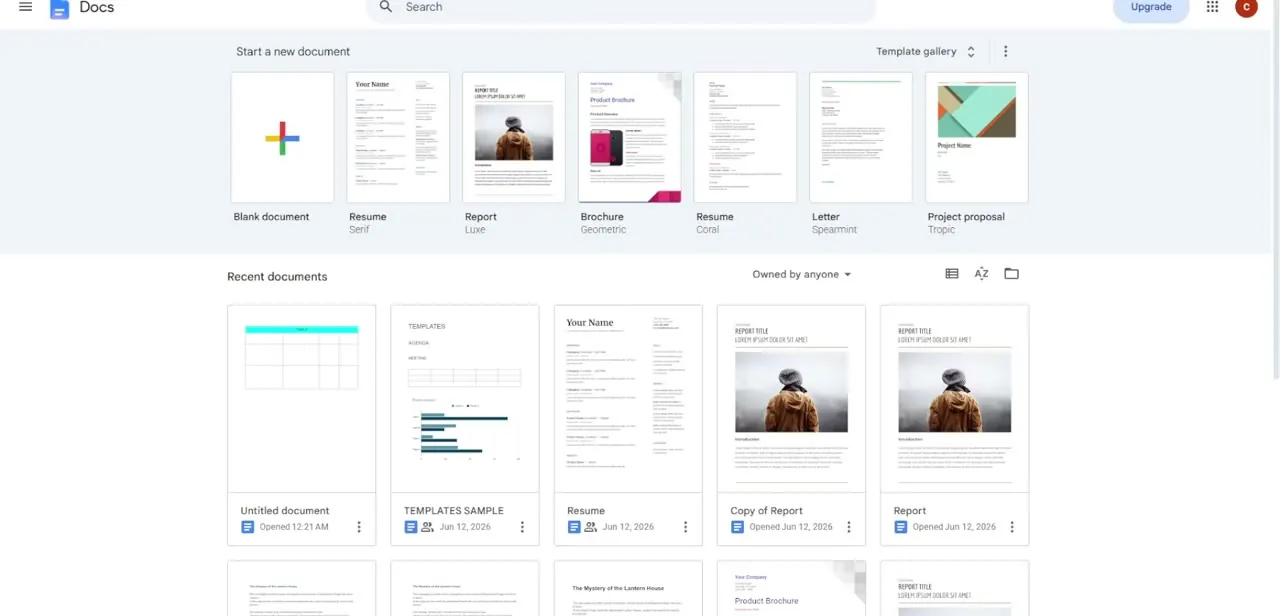
Open Google Docs and click Blank document in the starter row on the home screen. The Report, Resume and Letter templates in that row are not MLA layouts, so a blank page is the cleaner starting point for a manual setup.
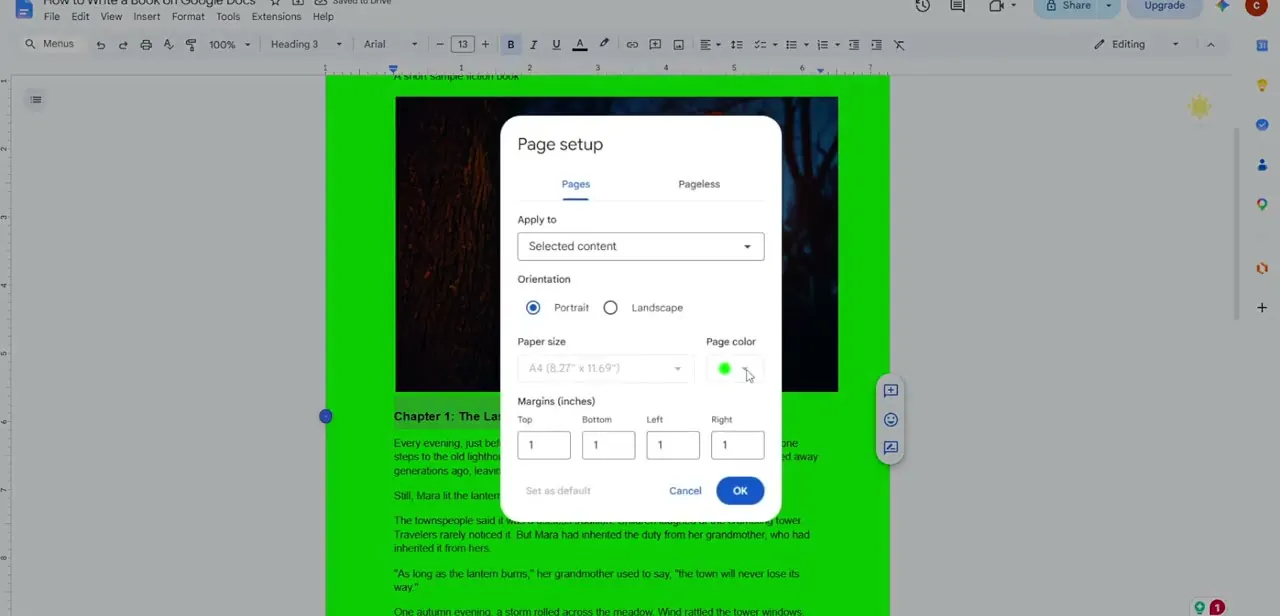
Before typing anything, open File > Page setup and make sure the document uses Pages, not Pageless. Headers and page numbers do not exist in pageless format, and MLA needs both. While you are in Page setup, confirm all four margins read 1 inch.
02Change the font and spacing before you type
New Google Docs files start in Arial 11. Switch to Times New Roman (or another plainly readable font your instructor accepts) at 12 point.
Next, open Format > Line & paragraph spacing and choose Double. In the same submenu, remove any extra space before or after paragraphs.
MLA wants uniform double spacing, including the heading block and the Works Cited page, with no bonus gap between paragraphs. Setting all of this on an empty document means every line you type inherits it.
03Add the running head
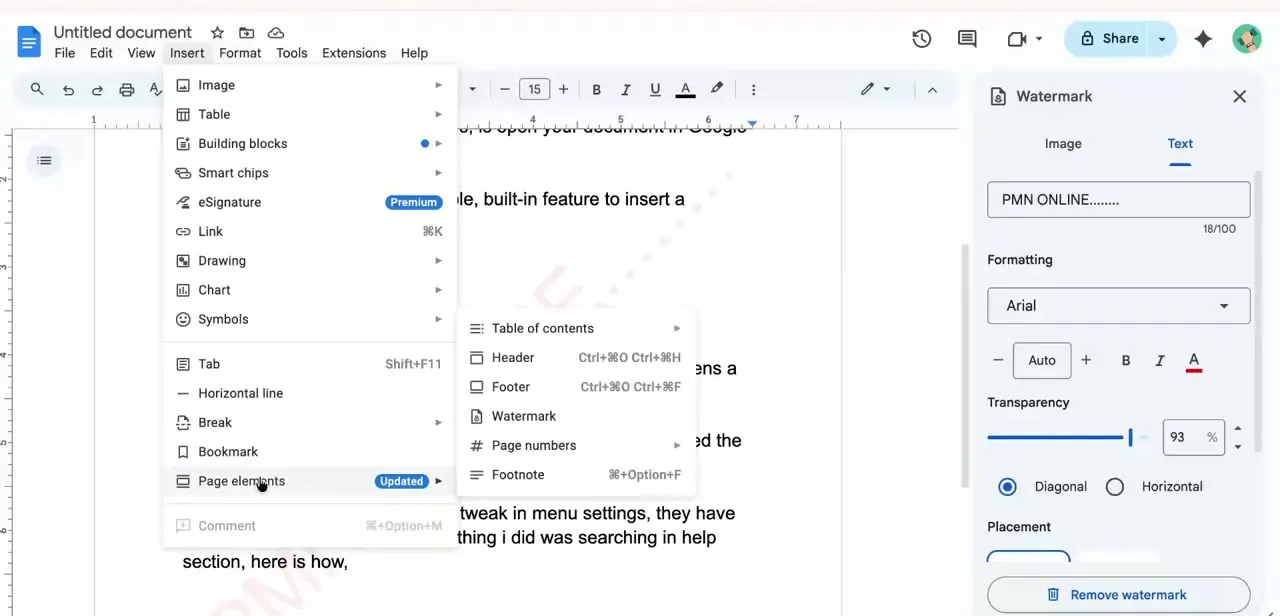
Go to Insert > Page elements > Page number and pick the option that places numbers top right on every page. Older guides and videos show this as Insert > Page numbers; Google has since moved it under Page elements.
Click into the header, place the cursor before the number, and type your last name followed by a single space, so it reads "Smith 1". No "p.", no hyphen, no period.
MLA puts this running head on every page, including page 1, so leave Different first page unticked. The head should sit half an inch from the top of the page; you can check or set that distance under Format > Headers & footers.
04Type the heading, title and body
On the first page, left-aligned, type four lines: your name, your instructor's name, the course, and the date. On the next line, center your title.
Keep it in the same font and size as the text, with no bold, underlining or quotation marks (unless it contains the title of another work). Switch back to left alignment for the body.
Indent the first line of each paragraph half an inch, which is what the Tab key does by default. If your instructor asks for a separate cover page, MLA allows you to drop the four-line heading from page 1, but that is the exception.
05Format the Works Cited page
Insert a page break (Insert > Break > Page break) so the list starts on a new page. Center the label Works Cited at the top, then list sources alphabetically, still double-spaced, with the same running head continuing in the corner.
For the hanging indent, select the whole list and open Format > Align & indent > Indentation options. Under Special indent choose Hanging, leave the value at 0.5 inches, and click Apply.
The first line of each entry now sits at the margin and every following line is indented half an inch. Dragging ruler markers produces the same result, but the dialog is exact and easier to repeat when you add sources later.
06Or start from Google's MLA template
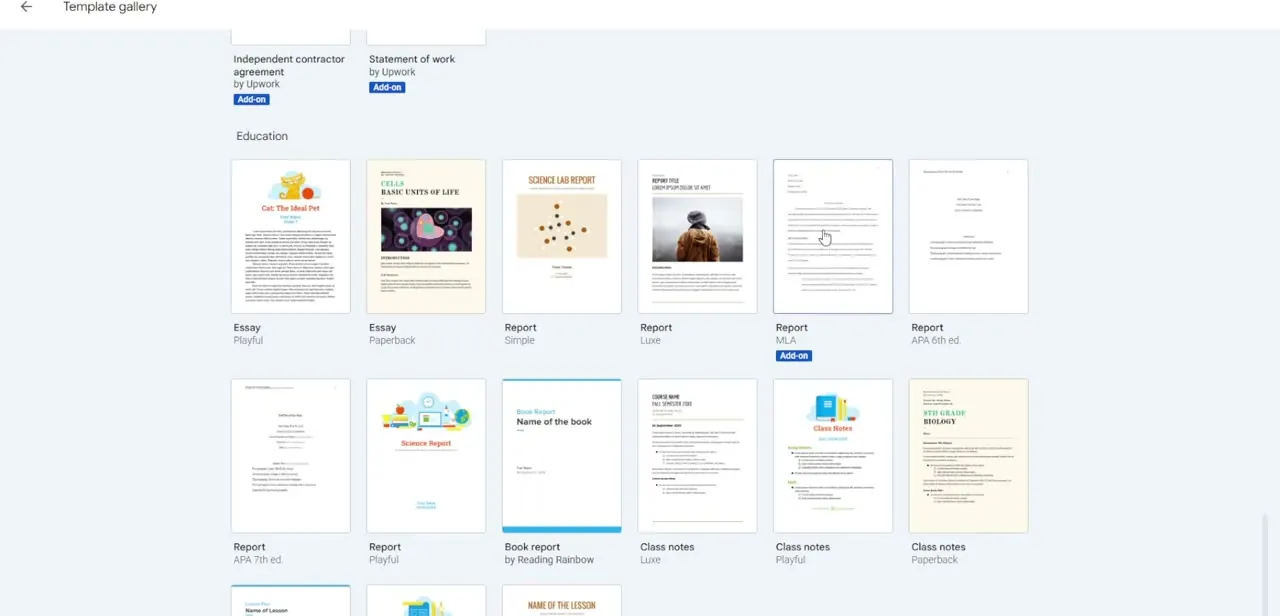
Google's Template gallery (reached from the Docs home screen) has an Education section with a Report template labeled MLA next to APA options. It fills in the heading layout, spacing and running head for you, and you replace the placeholder text.
Check it against the settings above before submitting. Confirm the font, the spacing and that your own surname appears in the running head, since templates are easy to leave half-edited.
| MLA element | Setting | Where to set it in Google Docs |
|---|---|---|
| Margins | 1 inch on all sides | File > Page setup |
| Font | Readable font such as Times New Roman, 12 pt | Font and size boxes in the toolbar |
| Line spacing | Double, no extra space between paragraphs | Format > Line & paragraph spacing |
| Running head | Surname and page number, top right, every page | Insert > Page elements > Page number |
| Paragraph indent | First line 0.5 inch | Tab key, or Format > Align & indent > Indentation options |
| Works Cited entries | Hanging indent 0.5 inch | Format > Align & indent > Indentation options > Special indent: Hanging |
Instructors can override any of these. Their instructions take priority over the handbook.
When it doesn't work
There is no page number option, or the header area will not open
Why: The document is in pageless format. Google Docs does not support headers, footers or page numbers in pageless documents.
Fix: Switch to Pages under File > Page setup, then add the page numbers.
The running head is missing from page 1
Why: Different first page is ticked in the header settings, or the page-number option chosen skips the first page.
Fix: Untick Different first page, or re-insert the number through Insert > Page elements > Page number with the option that includes the first page.
Double spacing looks uneven, with bigger gaps between paragraphs
Why: Extra space before or after paragraphs is still switched on for some of the text.
Fix: Select all (Ctrl+A or Cmd+A) and remove the space before and after paragraphs in Format > Line & paragraph spacing.
Frequently asked questions
Does MLA require Times New Roman?
Not strictly. MLA asks for a readable font in a standard size, and Times New Roman at 12 point is the usual choice. Google Docs defaults to Arial 11, so change it either way.
Does the first page get a page number?
Yes. The surname-and-number running head goes on every page, starting with page 1, and continues through the Works Cited page.
Where did Insert > Page numbers go?
Google moved it. It is now Insert > Page elements > Page number.
Do I need a title page?
No. MLA uses a four-line heading on the first page. Only add a cover page if your instructor asks for one, in which case you can leave the heading off page 1.
Sources and last check
The home screen and Template gallery screens come from the original walkthrough recording. Menu paths were re-checked against Google's Docs Editors Help in September 2026, which corrected the page-number path (now Insert > Page elements > Page number) and added the pageless-format limitation. Running head, cover-page and hanging-indent rules were checked against the MLA Style Center the same month.
About the author

Impran M N
I've been hooked on technology for as long as I can remember — especially the new tools and AI apps that seem to land every other week. Easy Tech Tuts is where I write up whatever I've just worked out: I do the task in the real product, record the screen, and turn it into the guide I wish I'd found first.