Easy Tech Tuts
How to Use Gems in Gemini to Save Time With AI | Custom Assistants Explained | Easily 2026
By Impran M NLast checked against official docs
Gemini now has two things called a Gem, and they are built differently. A classic Gem is a saved set of instructions, optionally with reference files, that shapes how Gemini answers every time you open it.
A Gem from Labs is a small app: you describe a job in one sentence and Gemini turns it into a chain of steps with its own interface. Google added that second kind in December 2025 by bringing its Opal experiment into the Gems manager.
The walkthrough below builds a Gem from Labs, because that is what the recording shows. It also covers the classic route, since Gems from Labs come with requirements a lot of people won't meet. Work and school accounts are excluded, and so is anyone under 18.
Before you start
- For a Gem from Labs: a personal Google Account (not a work or school account), age 18 or over, Gemini used in English, and the Gemini web app on a computer
- For a classic Gem: any Google Account that can use Gemini, age 13 or over (or the minimum age in your country)
01Open the Gems manager
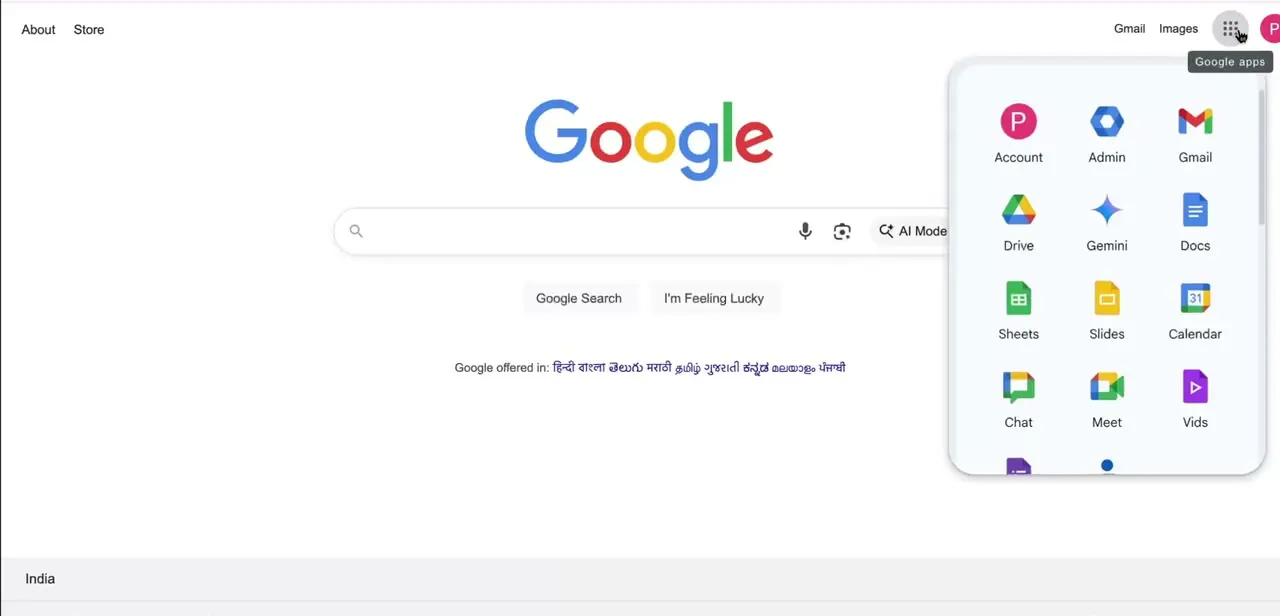
Go to gemini.google.com, open the sidebar and click Gems. The page is split in two.
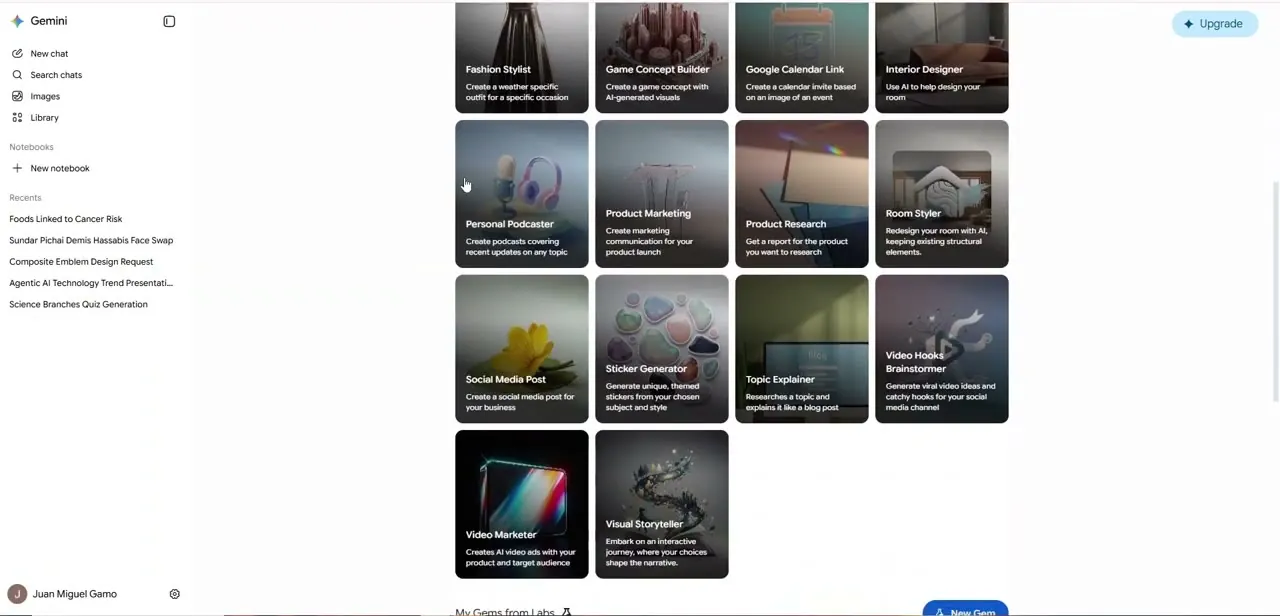
Gems from Labs sit at the top, with your own under My Gems from Labs. Below that is the older Gem manager, holding your classic Gems and the ones Google premade, such as Brainstormer, Career guide and Writing editor.
In the recording, the Labs area shows a grid of ready-made mini apps: a Fashion Stylist that suggests outfits for the weather, a Product Research app that compiles a report, a Room Styler, a Social Media Post generator and a Personal Podcaster. Opening a few is the fastest way to see how narrowly a good Gem is scoped.
02Decide which kind of Gem the job needs
If you keep pasting the same instructions into new chats ("answer as a copy editor, UK spelling, flag passive voice"), a classic Gem is enough. Click New Gem in the lower section, give it a name and instructions, and optionally add files under Knowledge from your device, Google Drive or a NotebookLM notebook.
Drive files are read at their latest version, so edits to the source carry through. Test it with a prompt in the preview, adjust the instructions, then click Save.
If the job has distinct stages, such as taking an input, processing it and producing a formatted result, a Gem from Labs fits better. That is the path the rest of this guide follows.
03Describe the task in one sentence
Click New Gem next to My Gems from Labs. The first time, Gemini shows some disclosures and asks you to sign in to Opal.
Use the same personal account you use for Gemini. Type what you want into the text box at the bottom and click Submit.
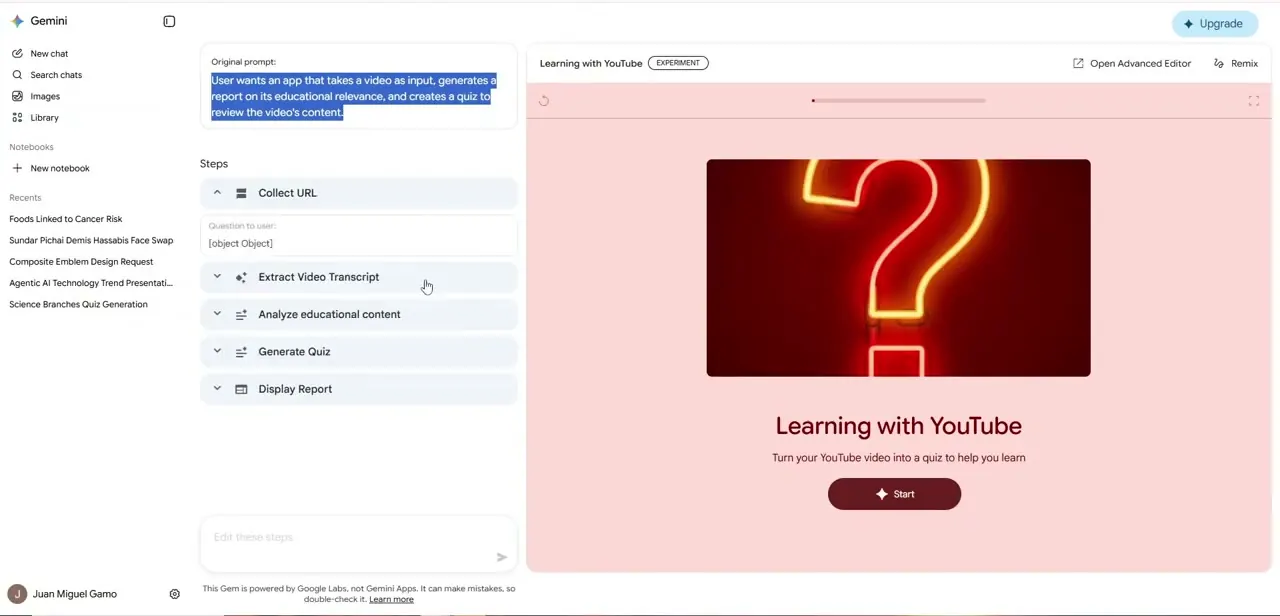
Describe the input and the output, not the method. The example here asks for an app that takes a video, reports on its educational value and writes a quiz to review it.
Nothing in that sentence mentions transcripts or report structure. Working out the stages in between is Gemini's job. Simple apps appear quickly; Google notes that complex ones can take a few minutes.
04Review the steps, then edit them in plain language
Gemini returns the task as a list of steps next to a live preview. For the video example the steps are Collect URL, Extract Video Transcript, Analyze educational content, Generate Quiz and Display Report, and the preview has already named the tool "Learning with YouTube".
Read the steps before anything else. They are the clearest sign of whether Gemini understood what you meant.
To change something, type the change into the box below the steps (labelled Edit these steps in the recording). Ask for ten quiz questions instead of five, or a report aimed at a younger audience, the same way you described the original task.
For finer control, click Open advanced editor above the preview. It opens the app in Opal's own editor.
05Run it on a real input, then share it
Click Start app and give it something genuine, here a real YouTube link. Check the output of each stage against the source.
Gems from Labs are labelled experimental, and a transcript step that misreads a video will quietly spoil every step after it. The finished app is saved under My Gems from Labs.
To pass it on, click Share above the preview. You can copy a link, email specific people, or set general access to Public, Anyone with the link, or Private. Once a Gem handles something you used to do by hand every week, keep refining it; the first version rarely needs to be perfect to earn its place.
| Feature | Classic Gem | Gem from Labs |
|---|---|---|
| What you build it from | A name, written instructions, optional Knowledge files | A one-sentence description that Gemini turns into steps |
| What you get | Gemini chat that follows your instructions | A mini app with its own interface and a Start app button |
| Accounts | Personal accounts; work and school accounts under different terms | Personal Google Accounts only |
| Minimum age | 13, or the local minimum | 18 |
| Where you create and edit it | Gemini web app | Gemini web app on a computer, English only |
| Where you can use it | Web and mobile apps (not Gemini Live) | Gemini web app |
From Google's Gemini Apps Help pages, checked September 2026. Gems from Labs are an experiment, so these limits may change.
When it doesn't work
There is no My Gems from Labs section or New Gem button at the top of the Gems page
Why: Gems from Labs are limited to personal Google Accounts held by people aged 18 or over, using Gemini in English on the web. A work or school account, or the mobile app, won't show them.
Fix: Switch to a personal account in a desktop browser. If that isn't an option, build a classic Gem from the lower section instead.
An Opal sign-in screen appears when you click New Gem
Why: Gems from Labs run on Opal, a separate Google Labs experiment, and it asks for sign-in the first time.
Fix: Review the disclosures and sign in with the same personal account you use for Gemini.
You can open a classic Gem on your phone but can't change it
Why: Creating, editing and deleting classic Gems is only possible in the Gemini web app.
Fix: Make the change at gemini.google.com. The updated Gem is then available in the mobile app.
Frequently asked questions
What is the difference between a Gem and a Gem from Labs?
A classic Gem is a set of saved instructions that Gemini follows in a normal chat. A Gem from Labs is a mini app built from a chain of steps, powered by Google's Opal experiment, with its own interface.
Can I use Gems with a work Google account?
Classic Gems work with work and school accounts, subject to your organisation's terms. Gems from Labs do not; Google limits them to personal accounts.
Can a Gem use my own documents?
A classic Gem can. Add files under Knowledge from your device, Google Drive or a NotebookLM notebook. Drive files are read at their most recent version.
Can I customise one of Google's premade Gems?
Many of them. Open the Gem under Premade by Google and click Make a copy, then change the name and instructions. If there is no Make a copy option, that Gem can't be customised.
What happens when someone shares a Gem with me?
It isn't added to your list automatically. Once you open it and use it, it appears under My Gems.
Are Gems from Labs reliable enough for work?
Treat them as drafts. Google labels them experimental, so check each step's output against the source before relying on it.
Sources and last check
Screens and the "Learning with YouTube" example come from a walkthrough recording. The click path, the Start app, Share and Open advanced editor controls, and the account, age, language and platform limits were re-checked against Google's Gemini Apps Help pages and Google's December 2025 Opal announcement in September 2026. That check corrected the earlier version of this guide, which presented the step-based builder as how every Gem works; it applies only to Gems from Labs.
- Google Gemini Help: Use Gems in Gemini Apps (official)
- Google Gemini Help: Create & manage AI mini-apps or custom workflows as Gems from Google Labs (official)
- Google Gemini Help: Get a quick start with premade Gems (official)
- Google blog: Build interactive mini apps with Opal in the Gemini app (December 2025)
About the author

Impran M N
I've been hooked on technology for as long as I can remember — especially the new tools and AI apps that seem to land every other week. Easy Tech Tuts is where I write up whatever I've just worked out: I do the task in the real product, record the screen, and turn it into the guide I wish I'd found first.