Easy Tech Tuts
How to Share Screen With Gemini | Real-Time AI Help | Easily 2026
By Impran M NLast checked against official docs
There are two ways to show Gemini your screen, and which one you use depends on the device. On a phone or tablet, the Gemini app's Gemini Live mode has a screen-sharing button.
On a computer, the Gemini web app doesn't offer Live at all, so the route is Google AI Studio, Google's developer playground, which has a Share Screen option built on the same Live API. This guide walks through the computer route shown in the recording, then covers the phone version. It also explains two behaviours that surprise people: Gemini sees your screen as a slow series of still frames, and sessions with video have a short time limit.
01Open the Live (Stream) mode in Google AI Studio
Go to aistudio.google.com and sign in with your Google account. Open the Live mode, which some Google docs call Stream.
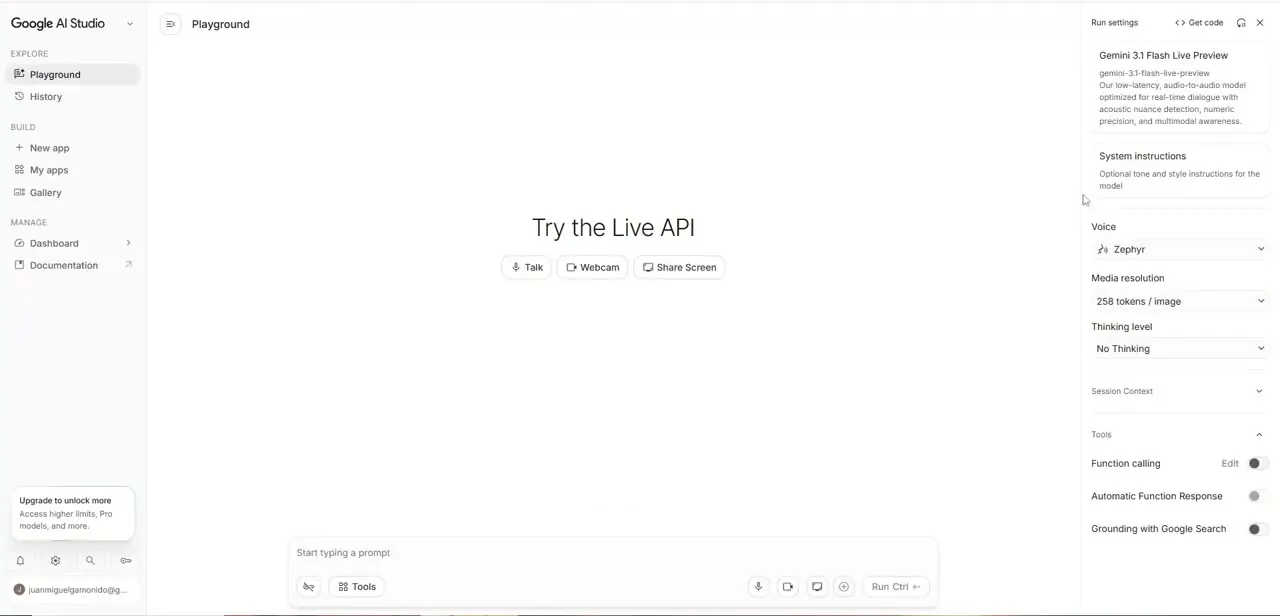
In the run settings on the right, make sure a Live model is selected; these are the low-latency models built for real-time voice and video. Leave the voice and media resolution settings on their defaults for a first try. If you want Gemini to answer in a particular way while it watches, add that under system instructions before you start.
02Click Share Screen
A fresh session shows three buttons in the centre: Talk, Webcam and Share Screen. Click Share Screen. What opens next is your browser's own sharing dialog, the same one you'd see in a video call, not a Google screen.
03Pick a window and confirm the stream is live
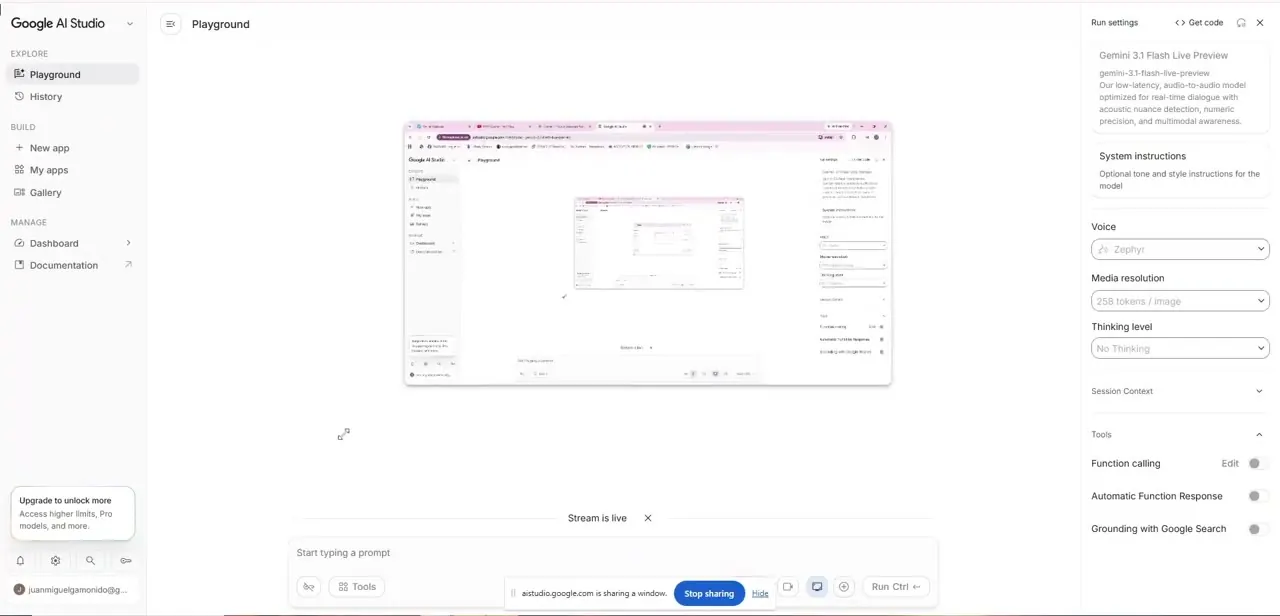
Choose a single window or tab when you can. The whole screen sends Gemini more clutter and can show notifications or other apps you didn't mean to share.
Once you confirm, AI Studio shows a small thumbnail of the shared window, and the browser adds a bar reading "aistudio.google.com is sharing a window" with a Stop sharing button. That bar is the quickest check that the feed is running.
04Ask Gemini about what's on screen
Speak, or type in the prompt box, and refer to what's visible: "what does this error mean?", "is this chart's axis labelled correctly?". Gemini answers from what it sees, and you can change the screen and ask again without re-uploading anything.
One thing to know. The Live API takes video in as still frames at no more than one frame per second. Gemini isn't watching smooth video, so after you scroll or switch tabs, pause a second before asking about the new view.
05On a phone, use Gemini Live instead
In the Gemini app on Android or iPhone, open Live and tap Turn on screen sharing, then follow the prompts. You can also start it from outside the app: summon Gemini with "Hey Google" or by touch and tap Share screen with Live.
Notifications for Gemini Live must be on or the option won't work. On Android the whole screen is shared; you can't restrict it to one app.
Sharing stops automatically if you put Live on hold or lock the phone, and it doesn't resume by itself. To stop sharing, tap Turn off screen sharing in the app, or on Android swipe down from the top and tap Stop sharing on the screen-sharing card.
| Where | Screen sharing? | What gets shared |
|---|---|---|
| Gemini app on Android | Yes, in Gemini Live | Your entire screen; you can't limit it to one app |
| Gemini app on iPhone or iPad | Yes, in Gemini Live | Your screen, once notifications for Gemini Live are on |
| Gemini web app (gemini.google.com) | No | Gemini Live isn't available in the web app |
| Google AI Studio in a desktop browser | Yes, Share Screen | A window, a browser tab or the whole screen, picked in the browser's own dialog |
From Google's Gemini Apps Help and Gemini API documentation, September 2026.
When it doesn't work
Clicking Share Screen on a Mac does nothing, or shows a black window
Why: macOS hasn't given your browser permission to record the screen. The browser's own settings aren't enough.
Fix: Open System Settings, then Privacy & Security, then Screen & System Audio Recording (Screen Recording on older macOS), switch on your browser, then quit and reopen it.
The session ends after a couple of minutes
Why: The Live API limits sessions that include video to about 2 minutes unless the app uses session-management techniques such as context compression. Audio-only sessions last up to 15 minutes.
Fix: Start a new session and share again. For long walkthroughs, split the work into short sessions with a clear question each.
Gemini describes what was on screen a moment ago
Why: Frames reach the model at one per second at most, so a fresh scroll or tab switch may not have been captured yet.
Fix: Hold the view still for a second or two before asking about it.
There's no screen-sharing option in the Gemini app
Why: Either notifications for Gemini Live are turned off, or you're on the Gemini web app, which doesn't support Live.
Fix: Turn on notifications for Gemini Live in the phone's settings, or use Google AI Studio on a computer.
Frequently asked questions
Can I share my screen with Gemini on a computer?
Not in the Gemini web app, which doesn't offer Gemini Live. On a computer, use the Live mode in Google AI Studio and its Share Screen button.
Can I share just one app on my phone?
Not on Android. Google's help page says Gemini Live shares your full screen. In AI Studio on a computer you can pick a single window or tab.
Does Gemini see my screen as live video?
Not quite. The Live API receives still images at up to one frame per second, which is plenty for documents, code and dashboards but will miss fast animation.
Why did screen sharing stop on my phone?
It stops automatically when Live is put on hold or the screen locks, and you have to turn it back on yourself.
Sources and last check
The AI Studio screens (Talk, Webcam and Share Screen buttons, the window picker and the sharing bar) come from the original screen recording. Gemini Live screen-sharing support on Android and iOS, its lack of support in the Gemini web app, the one-frame-per-second video input and the Live API session limits were re-checked against Google's Gemini Apps Help and Gemini API documentation in September 2026. That check corrected the earlier claim that the Gemini app can't share your screen, and the macOS permission step reflects general macOS behaviour, not Google documentation.
About the author

Impran M N
I've been hooked on technology for as long as I can remember — especially the new tools and AI apps that seem to land every other week. Easy Tech Tuts is where I write up whatever I've just worked out: I do the task in the real product, record the screen, and turn it into the guide I wish I'd found first.