Easy Tech Tuts
How to Generate Presentation Slides With Gemini AI in Google Slides | Easily 2026
By Impran M NLast checked against official docs
Gemini can build a whole, editable Google Slides deck from a description, but only under specific conditions. The presentation has to be blank, you have to be on a computer, the feature is English-only for now, and your account needs an eligible Google Workspace or Google AI plan.
Miss one of those and the option just doesn't appear. The process is also more of a conversation than a single prompt.
Gemini asks follow-up questions, shows you a slide-by-slide plan to edit, and only builds the deck once you approve it. This guide walks through that flow and what to do with the result.
Before you start
- Google Slides on a computer. Google lists deck generation as desktop-only and English-only.
- A presentation with no existing slides. Gemini only offers to build a full deck in a blank file.
01Start a new presentation from the Slides home screen
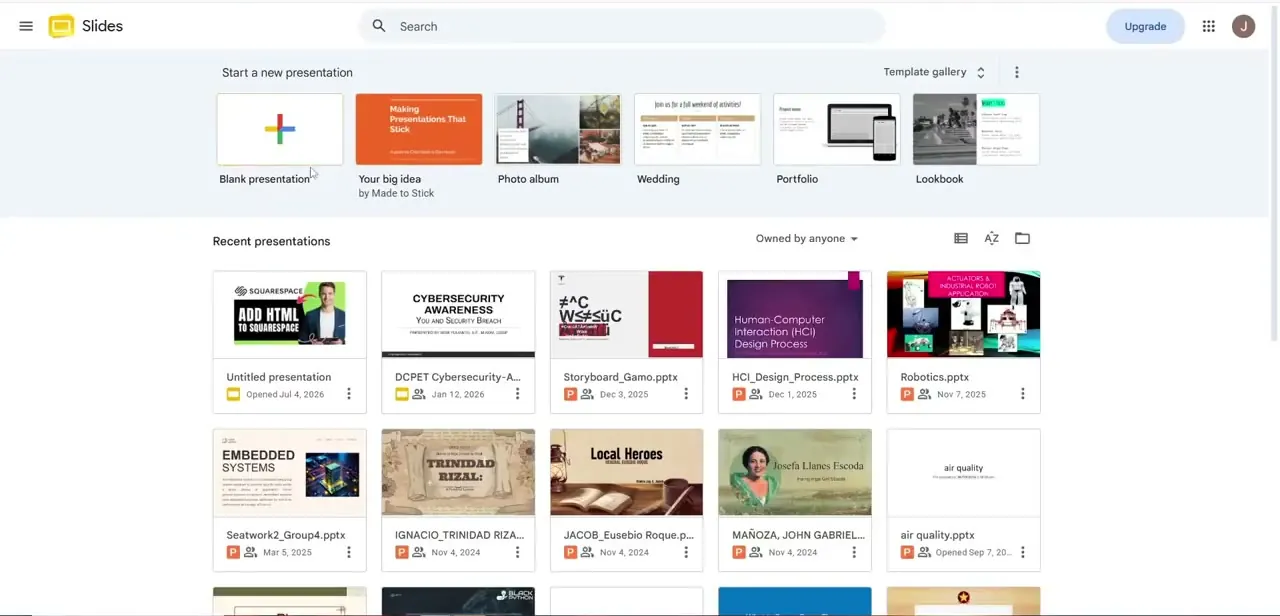
Go to slides.google.com on your computer. The start screen shows template options across the top and your recent files below.
Google's documentation describes a Presentation option on this start screen that goes straight into Gemini generation; if you don't see it, open a Blank presentation instead. Name the file straight away. It's easy to lose track of drafts once you start trying different prompts.
02Click Ask Gemini to open the side panel
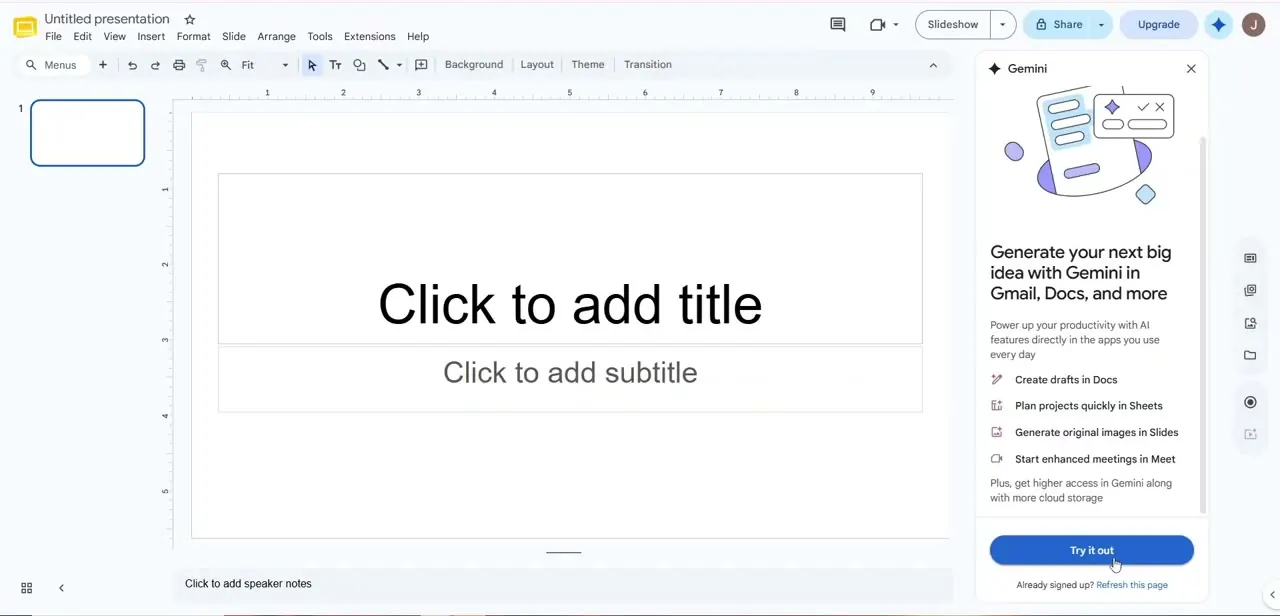
In the blank presentation, click Ask Gemini at the top right. The panel opens with a prompt box and a short list of things Gemini can do in Slides, such as generating images and slides and writing or rewriting content.
The full-deck option only appears when the presentation has no slides. In a deck you've already started, Ask Gemini generates one slide at a time instead (see the table below).
03Describe the deck and add any sources
Say what the presentation is, who it's for and roughly how long it should be. Google's own example is "Create a 5-slide presentation on quantum computing for a general audience with a modern design." Audience and purpose do more for the result than clever wording.
Two optional extras sit in the panel. Add sources lets you pick files from Drive for Gemini to draw on, so the content comes from your material and not general knowledge. Match presentation style lets you point at an existing deck so the new one follows its design.
04Answer the follow-ups, edit the plan, then Approve
Gemini usually asks a few follow-up questions. You can answer or skip them.
Click Next and it produces a presentation plan: a list of slide titles. This is the cheapest place to fix structure.
Rename slides, add or remove them, and click Update plan to regenerate the outline. When it looks right, click Approve. Generation takes a few minutes, and Google says to keep the tab open until it finishes.
05Refine the deck and check it before presenting
The result is an ordinary, editable presentation. Click into any text box to rewrite it, or ask Gemini to refine content one slide at a time, generate extra slides, or add and edit images.
Google notes that Gemini-generated images are for use only within Google Slides. Google also warns that Gemini may suggest inaccurate information.
Check every number, date and claim against your source material, and read the deck aloud once. Phrasing that looks fine on screen can sound stiff when spoken, and generated decks tend to repeat themselves.
| Feature | Generate a presentation | Generate a slide |
|---|---|---|
| Where it works | A blank presentation with no slides | Any open presentation |
| What you get | A full deck built from an approved plan | One slide per prompt |
| Review step | Follow-up questions, then an editable slide plan (Update plan, Approve) | Choose Insert as a new slide or Replace the current one |
| Design matching | Match presentation style | Match a presentation style, or start from scratch |
Both features are desktop-only, English-only and need an eligible Workspace or Google AI plan, per Google's Docs Editors Help in September 2026.
When it doesn't work
Gemini only makes one slide, not a whole deck
Why: The presentation already has slides. Full-deck generation is only offered in a blank presentation.
Fix: Start a new blank presentation, generate the deck there, then copy slides across if needed.
There's no Ask Gemini button
Why: The account isn't on an eligible Workspace or Google AI plan, you're on a phone or tablet, or your language setting isn't English.
Fix: Switch to a computer and an English interface. If it's still missing, check your plan or ask your Workspace admin whether Gemini is enabled.
Frequently asked questions
How do I open Gemini in Google Slides?
Click Ask Gemini at the top right of the presentation. A side panel opens with a prompt box.
Can Gemini create a presentation from my own documents?
Yes. Use Add sources in the Gemini panel to pick files from Drive, and Gemini builds the deck from them.
Can I edit what Gemini generates?
Yes. Every generated slide is a normal editable slide. You can edit it by hand or ask Gemini to refine a single slide.
Is Gemini in Google Slides free?
No, not in general. Google requires an eligible Workspace or Google AI plan, though some personal accounts can try it through Google Workspace Experiments.
Can I use Gemini's generated images outside Slides?
Google states that Gemini-generated images in Slides are for use only within Google Slides.
Sources and last check
The Slides home screen and Gemini panel come from a recorded walkthrough. The generation flow (Add sources, Match presentation style, the editable plan, Approve), the blank-presentation rule and the plan, language and device requirements were checked against Google's Docs Editors Help in September 2026. That check replaced this guide's earlier single-prompt description with the plan-and-approve flow Google documents, and added the eligibility requirements it previously omitted.
About the author

Impran M N
I've been hooked on technology for as long as I can remember — especially the new tools and AI apps that seem to land every other week. Easy Tech Tuts is where I write up whatever I've just worked out: I do the task in the real product, record the screen, and turn it into the guide I wish I'd found first.