Easy Tech Tuts
How to Change Language on Coursera | Settings Guide | Easily 2026
By Impran M NLast checked against official docs
Coursera has two separate places to change language, and they behave differently enough that mixing them up leads to confusion: a globe icon on any page for a quick, one-off translation, and an Account settings field for a permanent interface language. This guide covers both, where each control sits, what changes when you use it, and why switching your interface language doesn't automatically translate a course's actual video or reading content.
01Open your account menu
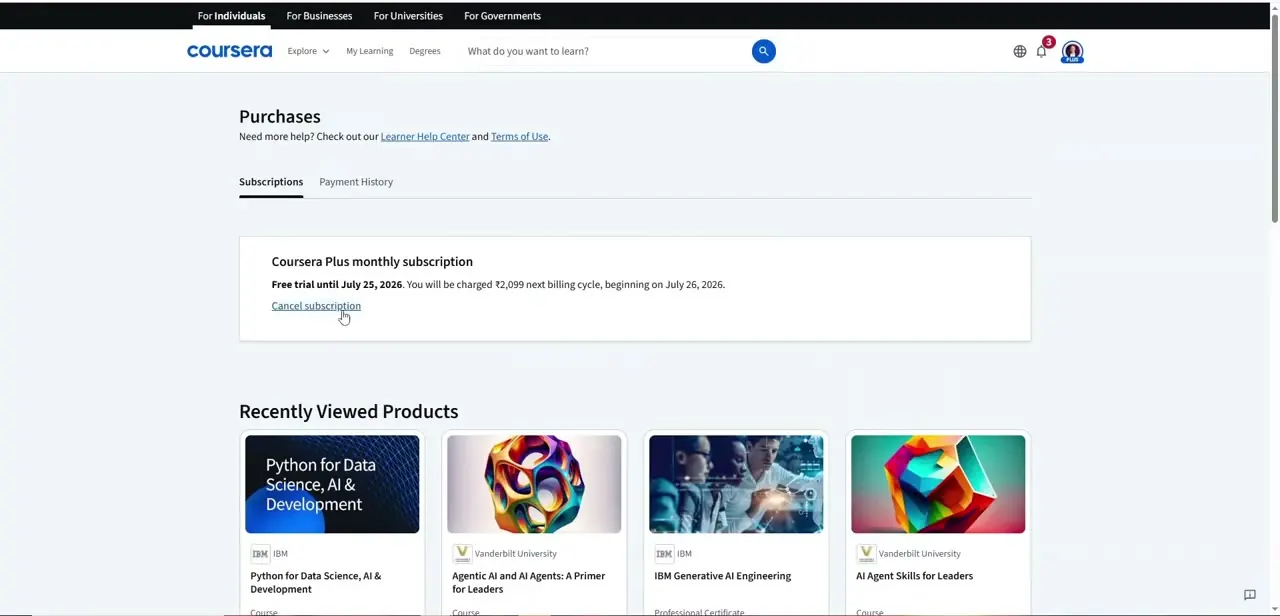
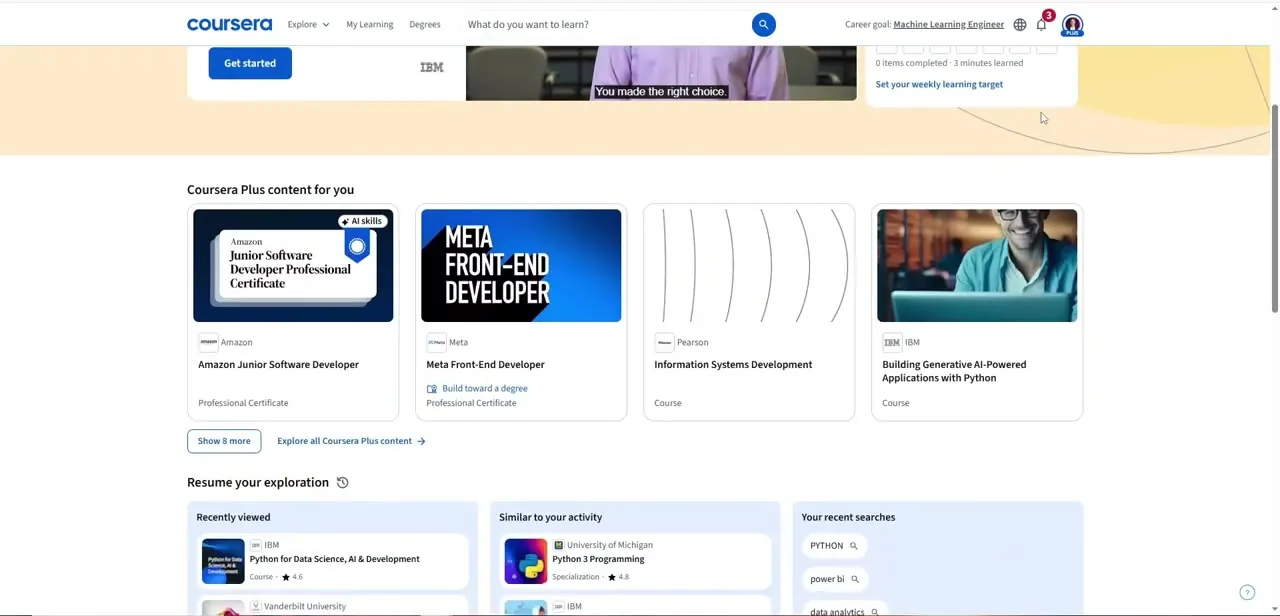
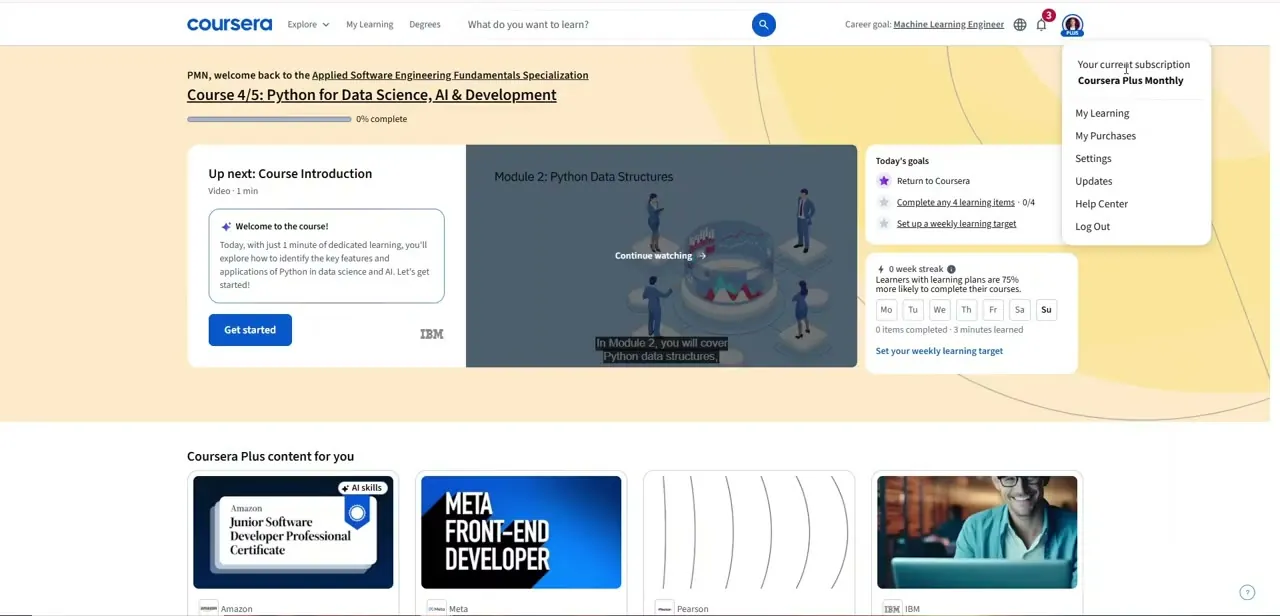
Click your profile photo in the top-right corner of any Coursera page to open the account dropdown. It shows your current subscription status at the top, followed by My Learning, My Purchases, Settings, Updates, Help Center, and Log Out. Settings is the one you want for a permanent language change.
02Try the globe icon for a quick, one-page translation
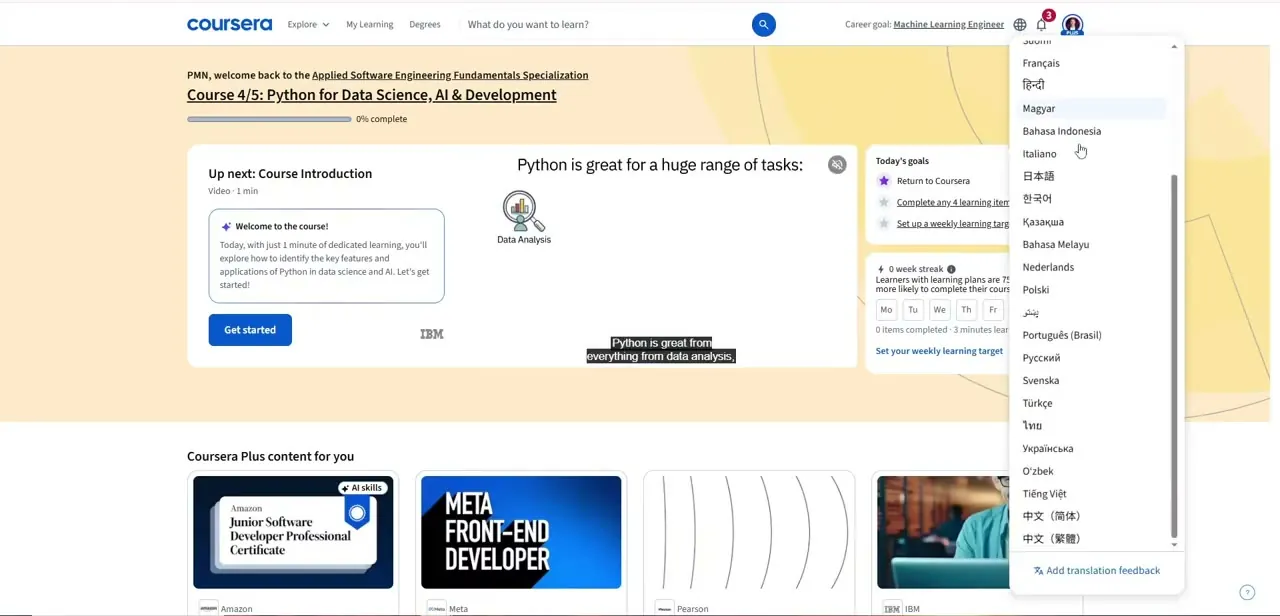
Next to the notification bell in the top navigation sits a small globe icon. Clicking it opens a long list of languages, from French and Hindi to Japanese, Korean, and Vietnamese, that translates the visible page text on the fly without touching the account-wide setting.
It ends with an Add translation feedback link, which suggests the translation is machine-generated, not the course's own subtitle track. This is a reasonable option for an occasional translated pass over a lecture description or assignment prompt without committing to it everywhere.
03Change your permanent language in Account settings
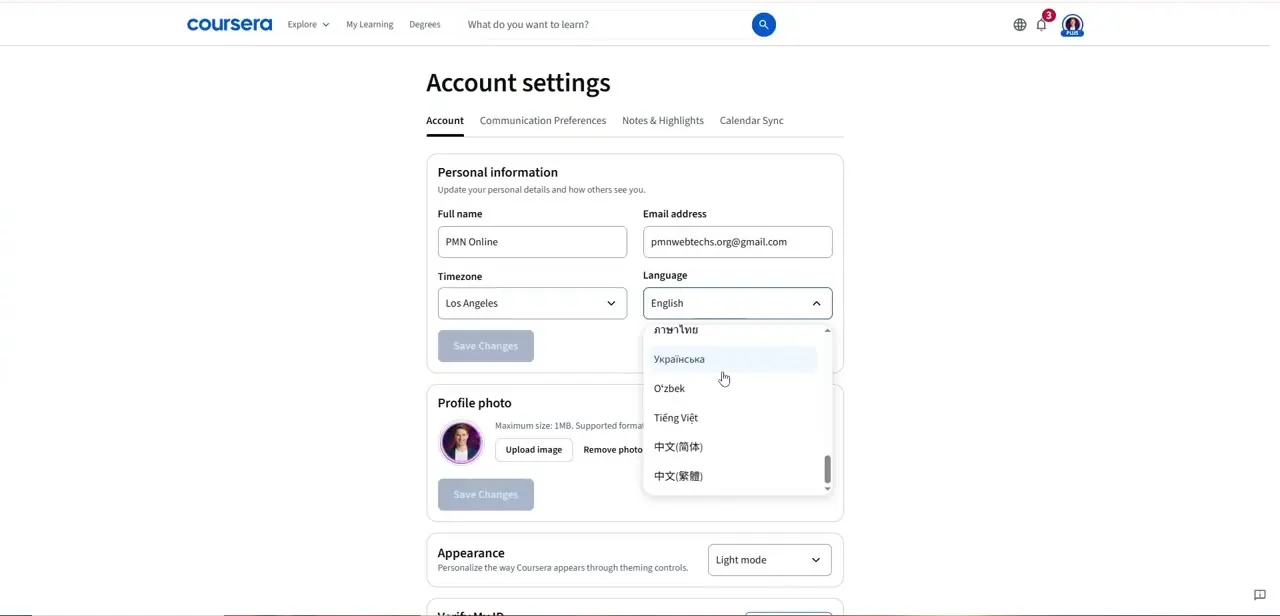
From the account dropdown, click Settings to reach Account settings, which groups Personal information (full name, email, timezone, language) together with profile photo and appearance. The Language field sits right next to Timezone, defaulting to English, and opening its dropdown shows the same long language list. Pick one and click Save Changes to update the interface language across the account going forward, not just the page you're viewing.
04Check whether the course itself supports your language
Changing the interface language doesn't translate a course's video or reading content; that depends on what the instructor or university published. Before enrolling, check the course description for subtitle or dubbing languages.
Some Specializations carry subtitles in a dozen or more languages; others offer only English, so confirm this directly instead of assuming from the interface setting alone. If a course doesn't support your language, a similar course from a different provider often does, given the size of Coursera's catalog.
05Switch back or change again anytime
The language preference isn't locked in once chosen. The same Account settings page handles switching back to English, or into a different language entirely, as easily as the first change. There's no limit on how often it can be adjusted, so treat it as a preference, not a one-time decision.
When it doesn't work
The page looks translated, but course videos and readings are still in English
Why: The globe icon and the Account settings Language field both change interface and page text, not the course's own video or reading content, which stays in whatever language the instructor published it in.
Fix: Check the course description for its listed subtitle or dubbing languages before enrolling instead of assuming your interface setting covers it.
A translated page reads awkwardly in places
Why: The globe icon's translation is machine-generated on the fly, which the menu itself acknowledges with an Add translation feedback link.
Fix: Use the globe icon for a quick read-through, not as a substitute for a course's own subtitles when accuracy matters.
Frequently asked questions
Can I change Coursera's interface language after signing up?
Yes, at any time from Account settings, reached through the profile dropdown in the top-right corner of any page.
What's the difference between the globe icon and the Language field in Account settings?
The globe icon gives a quick, machine-translated pass over one page's content. The Language field in Account settings changes the interface language permanently across the account.
Does changing my language setting affect which courses I can take?
Not directly. Check a course's own subtitle or dubbing languages separately, since an interface language change doesn't translate its video or reading content.
Is Coursera available in languages other than English?
Yes. Both the account-wide Language field and the globe icon's translation menu list dozens of languages, including French, Hindi, Japanese, Korean, and Vietnamese.
Will switching languages log me out of my account?
No. Changing your language preference is a settings change and doesn't affect account access, subscription status, or course progress.
Sources and last check
Click path and all three screenshots come from the original recording. Automated fetches of Coursera's own account-language support article returned a script-loading error page instead of readable content, so the account settings and globe-icon behavior described here are checked against what the recording's screenshots show, not a freshly fetched vendor page. The globe menu's own "Add translation feedback" link, visible in the screenshot, is what grounds the note that this translation is machine-generated, not an official subtitle track.
About the author

Impran M N
I've been hooked on technology for as long as I can remember — especially the new tools and AI apps that seem to land every other week. Easy Tech Tuts is where I write up whatever I've just worked out: I do the task in the real product, record the screen, and turn it into the guide I wish I'd found first.