Easy Tech Tuts
How to Cancel Coursera Plus Subscription | Avoid Being Charged Again | Easily 2026
By Impran M NLast checked against official docs
Coursera Plus renews until you stop it. Unlike Specialization and Professional Certificate subscriptions, it does not cancel itself when you finish your courses, so a free trial started for one course will turn into a monthly charge unless you act.
Cancelling takes a minute from the Purchases page. The steps below follow that flow on the web, then cover the two cases where the web button won't help you: a subscription started in the Coursera mobile app, and an annual plan where you want your money back instead of a simple cancellation.
There is no pause option, whatever older guides say. Your course progress is kept either way.
01Open Purchases from your profile menu
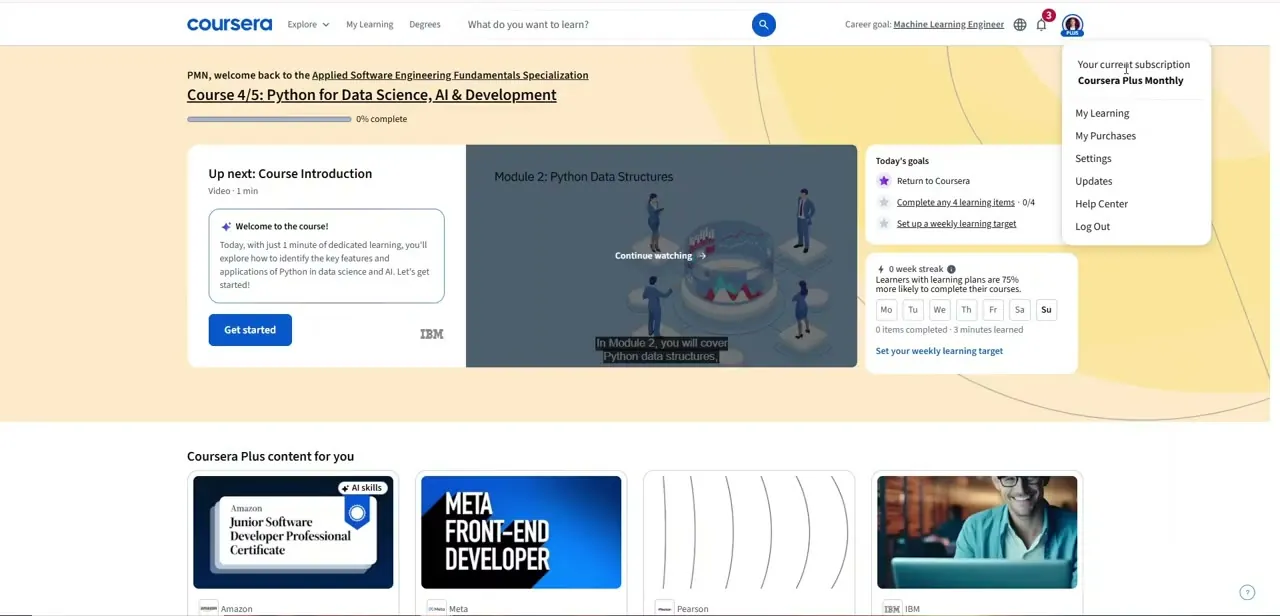
Sign in at coursera.org and click your profile picture at the top right. Choose My Purchases.
Cancellation lives on the billing page, not under Settings, which is where most people look first. One exception to check before you go further.
If you subscribed inside the Coursera iPhone, iPad or Android app, the subscription is billed through Apple or Google Play and there will be no cancel option on the website. Cancel it from your Apple or Google account subscriptions instead.
02Read your subscription line first
The Purchases page has two tabs, Subscriptions and Payment History. Under Subscriptions you'll see the plan name, such as Coursera Plus monthly subscription, and one line explaining what happens next.
In the recording it reads: free trial until July 25, 2026, then ₹2,099 charged for the next billing cycle starting July 26. That date is your deadline.
Cancel before the trial ends and you pay nothing. Once the first monthly payment goes through, Coursera won't refund it.
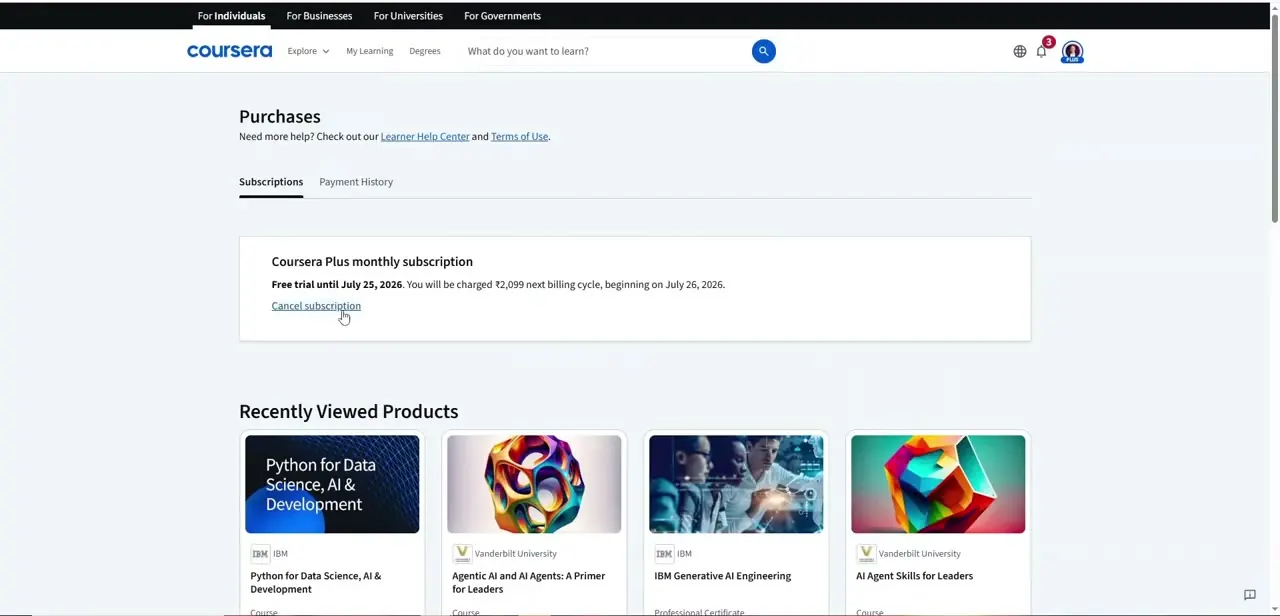
03Click Cancel subscription
The Cancel subscription link sits directly under the billing line. Clicking it is the cancellation; Coursera's help article lists no further step for web subscriptions.
No support ticket or chat is needed. Coursera's separate help article on cancelling a free trial still describes a Manage Subscriptions tab and a Would you like to cancel? link.
Those are older labels. The current page uses the Subscriptions tab and the Cancel subscription link shown above. In the mobile app, the route is the settings gear, then My Subscriptions, Manage Subscription and Cancel subscription.
04On an annual plan within 14 days, request a refund instead
Annual Coursera Plus has a 14-day money-back guarantee from the original payment date. A plain cancellation won't return your money.
To get it back, go to Purchases, open the payment history tab (labelled Payment History in the recording; Coursera's refund article calls it Purchase History), find the annual subscription, and click Request refund under Payment Status. Then choose Yes, cancel and get a refund.
That cancels the membership immediately and moves your courses to preview mode. Refunds can take 7 to 10 business days to reach your account. If you completed a course during those 14 days, you lose access to its certificate unless you pay for the course separately.
05Know what you keep
After a normal cancellation you keep full access until the end of the period you've paid for, or until the trial ends. After that, your courses switch to preview mode.
All progress and assessment grades are saved, and certificates you earned stay in your Certificates tab. To come back later, upgrade to the paid version of a course, which starts a new subscription and picks up your saved progress.
| Plan | When you can get your money back | How |
|---|---|---|
| Monthly, still in the 7-day free trial | Cancel before the trial ends and you're never charged | Cancel subscription on the Purchases page |
| Monthly, after the trial | No refund; cancelling stops future payments only | Cancel subscription on the Purchases page |
| Annual | Full refund if you cancel within 14 days of the original payment | Purchases > payment history tab > Request refund |
| Prepaid 1, 3 or 6 months (India only) | Full refund within 7 days if you haven't earned a Course Certificate | Contact Coursera support |
| Bought in the iOS or Android app | Set by Apple or Google, not Coursera | Apple or Google Play refund process |
From Coursera's Refund policies article, checked September 2026. Coursera doesn't give partial refunds and may refuse a refund if you accessed premium content while the payment was active.
When it doesn't work
There's no Cancel subscription option on the website
Why: The subscription was started in the Coursera mobile app, so Apple or Google Play manages the billing.
Fix: Cancel it from the subscriptions section of your Apple ID or Google Play account. Refunds for these purchases also go through Apple or Google.
You were charged after meaning to cancel the trial
Why: The trial ended before the cancellation was made. Coursera charges the first month automatically and doesn't refund monthly payments after the trial.
Fix: Cancel now to stop further charges. Check the trial end date on the Subscriptions tab next time; it's shown on the same line as the upcoming charge.
A certificate disappeared after an annual refund
Why: Coursera removes access to Course Certificates earned during the 14-day window when you take the annual refund.
Fix: Pay the individual course fee to restore access to that certificate.
Frequently asked questions
Can I pause Coursera Plus instead of cancelling?
No. Coursera says pausing isn't currently possible. Cancelling keeps all your progress and grades, so you can resubscribe later and continue.
Do I lose access the moment I cancel?
No. You keep access until the end of the current payment period or trial, then courses switch to preview mode. The exception is an annual refund, which ends access straight away.
Will Coursera Plus stop by itself once I finish my courses?
No. Specialization and Professional Certificate subscriptions auto-cancel on completion. Coursera Plus doesn't.
Can I get a refund on the monthly plan?
Only by cancelling during the free trial, which means you're never charged. Once the trial ends, monthly payments aren't refunded.
Where do my certificates go after I cancel?
They stay in your Certificates tab. Cancelling doesn't remove certificates you've already earned.
Sources and last check
The Purchases page, the Subscriptions entry and the Cancel subscription link come from a screen recording of a Coursera account billed in rupees on a monthly free trial in July 2026. Cancellation steps, post-cancellation access, the app-store exception and refund rules were re-checked against Coursera's Learner Help Center in September 2026. That check removed this guide's earlier suggestion that Coursera offers a pause option (it doesn't) and added the annual 14-day refund route.
About the author

Impran M N
I've been hooked on technology for as long as I can remember — especially the new tools and AI apps that seem to land every other week. Easy Tech Tuts is where I write up whatever I've just worked out: I do the task in the real product, record the screen, and turn it into the guide I wish I'd found first.