Easy Tech Tuts
How to Cancel Coursera Subscription | Step by Step | Easily 2026
By Impran M NLast checked against official docs
Whether your priorities have shifted or you just want to pause your learning for a while, canceling a Coursera subscription takes a minute once you know where the setting lives. It isn't under a general Settings menu the way you might expect; it's tucked inside your Purchases page, next to a full record of your billing history. This guide walks through signing in, finding that page, and reading the renewal details Coursera shows before you confirm the cancellation, so you know what you're giving up and when your access ends.
01Sign in and land on your dashboard
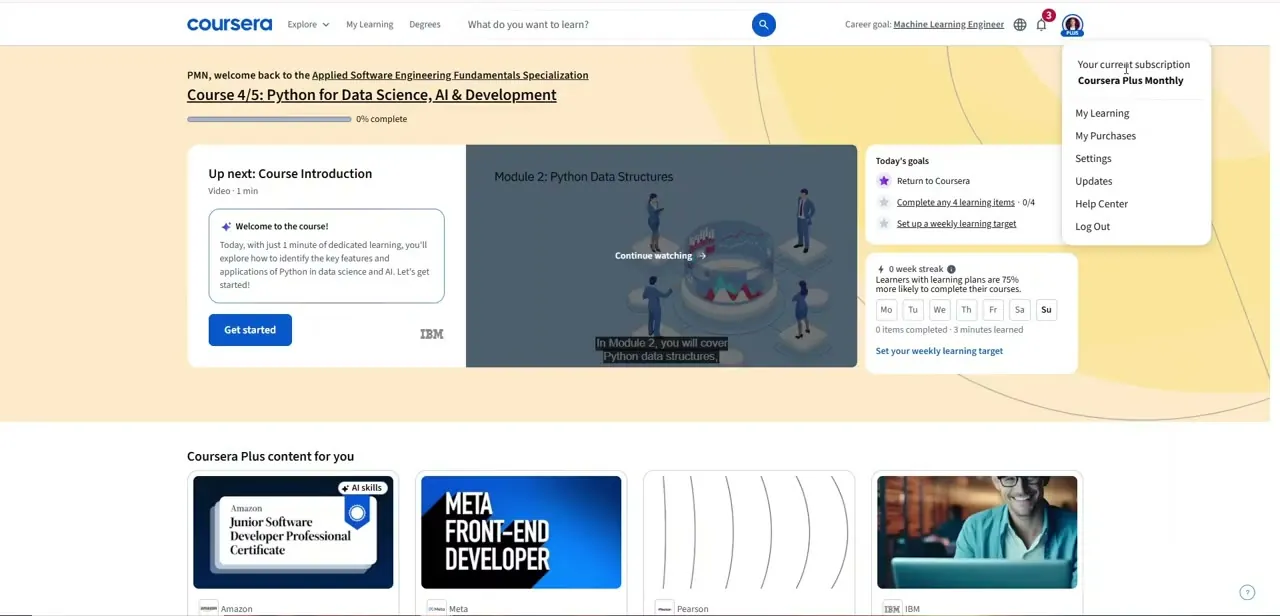
Log into Coursera and you land on your learning dashboard, showing your current course, a progress bar, and a rail of recommended content tied to your subscription. This isn't where you cancel anything, but it confirms you're signed into the right account before you go digging through settings, easy to overlook if you have more than one Coursera account tied to different email addresses. From here, the path to billing runs through your profile icon in the top-right corner, not the main navigation bar.
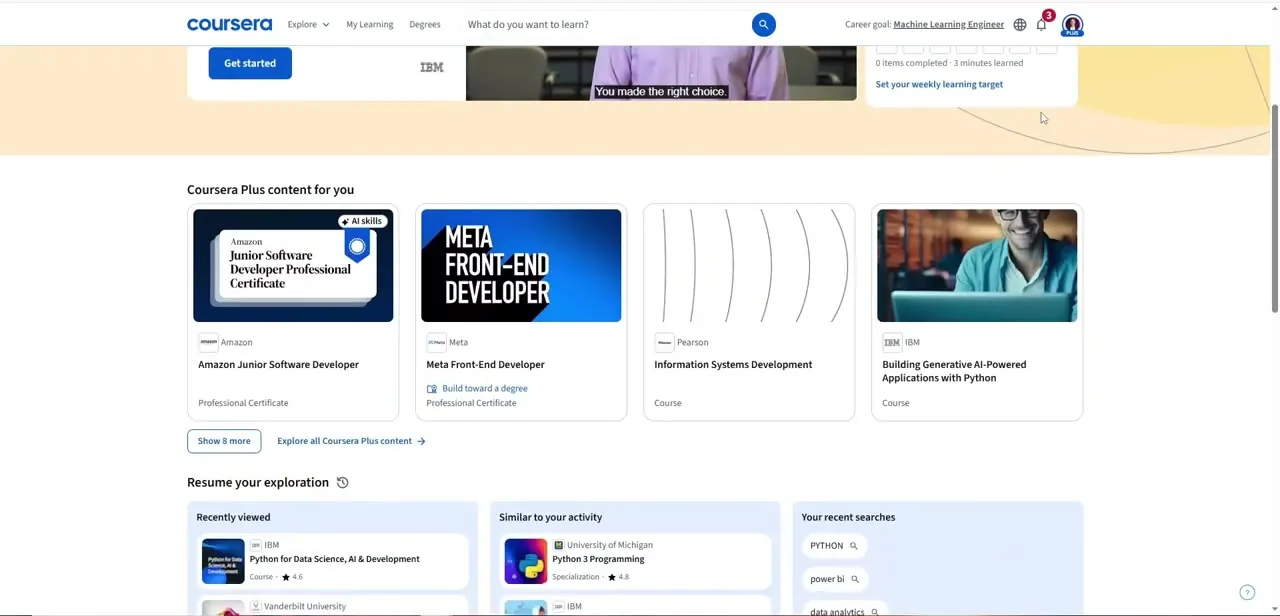
02Open Purchases and find your subscription's renewal date
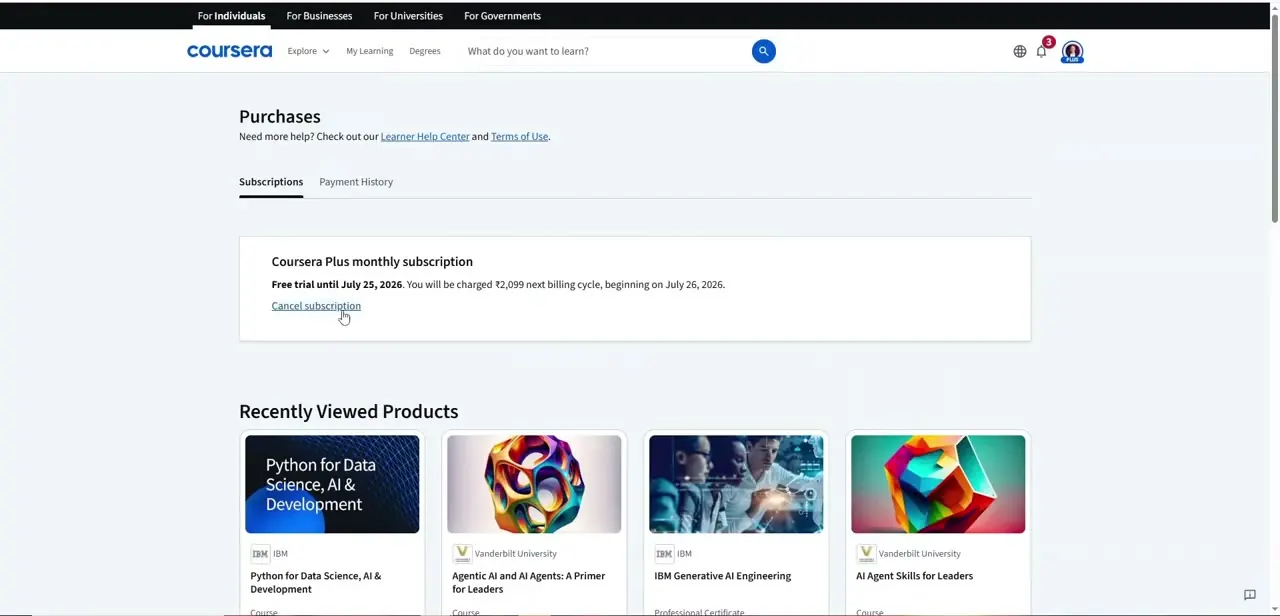
Click your profile icon and choose Purchases from the menu. The page is split into two tabs, Subscriptions and Payment History, and it's the only place in the Coursera interface where subscription management lives; there's no separate "Billing" or "Manage Plan" item under Settings.
On the Subscriptions tab, a card names your plan (a Coursera Plus monthly subscription, for example) with the exact date your current period or free trial ends and what you'll be charged at renewal. Read that line before doing anything else: it tells you how much time is left and whether you're still inside a free trial window, where canceling costs you nothing.
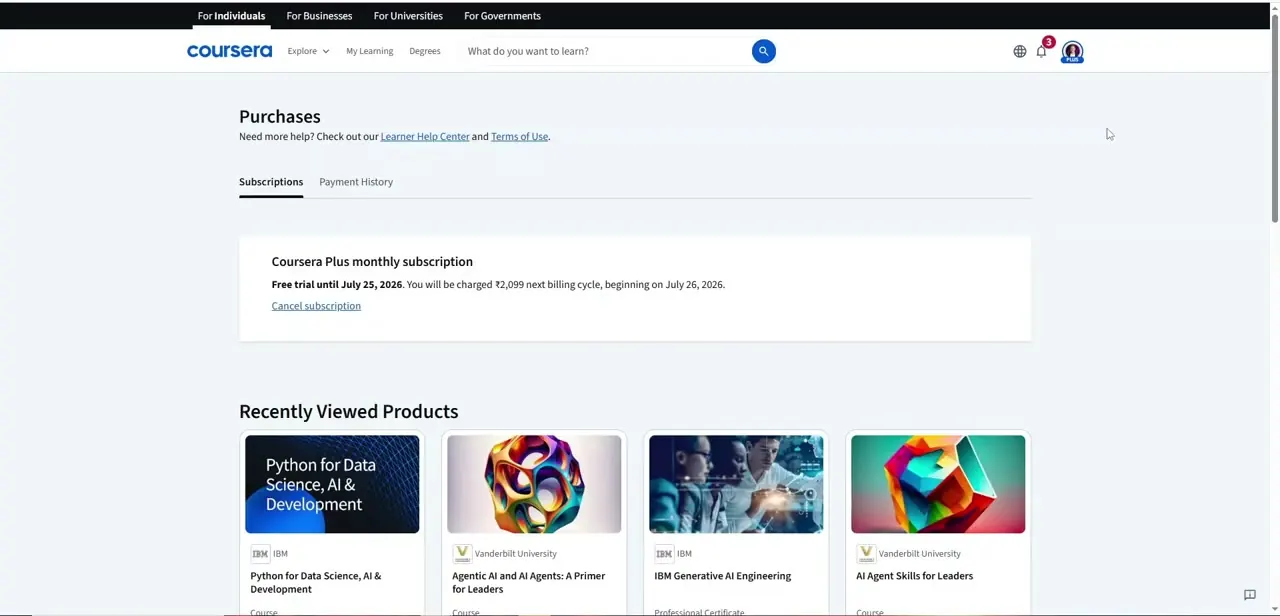
03Click Cancel subscription
Underneath the plan details is a plain text link reading "Cancel subscription." Clicking it starts the cancellation flow, which typically asks you to confirm the change and may ask a quick reason for leaving; you can usually skip or dismiss that without affecting the cancellation itself. Confirm on the final prompt and Coursera processes the change immediately, though your access doesn't disappear right away.
04Know what happens to your progress, and what resubscribing later looks like
Canceling stops future billing, but it doesn't erase your account. Your progress records, completed quizzes, and earned certificates stay attached to your profile.
What ends is access to content that requires an active subscription: once your current paid period runs out, courses included under Coursera Plus lock again unless you buy them individually or resubscribe. If you're partway through a course, finish any modules you care about before the period ends, not after.
If you change your mind later, resubscribing runs through the same account; there's no need to create a new one. Your progress and certificates stay attached, and you can pick a plan again from the same Purchases page whenever you're ready to continue.
05Check the Payment History tab if you need a record
Before you close the page, switch to the Payment History tab next to Subscriptions. It lists your past charges, useful for a receipt for expense reporting, confirming the exact date your last payment was taken, or keeping written proof the cancellation went through cleanly.
When it doesn't work
A charge went through even after canceling
Why: The cancellation happened on or after the renewal date shown on the Purchases page, not before it.
Fix: Cancel earlier next time; a charge that already processed on the old date isn't reversed by canceling afterward.
There's no "Cancel" or "Manage plan" option under Settings
Why: Coursera files subscription management under Purchases, not a general Settings menu.
Fix: Open the profile icon in the top-right corner and choose Purchases instead.
The Purchases page shows no active subscription to cancel
Why: You may be signed into a different Coursera account than the one the subscription was purchased under, easy to do if you use more than one email address.
Fix: Sign out and log back in with the email address tied to the paid subscription.
Frequently asked questions
Do I lose my course progress if I cancel?
No. Your progress record and any certificates you've already earned stay on your account. What ends is access to content that requires an active subscription, once your current billing period runs out.
How long before renewal should I cancel?
Check the exact renewal date shown on your Purchases page and cancel before it to avoid being charged for the next cycle; the page displays this date directly next to your plan.
Where exactly is the cancel option in Coursera?
It's on the Purchases page, not in a general Settings menu. Open your profile icon in the top-right corner, choose Purchases, and you'll find "Cancel subscription" under the Subscriptions tab.
Can I resubscribe after canceling?
Yes. You can sign back up for Coursera Plus at any time from the same Purchases page, and your prior progress and certificates will still be attached to your account.
Will I be charged if I cancel during a free trial?
No. If you cancel before the free trial end date shown on the Purchases page, you won't be billed. Canceling after that date only stops future renewals, not the charge already applied.
Sources and last check
Click path and screens come from a recorded walkthrough of the web flow. Coursera's own Purchases and cancellation help pages load through a JavaScript widget that returned only an empty loading shell when fetched twice in this session, so the specifics could not be independently re-checked against Coursera's current documentation this pass. The steps here are unchanged from the original recording. The troubleshooting entries come from constraints the article itself already states (renewal-date timing, the Purchases-not-Settings location, and the multiple-account gotcha), not from new research.
About the author

Impran M N
I've been hooked on technology for as long as I can remember — especially the new tools and AI apps that seem to land every other week. Easy Tech Tuts is where I write up whatever I've just worked out: I do the task in the real product, record the screen, and turn it into the guide I wish I'd found first.