Easy Tech Tuts
How to Integrate ClickUp With Jira
By Impran M NLast checked against official docs
ClickUp's Jira integration lives right in its App Center, no separate marketplace purchase needed, and it's officially called the Jira Connected Search integration. It lets you search Jira, get a live preview when you paste a Jira link into a task, and create new issues without switching tabs.
That's a different, lighter tool than ClickUp's separate Jira Sync integration, which mirrors tasks and issues both ways and is still in beta. This guide covers finding the right one, connecting it, and what each does once it's live.
Before you start
- A ClickUp account with full-member access — guests and limited members can't use this integration
- A Jira Cloud account you're able to sign in to and authorize
01See what a Jira space looks like
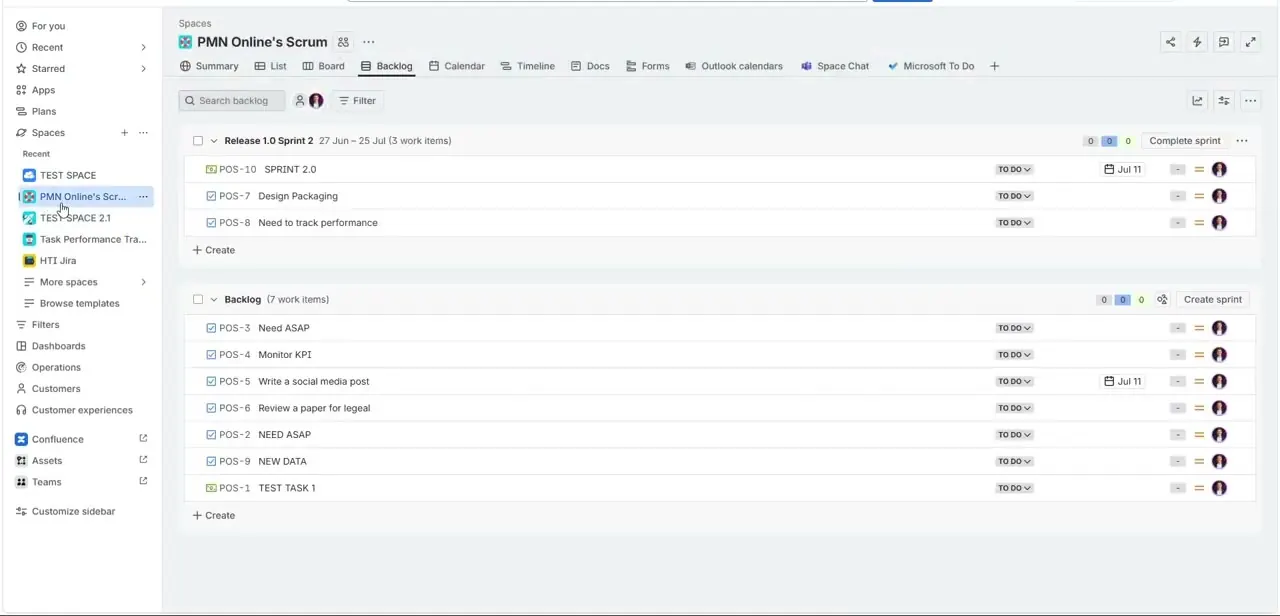
Before connecting anything, it helps to know what ClickUp is reaching into. A typical Jira Scrum space organizes work into an active sprint and a backlog beneath it, with each item carrying a status such as To Do and an assignee avatar.
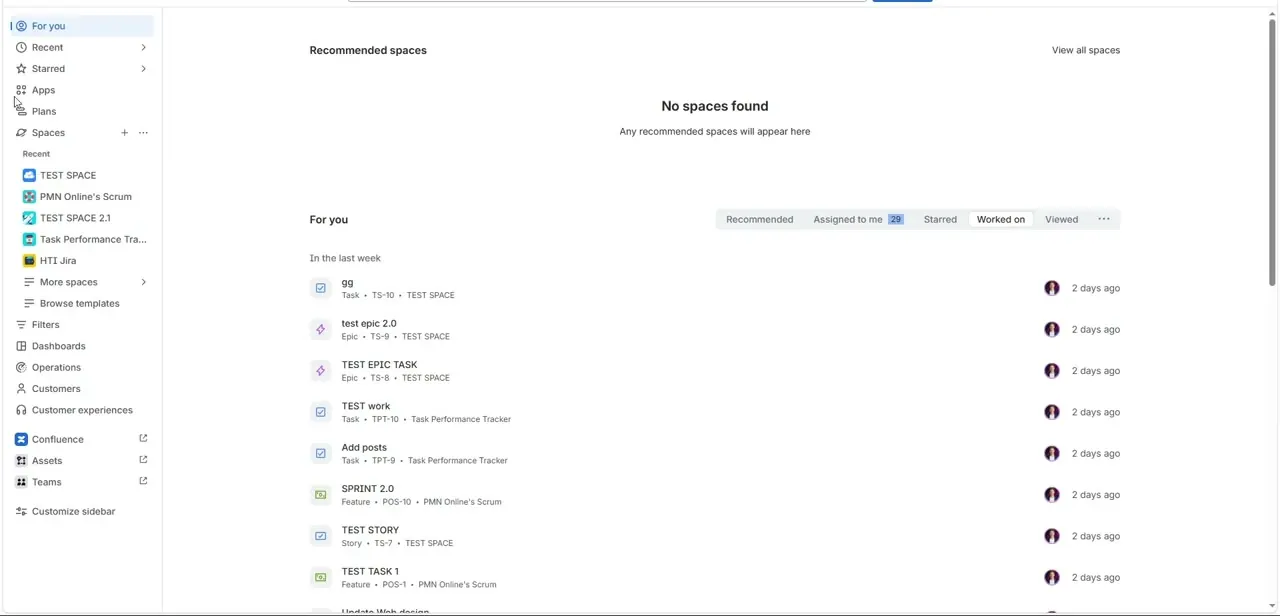
Jira's own "For you" screen works differently: it's a personal feed of items across every space you belong to. That cross-project view is close to what ClickUp's integration surfaces without making you leave ClickUp.
02Find Jira in ClickUp's App Center
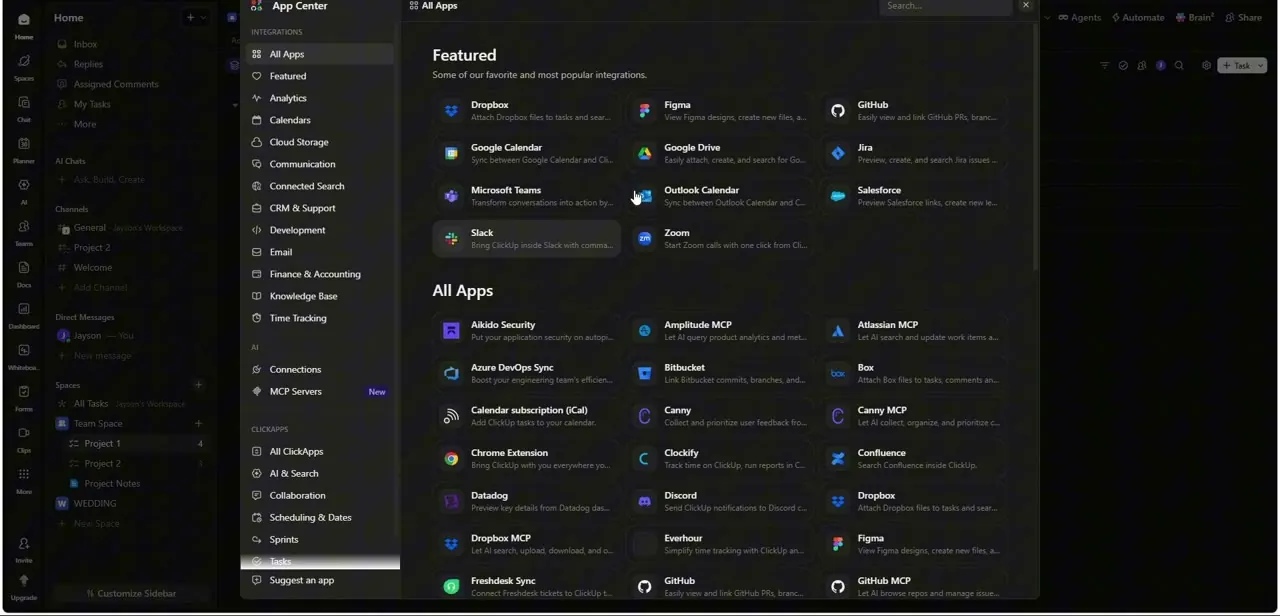
Open the App Center from ClickUp's sidebar. Jira sits in the Featured row alongside Dropbox, Figma, GitHub, Google Calendar, Google Drive, Microsoft Teams, Outlook Calendar, Salesforce, Slack, and Zoom.
This card is ClickUp's own Jira Connected Search integration, not a third-party add-on, and its description says plainly what it does: preview, create, and search Jira issues. Below the Featured row, All Apps lists dozens more connectors, including a separate Jira Sync entry for teams that need two-way syncing instead.
03Connect your Jira account
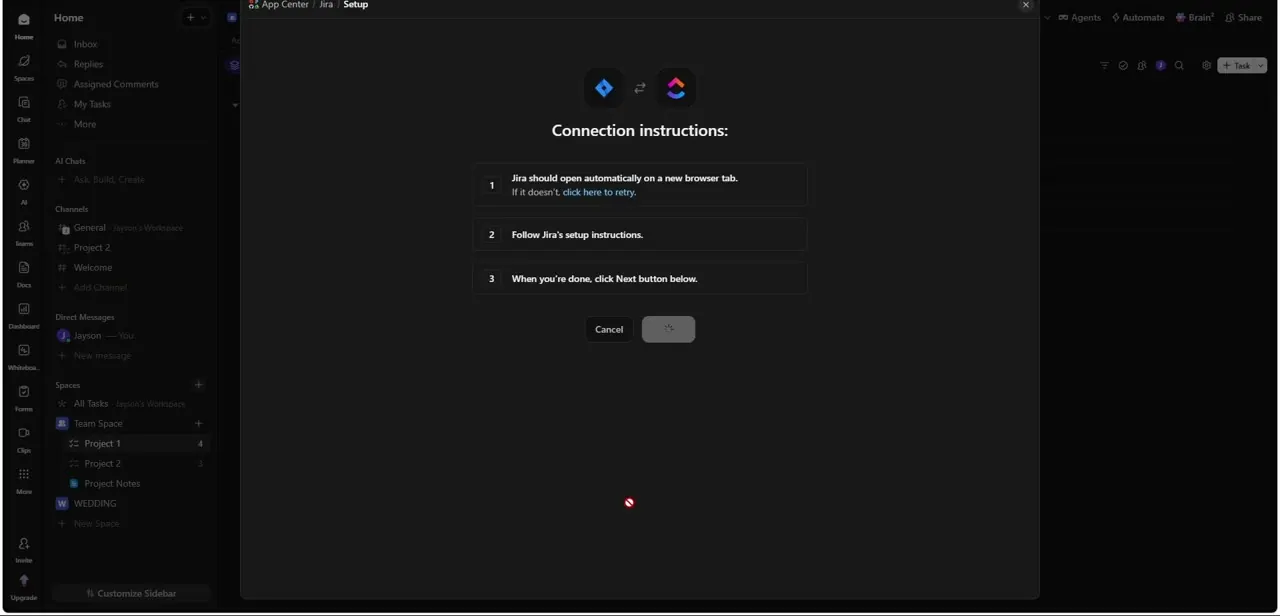
Clicking the Jira card opens a setup screen with three steps: Jira opens automatically in a new browser tab, with a retry link if it doesn't; you complete Jira's own login and authorization there; then you return to ClickUp and click Next to confirm. You can add this as a personal connection, which only works for your own account, or, if you're a workspace owner or admin, as a workspace connection that gives every full member search access. Note the personal/workspace choice now, since it changes who can do what later.
04Check who can use the connection
Once authorized, manage the connection from Apps in ClickUp's sidebar, where you can review or revoke it later without redoing setup. Confirm it shows as connected rather than assuming a closed browser tab means the link succeeded; a failed handoff is the most common reason a first attempt doesn't take. Also remember the guest and limited-member restriction from before: even on a workspace connection, those account types still can't search or preview Jira issues.
05Search, preview, and create issues from ClickUp
Paste a Jira link into a task and it expands into a live preview showing name, project, assignee, status, and labels, instead of sitting there as a bare URL. Press Cmd+K (or Ctrl+K on Windows) and type "Create New Jira issue" to open one directly from ClickUp.
Creating an issue this way needs your own personal connection; a workspace-only connection covers search and preview but not creation. This is what "preview, create, and search" means in practice: a reference-and-lookup tool, not a full field-mapping sync.
06Decide if you need Jira Sync instead
If a team needs a ClickUp status change to update the linked Jira issue automatically, or custom fields mapped between the two, that's ClickUp's own Jira Sync integration, a separate App Center listing still in beta. It requires the Jira account to be on a premium plan with global admin permissions, and ClickUp recommends setting it up with a dedicated service account rather than a personal login, since the account that configures the sync can't also use it day to day. Start with the Connected Search integration covered above; move to Sync, or a platform like Zapier, only once that stops being enough.
| Question | Jira Connected Search | Jira Sync |
|---|---|---|
| What it does | Search, preview, and create Jira issues from ClickUp | Keeps ClickUp tasks and Jira issues updated in both directions |
| Plan needed | Any ClickUp plan; any Jira plan | Jira account must be on a premium plan |
| Setup | Personal or workspace connection, live in the App Center | Workspace owner or admin sets it up; currently in beta |
| Best for | Looking things up or creating the odd issue without switching tools | Teams that need every change mirrored automatically |
When it doesn't work
A teammate says they can't search or preview Jira issues, even though the App Center shows Jira as connected
Why: The connection was made as a personal connection, which only works for the account that authorized it, or the teammate is a guest or limited member
Fix: Reconnect as a workspace connection so every full member gets access; guests and limited members are excluded regardless.
Typing "Create New Jira issue" in the command bar doesn't do anything
Why: Issue creation needs your own personal Jira connection; a workspace-only connection covers search and preview but not creation
Fix: Add a personal connection under your own ClickUp account alongside the workspace one.
Updating a ClickUp task doesn't change anything in the linked Jira issue
Why: That two-way behavior belongs to the separate Jira Sync integration, not the search-and-preview integration set up here
Fix: Search for Jira Sync in the App Center and request beta access, after confirming your Jira account is on a premium plan.
Frequently asked questions
Is ClickUp's Jira integration free?
Yes for the integration used in this guide. The Jira Connected Search integration is available on every ClickUp plan. Its two-way counterpart, Jira Sync, needs a Jira account on a premium plan.
Who can use the Jira integration in a workspace?
Full members only. Guests and limited members can't use it, whether the connection was made for everyone or just for you.
Can I create a Jira issue without leaving ClickUp?
Yes. Press Cmd+K or Ctrl+K and type "Create New Jira issue." This specific action requires a personal connection; a workspace-only connection won't allow it.
What's the difference between this and Jira Sync?
This integration searches, previews, and creates issues. Jira Sync mirrors ClickUp tasks and Jira issues in both directions automatically, but it needs a premium Jira plan and is still in beta.
Do I need admin access in ClickUp to connect Jira?
Not for a personal connection; anyone can add their own account. A workspace-wide connection needs an owner or admin to set up.
Sources and last check
Click path and screens come from a walkthrough recorded in 2025 of ClickUp's App Center. The integration's actual name, the guest/limited-member restriction, the personal-vs-workspace distinction for creating issues, and the separate Jira Sync integration were checked against ClickUp's official help articles in September 2026. That check is what added the comparison in this guide; the earlier version described only one Jira connection and implied it could be extended with third-party tools alone, when ClickUp has a native (beta) option for deeper sync.
About the author

Impran M N
I've been hooked on technology for as long as I can remember — especially the new tools and AI apps that seem to land every other week. Easy Tech Tuts is where I write up whatever I've just worked out: I do the task in the real product, record the screen, and turn it into the guide I wish I'd found first.