Easy Tech Tuts
How to Use ChatGPT to Create AutoLISP Code for AutoCAD | Automate Drafting | Easily 2026
By Impran M NLast checked against official docs
AutoLISP is the scripting language behind most AutoCAD automation, but learning its syntax to speed up one repetitive drafting task is a hard sell. ChatGPT closes that gap: describe what you want done to a selected object, and it writes a working routine along with plain-language instructions for loading it.
The same approach scales to batch renaming, layer management, and other repetitive edits. This guide follows that path end to end, using a real example ChatGPT produced: a command that recolors selected objects to red. It also covers a constraint worth knowing before you start: AutoLISP support on AutoCAD LT is newer and more limited than on full AutoCAD.
Before you start
- A ChatGPT account; a free account is enough for a short routine like this
- Full AutoCAD, or AutoCAD LT 2024 or later, since AutoLISP did not run on AutoCAD LT before that release
01Describe the task in plain language
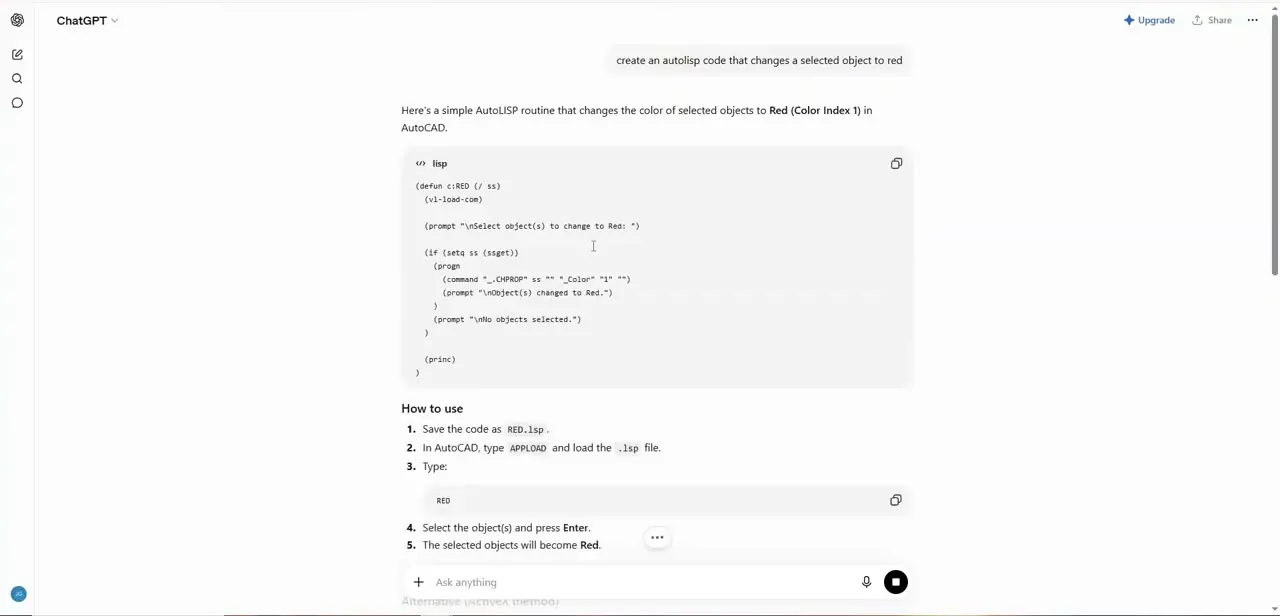
Open a ChatGPT conversation and describe the drafting action you want automated, the way you'd explain it to a colleague, for example: "create an AutoLISP code that changes a selected object to red." You don't need to know AutoLISP syntax, function names, or color index numbers going in. Mention whether the command should work on one object or a whole selection set, and whether it needs to run once or repeat within the same session. If your task depends on a specific AutoCAD version or a plugin, say so, since AutoLISP behavior varies slightly across versions and is more limited on AutoCAD LT.
02Read what ChatGPT returns, code and instructions both
ChatGPT returns a code block with a numbered "How to use" section underneath it, in this example five steps covering saving the file, loading it with APPLOAD, and running it by typing RED. Read this before touching AutoCAD: it names the command the script defines and what happens when you run it.
Skim the code itself for which AutoCAD command it calls internally, CHPROP in this case, a legitimate built-in AutoCAD command for changing object properties, and what property it changes. Here that's the color, set to AutoCAD Color Index 1, which is red on AutoCAD's own standard palette.
If the response continues past the first code block, scroll down. ChatGPT sometimes offers a second version, in this case one using ActiveX instead of CHPROP, noting it's generally faster.
03Save the code as a .lsp file
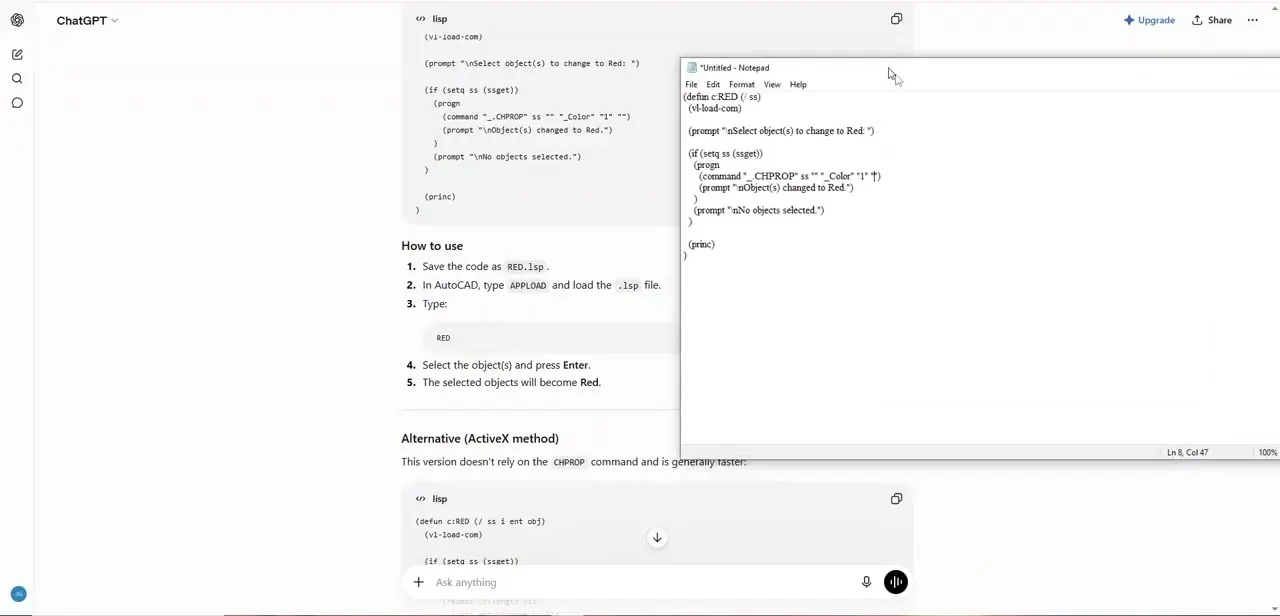
Copy the code out of ChatGPT and paste it into a plain text editor. Notepad works fine, since AutoLISP files are just text with a .lsp extension.
Save it with a name that matches the command it defines, like RED.lsp, in a folder you'll remember. AutoCAD doesn't require the filename to match the command, but keeping them aligned saves guesswork once you've built up a few of these.
04Load the routine into AutoCAD
Type APPLOAD at the command line. This opens a dialog for browsing to and loading LISP files; AutoCAD accepts .lsp, .fas, and .vlx files here, and you can omit the extension when typing a filename.
Navigate to the file you saved and load it. AutoCAD doesn't load custom LISP files automatically on startup. To skip repeating this step every session, click Contents under Startup Suite in the same dialog, add the file there, and it loads automatically going forward.
05Run it on a test drawing first
With the file loaded, type the command name ChatGPT defined, RED here, press enter, select your objects, and check the result. Run this on a throwaway or duplicate drawing the first time, not a live project file. Test a mix of object types if the routine is meant to work broadly; a script that behaves correctly on a line might handle a block reference or a hatch pattern differently.
06Refine it with follow-up prompts
If the routine doesn't do quite what you need, wrong color, wrong scope, missing a confirmation step, go back to the same ChatGPT conversation and describe the adjustment directly. ChatGPT keeps the context of what it already wrote, so revisions come back faster than a fresh request.
When it doesn't work
APPLOAD can't find the file, or typing the command name does nothing
Why: The file wasn't saved as plain text with a .lsp extension, often because a word processor added formatting or a hidden .txt extension.
Fix: Re-save from a plain text editor, confirm the file ends in .lsp, and load that exact file through APPLOAD.
The routine works today but is gone next time AutoCAD opens
Why: APPLOAD only loads a file for the current session unless it's added to the Startup Suite.
Fix: Open APPLOAD, click Contents under Startup Suite, and add the file there so it loads automatically every session.
The command errors out or isn't available at all on AutoCAD LT
Why: AutoCAD LT had no AutoLISP support before the 2024 release. Even on 2024 and later, LT lacks the Visual LISP editor and can't create 3D solids or meshes through AutoLISP.
Fix: Confirm you're on AutoCAD LT 2024 or newer for any AutoLISP support, and expect routines involving 3D solid creation to fail on LT regardless of version.
Frequently asked questions
Do I need to know AutoLISP to use this method?
No. You describe the task in plain language and ChatGPT writes the code along with a command name and usage instructions. Understanding roughly what it does helps before you run it on real work, but writing it yourself isn't required.
How do I load a ChatGPT-generated .lsp file into AutoCAD?
Save the code as a plain text file with a .lsp extension, then type APPLOAD in AutoCAD and browse to it. Add it to the Startup Suite from the same dialog if you want it to load automatically every session instead of once.
Is it safe to run AI-generated AutoLISP code on a live project file?
Test it on a throwaway or duplicate drawing first. AI-generated scripts can behave unexpectedly, and confirming the result before touching real work is worth the extra few minutes.
Does this work in AutoCAD LT?
Only on AutoCAD LT 2024 or later, and with restrictions: no Visual LISP editor for debugging, and no 3D solid or mesh creation through AutoLISP even on a current version.
What if the generated command doesn't do exactly what I need?
Describe the adjustment back to ChatGPT in the same conversation. It keeps the context of the original code, so revisions come back faster than starting over.
Sources and last check
The APPLOAD dialog, Startup Suite behavior, and supported file types (.lsp, .fas, .vlx) were checked against Autodesk's official help documentation in September 2026, as was AutoCAD LT's AutoLISP support, added in the 2024 release with restrictions the earlier draft didn't mention. CHPROP and AutoCAD Color Index 1 as red were confirmed against Autodesk's own color-setting documentation. The recorded walkthrough itself, the ChatGPT conversation and the screenshots, is unchanged.
About the author

Impran M N
I've been hooked on technology for as long as I can remember — especially the new tools and AI apps that seem to land every other week. Easy Tech Tuts is where I write up whatever I've just worked out: I do the task in the real product, record the screen, and turn it into the guide I wish I'd found first.