Easy Tech Tuts
How To Fix ChatGPT Login Error Access Denied Easily 2026
By Impran M NLast checked against official docs
The "Access denied" screen on ChatGPT is one of the most common login problems people report, and it doesn't come from OpenAI's own login system. It's a Cloudflare security block sitting in front of the site, most often labeled error 1020.
That distinction points at the fix: something about your connection or browser is tripping the block, not your account being suspended. One note on domains before starting: the old chat.openai.com address now forwards straight to chatgpt.com, so if a bookmark or an old guide still points at chat.openai.com, that's not the problem, it's just the previous URL. This guide walks through the causes in order of likelihood, stale cookies, an active VPN or proxy, and genuine outages, so you can clear the error on desktop or mobile without guessing.
01Read what the error page is telling you
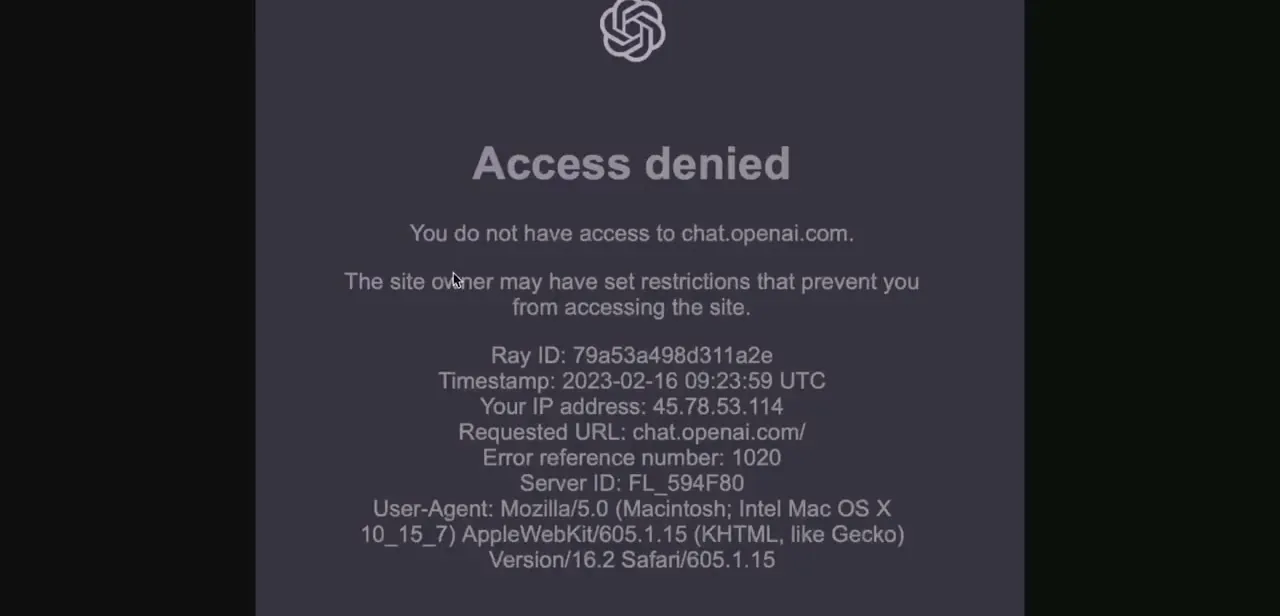
When ChatGPT blocks a request, it doesn't show a generic "can't log in" message. It shows a full Cloudflare access-denied page with a Ray ID, a timestamp, your detected IP address, and an error reference number, most commonly 1020.
Cloudflare's own documentation describes 1020 as a firewall rule blocking the request before it ever reaches the site's own servers, which is why re-entering your password does nothing. Officially, Cloudflare's guidance for a visitor who hits this is to pass the Ray ID to the site owner so they can check their firewall logs, since only the site owner can see why the rule fired. In practice, most people get past it without contacting anyone, because the things that trip the rule (a flagged IP, stale cookies, a proxying extension) are fixable from your side too, and the rest of this guide covers those.
02Clear your browser's cache and cookies for the site
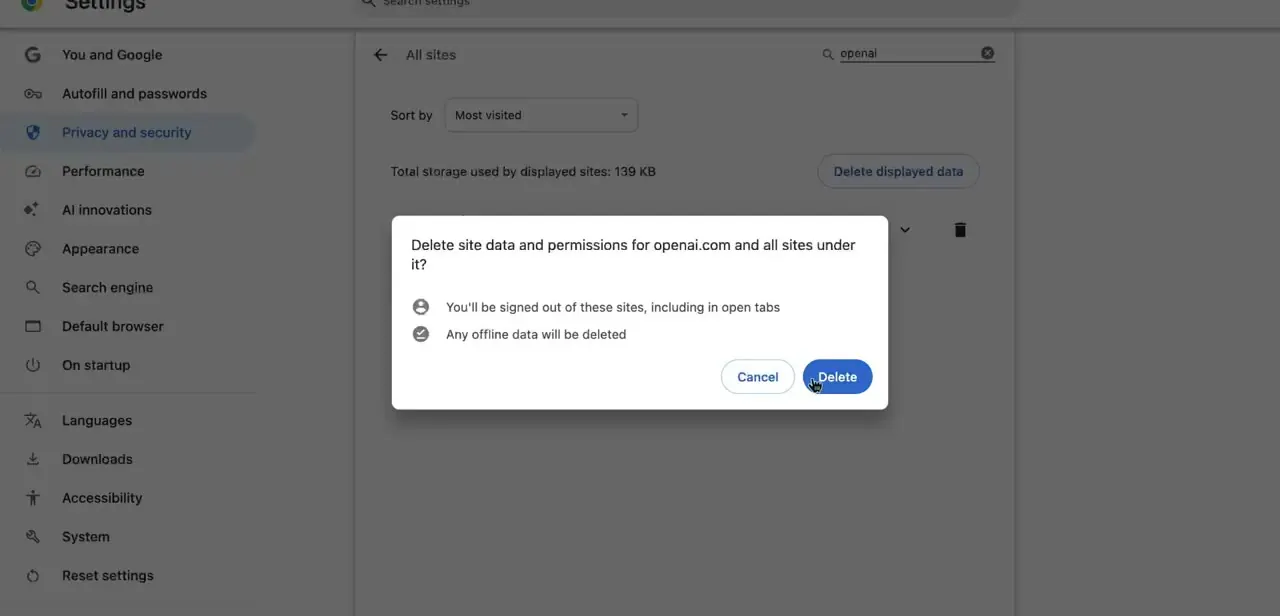
Corrupted or outdated session cookies are a frequent cause of this error, especially after logging in and out multiple times or switching accounts. In Chrome, go to Settings, then Privacy and security, then Site settings, and search for chatgpt.com under All sites.
Delete the site data: this signs you out of any open ChatGPT tabs and clears its stored cookies and offline data, which is exactly what you want when the session itself is the problem. Sign-in for ChatGPT also passes through OpenAI's separate account domain, so if clearing chatgpt.com alone doesn't help, clear site data for openai.com too.
Close the browser fully afterward, not just the tab, then reopen it and log in fresh. The equivalent option exists under Privacy in Safari and Edge.
03Turn off VPNs and proxy extensions
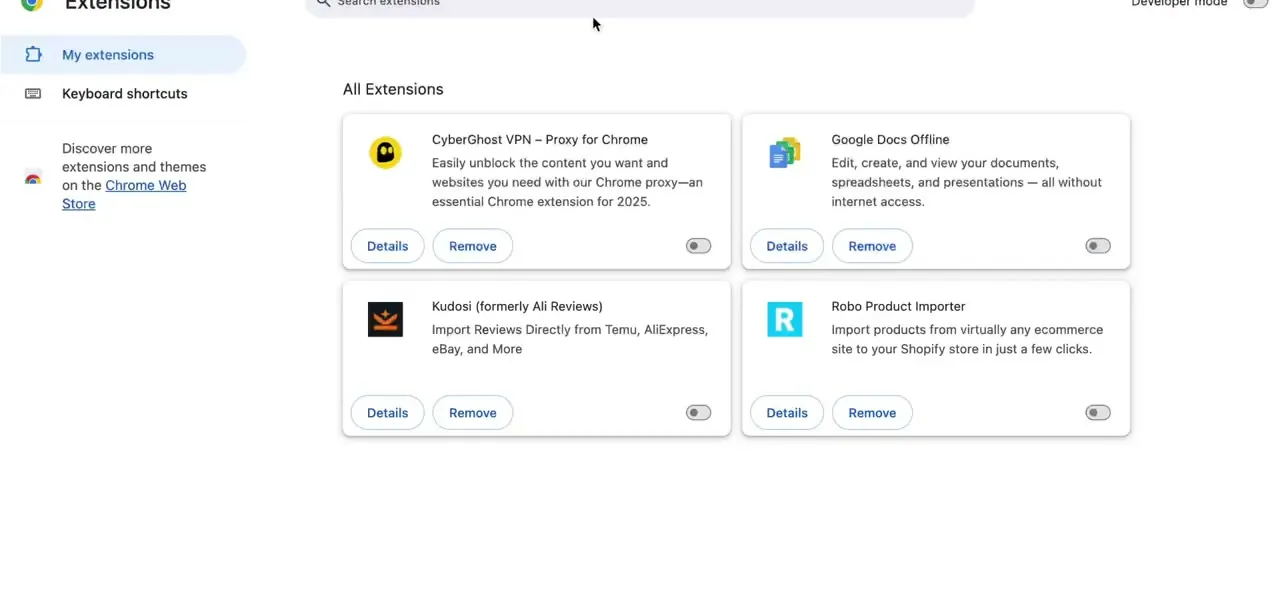
Cloudflare's firewall is aggressive about IP addresses that look like VPN exit nodes, data-center proxies, or shared hosting ranges, and this is the single most commonly cited cause of error 1020 across Cloudflare's own community reports. If you have a VPN extension installed, such as CyberGhost or a similar proxy tool sitting in your browser's extensions list, disable it before retrying.
The toggle next to the extension is enough; you don't need to uninstall it. The same applies to a system-level VPN app running outside the browser and to any "unblocker" or ad blocker that reroutes traffic. Once it's off, refresh the page instead of reusing the old tab, since the blocked request may still be cached.
04Try incognito mode and confirm your browser is current
Opening ChatGPT in a private or incognito window strips out extensions, cached cookies, and saved session data at once, so it's a fast way to check whether the problem is environmental instead of account-related. If login works fine in incognito, the fix is almost certainly the cache-and-cookie cleanup or the extension disabled in the earlier steps. While troubleshooting, confirm Chrome, Safari, or Edge is updated to its latest version; an outdated browser can fail Cloudflare's newer checks and get flagged the same way a suspicious IP does.
05Check OpenAI's status page for a wider outage
If clearing cookies and disabling your VPN doesn't resolve it, visit status.openai.com to see whether ChatGPT or the login service is experiencing a broader incident. During real outages, the access-denied or error-1020 message can appear for everyone in a region at once, and no amount of local troubleshooting fixes a server-side problem. The page also shows recent incident history, so you can confirm whether this is specific to you or something OpenAI is already handling.
06Apply the same steps on the mobile app
The ChatGPT app on iOS and Android hits the same backend and Cloudflare protection as the website, so the identical error can show up there. Force-close the app, then check whether a VPN profile is active in your phone's settings, since mobile VPN apps trigger the block just as often as a browser extension. If the app still won't log in, sign out completely, clear the app's cache from your phone's app settings (or uninstall and reinstall it), and log back in on a plain mobile data or Wi-Fi connection with no VPN running.
When it doesn't work
The access-denied page keeps returning even after clearing cookies and disabling the VPN
Why: Cloudflare's 1020 block is a rule the site owner controls, not something a visitor can override directly. If your IP range is on a shared block list (common on some mobile carriers and corporate networks), local fixes may not clear it.
Fix: Try a different network (mobile data instead of Wi-Fi, or vice versa), and if it persists, contact OpenAI support with the Ray ID and timestamp shown on the error page so they can check their firewall logs.
Login fails, but the error looks different from the Cloudflare access-denied page
Why: A plain "can't log in" or account error is often unrelated to Cloudflare. A common cause is trying to sign in with a different method (Google, Microsoft, email link) than the one used when the account was first created.
Fix: Check which sign-in method the account originally used and log in with that same method instead of switching providers.
The error clears in incognito mode but comes straight back in the normal browser window
Why: A specific extension or a stored cookie in the regular profile, not the browser itself, is the trigger.
Fix: Disable extensions one at a time in the normal window to find the culprit, or clear chatgpt.com and openai.com site data instead of relying on incognito every time.
Frequently asked questions
What does error 1020 mean on ChatGPT?
It's a Cloudflare firewall code shown on the "Access denied" page, meaning a Cloudflare rule blocked the request before it reached the site's servers. It's usually triggered by a VPN, proxy, or flagged IP address, not an account issue.
Is chat.openai.com still the right address for ChatGPT?
It still works, but it now forwards automatically to chatgpt.com, which is the current address. Seeing chat.openai.com in an old link or bookmark isn't itself the cause of the error.
Does a VPN cause the ChatGPT access denied error?
Very often, yes. Cloudflare frequently blocks IP ranges associated with VPNs, proxies, and data-center hosting, so disabling any VPN app or browser extension before logging in resolves the issue for most people.
Will clearing my cookies log me out of other sites too?
No, if you delete site data for just chatgpt.com and openai.com instead of clearing all browsing data, only your ChatGPT session and sign-in cookies are affected.
What's the actual, official fix if nothing here works?
Cloudflare's own documentation says the correct escalation path is to give the site owner (OpenAI, in this case) the Ray ID and a screenshot of the error, since only they can see which firewall rule fired. The steps in this guide fix most cases without needing to do that, because they remove the signals that trip the rule in the first place.
I'm getting this error on the mobile app, not the browser, does the same fix apply?
Yes. The app connects through the same Cloudflare-protected backend, so disabling any mobile VPN, clearing the app's cache, and signing back in works the same way it does on desktop.
Sources and last check
Click path and screenshots come from a recorded walkthrough. The error-1020 explanation was re-checked directly against Cloudflare's own support documentation in September 2026, which corrected the framing of the fix: the documented visitor-side recourse is to report the Ray ID to the site owner, not to self-resolve, though the practical browser fixes below still work for most people. The chat.openai.com to chatgpt.com redirect was confirmed directly (chat.openai.com now returns a 308 redirect to chatgpt.com). OpenAI's own "why can't I log in" help article could not be loaded directly in this session (it returned an access-blocked response), so the sign-in-method-mismatch note in troubleshooting is included as general practice rather than a cited quote.
About the author

Impran M N
I've been hooked on technology for as long as I can remember — especially the new tools and AI apps that seem to land every other week. Easy Tech Tuts is where I write up whatever I've just worked out: I do the task in the real product, record the screen, and turn it into the guide I wish I'd found first.