Easy Tech Tuts
How to Fix Chatgpt Unable to Load Conversation in History in App & Site Error 2026 Easily
By Impran M NLast checked against official docs
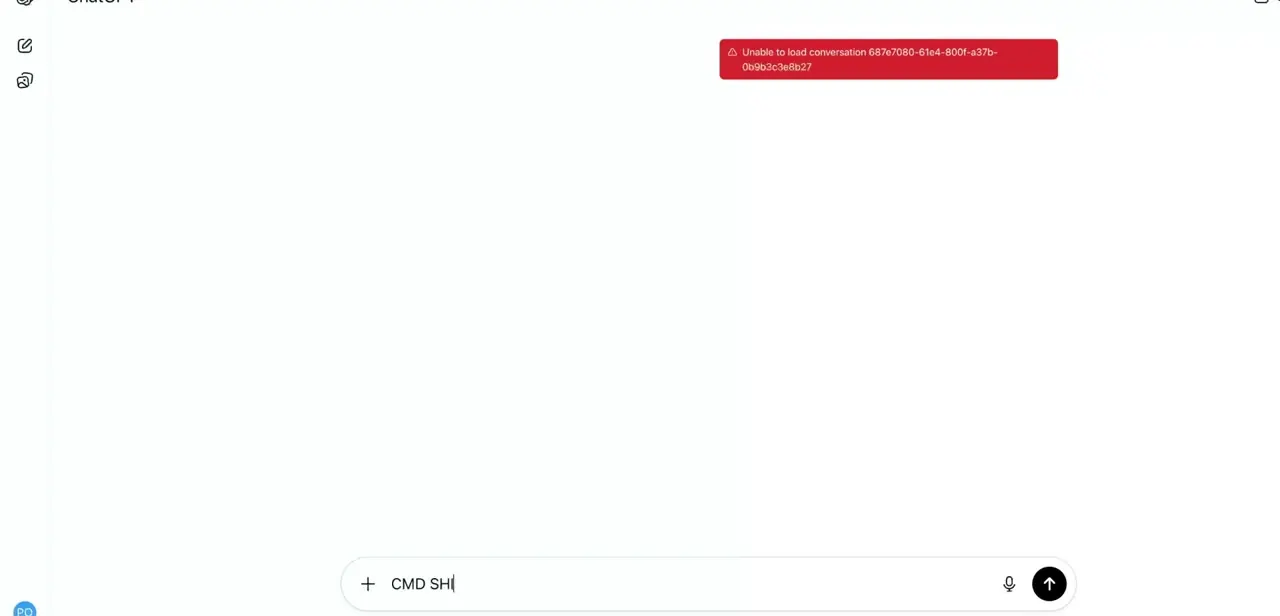
The "Unable to load conversation" error shows up as a red banner right where your chat should be, quoting a conversation ID instead of the messages. It's alarming the first time you see it, because it looks like the chat is gone.
It almost never is. The cause is usually something sitting between your browser and OpenAI's servers, not deleted data. This guide walks through the common culprits roughly in the order worth checking them: browser extensions and VPNs first, then account sync, then cache, then a couple of fixes reported by other users on OpenAI's own community forum that don't show up in most troubleshooting lists.
01Recognize what the error actually is
The failure shows as a red toast reading "Unable to load conversation" followed by a long ID string. That ID is the specific conversation ChatGPT's frontend tried and failed to fetch.
The rest of the interface, sidebar and message box included, keeps working, which is the tell that this is a failed fetch for one thread, not a broken account or lost history. Note whether it happens on every conversation or just older ones; that changes which fix below is worth trying first.
02Disable VPN extensions and ad blockers
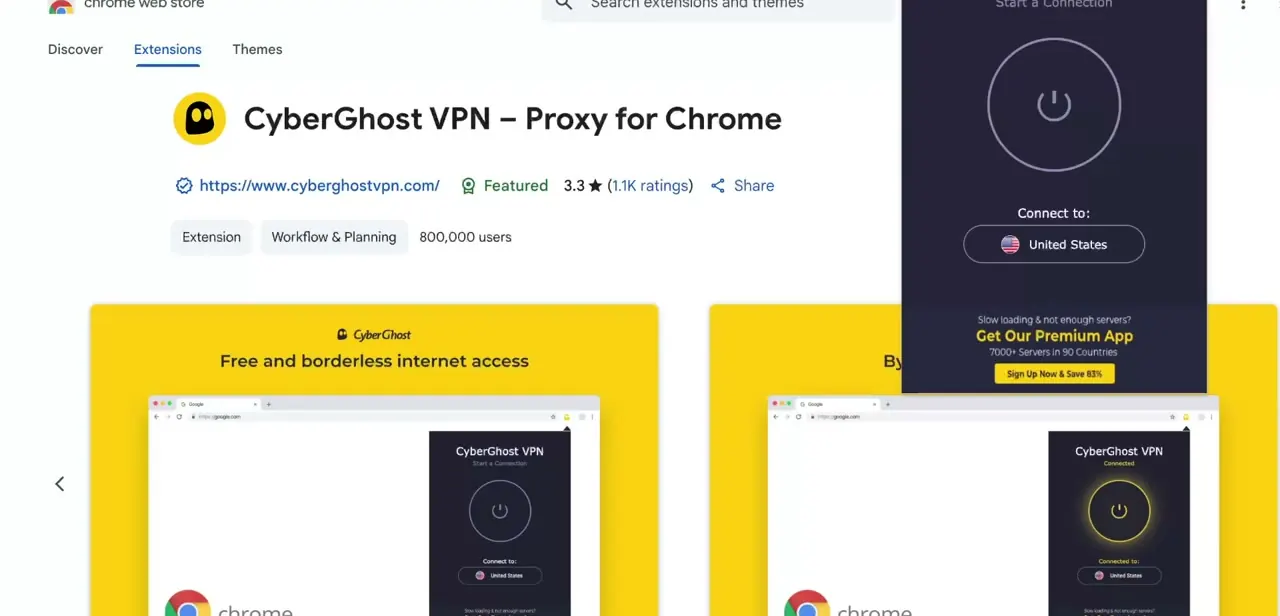
Browser VPN extensions are a frequent cause, since they route traffic through a different region and can interrupt the streaming connection ChatGPT uses to load a conversation. An extension like CyberGhost VPN for Chrome sits in the toolbar and reroutes requests through whichever country you've picked; useful for privacy, but it can silently break a request to chatgpt.com if the connection drops mid-load. Turn it off, or open ChatGPT in an incognito window with extensions disabled, and try the same conversation again before touching anything else.
03Check your browser's account sync
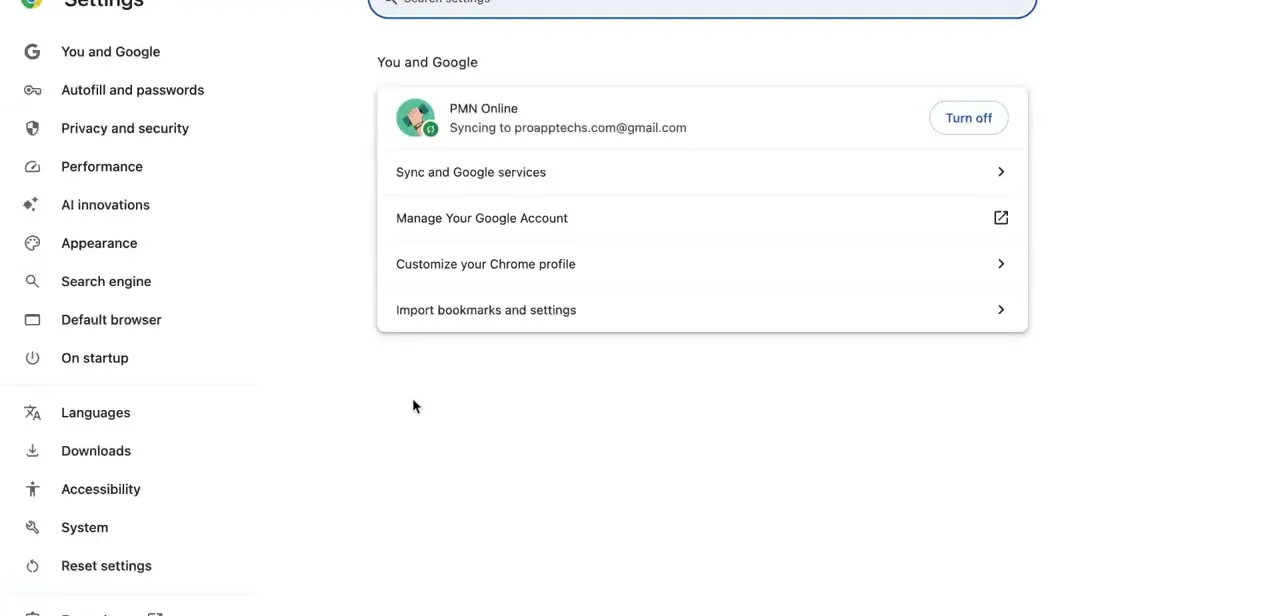
If Chrome is signed into a Google account that's actively syncing, that layer occasionally conflicts with the cookies and cached session data ChatGPT relies on. Under Chrome's "You and Google" settings, you can see which account is syncing and pause it from the same page. Turn sync off, reload ChatGPT, and turn it back on afterward; it's a quick way to rule out a stale synced session.
04Clear cache and cookies, or force a data resync
With extensions and sync ruled out, clear cached data specifically for chatgpt.com rather than wiping your whole browser history. A stale cached copy of the app's frontend is a common reason one conversation ID fails while new chats load fine.
If that doesn't help, a fix reported by several users on OpenAI's own developer community forum is to request a full data export from Settings → Data Controls; the export process appears to force a resync between your account and the server, and conversations that wouldn't load started working again afterward for some. A few others traced it to their language setting and had it resolve after switching that back to automatic detection. Neither is an officially confirmed fix, and they didn't work for everyone in that thread, but both are worth trying before you assume the conversation is gone.
05Update the mobile app or reinstall it
On iOS or Android, an outdated app build can hit the same error, especially after OpenAI ships a backend change an older client doesn't handle. Check for a pending update, install it, then fully close and reopen the app instead of just backgrounding it. If it continues on the latest version, log out from Settings inside the app and back in to force a fresh fetch of your conversation list.
06Check OpenAI's status page, then contact support with specifics
If nothing above changes anything, check OpenAI's public status page before assuming the problem is local. A backend incident produces this exact error for a lot of users at once, regardless of browser or app, and there's nothing to fix locally while that's happening. If the status page is clear and the error persists, contact OpenAI support and include the conversation ID from the error message, note whether it happens in more than one browser or device, and mention if a data export or language change was already tried.
When it doesn't work
The error follows you into incognito mode with no extensions
Why: Extensions and browser sync are ruled out at that point; the cause is more likely a stale cache, a locale/language setting, or a server-side sync issue with that specific conversation.
Fix: Clear site data for chatgpt.com. If that doesn't help, try requesting a data export from Settings → Data Controls, or set the language preference to automatic, both reported to help in some cases on OpenAI's community forum.
Every conversation fails to load, not just one
Why: This pattern points away from a single corrupted thread and toward either a broader account sync issue or an active OpenAI outage.
Fix: Check OpenAI's status page first. If it shows nothing, log out and back in to force a full re-fetch rather than troubleshooting one conversation at a time.
The fix works on web but the same conversation still won't load in the mobile app
Why: Web and mobile use different clients, so a browser-side fix like clearing cache doesn't carry over to the app.
Fix: Update the app to the latest version, then fully close and reopen it rather than backgrounding it. Log out and back in if it still fails.
Frequently asked questions
Will my old conversations be permanently lost?
In most cases, no. The error means a specific conversation failed to load, not that it was deleted. Clearing the interfering extension, cache, or sync issue and reloading usually brings it back.
Is this error more common on mobile or web?
It happens on both. On web it's often tied to VPN extensions, ad blockers, or browser sync; on mobile it's more often an outdated app build.
Does logging out risk losing my chat history?
No. Logging out only clears your local session. Conversations are stored on OpenAI's servers under your account and reload once you log back in.
Does requesting a data export actually fix this?
It worked for some users on OpenAI's developer community forum, apparently by forcing a resync between your account and the server, but it isn't an officially confirmed fix and didn't resolve it for everyone who tried it.
What should I do if the issue continues after trying everything here?
Check OpenAI's status page for a known incident. If nothing is reported, contact OpenAI support with the conversation ID from the error message and note which fixes you've already tried.
Sources and last check
Click path and screenshots come from a walkthrough recorded in 2025/2026. OpenAI's official help center troubleshooting article for ChatGPT errors could not be directly fetched in this session (it returned a blocked/403 response), so this pass verified the community-reported fixes against an OpenAI Developer Community thread instead, which was read directly. That check added the data-export and language-setting workarounds, which the article previously didn't mention, and reframed them honestly as user-reported rather than officially confirmed.
About the author

Impran M N
I've been hooked on technology for as long as I can remember — especially the new tools and AI apps that seem to land every other week. Easy Tech Tuts is where I write up whatever I've just worked out: I do the task in the real product, record the screen, and turn it into the guide I wish I'd found first.