Easy Tech Tuts
How to Fix ChatGPT Too Many Concurrent Requests Error Easily 2026
By Impran M NLast checked against official docs
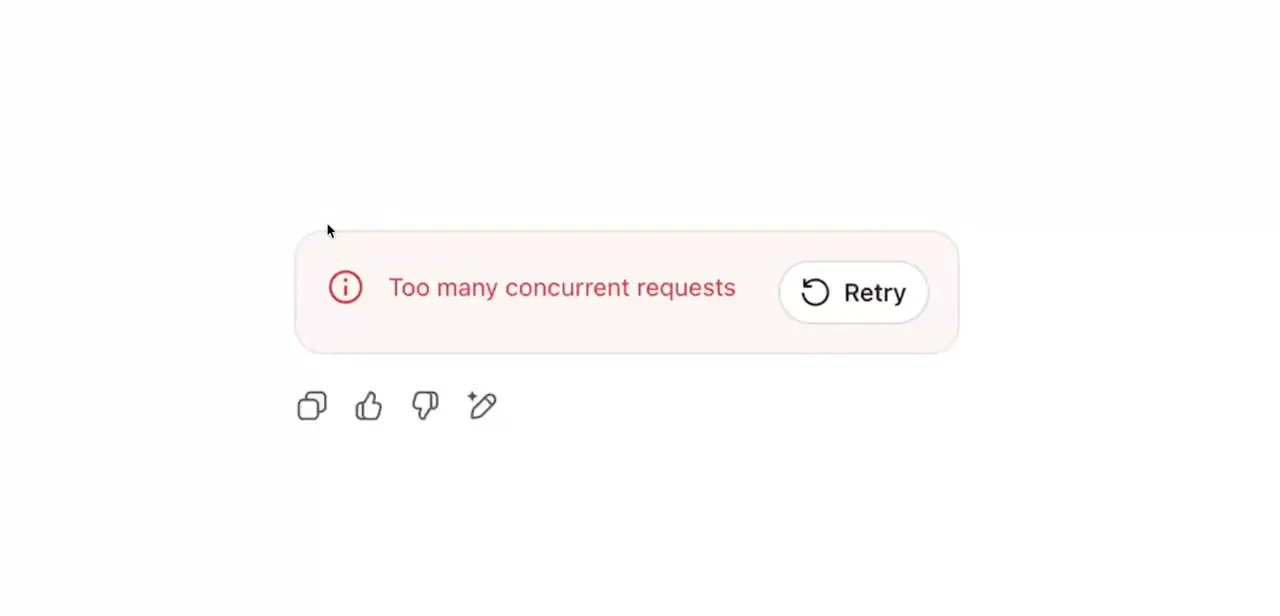
The "Too many concurrent requests" message in ChatGPT shows up as a plain red banner with a Retry button, right in the middle of a conversation. Clicking Retry over and over rarely fixes it.
The cause is almost always local: leftover site data, cached tokens, or an old session fighting a new one, none of which is a fault in your OpenAI account. OpenAI has no dedicated help-center page for this exact message, so this guide covers what resolves it when a plain refresh doesn't: clearing chatgpt.com's stored data directly from Chrome's privacy settings, using the real error and the real Chrome dialogs involved.
Before you start
- Google Chrome. The click path below is Chrome-specific; other browsers clear per-site data through a different menu.
- Your normal ChatGPT sign-in details, since this fix signs you out of chatgpt.com
01Recognize the error
The error appears as a small rounded banner inside the chat, with a red info icon, the text "Too many concurrent requests," and a Retry button next to it. It shows up in place of a response, meaning ChatGPT started generating an answer and then rejected the request partway through. It is a rate-limit style message, not an account ban or a service outage: it means the session sent, or appears to have sent, more overlapping requests than the server will process at once.
02Try Retry and a simple refresh first
Before changing any settings, click Retry once. If that doesn't clear it, do a single full page refresh instead of repeated retries: clicking Retry over and over can add to the pile of overlapping requests the error is complaining about.
If refreshing doesn't help either, the problem is most likely stuck browser data tied to chatgpt.com, not something a simple reload can shake loose. The next steps address that directly.
03Open Chrome's privacy and security settings
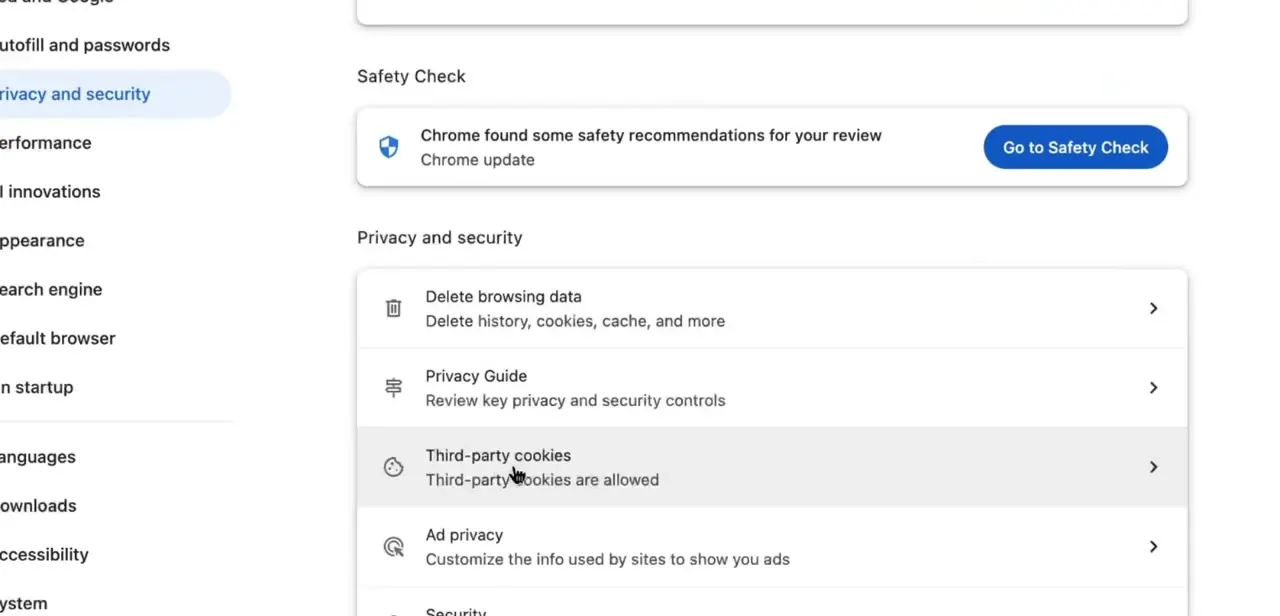
Go to Chrome's settings and select Privacy and security from the left-hand menu. This page groups the tools that matter here: a Safety Check panel showing update and security recommendations, and below it, Delete browsing data, Third-party cookies, and Ad privacy controls.
Skip the general "clear everything" option. The targeted fix a few steps down is better, since it clears only the data tied to chatgpt.com and not every site you use. Chrome files that per-site view under Third-party cookies, behind a link labelled See all site data and permissions.
04Delete site data specifically for chatgpt.com
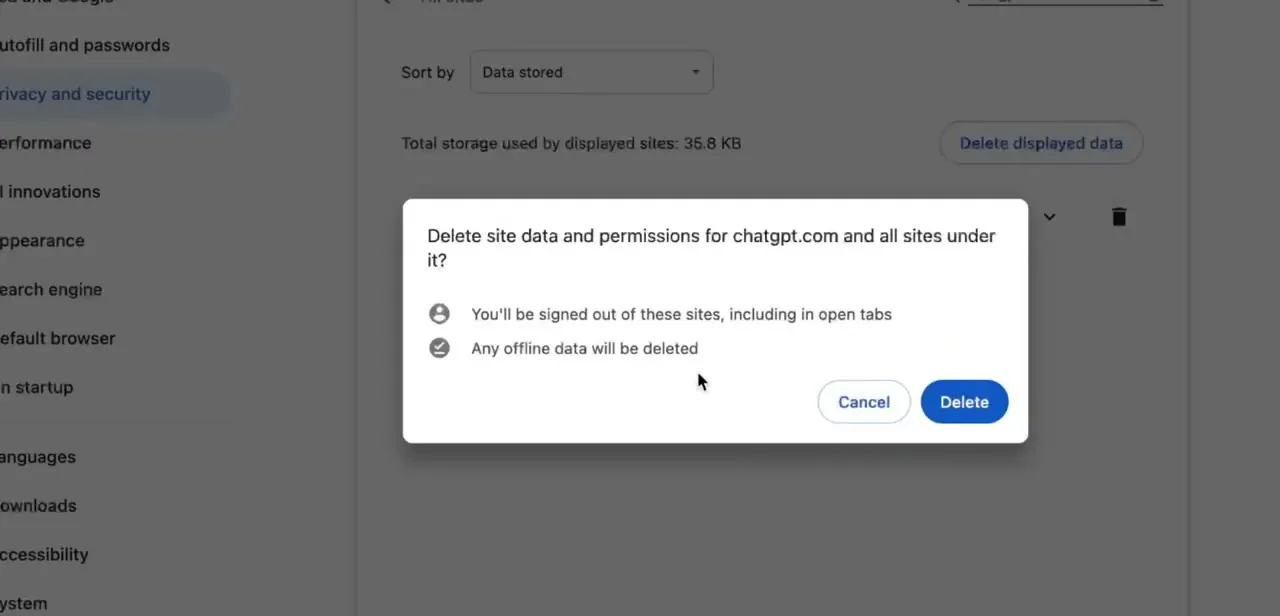
In that site data view, search for chatgpt.com, select it, and choose to delete its stored data and permissions. Chrome shows a confirmation dialog first, "Delete site data and permissions for chatgpt.com and all sites under it?", with two warnings: you'll be signed out of the site everywhere it's open, and any offline data will be deleted.
Confirm the deletion. This clears the stale session data and cached state behind most overlapping-request errors, without touching saved passwords or history on other sites.
05Log back in and test
Navigate back to chatgpt.com. You will be signed out, as the dialog warned, so log back in with your normal credentials.
Start a new conversation and send a message to confirm the error is gone. This only cleared chatgpt.com's local data: your account, conversation history, and any custom settings on OpenAI's side are untouched, since only local browser state was reset.
06If it still happens, check for open duplicate sessions
If the error returns, check whether ChatGPT is open in multiple tabs, windows, or devices at once. Each one sends requests independently, and together they can look like overlapping concurrent requests even when you are only actively using one.
Close the extras and keep a single active session. If the error persists on a clean profile with a single session open, check OpenAI's status page at status.openai.com to rule out a server-side issue before troubleshooting further on your end.
When it doesn't work
chatgpt.com doesn't show up in the site data list
Why: Chrome only lists a site there once that browser profile has visited it, so you may be looking in the wrong profile or an Incognito window that never saved the entry.
Fix: Use the search box in See all site data and permissions and confirm you're in the same Chrome profile you normally use for ChatGPT.
The error comes back immediately after logging back in
Why: Another tab, window, or device is still signed in and sending requests, or a browser extension is duplicating outgoing requests.
Fix: Close every other ChatGPT tab and device, then test again in a fresh window; if it's clean there, an extension is the likely culprit.
Clearing site data made no difference at all
Why: The problem sits on OpenAI's servers, not in the local browser, so local fixes can't reach it.
Fix: Check status.openai.com for an active incident before repeating the browser-side steps.
Frequently asked questions
Does this error mean my account is banned?
No. "Too many concurrent requests" is a rate-limiting message, not a sign of an account restriction or ban.
Can multiple open tabs cause this error?
Yes. Running ChatGPT in several tabs, windows, or devices at the same time can make the server see overlapping requests, even if you're only typing in one of them.
Will clearing chatgpt.com's site data delete my chat history?
No. Conversation history is stored on OpenAI's servers, not in your browser. Deleting chatgpt.com's site data signs you out and clears local cookies and cache; it doesn't touch saved conversations.
How do I tell if it's an OpenAI outage instead of my browser?
Check status.openai.com. If it shows an active incident for ChatGPT, the error is likely server-side, and clearing local data won't fix it until OpenAI resolves the incident.
Sources and last check
Screens and error text come from a recorded ChatGPT session in Chrome. OpenAI's help center and its own community forum were checked in September 2026 and neither has a dedicated troubleshooting page for this exact error message, only unresolved user reports consistent with a rate-limit or duplicate-session cause; that absence is reported here instead of papered over. The Chrome click path for per-site data deletion was checked against Google's official Chrome Help documentation in September 2026.
About the author

Impran M N
I've been hooked on technology for as long as I can remember — especially the new tools and AI apps that seem to land every other week. Easy Tech Tuts is where I write up whatever I've just worked out: I do the task in the real product, record the screen, and turn it into the guide I wish I'd found first.