Easy Tech Tuts
How to Transfer a ChatGPT Conversation to Another Account | Step by Step | Easily 2026
By Impran M NLast checked against official docs
ChatGPT has no button that moves a conversation from one account to another. OpenAI's own help documentation says so directly: the product does not support merging accounts or moving one account's chat history into another's.
What it does support is two narrower things that cover most of what people need. For a single conversation, you can create a share link and open it while signed into the destination account, which saves a separate copy there.
For a whole history, you can request a full export and upload the resulting file into a new conversation on the other account, where ChatGPT can read it as reference material instead of restoring it as your old chat list. This guide covers both, plus where each one falls short of a true transfer.
Before you start
- Access to the account you're moving the conversation from, including its email inbox or phone number, since OpenAI verifies ownership through that channel before releasing an export.
- A personal ChatGPT account on Free, Go, Plus, or Pro, or an eligible Edu workspace. Business, Enterprise, and Healthcare workspaces can't self-serve an export; a workspace admin has to handle that instead.
01Sign in to the account that has the conversation
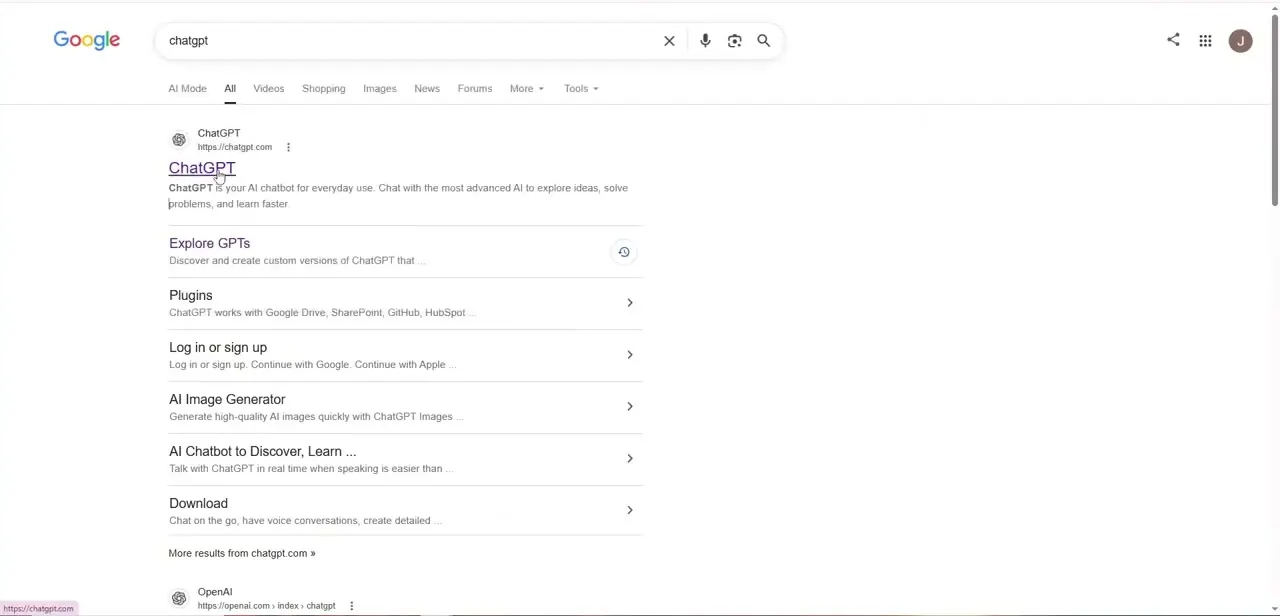
Search "chatgpt" instead of typing the address from memory. The official chatgpt.com login sits at the top of the results, alongside a direct "Log in or sign up" link. Use the email tied to the account that holds the conversation you want to move; if you're not sure which account that is, check before going further.
02Verify with the one-time code
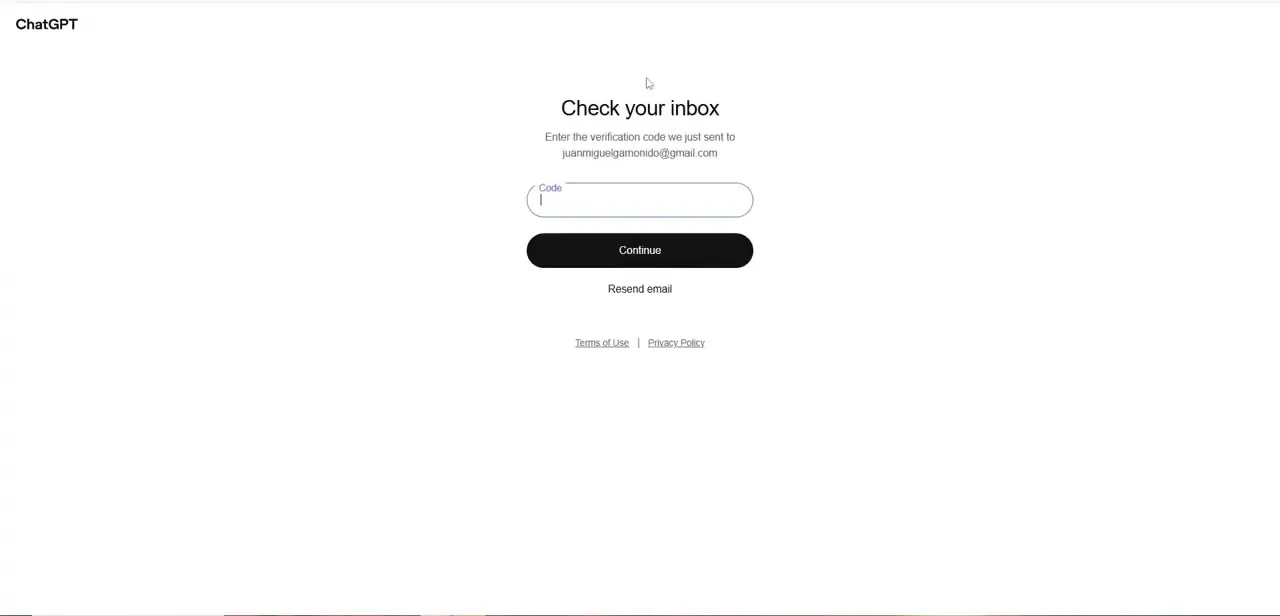
ChatGPT emails a one-time code and asks for it on a "Check your inbox" screen. These codes expire within a few minutes, so open your inbox in another tab before you start, not after the screen appears.
03Share a single conversation
For one conversation, open it and select Share. ChatGPT shows a preview of what the link will contain (conversation history, a single response, or attached files, depending on what you choose) before you commit.
Select Create link, or Copy link on some accounts, once the preview looks right. The link is anonymous by default and begins with chatgpt.com/share/; anyone who has it can open it, and there's no way to restrict it to a named person.
04Open the link in the destination account
Sign out or use a private window, then sign into the account you want the conversation to end up in. Open the shared link there and continue the conversation: typing a new message, even a short one, saves it as a separate, private conversation in that account's own history. The original on the source account is untouched; sharing a link never removes or moves it.
05Export your full history if you need more than one conversation
A single link doesn't scale past a conversation or two. For a full move, go to Settings, then Data controls, then Export data, and select Export followed by Confirm export.
ChatGPT emails or texts you when it's ready. That can take up to seven days, and the download link expires 24 hours after it arrives. Download the ZIP while signed into the account that requested it; a different account can't open the link even with the right URL.
06Upload the export into the destination account
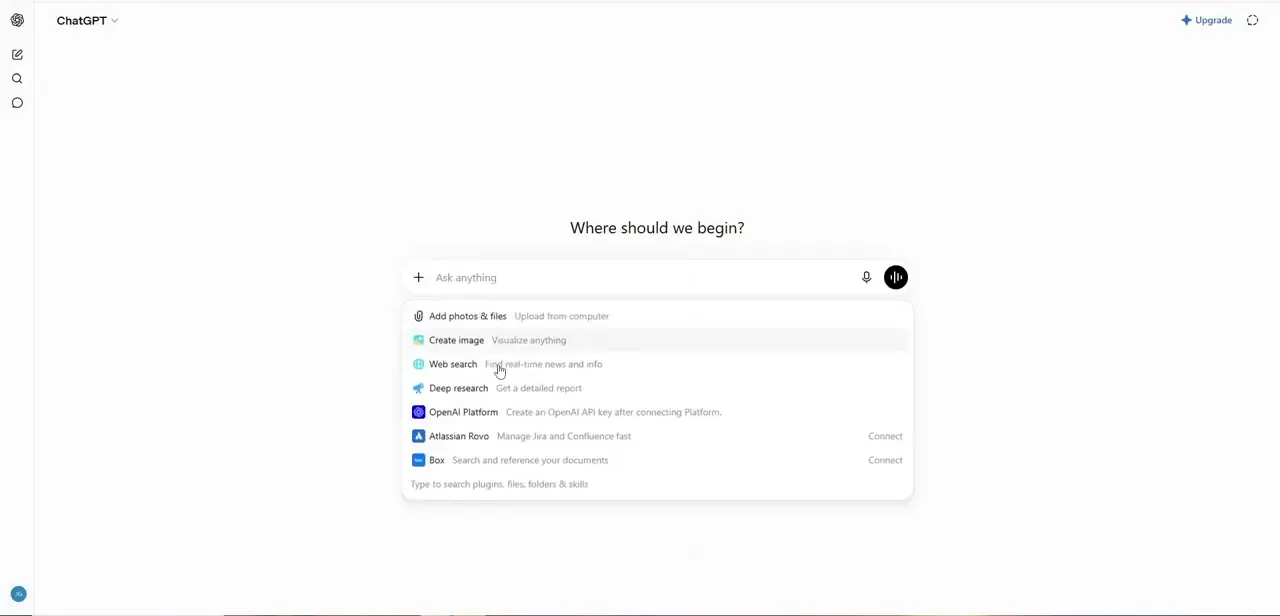
Extract the ZIP and find conversations.json (larger exports split it into several numbered files). Sign into the destination account, start a new conversation, and use the plus icon by the composer to attach the JSON file, the same control used for any file upload.
If the file is too large, upload the numbered files separately or split it yourself. This doesn't rebuild your old sidebar or recreate each chat as its own conversation. ChatGPT treats the upload as reference material inside whatever new conversation you started, and nothing about your subscription, memories, or custom instructions comes with it.
07Delete the shared link once you're done
Shared links have no expiration date and stay live until someone deletes them, so a link created months ago for a quick copy-paste is still open to anyone who has the URL. Go to Settings, then Data controls, then Shared links, and select Manage to remove the ones you no longer need, or Delete all shared links to clear every one at once.
When it doesn't work
A newly created share link opens to a blank or loading screen
Why: A fresh link can take a short time to become viewable on OpenAI's end.
Fix: Wait a moment and reload. If it's still stuck after a minute or two, recreate the link from the Share menu.
The export email or text never shows up
Why: Exports can take up to seven days, and the notification sometimes lands in spam or promotions instead of the main inbox.
Fix: Check every folder for the address or number on the account. If nothing arrives after seven days, contact OpenAI Support directly.
The download link says it's expired
Why: Export links expire 24 hours after they're sent, and they only work while signed into the account that requested the export.
Fix: Confirm you're signed into the right account first. If the link is genuinely expired, request a new export; there's no way to refresh an old one.
conversations.json won't upload because it's too large
Why: A long or busy chat history can produce a file past ChatGPT's upload size.
Fix: Use the numbered per-conversation files if the export included them, split the JSON into smaller pieces, or upload only the conversations you need.
Frequently asked questions
Does ChatGPT have a real "transfer conversation" button?
No. OpenAI's help documentation states plainly that ChatGPT does not support merging accounts or moving one account's chat history into another's. Sharing a link or uploading an export are the closest supported substitutes.
If I upload my exported file, do my old chats reappear in the sidebar?
No. The upload gives ChatGPT a file it can reference inside the new conversation you started. It does not recreate each past chat as a separate entry, and it does not restore your original sidebar.
Can I limit who's able to open a shared link?
Not for a personal account. Anyone who has the link can view it, and there's no per-recipient permission. Only workspace-created links (Business, Enterprise, Edu) are restricted, and only to members of that same workspace.
Does creating a share link remove the conversation from my original account?
No. The source conversation stays exactly where it was. A share link is a copy of the content at the moment you created it, not a move.
What doesn't come across no matter which method I use?
Subscriptions, workspace membership, custom instructions, memories, and connected GPTs all stay tied to the original account. Neither sharing nor exporting moves any of that.
Sources and last check
Sign-in screens come from a walkthrough recorded in July 2025. The transfer method was rewritten in September 2026 against OpenAI's current help articles on exporting and transferring conversations, and on shared links. The original draft's approach, signing into both accounts and copying or sharing a link, undersold what's genuinely supported: a full-history export exists, and OpenAI states plainly that neither sharing nor uploading an export merges accounts or restores chat history.
About the author

Impran M N
I've been hooked on technology for as long as I can remember — especially the new tools and AI apps that seem to land every other week. Easy Tech Tuts is where I write up whatever I've just worked out: I do the task in the real product, record the screen, and turn it into the guide I wish I'd found first.