Easy Tech Tuts
How to Fix Model Not Found Chatgpt Error (100% Working Solution)
By Impran M NLast checked against official docs
"Model Not Found" is a genuine ChatGPT error, but OpenAI's own troubleshooting guide doesn't list it by name. The most documented case turned out to be a bug: in August 2025, OpenAI Support confirmed in its developer forum that the model picker could get stuck on a generic "ChatGPT" label instead of a specific version, mostly inside Projects and custom GPTs, and every message sent from that state failed.
Switching to a named model cleared it for most people, and OpenAI later fixed the underlying cause on its own servers. If you're still seeing the error today, the fixes below start with the model picker and move through the general connection and cache checks OpenAI's help centre recommends for stuck or misbehaving chats. Work through them in order and stop once the error clears, so you learn what caused it instead of resetting everything at once.
01Check the model picker, then rule out your connection
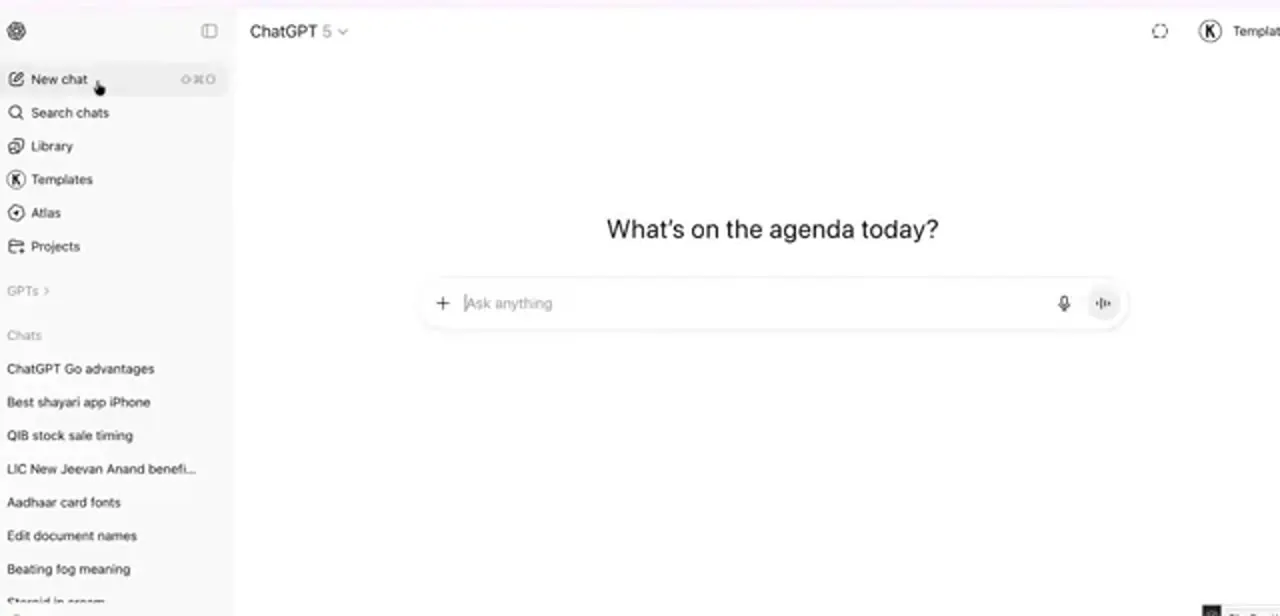
Look first at the model name in the top-left of the chat window. That dropdown is where this error starts.
In August 2025, OpenAI Support confirmed in its developer forum that the picker could get stuck on a generic "ChatGPT" label instead of a specific version, mostly inside Projects and custom GPTs, and every message sent from that state failed. Open the picker and choose a named model, such as ChatGPT 5.
OpenAI later fixed the underlying bug on its servers, but picking a specific model clears a lingering stale session on the spot. While you're there, rule out the connection too.
Load a different site to confirm you're online, then hard refresh the tab (Cmd or Ctrl, Shift, R) instead of a normal reload. An error that disappears on another network or after a hard refresh was never a model problem.
02Open the site panel for chatgpt.com
If the picker didn't fix it, clear the browser's stored data for this one site. You don't need to touch the rest of your browser.
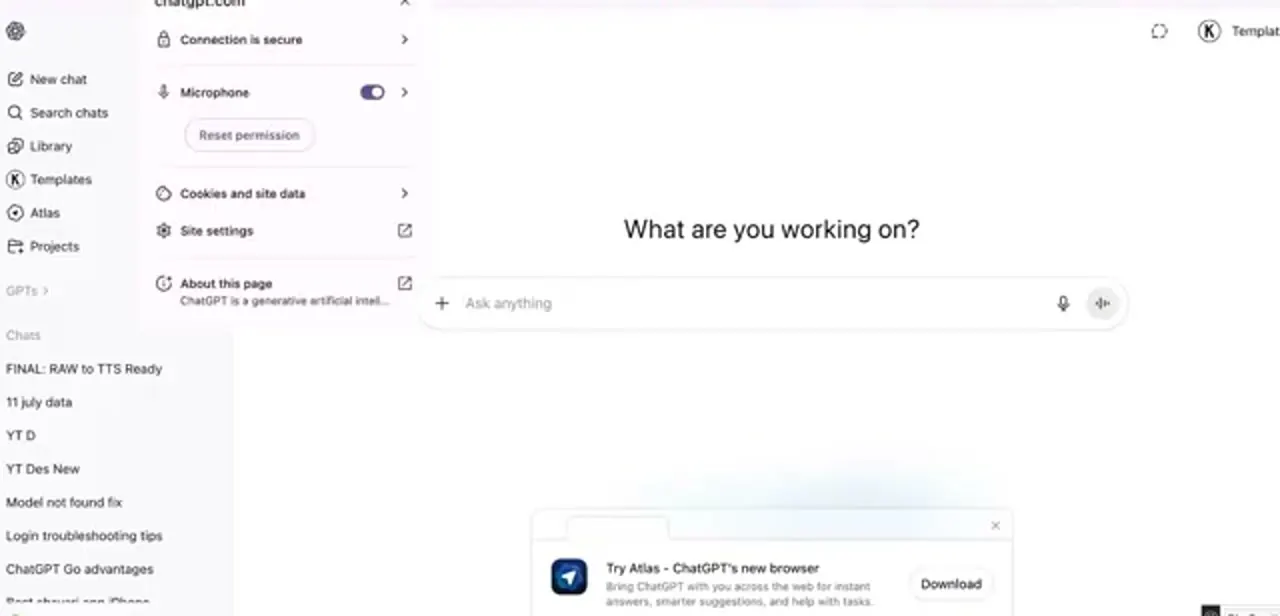
In Chrome, click the icon at the left of the address bar while on chatgpt.com to open the site panel, then choose "Cookies and site data." OpenAI's own troubleshooting guide recommends the same step for blank or frozen pages, under the older chat.openai.com address it still uses in places. The panel also shows the site's permissions, so you can confirm you're looking at chatgpt.com and not a different tab.
03Delete the stored data and reopen the tab
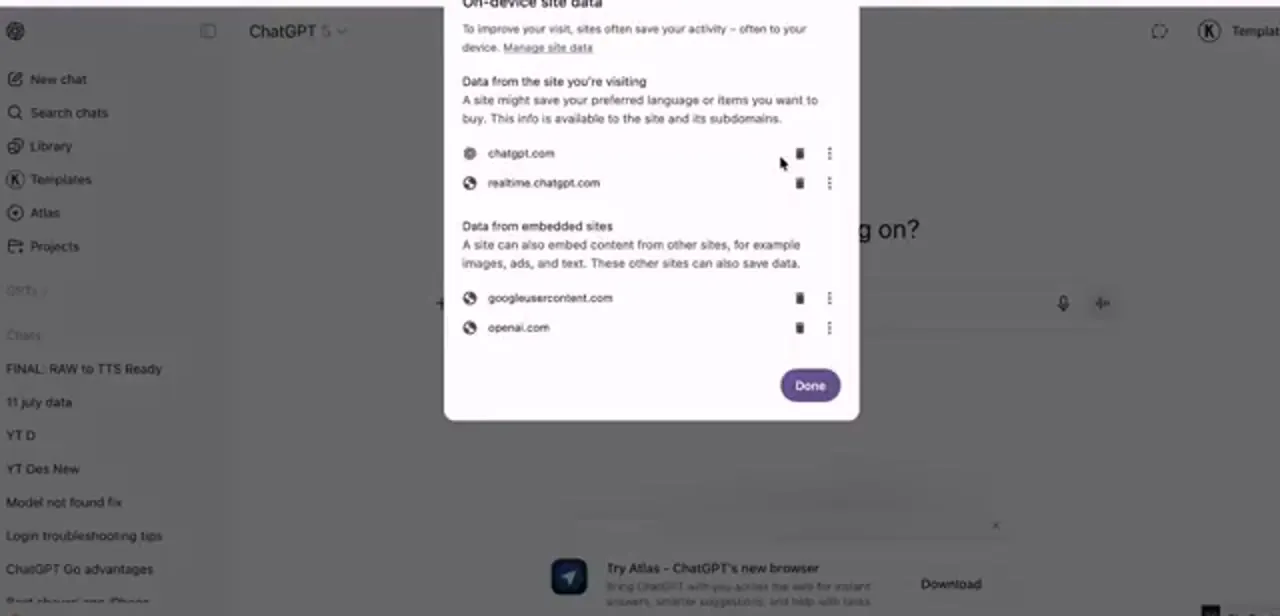
Opening "Cookies and site data" brings up an on-device dialog listing every domain that has stored something for this page: chatgpt.com itself, realtime.chatgpt.com for voice and streaming, and embedded domains like openai.com. Delete the chatgpt.com entries with the bin icon next to each, and do the same for realtime.chatgpt.com if voice mode has also been acting up.
Press Done, then close the tab completely before reopening chatgpt.com. Leaving the old tab open lets the broken session survive the clear, which is why this step sometimes looks like it did nothing.
04Sign out and sign back in
With the site data gone you'll usually already be signed out, but if not, sign out deliberately from your profile menu and sign back in. This is the step that re-fetches your account's model access from OpenAI's servers, which is why it resolves the error for people who recently changed plans or moved between a personal and a work account.
Sign back into the account that holds the subscription. Signing in with Google when you originally used an email and password creates a separate account with no plan attached, and that alone produces the same error.
05Turn off VPNs and interfering extensions
If the error survives a clean sign-in, something between your browser and ChatGPT is interfering. Switch off any VPN and reload; routing through a region where a model isn't offered can make it genuinely unavailable to you.
Disable ad blockers and privacy extensions for this site next, or open ChatGPT in a private window, where extensions are off by default. If it works there, re-enable extensions one at a time to find the culprit. A corporate network with content filtering can cause the same symptom, so test on a personal connection if you're on a work machine.
06Confirm your plan, and reinstall the app if only mobile is failing
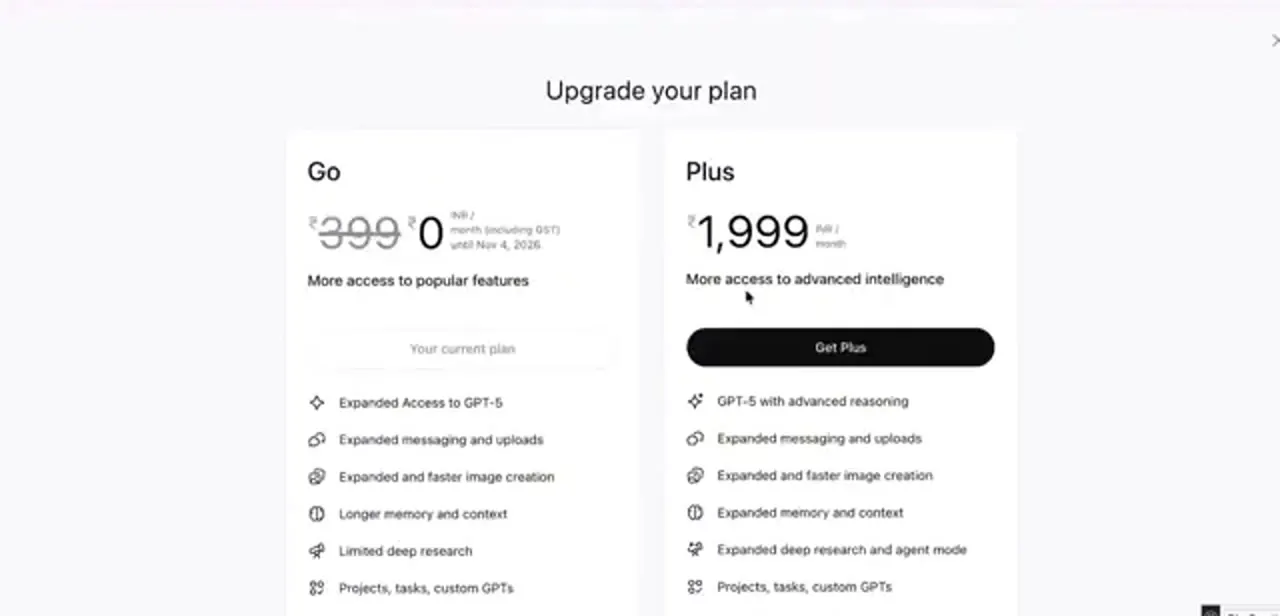
Open the upgrade page from your profile menu and check what your account holds. The plan panel marks your current tier and lists what each one includes.
A lapsed payment or a subscription bought on a different account is easy to miss. If the error only happens in the mobile app while the browser works fine, delete and reinstall it. OpenAI Support noted in its developer forum that a related bug affected Android app versions 126 through 203 specifically, fixed in version 203 and later; updating or reinstalling clears the cached model list those older builds were stuck holding.
Frequently asked questions
Is "Model Not Found" a known OpenAI bug?
The most documented case was. OpenAI Support confirmed in its developer forum in August 2025 that a bug affecting Projects and custom GPTs made the model picker default to a generic label, and fixed it on their end soon after. If it recurs today, treat it as a session or account issue first, using the steps above.
Why does ChatGPT show "Model Not Found" right after I upgrade?
Your browser session is still holding the entitlements from before the upgrade. Signing out and back in re-fetches them from OpenAI, which is why that step fixes it for most people who just changed plans.
Will clearing cookies delete my ChatGPT conversations?
No. Clearing site data removes the local session stored in your browser. Your chats live on your account and reappear as soon as you sign back in.
Can a VPN cause this error?
Yes. Routing through a region where a particular model isn't offered can make it genuinely unavailable to your session. Turn the VPN off, reload, and try again before assuming your account is at fault.
The browser works but the mobile app still fails. What now?
Delete and reinstall the app. OpenAI Support has pointed to a specific Android build range, versions 126 through 203, as carrying this bug; a reinstall or an update past 203 resets the cached model list that older builds got stuck holding.
I tried everything and it still shows the error. What's left?
Check you're signed into the account that holds the subscription; a Google sign-in and an email sign-in with the same address can be two different accounts. If the plan is confirmed active, wait a short while and retry, since entitlement changes occasionally take time to propagate.
Sources and last check
Click path and screenshots come from a walkthrough recorded in July 2025. The fixes were re-checked against OpenAI's official troubleshooting article in September 2026, which does not list "Model Not Found" among its named errors ("Something went wrong," network errors, and a blank or frozen page are the ones it documents) but recommends the same clear-cache, sign-out, incognito and VPN checks used here. The specific "Model not found" bubble was also tracked in OpenAI's own developer community, where OpenAI Support confirmed in August 2025 it was a bug mostly hitting Projects and custom GPTs, tied to the model picker defaulting to a generic "ChatGPT" label, with a named-model workaround before OpenAI shipped a server-side fix. That finding replaced this guide's earlier framing of the error as mainly a plan or entitlement problem.
About the author

Impran M N
I've been hooked on technology for as long as I can remember — especially the new tools and AI apps that seem to land every other week. Easy Tech Tuts is where I write up whatever I've just worked out: I do the task in the real product, record the screen, and turn it into the guide I wish I'd found first.