Easy Tech Tuts
How to Fix ChatGPT Conversation Not Found Error Easily 2026
By Impran M NLast checked against official docs
Opening an old ChatGPT thread only to see "Conversation not found" is jarring, especially when you were counting on that chat history being there. The error usually comes down to one of a few causes: an expired session, a chat that was genuinely deleted, or cached browser data getting in the way of a fresh load. This guide walks through the fixes in order of how likely they are to work, starting with the quickest and ending with checking whether the problem sits on OpenAI's end instead of yours.
01Recognize what the error looks like
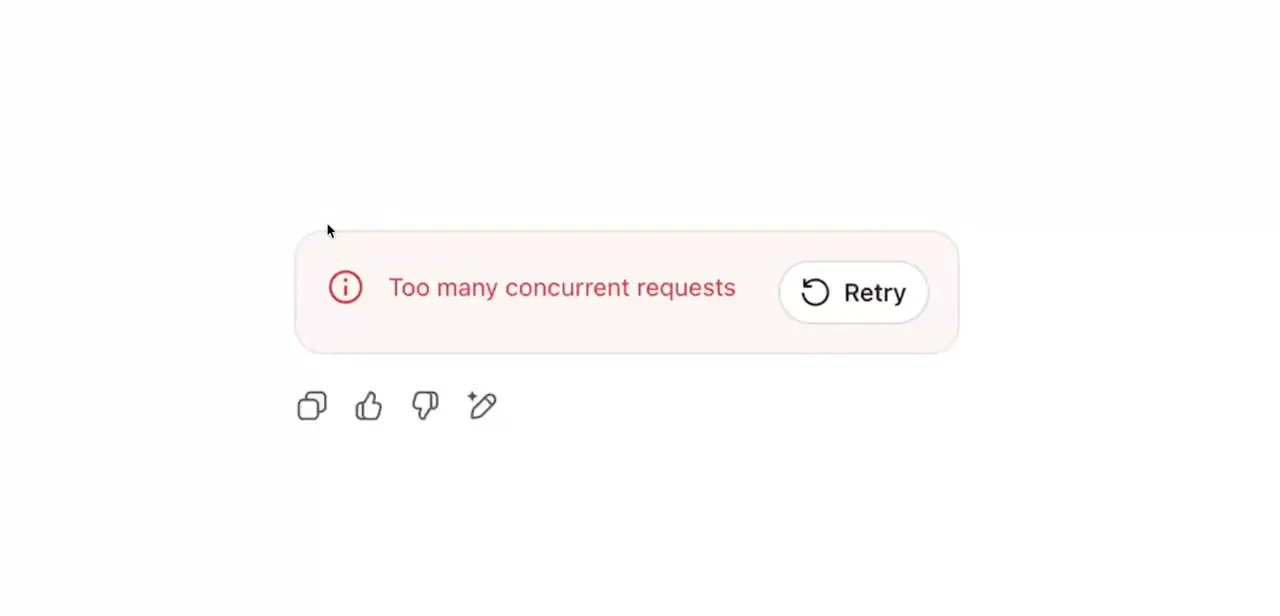
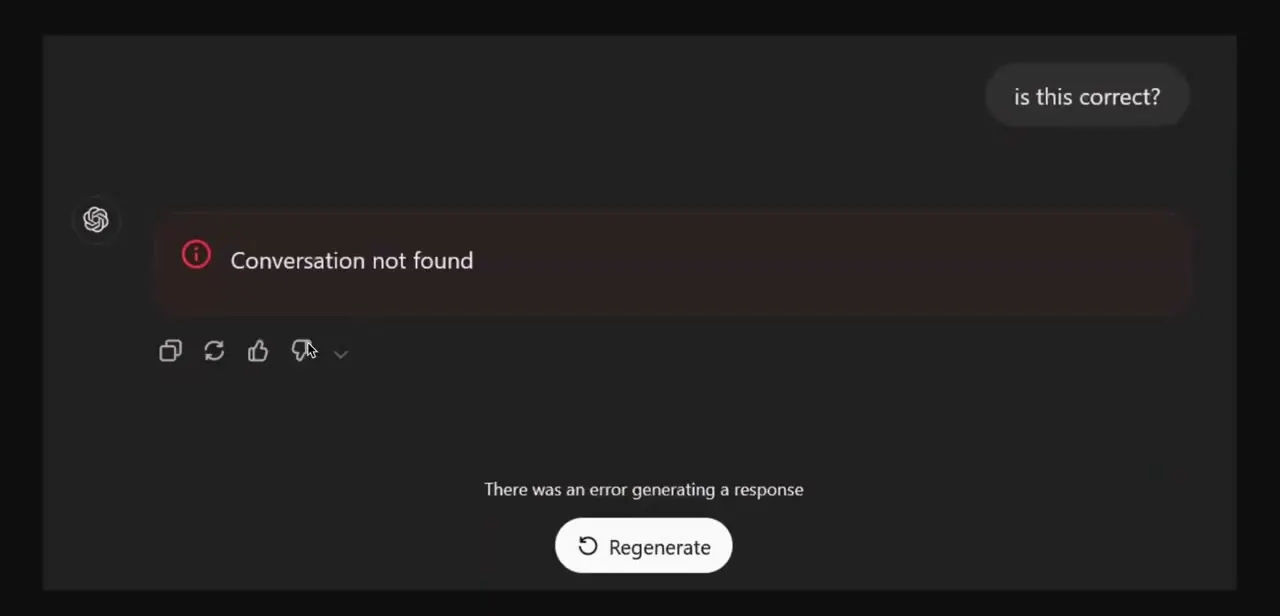
The error shows up as a red-bordered banner reading "Conversation not found" directly inside the chat thread, usually paired with "There was an error generating a response" and a Regenerate button underneath. Seeing this doesn't necessarily mean your chat history is gone. Most of the time it's a loading or session hiccup, not permanent data loss, which is why the fixes below start simple.
02Refresh the page and log back in
Start with the obvious fix: reload the page, or fully close and reopen the app. If that doesn't clear it, sign out of ChatGPT completely and log back in.
This forces a new session token and resolves the error when it's caused by an expired or corrupted session instead of a genuinely missing conversation. Logging out doesn't delete any of your other saved chats, so there's no downside to trying it first.
03Open Chrome's site data settings
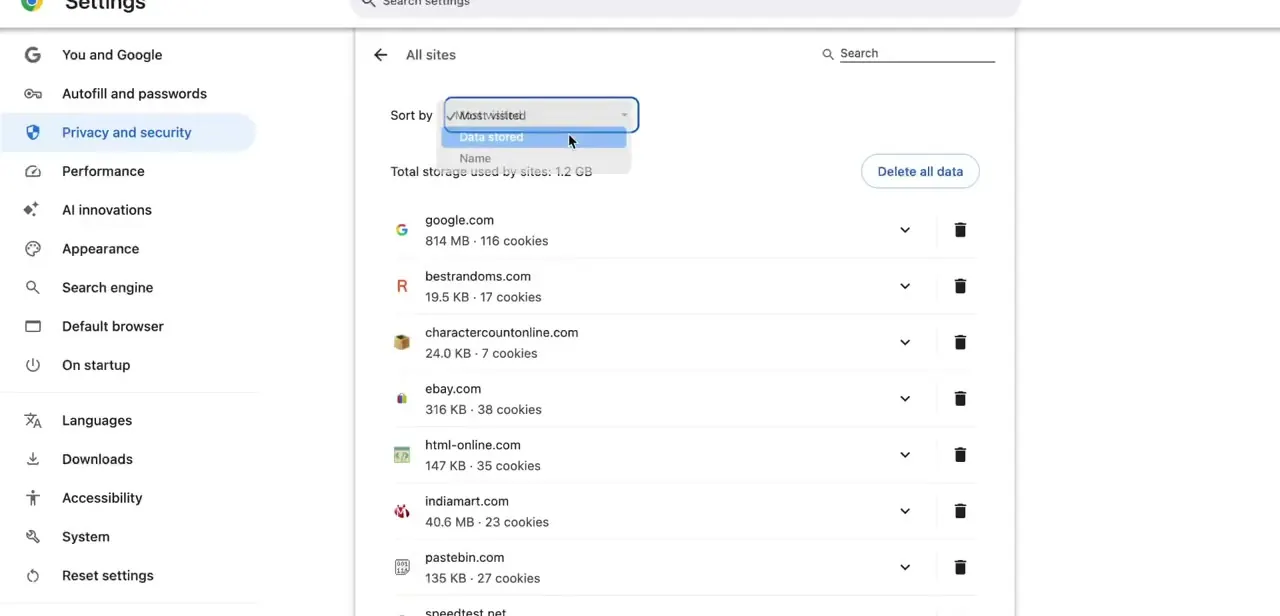
If refreshing and re-logging in doesn't help, the next step is clearing stale data your browser has cached for ChatGPT. In current Chrome, that list lives under Settings, then Privacy and security, then Third-party cookies, then See all site data and permissions.
Older versions of Chrome, and some older guides, file the same list as All sites, sitting directly under Privacy and security instead of nested a level deeper. Either path lands you on the same list: every site storing data in your browser, and how much space each one uses.
04Clear cached data for chatgpt.com specifically
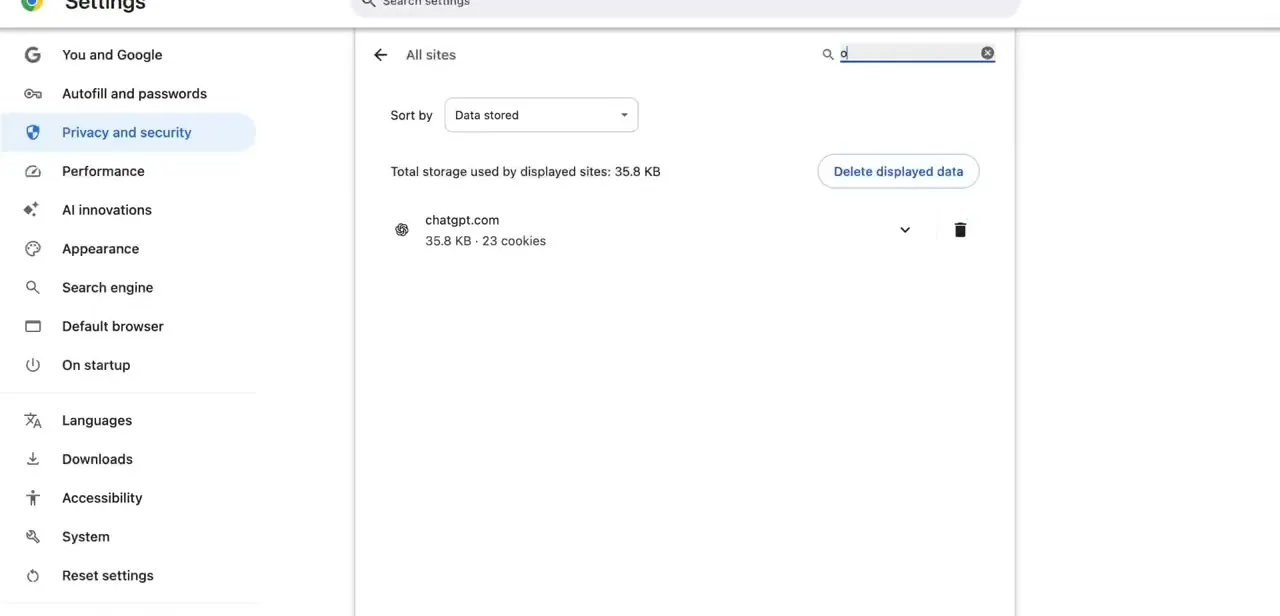
Instead of wiping everything, search the site list for "chatgpt" to isolate just chatgpt.com's stored data — cookies and site storage. Click the trash icon next to it and confirm the deletion. This clears corrupted cache or cookies without touching your saved passwords, autofill, or history for every other site you use.
05Reload ChatGPT and check the conversation again
After clearing chatgpt.com's data, reload the site and log back in. Navigate to the conversation that previously showed the error.
If it loads normally now, the issue was stale cache. If the same "Conversation not found" message appears again immediately, that's a stronger sign the chat itself was deleted instead of a caching glitch. Deleted conversations can't be recovered through any of these steps.
06Check OpenAI's status page for server issues
If the error is happening across multiple conversations or devices, check status.openai.com, OpenAI's official status page. It tracks uptime and open incidents separately for its APIs, ChatGPT, and Codex, so you can see whether ChatGPT specifically has a reported issue instead of guessing. A widespread wave that clears up on its own after a short wait usually points to a server-side hiccup, not anything specific to your account.
07Update the ChatGPT app on mobile
On mobile, an outdated app version can trigger the same error even when the web version works fine. Check your device's app store for a pending ChatGPT update, install it, and restart the app before trying the conversation again. Keeping the app current also avoids a handful of other sync issues between mobile and desktop chat history.
Frequently asked questions
Can a deleted ChatGPT conversation be recovered?
No. Once a conversation is deleted it generally can't be restored, which is one of the more common permanent causes behind this error.
Is this error the same on the mobile app and website?
The underlying causes are similar, but the fix differs slightly. On the web you clear the site's cached data in your browser settings; on mobile the more common fix is updating the app itself.
Will logging out delete my other saved chats?
No. Logging out and back in only refreshes your session token — it doesn't delete or affect any of your other saved conversations.
How do I know if it's a server-wide issue?
Check status.openai.com, OpenAI's official status page, for reported incidents. If ChatGPT specifically shows an open incident there, the error is likely temporary and on OpenAI's end, not something to fix on your device.
Do I need to clear my entire browser cache?
No. Searching Chrome's site data list for chatgpt.com and deleting just that entry is enough, and it avoids wiping cookies, logins, or saved data for every other site you use.
Sources and last check
Screens and the click path in steps 3-4 come from a recorded walkthrough. OpenAI doesn't publish a dedicated public article diagnosing "Conversation not found" specifically; its general troubleshooting article at help.openai.com returned an access error when checked in September 2026, so it isn't cited here. What could be verified: status.openai.com is OpenAI's real, current status page, and Chrome has since moved the All sites list to Settings > Privacy and security > Third-party cookies > See all site data and permissions. That's confirmed against Google's own Chrome support documentation from September 2026; the original wording (All sites filed directly under Privacy and security) reflected an older Chrome layout and is noted as such instead of silently replaced.
About the author

Impran M N
I've been hooked on technology for as long as I can remember — especially the new tools and AI apps that seem to land every other week. Easy Tech Tuts is where I write up whatever I've just worked out: I do the task in the real product, record the screen, and turn it into the guide I wish I'd found first.