Easy Tech Tuts
How to Export ChatGPT Chats Without Copy and Paste | Faster Method | Easily 2026
By Impran M NLast checked against official docs
Copying a long ChatGPT thread message by message is slow and loses formatting. ChatGPT has a built-in export that packages your chat history into a ZIP file and sends you a download link.
It sits in the Data controls section of Settings, which is why most people never find it. The request takes a few clicks.
The parts that trip people up come after: the link can take days to arrive, it dies 24 hours after it does, and the option does not exist at all in company-managed workspaces. This guide covers the click path and each of those limits.
Before you start
- A personal ChatGPT account on the Free, Go, Plus or Pro plan, or an Edu workspace where the admin has enabled exports. Business, Enterprise and ChatGPT for Healthcare workspaces have no self-service export.
- Access to the email inbox or phone number on the account, since the download link is sent there
01Sign in to the right account
Sign in at chatgpt.com. The export works only while you are signed in, and it covers the whole account, so there is no need to open the conversation you want first.
If you use more than one account, or switch between a personal plan and a work workspace, check which one is active. Each export belongs to the account that requested it, and you will need to be signed in to that same account later to download the file.
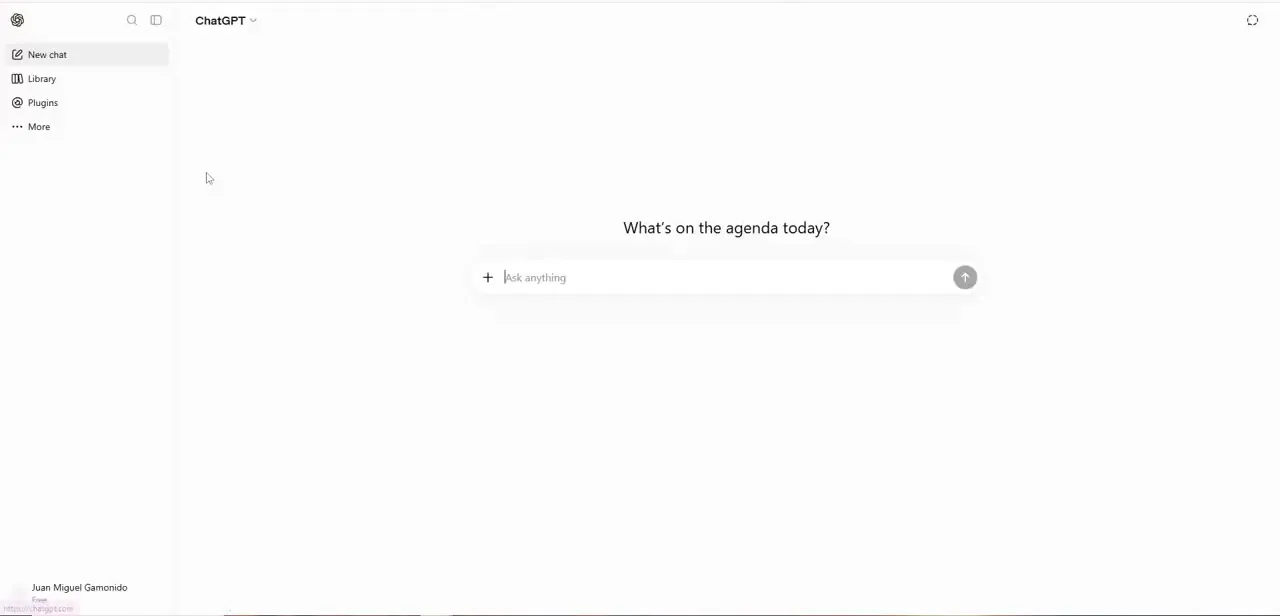
02Open Settings, then Data controls
Click your profile icon at the bottom of the sidebar and choose Settings. In the list of categories on the left, select Data controls.
This page also holds the model-training toggle, shared links, archived chats and the delete options. Export data is at the bottom, with an Export button beside it.
Delete all chats sits close by. Read the label before you click, because deleted chats cannot be brought back by any later export.
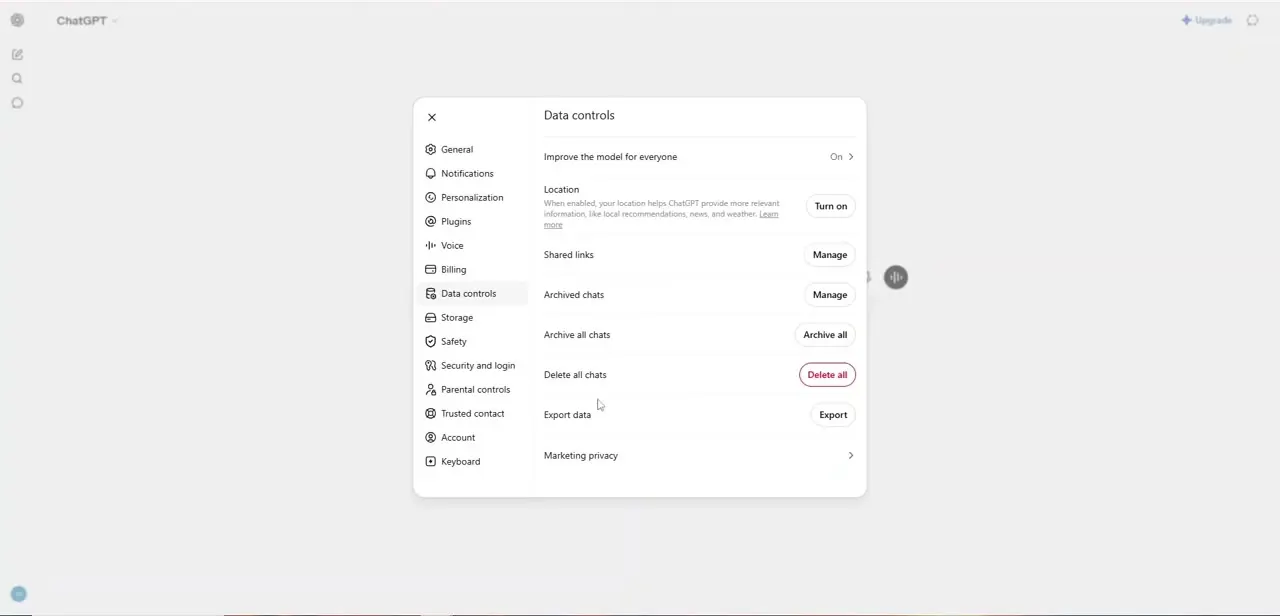
03Request the export
Click Export, then Confirm export on the confirmation screen. There is no progress bar.
The file is built in the background, so you can close the tab. Request it once. If you submit again while the first request is processing, ChatGPT may tell you an export has already been requested, and a second request does not speed things up.
04Download it within 24 hours
ChatGPT sends an email, or an SMS if your account uses only a phone number, when the export is ready. OpenAI says this can take up to 7 days, so a wait of a day or two does not mean the request failed.
Open the message and select Download data export while signed in to the account that made the request. The link expires 24 hours after you receive it, so plan to download the same day. If the email seems missing, look in spam and promotions folders for a message from OpenAI.
05Check what is inside the ZIP
Unzip the file and confirm the conversations you care about are there. The archive holds your chat history plus other account data, stored as structured files meant for searching or importing into another tool.
It does not read like a tidy document. To find one conversation, search the files for a distinctive phrase from it.
Temporary chats never enter your history, so they will not be in the export, and chats you deleted before exporting are gone for good. If you rely on ChatGPT for client or team work, repeat the export on a schedule so your backup stays current.
When it doesn't work
There is no Export option under Data controls
Why: You are signed in to a ChatGPT Business, Enterprise or ChatGPT for Healthcare workspace, where self-service export is not available. In Edu workspaces it depends on your role and the admin's settings.
Fix: Ask your workspace owner or administrator for your data. Personal accounts can export on any plan, including Free.
The export email has not arrived
Why: Exports can take up to 7 days, and the message often lands in spam or promotions. Phone-only accounts receive an SMS, not an email.
Fix: Check every folder, and your texts if the account has no email. Contact OpenAI Support if nothing arrives after 7 days.
The download link does not work
Why: The link expires 24 hours after it arrives, or you are signed in to a different account from the one that requested it.
Fix: Sign in to the requesting account and try again. If the link has expired, request a fresh export.
You cannot sign in to ChatGPT at all
Why: The settings export needs a signed-in session.
Fix: Use OpenAI's Privacy Portal: choose Make a Privacy Request, then I have a consumer ChatGPT account, then Download my data.
Frequently asked questions
Where is the export option in ChatGPT?
Profile icon > Settings > Data controls > Export data > Export, then Confirm export.
How long does a ChatGPT export take?
Up to 7 days, according to OpenAI. Once the email or SMS arrives, you have 24 hours to download the file.
Can I export a single conversation?
Not with this tool. It exports the whole account. Search the downloaded files for the chat you need.
Why can't I export from my work account?
Self-service export is switched off for Business, Enterprise and ChatGPT for Healthcare workspaces. Data access there goes through your workspace owner.
Will the export recover deleted chats?
No. It only contains what is still in your account when you request it.
Does exporting cost anything?
No. Free, Go, Plus and Pro accounts can all request an export.
Sources and last check
The home screen and Data controls screens come from the original walkthrough recording. The click path, plan availability, delivery time and link expiry were re-checked against OpenAI's Help Center in September 2026. That check corrected the delivery estimate (up to 7 days, not minutes) and added that Business, Enterprise and ChatGPT for Healthcare workspaces cannot self-export.
About the author

Impran M N
I've been hooked on technology for as long as I can remember — especially the new tools and AI apps that seem to land every other week. Easy Tech Tuts is where I write up whatever I've just worked out: I do the task in the real product, record the screen, and turn it into the guide I wish I'd found first.