Easy Tech Tuts
How to Delete Images From ChatGPT Library | Clean Up Your Account | Easily 2026
By Impran M NLast checked against official docs
Every image you generate in ChatGPT gets saved automatically, and that collection grows fast if you're iterating on a prompt across several variations before landing on one you like. OpenAI splits your saved content across two separate places, Images and Library, and they behave differently when you try to delete something: one has a delete button, the other doesn't.
Missing that distinction is why so many people end up convinced there's no way to clean up their account at all. This guide walks through where each type of saved content lives, what deletion does in each place, and what a removed image does and doesn't take with it.
01Know the two places ChatGPT saves your images
OpenAI's own help documentation splits saved content into two surfaces. Images holds every picture ChatGPT has generated for you, so you can browse and reuse past results.
Library holds files you've uploaded or created, including documents, spreadsheets, presentations and PDFs, and generated images show up there too. The overlap is what causes confusion: the same picture can be reachable from both places, but only one of them lets you delete it directly.
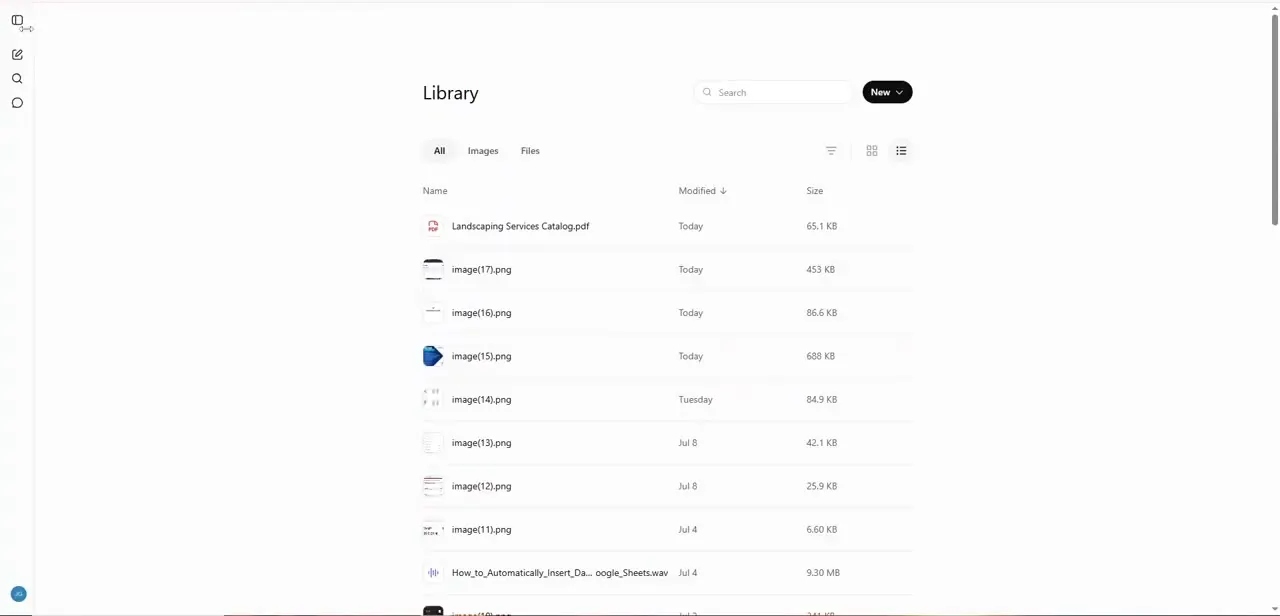
02On the Images page, there's no delete button on the image itself
OpenAI's help article on Images states it plainly: to delete an image from My images, you delete the conversation where the image was created. On web, hover over that conversation's title in your chat history, open the three-dot menu, and select Delete.
On iOS and Android, press and hold the conversation title and choose Delete from the menu that appears. There's no separate control on the image that removes just the picture. If several images came from the same chat, deleting it removes all of them together.
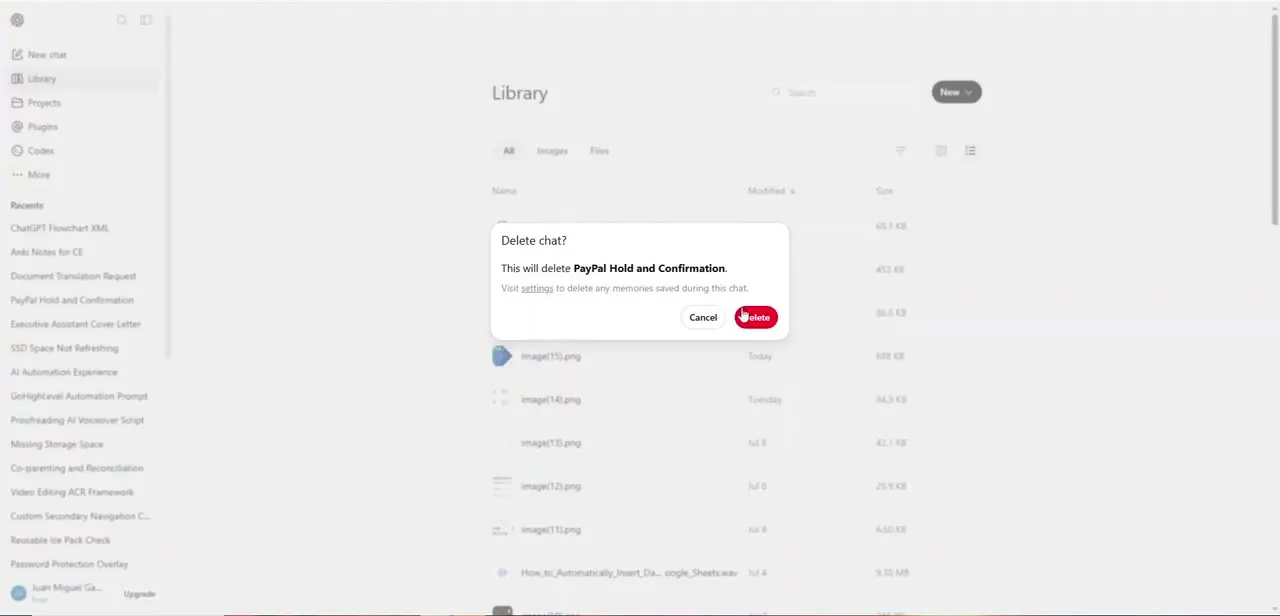
03Find the right conversation before you delete anything
Since deleting removes the whole chat, not just the picture, it's worth confirming you have the correct conversation first. Use ChatGPT's search to jump to a chat by topic or rough date instead of scrolling your full history, and check the timestamp against when you remember generating the image. If the same conversation holds other messages or images you still want, save what you need elsewhere before deleting, since there's no way to remove one message from a chat on its own.
04If the image was uploaded, delete it from Library instead
Uploaded images, and files you've saved into Library directly, follow a different and easier path: open Library, select the file, and choose Delete. OpenAI's documentation confirms this goes to a Recently deleted area first instead of vanishing immediately, so a file removed by mistake can be restored from there for a period before it's purged for good, up to 30 days according to OpenAI.
That safety net doesn't extend to the Images page. A conversation you delete there is gone without that recovery window.
05Work through the rest of your backlog
Neither surface offers a way to select several images at once and remove them in one action, based on the steps OpenAI documents for each. Plan to work through unwanted images one conversation, or one Library file, at a time. Starting with your newest generations is usually fastest, since recent test runs are what most people forget to clean up, and a short pass every week or two keeps the collection from turning back into clutter.
| Surface | What it holds | How you delete something |
|---|---|---|
| Images | Every image ChatGPT has generated for you | No direct delete button; delete the source conversation instead |
| Library | Uploaded files and created content, generated images included | Select the file and choose Delete; recoverable from Recently deleted for up to 30 days |
The same image can appear in both places at once, which is why deleting it from one doesn't always mean it's gone from the other.
When it doesn't work
There's no delete option when I open an image
Why: You're looking at the Images page. OpenAI's documentation confirms images there have no delete control of their own, only the conversation that created them does.
Fix: Open that image's source conversation from your chat history and delete the conversation. If the same picture was also uploaded or saved into Library, you can delete that copy separately.
I deleted a conversation and lost images I wanted to keep
Why: Deleting a conversation removes every image generated inside it, with no way to keep just some of them.
Fix: Check whether the image also exists in Library; if it does, it's unaffected by the conversation deletion. Otherwise there's no documented recovery for a deleted conversation, so confirm the chat before deleting next time.
I deleted a file from Library and now regret it
Why: Library holds deleted files in a Recently deleted area instead of purging them instantly.
Fix: Open Library's Recently deleted section and restore the file before the 30-day window closes and it's removed for good.
Frequently asked questions
Can I delete a single generated image without deleting the whole conversation?
Not from the Images page. OpenAI's help documentation says the only way to remove an image from My images is to delete the conversation where it was created. If the same picture was also uploaded or saved into Library separately, that copy can be deleted on its own.
What's the difference between Images and Library?
Images is a running record of everything ChatGPT has generated for you, with no per-item delete control. Library holds uploaded and created files, generated images included, and does have a real delete button plus a 30-day recovery window.
Is deleting a conversation reversible?
ChatGPT asks you to confirm before a conversation is removed, but OpenAI's documentation doesn't describe a recovery window for deleted conversations the way it does for Library files. Treat it as final.
Can I select multiple images and delete them all at once?
No bulk option is documented for either surface. Images and Library files both have to be removed one at a time.
Why do my images have names like image(15).png instead of something descriptive?
ChatGPT auto-names generated images with a generic counter instead of describing their contents, which is exactly what makes a large, unreviewed collection hard to search.
Sources and last check
Click path and screenshots come from a recorded walkthrough. The deletion mechanics were re-checked against OpenAI's own Images and Library help articles in September 2026: this guide previously described a single Library with a direct per-image delete-and-confirm flow. OpenAI's current documentation splits saved images across two separate surfaces with different delete controls, no per-image delete on Images, a real delete-plus-recovery flow on Library, which this rewrite corrects and cites directly.
About the author

Impran M N
I've been hooked on technology for as long as I can remember — especially the new tools and AI apps that seem to land every other week. Easy Tech Tuts is where I write up whatever I've just worked out: I do the task in the real product, record the screen, and turn it into the guide I wish I'd found first.