Easy Tech Tuts
How to Integrate Asana With Slack, Connect Easily 2026
By Impran M NLast checked against official docs
Project tracking and team chat drift apart fast when they live in separate tabs: a task gets discussed in Slack, but the status update never makes it back to Asana, or the other way round. The official Asana app for Slack closes that gap, letting you create a task from a message with one reaction and giving your team a direct channel for Asana notifications inside the workspace they already use. This guide covers installing the app, what the welcome flow sets up on first connection, and the two ways to turn chat into tracked work afterward, including the faster reaction-based method Asana added in late 2025.
Before you start
- An Asana account with access to the workspace and project you want connected
- Permission to install apps in your Slack workspace, or an admin willing to approve the request
01Install the Asana app from Slack's App Directory
From your Slack workspace, open Apps under the Tools menu and search for Asana. Select the official listing, click Add to Slack, and review the requested permissions before clicking Allow; this is what lets Asana post updates into your channels and lets Slack pass message content over to create tasks. You'll be redirected to sign in to Asana if you aren't already, using the account tied to the workspace you want connected.
02Know what project you're connecting
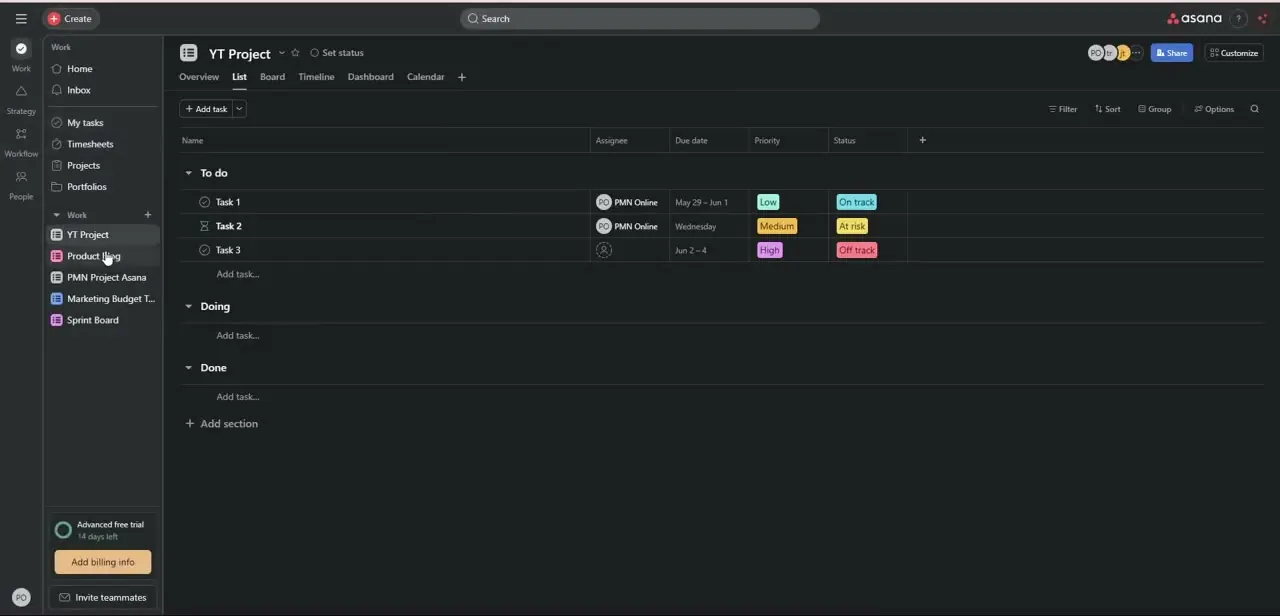
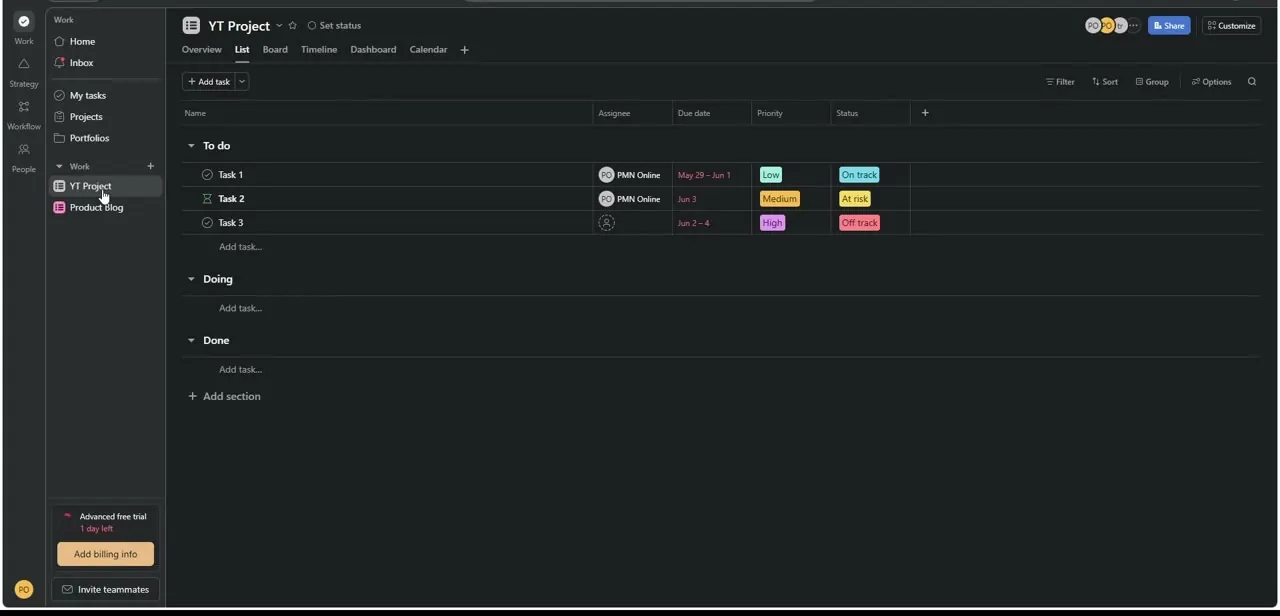
Before mapping anything, look at the Asana project itself. In this walkthrough, that's a project called "YT Project" with a standard To do, Doing, Done board and tasks carrying assignees, due dates, priority, and status columns. This is the layer that Slack updates will reflect: a task moving from At risk to On track in Asana is what shows up as a notification back in your channel, so confirm this is the right project before you link a channel to it.
03Add Slack from the Asana side too
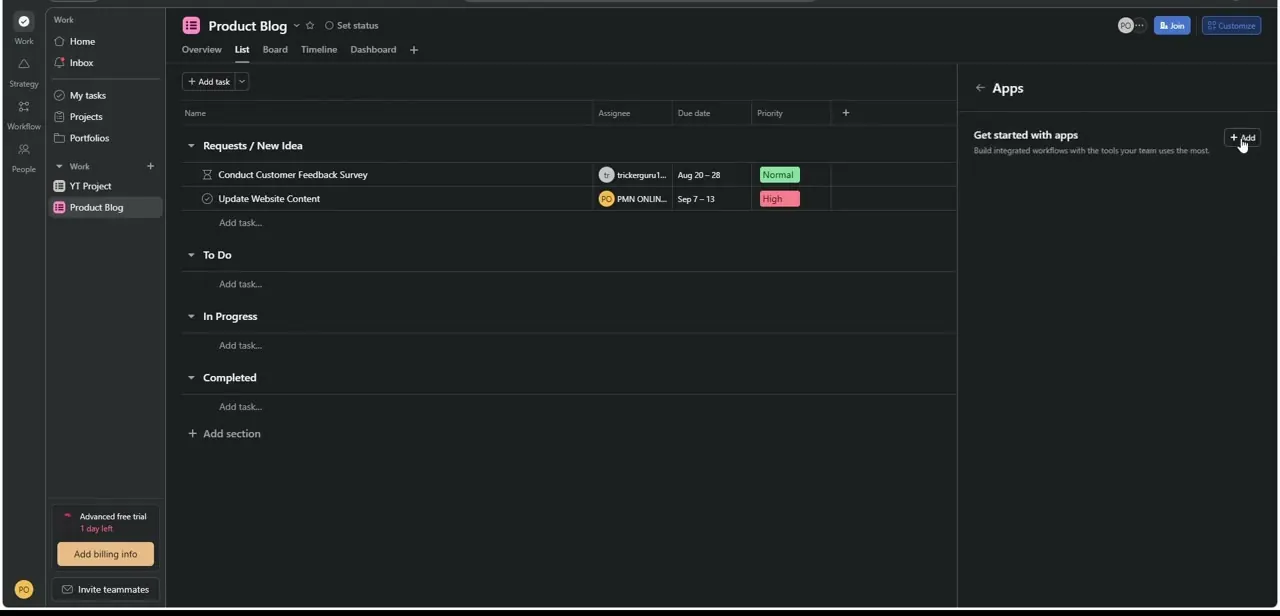
Integrations can also be started from inside Asana itself. Open a project, click the Apps icon in the side panel, and you'll see a "Get started with apps" prompt with an Add button: Asana's own directory for connecting outside tools, mirroring what you just did from the Slack side. Doing this per project is useful if you only want certain projects, like a specific client board, feeding into Slack instead of everything in your Asana account at once.
04Confirm the connection with the welcome message
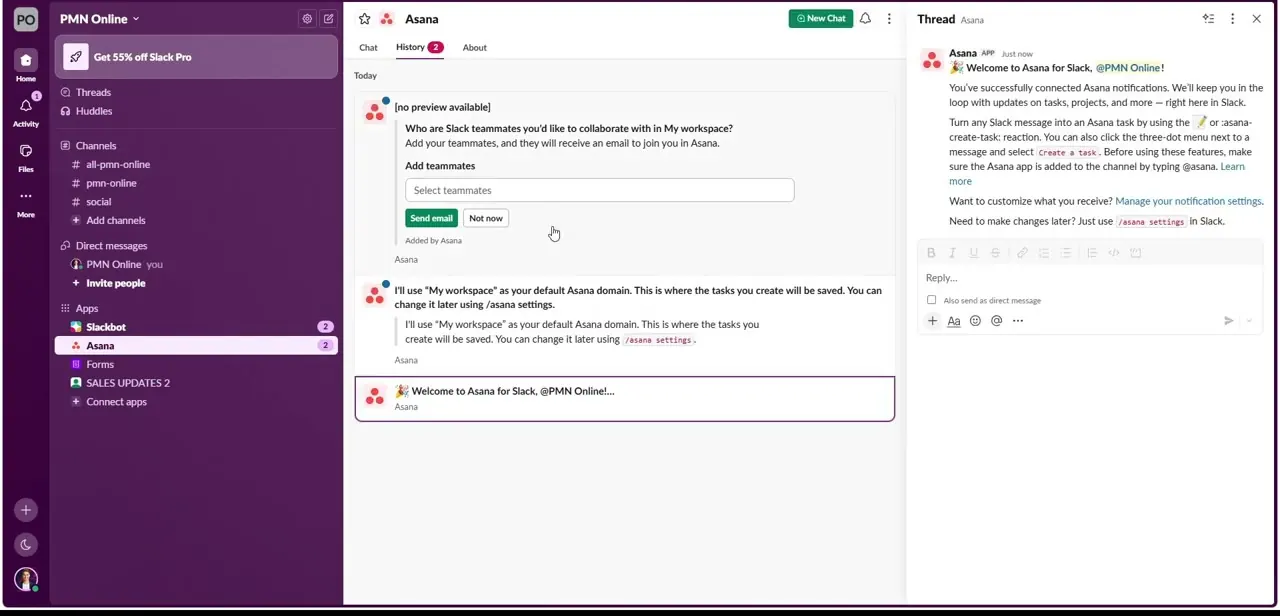
Once linked, Asana posts a welcome thread in Slack confirming the setup. It states the default it's applying too: "My workspace" as the default Asana domain for any task you create, until you switch it. Read this message in full the first time; it also links to the notification settings you'll want later.
05Link a channel to a project
Task updates don't reach a channel until you tell Asana which project to watch. In that channel, run /asana link and pick the project; running the same command again is also how you disconnect a channel later.
Run /asana settings separately to control your own personal notifications, like whether task assignments message you directly. It doesn't touch the channel-to-project link itself, that's what /asana link is for.
06Turn a Slack message into an Asana task
Once the app is added to a channel, by typing @asana in it, react to any message with the memo emoji, 📝, to create a task instantly from that message and its thread replies. Asana added this shortcut in late 2025, and it's the faster of the two routes.
For more control before the task exists, hover over the message instead, open its actions menu, and choose the option to turn it into an Asana task; that opens a dialog where you can set an assignee, due date and project before saving. Either way, the message text becomes the task's starting content, and you can add detail afterward from Asana directly.
When it doesn't work
Reacting with the memo emoji doesn't create a task
Why: The Asana app hasn't been added to that channel, or, for a direct message, isn't part of the group DM.
Fix: Type @asana in the channel to add the app first, or add it to the group DM before reacting.
Task updates aren't posting to the channel
Why: The channel was never linked to a project, or notifications for it were turned off.
Fix: Run /asana link in that channel and select the project, then check your personal notification settings with /asana settings.
New tasks default to the wrong Asana workspace
Why: The integration defaults to "My workspace" until you change it, which the welcome message states but is easy to miss on a first read.
Fix: Use the settings link in the welcome message, or /asana settings, to switch the default workspace.
Frequently asked questions
Will task status updates show up automatically in Slack?
Yes, once a project is linked to a channel with /asana link, status changes and new task alerts stream in there, with the detail configurable through the app's notification settings.
How do I create a task from a Slack message?
React to it with the memo emoji, 📝, for an instant task using the message as its content, or open the message's actions menu for a dialog where you can set an assignee, due date and project before saving.
Do I need an Asana account to use this integration?
Yes, you need an active Asana account with access to the workspace and project you want connected. The app defaults to "My workspace" until you change it.
What's the difference between /asana link and /asana settings?
/asana link connects or disconnects a channel from a specific Asana project. /asana settings controls your own personal notification preferences and doesn't touch the channel-project link.
Can I add Slack from inside Asana instead of Slack's App Directory?
Yes, opening a project's Apps panel in Asana and clicking Add starts the same kind of connection from that side, useful for linking specific projects one at a time.
Sources and last check
Click path and screens come from a walkthrough recorded in July 2025, before Asana added the memo-emoji task shortcut. Re-checked against Slack's official Asana app listing and Asana's own product announcement in September 2026. That check added the 📝 reaction as the current fast path and corrected the article's earlier description of /asana settings, which controls personal notifications, not the channel-to-project link that /asana link handles. Asana's own Slack help article could not be retrieved directly in this session; its full content was blocked to automated fetching, so this verification relies on Slack's and Asana's own reachable pages instead.
About the author

Impran M N
I've been hooked on technology for as long as I can remember — especially the new tools and AI apps that seem to land every other week. Easy Tech Tuts is where I write up whatever I've just worked out: I do the task in the real product, record the screen, and turn it into the guide I wish I'd found first.