Easy Tech Tuts
How to Integrate Asana With Jira
By Impran M NLast checked against official docs
It's common for a business or marketing team to plan in Asana while engineering tracks the same work in Jira, and without a link between them someone ends up copying status updates back and forth by hand. Asana publishes its own Jira Cloud app for exactly this reason, built and maintained by Asana rather than a third-party workaround. What it can actually do for a given team depends heavily on the Asana plan that team is on, more than the setup itself.
Before you start
- Admin or project-owner permissions in the Asana project you're connecting
- Access to authorize the app against the Jira Cloud site you want to link
01Know what you're connecting on each side
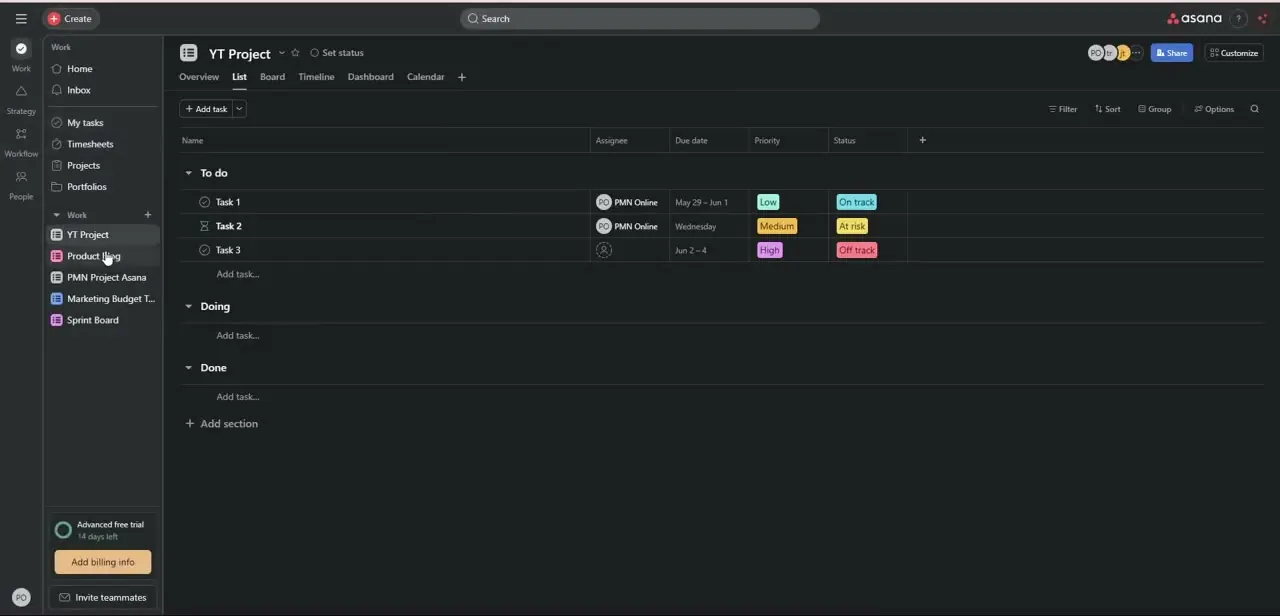
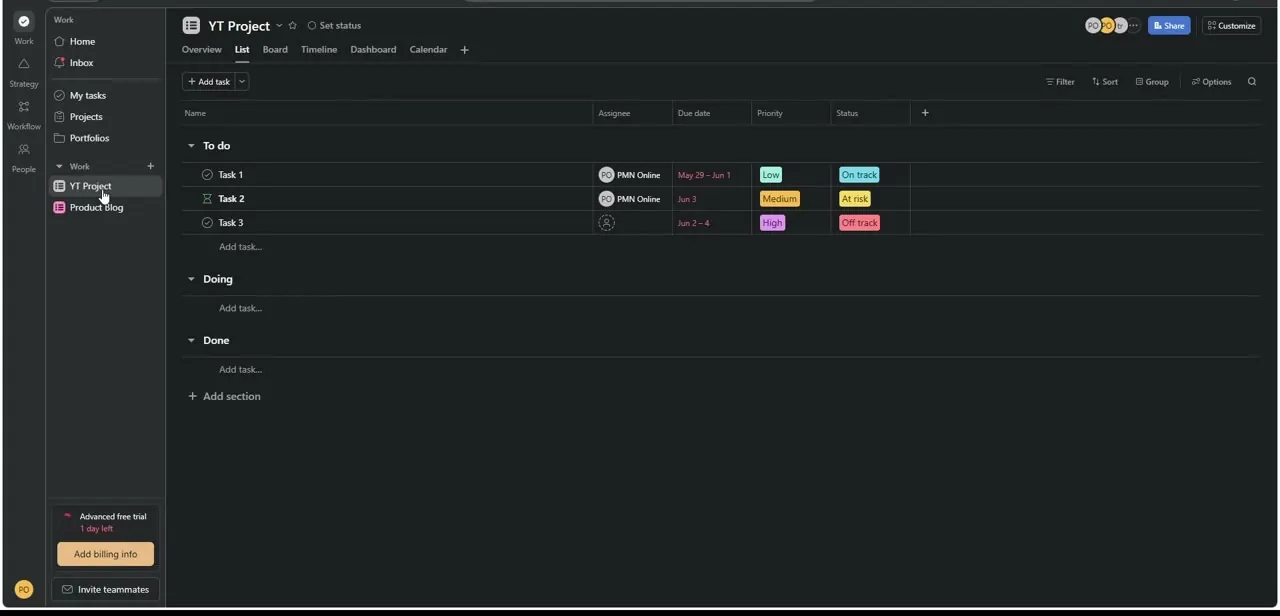
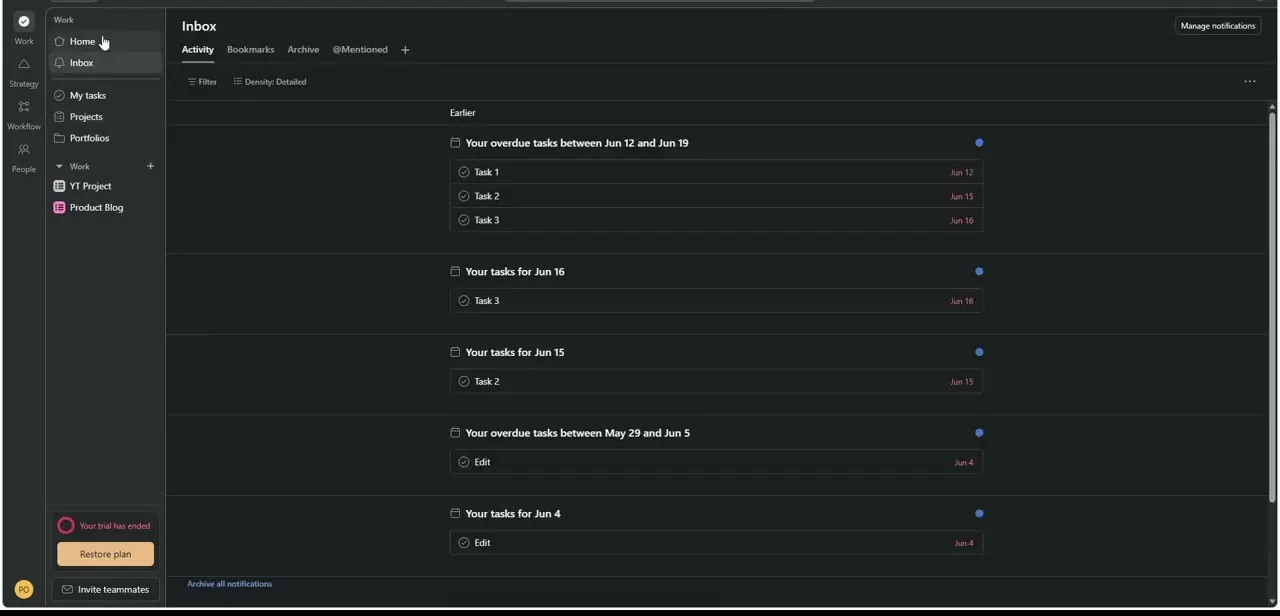
Asana's Home and Inbox are where business-side users track their own tasks and notifications: overdue items, due-today items, activity grouped by date. On the Jira side, work lives in projects or spaces with items like epics, stories, and tasks carrying their own keys, such as TS-8 or POS-3. The integration's job is to let someone living in the Asana view see and act on what's happening in a Jira space like that, without needing a Jira login.
02See the Jira side you're syncing against
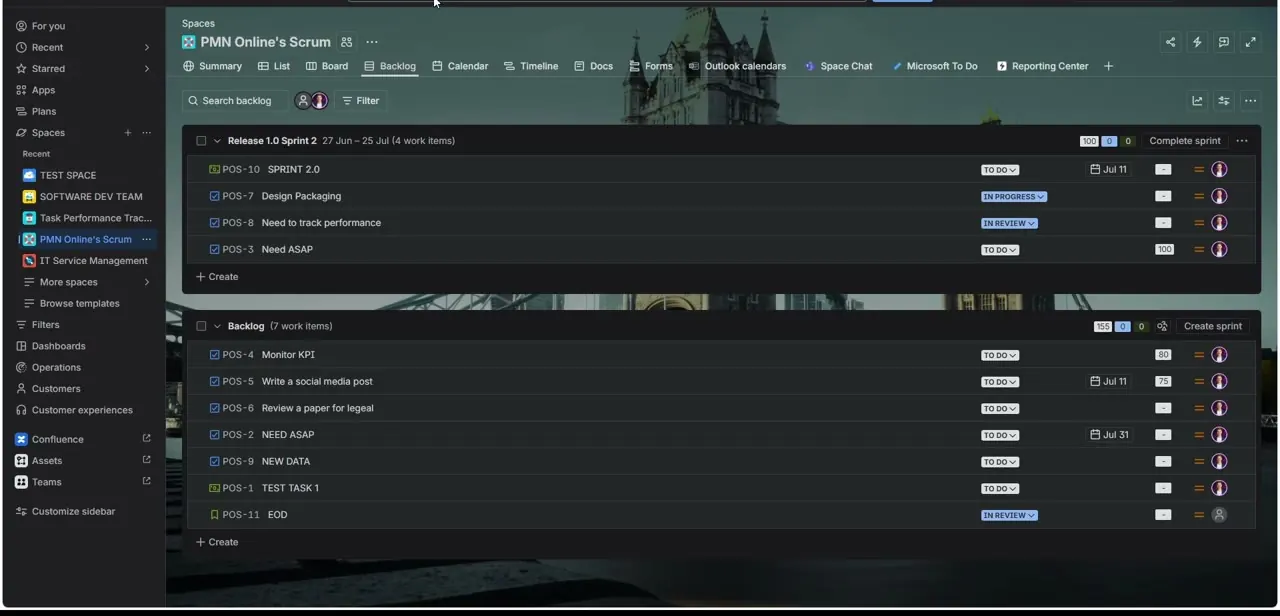
A typical Jira space, like a Scrum backlog, organizes work into an active sprint and a backlog underneath it, with each item showing a status (To Do, In Progress, In Review), a due date, story points, and an assignee avatar. This is the granular, engineering-facing view the integration reaches into. When someone in Asana wants an update on a task like "Design Packaging," the Jira Cloud app is what pulls that status back without them opening Jira directly.
03Install Jira Cloud from the project's Apps menu
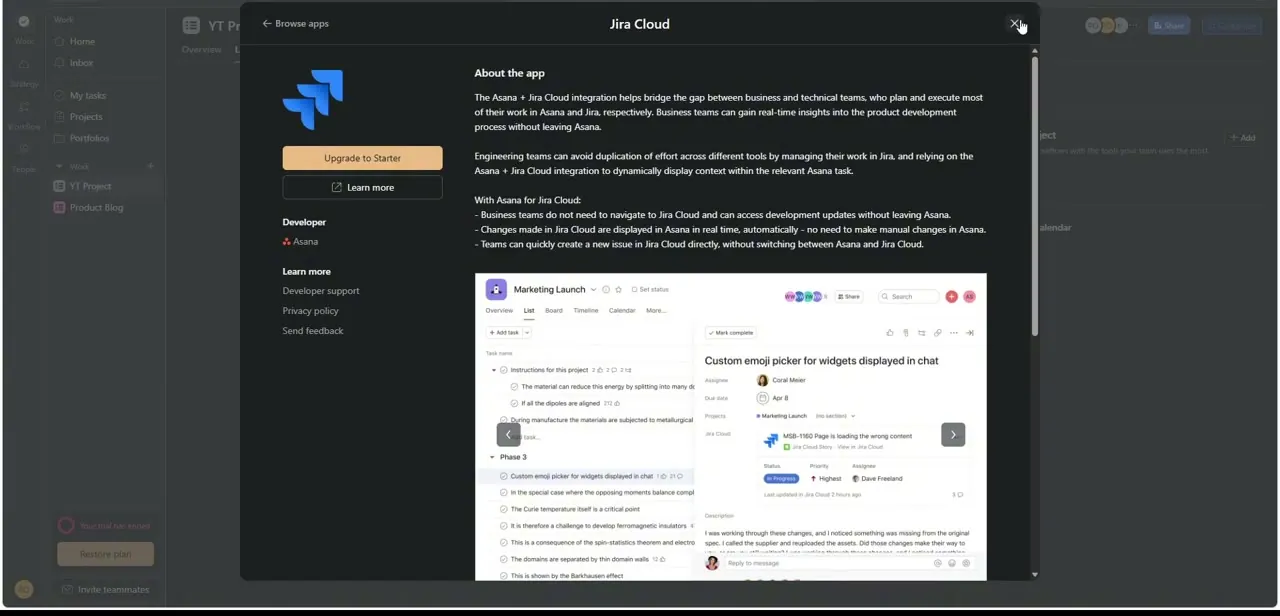
Inside an Asana project, click Customize, then Apps, and search for Jira Cloud (Browse apps works the same way if you're starting from outside a project). The listing is developed by Asana itself and lays out the split plainly: business teams get Jira updates without leaving Asana, and engineering teams keep working in Jira while their changes surface on the linked Asana task. Click Connect to Jira Cloud and authorize the connection against the Jira site you want linked.
04Check what your plan actually unlocks
Once connected, open the app's Data sync setting tab. This is where the plan difference shows up directly: on Business or Enterprise, you can configure full two-way sync between an Asana project and a Jira project, choosing which fields carry across and whether comments sync too.
On Starter, that tab is largely unavailable; you're limited to creating an Asana task from a Jira issue and viewing a Jira widget on a task, one direction, not a live two-way sync. Confirm which tier your workspace is on before telling a team to expect automatic two-way updates.
05Review the permissions before authorizing
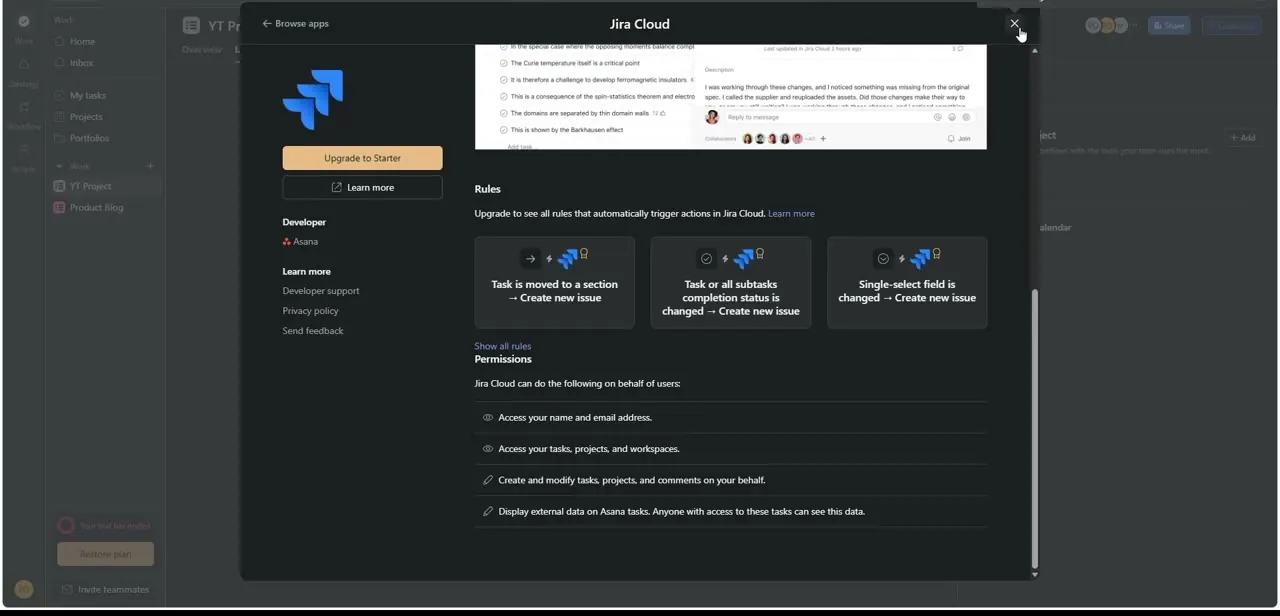
The install screen lists what Jira Cloud can do once connected: access your name and email, access your tasks, projects, and workspaces, create and modify tasks and comments, and display external Jira data on your Asana tasks, visible to anyone who already has access to those tasks. That last point matters for anything sensitive, since linking a Jira issue to a shared Asana task makes that Jira context visible to every collaborator on the task, not just you.
06Link a task and confirm the sync direction
With the app installed, open an Asana task, find the Jira Cloud option in the task's app row, and either link it to an existing Jira issue or create a new one. Test with something low-stakes: link one task, change its status in Jira, and confirm the update lands on the Asana side. If you're on Business or Enterprise, also confirm the sync direction you configured (Asana to Jira, Jira to Asana, or both) is behaving the way you set it up before rolling the app out more broadly.
| Plan | What you get |
|---|---|
| Free / Personal | Not listed as a supported tier for this integration |
| Starter (formerly Premium) | Create an Asana task from a Jira issue; view a read-only Jira widget on a task |
| Business / Enterprise (also called Advanced) | Full two-way Data Sync between Asana and Jira, plus Rules that auto-create issues from Asana triggers |
Plan names vary by when a workspace signed up; Asana has used both Premium/Business and Starter/Advanced branding for the same tiers.
Frequently asked questions
Is there a native integration between Asana and Jira?
Yes. Asana publishes and maintains its own Jira Cloud app, installable from a project's Apps menu, rather than requiring a third-party connector.
Does the Asana Jira Cloud integration cost money?
Full two-way sync and Rules-based automation require a Business or Enterprise plan. A Starter plan gets one-directional task creation and a widget only; a free workspace isn't listed as supported at all.
Can updates sync in both directions?
Only on Business or Enterprise, through the app's Data sync setting tab, where you choose the sync direction and which fields carry over. Lower tiers get a narrower, one-directional feature.
Who can see the Jira data linked to an Asana task?
Anyone with access to that Asana task can see the displayed Jira data, so avoid linking sensitive Jira issues to tasks with broad sharing permissions.
Are there alternatives to Asana's own Jira Cloud app?
Asana's own app listing also points to third-party options like Unito and Zapier for teams that want different sync behavior or don't want to upgrade their Asana plan.
Sources and last check
Click path and screens come from a recorded walkthrough. The plan-gating details, what a free workspace does and doesn't get, and the Starter-versus-Business/Enterprise split, were checked against Asana's own app listing pages in September 2026 and correct the earlier version of this guide, which described basic linking as available on a free workspace.
About the author

Impran M N
I've been hooked on technology for as long as I can remember — especially the new tools and AI apps that seem to land every other week. Easy Tech Tuts is where I write up whatever I've just worked out: I do the task in the real product, record the screen, and turn it into the guide I wish I'd found first.