Easy Tech Tuts
How To Connect Asana to Notion Easily 2026
By Impran M NLast checked against official docs
Keeping documentation in Notion while managing tasks in Asana usually means retyping the same information twice, with a status update in one place that someone forgets to mirror in the other. The native integration closes that gap: connect the two accounts once, then paste an Asana project link into a Notion page to pull in a live view of its tasks. This guide follows the connection flow starting from inside Asana, through its app directory, to the Notion authorization screen, and covers a detail both apps' own help pages leave easy to miss: the resulting Notion table is read-only.
01Start from the Asana project you want to connect
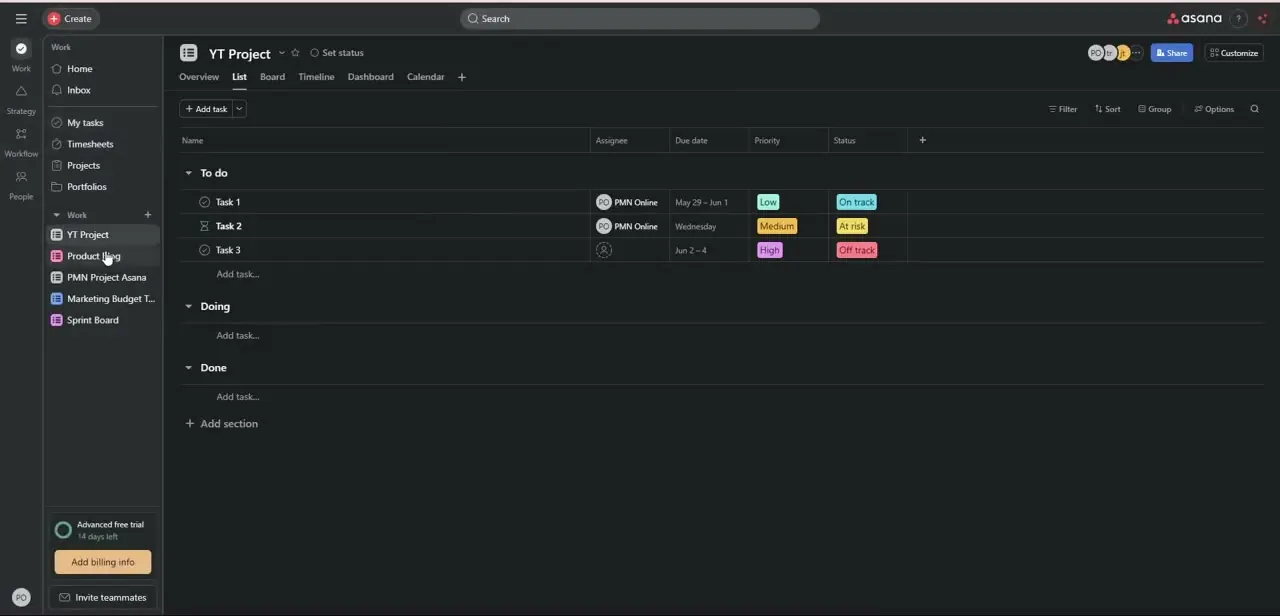
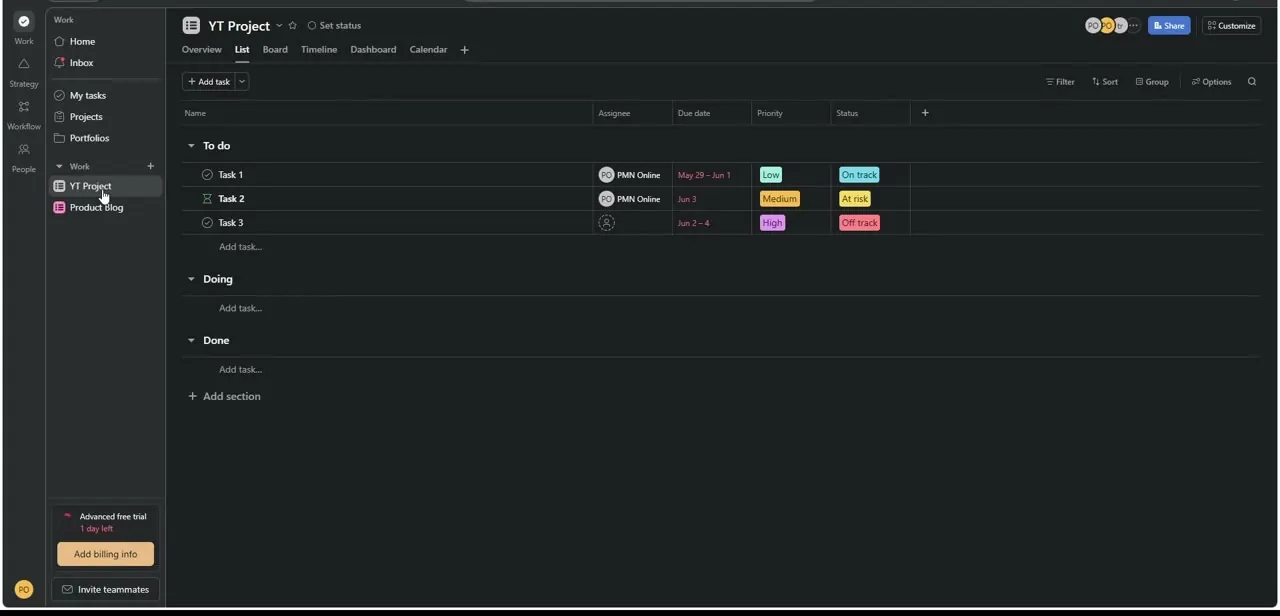
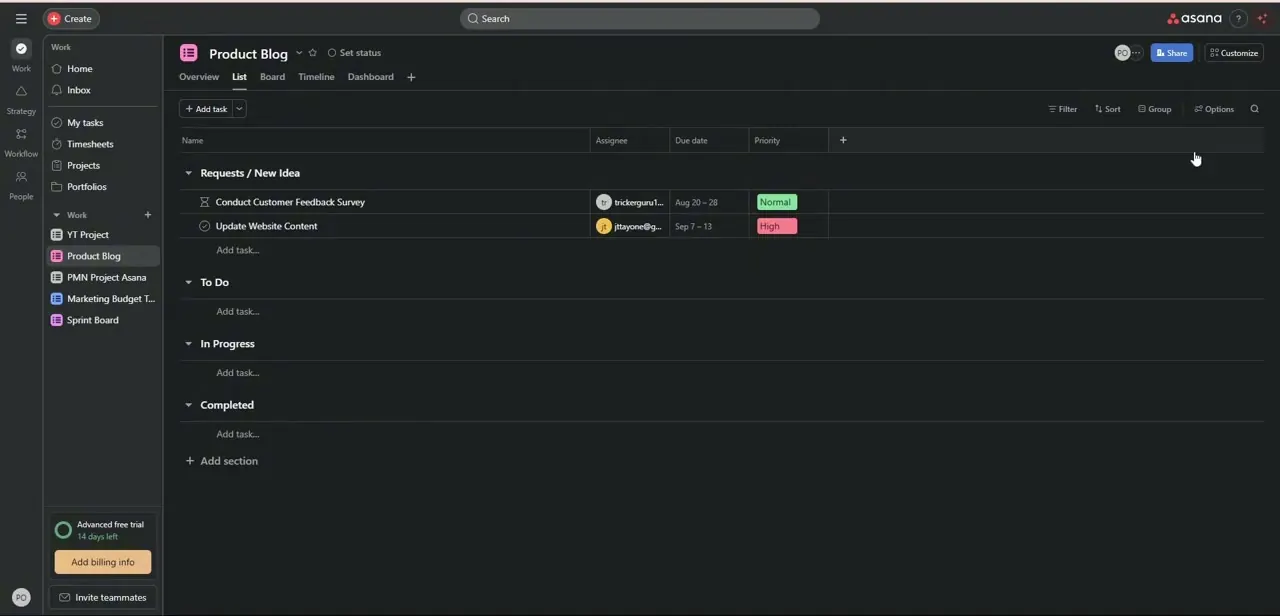
Open the Asana project that holds the tasks you want reflected in Notion, in this walkthrough a "Product Blog" project with sections like Requests / New Idea, To Do, In Progress, and Completed. Note the project's structure before connecting anything. Task names, assignees, due dates, and priority columns are what will map into Notion once the two are linked, so have the List view open and organized first.
02Open Asana's Add apps directory
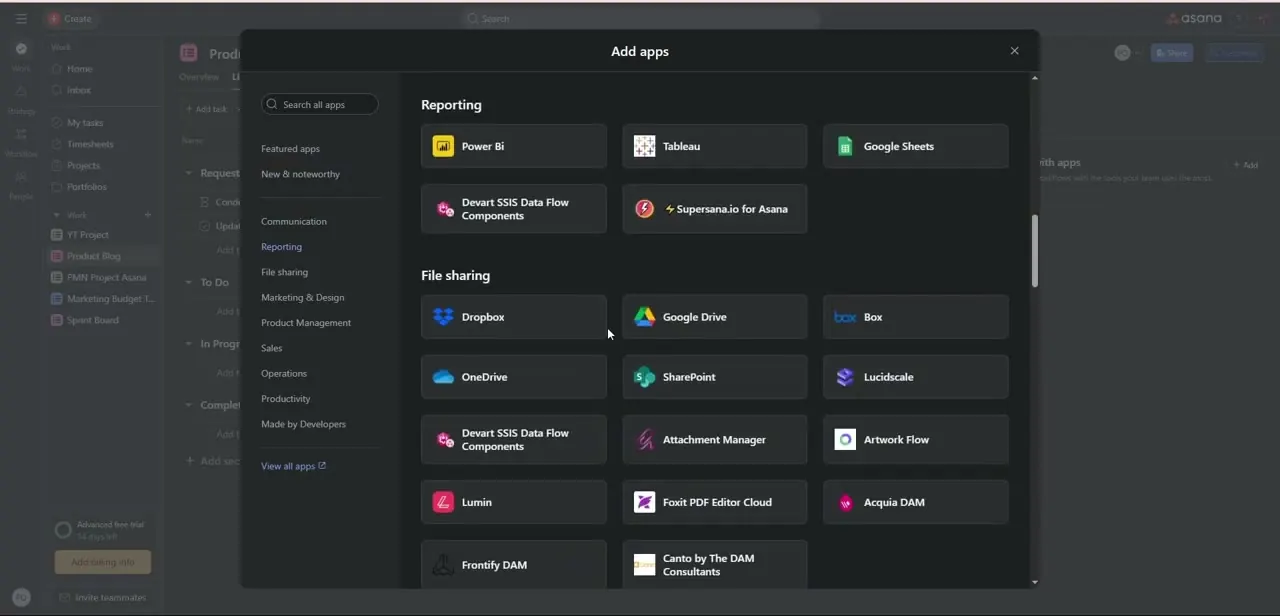
From the project header, open the apps menu to bring up the Add apps modal. It's organized into categories down the left side (Featured apps, Communication, Reporting, File sharing, Marketing & Design, Product Management, Sales, Operations, Productivity, and Made by Developers), with a search bar at the top if you'd rather type the app name than browse.
This is Asana's general integration marketplace, so alongside Notion you'll see reporting tools like Power BI and Tableau and file-sharing apps like Dropbox and Google Drive, all installed and managed from the same panel. Notion's own help center describes the connection being installed from Notion's side instead, under Settings & Members → My Connected Apps, so either starting point gets you to the same result.
03Authorize the connection between the two accounts
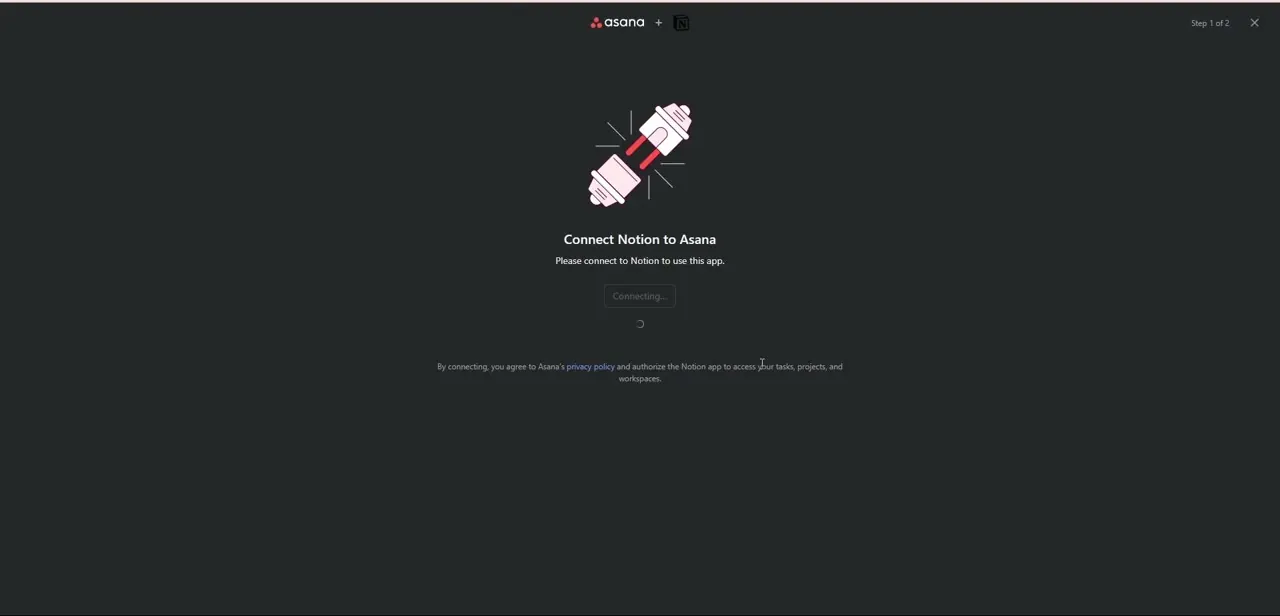
Selecting Notion from the directory opens an authorization screen titled "Connect Notion to Asana," marked Step 1 of 2. A short line of fine print explains that connecting means agreeing to Asana's privacy policy and authorizing the Notion app to access your tasks, projects, and workspaces.
Read that line before clicking through, since it grants read access to your Asana data. The screen shows a brief "Connecting..." state while the two accounts establish the link.
04Copy a project or task link from Asana
Once the accounts are connected, go back to the Asana project or task you want in Notion and copy its share link from the browser address bar or the item's share menu. This link is what Notion uses to identify which project or task to pull in: a task link brings in a single item, and a project link brings in the full list.
05Paste the link into Notion and choose Paste as database
In your Notion page, paste the Asana link directly. Notion recognizes the URL and offers a small menu of options, not just one: create a plain bookmark, Paste as preview for a rich card showing due date and assignee, or Paste as database for a full synced table that mirrors the project's task list with its own columns for each Asana property.
Choosing the synced database option is what makes this more than a bookmark. Notion's help documentation is specific about one limitation worth knowing before you pick this option: the sync runs one direction only. Content updates automatically when something changes in Asana, but you cannot edit a task's due date, assignee, or status from inside the Notion table itself; that change has to happen back in Asana first.
06Adjust the view without expecting to edit the data
Once the synced database appears in Notion, you can switch its layout between List, Board, or Table view, filter and sort it, and choose which Asana fields show as columns, the same as any native Notion database. What you can't do is type over a cell and have it stick: the underlying data stays locked to Asana. A project manager can read the same live task list as a Notion table without leaving Asana or re-entering anything, but changing a task still means opening it in Asana.
Frequently asked questions
Where do I connect Asana and Notion, from Asana or from Notion?
Either works. You can add the Notion app from Asana's Add apps directory, or connect Asana from Notion's Settings & Members → My Connected Apps screen; both paths lead to the same account authorization.
What does Notion gain access to when I authorize the connection?
The authorization screen states that connecting grants the Notion app access to your Asana tasks, projects, and workspaces, so review that line before confirming.
Can I edit an Asana task from inside the synced Notion table?
No. Notion's synced databases only sync one direction, Asana to Notion. Changing a due date, assignee, or status has to happen in Asana; Notion will pick up the change on its next sync, not the other way around.
What's the difference between Paste as preview and Paste as database?
Paste as preview shows a single rich card for one task or project. Paste as database creates a full synced table covering every task in the project, with its own columns and filters inside Notion.
Can I change how the synced tasks are displayed in Notion?
Yes. You can switch between List, Board, or Table view and choose which Asana properties appear as columns. Display and sorting are editable in Notion; the task data itself is not.
Sources and last check
Click path and screens come from a walkthrough recorded in July 2025. The paste options and sync direction were re-checked against Notion's official help center in September 2026, which corrected two things this guide previously got wrong: pasting an Asana link offers three choices, not two, and the resulting synced database can only be edited from Asana, not from Notion.
About the author

Impran M N
I've been hooked on technology for as long as I can remember — especially the new tools and AI apps that seem to land every other week. Easy Tech Tuts is where I write up whatever I've just worked out: I do the task in the real product, record the screen, and turn it into the guide I wish I'd found first.