Easy Tech Tuts
How to Contact TurboTax Support Easily 2026
By Impran M NLast checked against official docs
Running into a technical issue or tax question while filing can slow you down, and the fastest fix is often built into the screen you're already on. This guide covers where TurboTax's in-product support tools live, what happens when the free AI panel isn't enough, and the one thing the panel doesn't make obvious: "Connect with an expert" isn't free unless you're already on a plan that includes it.
01Start from Tax Home
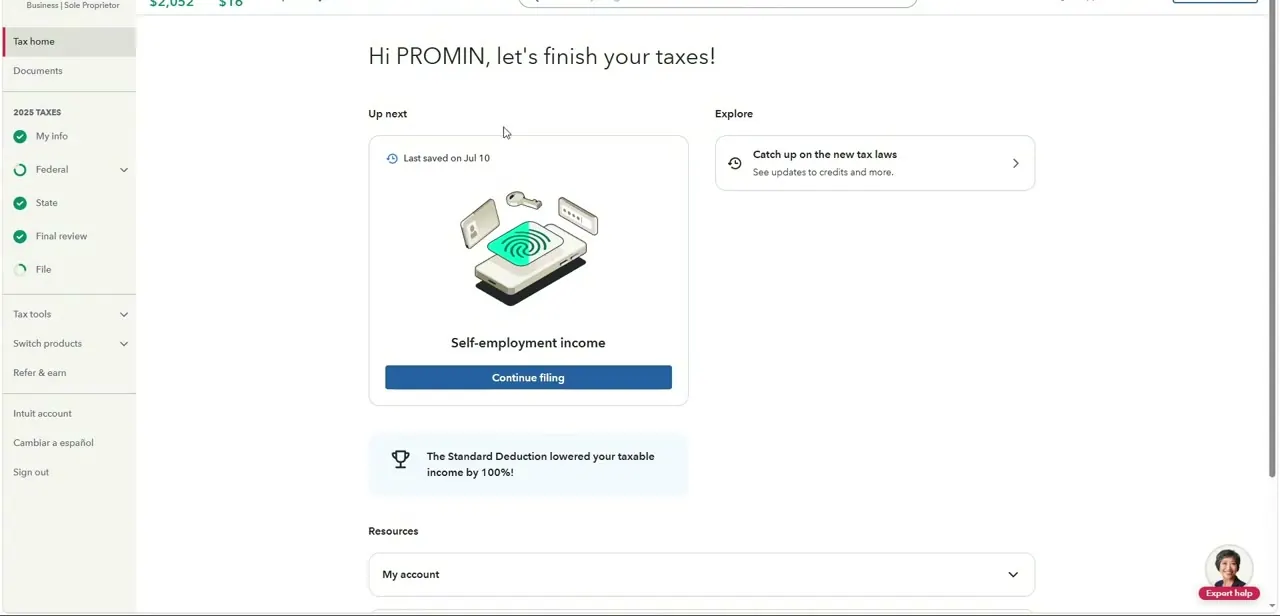
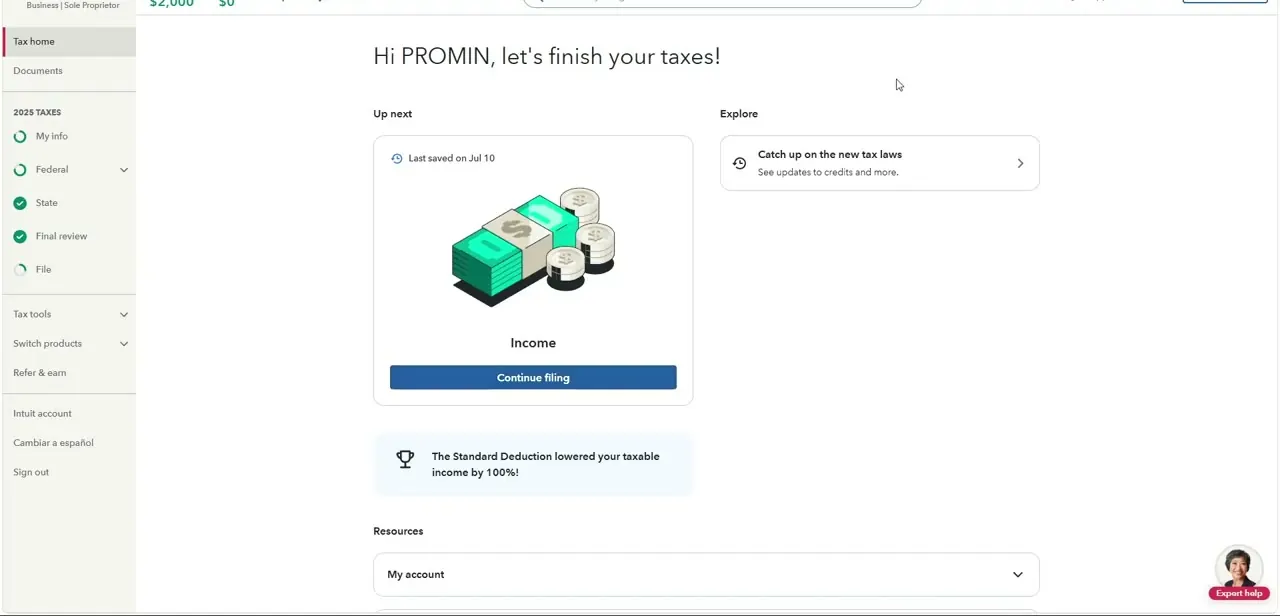
Support isn't a separate page you navigate to. It surfaces contextually from wherever you are in your return, most visibly from Tax Home.
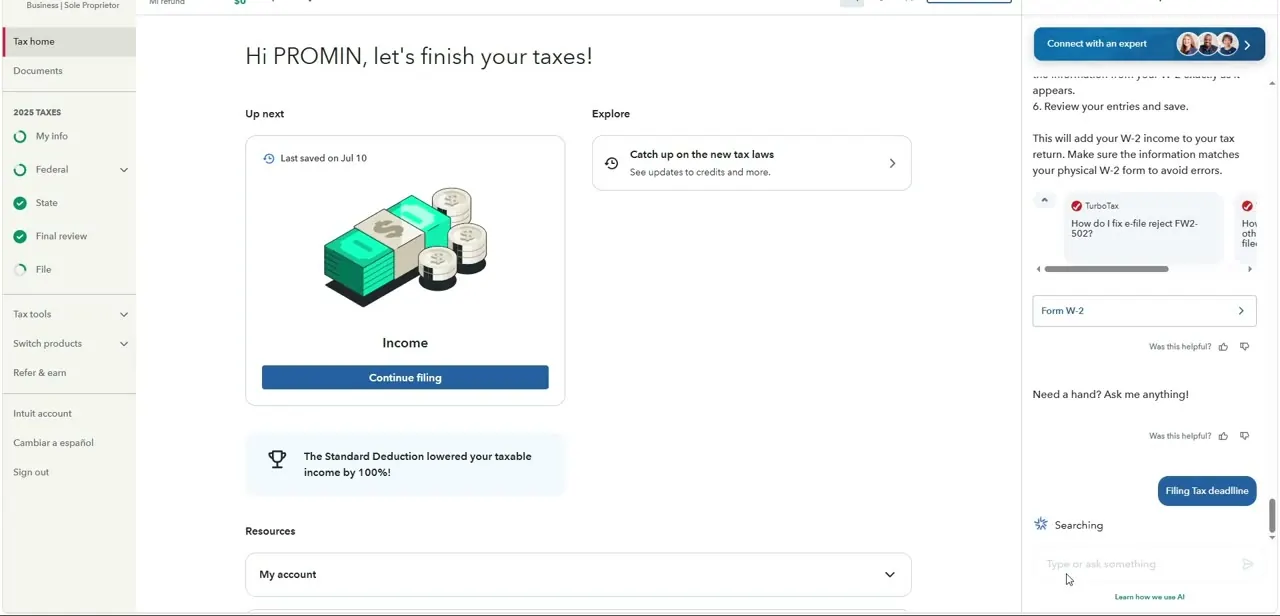
The dashboard shows your progress checklist on the left (My Info, Federal, State, Final review, File) and an "Up next" card pointing you toward whatever section you left off. Support options appear as you continue through this flow instead of sitting in a fixed menu, which is why a lot of users miss them on a first pass.
02Open the built-in assistant panel for specific questions
A right-hand panel opens as you work, with an AI-driven help section that answers questions in place. In the video it shows a suggested question, "How do I fix e-file reject FW2-502?", alongside a free-text box reading "Need a hand?
Ask me anything!". This is the fastest first stop for anything specific: error codes, form questions, or where a particular field lives. It answers instantly instead of putting you in a queue, and it's part of the product at no extra cost.
03Ask it policy questions too, not just errors
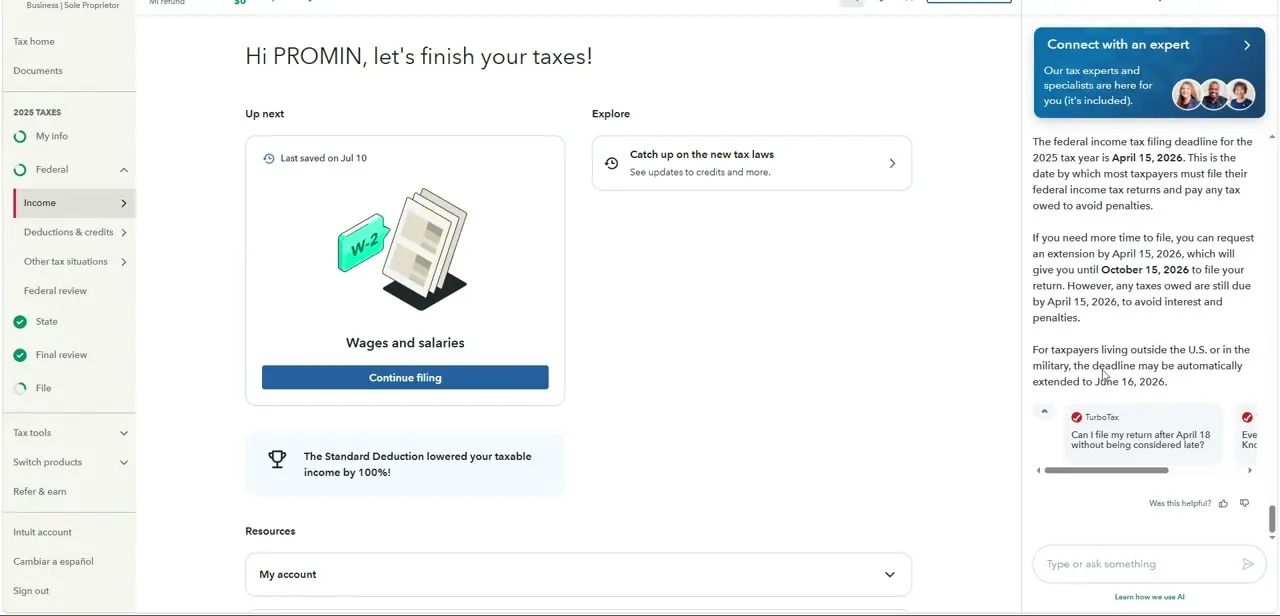
The same panel handles questions beyond troubleshooting a specific screen. Asked about deadlines, it returned a written answer citing the federal filing deadline, the extension process and its October date, and the automatic extension for taxpayers living outside the U.S. or in the military. If your question is about a rule or a date rather than a broken screen, try phrasing it directly in this box before searching help articles separately.
04Know what Connect with an expert actually involves before you click it
A "Connect with an expert" banner sits above the assistant panel. It routes you toward a human without leaving your return, but whether that call is free depends on what you've already paid for.
Unlimited expert access is included with Expert Assist and Expert Full Service; outside those, starting a call can prompt a $60 charge or an upgrade offer rather than connecting you immediately. If your question involves your specific numbers rather than a general rule, and the AI panel hasn't resolved it, this is the next step, but check what your product tier includes first.
05Have your details ready before you escalate
Whether you're using the AI panel or connecting with an expert, specificity gets you a faster answer. Have the exact error message or code on hand (the FW2-502 reject code shown in the panel is a good example), which section of the return you're in, and what you were trying to do when the issue appeared. A vague description like "it's not working" tends to bounce back a request for more information before anyone can help.
06Call or use the general support site if you're outside your return
None of the in-product tools above are reachable if you're not actively inside a return, for instance if you're deciding which product to buy or you've been locked out. For that, TurboTax's separate contact page (ttlc.intuit.com/turbotax-support) lists a general phone line, 1-800-4-INTUIT (1-800-446-8848), alongside community forums and help articles. Hours aren't fixed year-round; check the contact page itself rather than assuming a single schedule applies during and after filing season.
When it doesn't work
Clicking "Connect with an expert" leads to a payment or upgrade screen instead of a call
Why: Unlimited live expert access only comes bundled with Expert Assist and Expert Full Service. Starting a call from other tiers, including TurboTax Desktop's Live Tax Advice, is billed separately at $60.
Fix: Check what your specific product includes before starting the call, or try the free AI assistant panel first if your question doesn't need a specific number reviewed.
You can't find a phone number anywhere inside your return
Why: Support is contextual and surfaces as panels while you work; a phone number isn't part of that in-return flow.
Fix: Go to TurboTax's separate contact page at ttlc.intuit.com/turbotax-support and call 1-800-4-INTUIT (1-800-446-8848), or use the community and help articles listed there.
W-2 or 1099 data didn't carry over correctly
Why: An import from an employer or broker didn't match cleanly with your return.
Fix: Re-run the import or enter the figures manually from the physical form, and ask the AI assistant panel by the exact error or reject code if e-filing then fails.
Frequently asked questions
Does TurboTax offer live chat or an AI assistant?
Yes. An AI-driven help panel sits inside your return and answers specific questions, like error codes or deadline rules, instantly and at no extra cost.
Is "Connect with an expert" free?
Not automatically. Unlimited expert access is included with Expert Assist and Expert Full Service products. Starting a call outside those tiers, for example from TurboTax Desktop's Live Tax Advice, is billed at $60.
Can I call TurboTax by phone?
Yes, at 1-800-4-INTUIT (1-800-446-8848) through TurboTax's separate contact page, which also lists community forums and help articles. This number isn't surfaced inside the return itself.
What are the most common issues the in-product tools help with?
Data import problems, like W-2 information not transferring correctly, and e-file reject codes or form navigation questions come up most often, and both are the kind of specific question the AI panel handles well on its own.
Should I try the AI assistant before paying for a live expert?
For a specific, well-defined question, yes; the AI panel usually answers instantly and it's free. Save the paid expert option for issues tied to your specific numbers or ones self-help doesn't resolve.
Sources and last check
Click path and screens come from a walkthrough recorded in July 2025. The cost of live expert access and the general phone contact channel were re-checked against TurboTax's official support articles in September 2026. That check corrected the original draft's implication that Connect with an expert is simply free, and added the phone number and separate contact page, which the original draft never mentioned. Support hours are not stated in the fetched contact page, so this guide doesn't repeat a specific schedule.
About the author

Impran M N
I've been hooked on technology for as long as I can remember — especially the new tools and AI apps that seem to land every other week. Easy Tech Tuts is where I write up whatever I've just worked out: I do the task in the real product, record the screen, and turn it into the guide I wish I'd found first.